Convert legacy Report Builder workbooks
The legacy Report Builder is end-of-life in June 2026. You should migrate your workbooks from the legacy Report Builder to the new Report Builder. The new Report Builder provides a convenient way to migrate workbooks quickly that are created with the legacy Report Builder.
See

Open a legacy workbook
To open a legacy workbook, you can:
-
Open a scheduled legacy workbook from the Schedule tab in the Report Builder hub. This action is the preferred method for scheduled legacy workbooks. You get the option to use the schedule that is associated with the legacy workbook as soon as you schedule the converted legacy workbook.
-
Open Excel and select

-
Select Login and log in to Report Builder.
-
Select Schedule in the Report Builder hub.
-
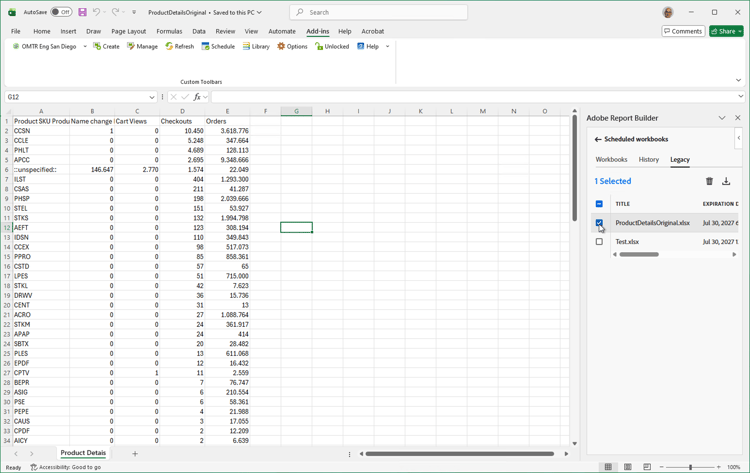
Select the Legacy tab. The tab lists the legacy Report Builder based scheduled workbooks that you have created.
-
Select


-
-
Open a legacy workbook directly from your local computer or network. When you use this method, you are not offered to use the schedule that might be associated with the legacy workbook.
When the legacy workbook is open in Excel:- Select
- Select Login and log in to Report Builder.
- Then convert the legacy workbook.
- Select
Convert a legacy workbook
To convert your legacy workbook:
-
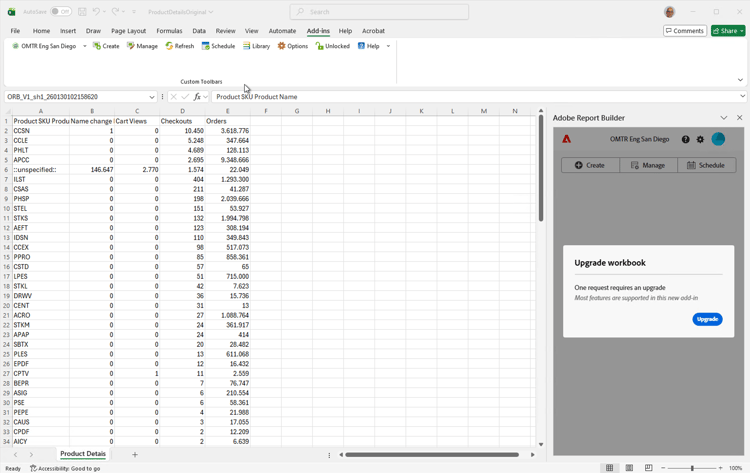
Once you open a legacy workbook, the new Report Builder detects if this workbook contains legacy Report Builder requests.
-
If one or more legacy requests are found, click Upgrade in the Upgrade workbook dialog to upgrade the workbook.
note note NOTE You have to upgrade each request individually. Bulk upgrade is not supported. -
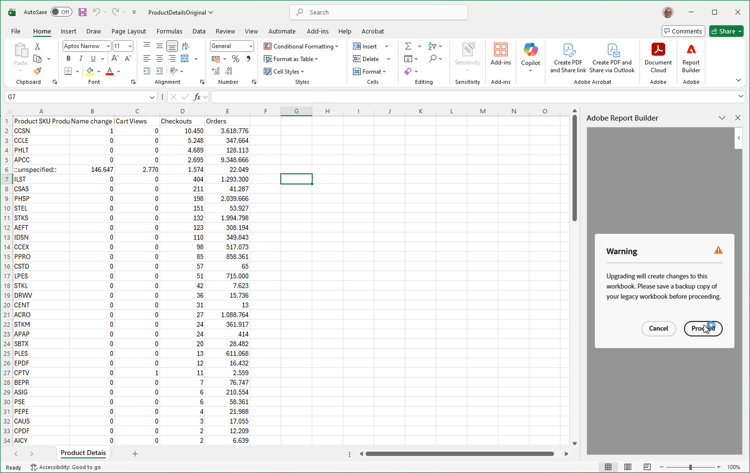
A Warning dialog appears that alerts you to changes to the workbook if you upgrade. It also urges you to create a backup of your legacy workbook before proceeding.
-
Click Proceed to continue with the upgrade.
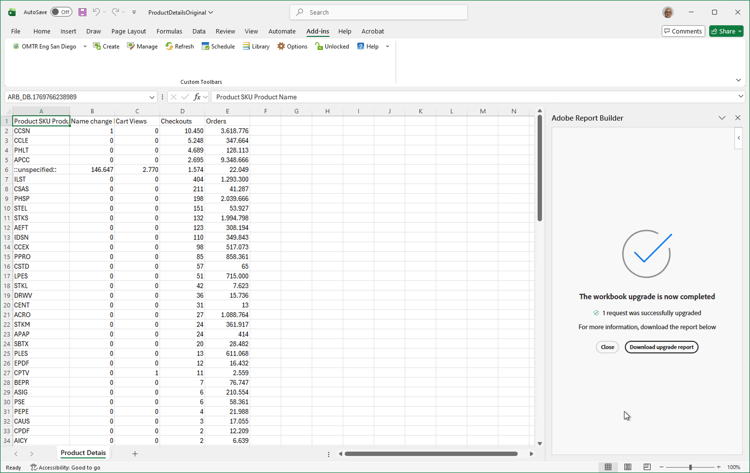
If the upgrade is successful, a The workbook upgrade is now completed notification appears.
-
Select Close to close the notification and continue to work in the workbook with updated requests for the new Report Builder.
-
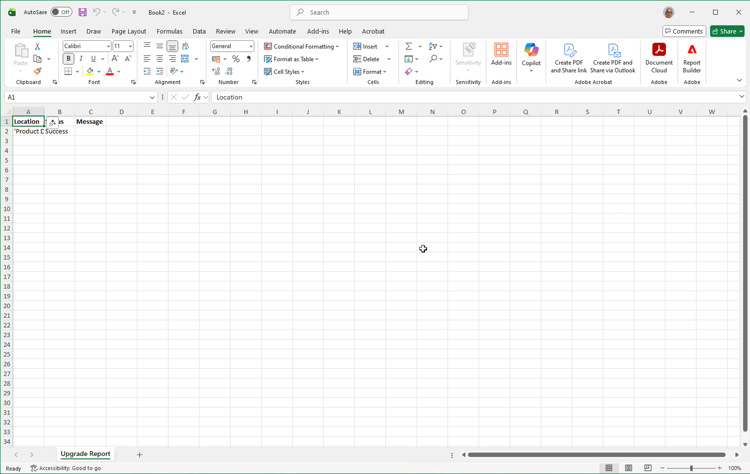
Select Download upgrade report to download and open a new Excel workbook that shows the result of the upgrade. For an example, see below.
-
You can now manage the data blocks in the workbook. These data blocks are the result of the upgrade and replace your legacy Report Builder requests.
Schedule a converted legacy workbook
You have the option to use the schedule details from the legacy workbook that you have downloaded and opened from the Schedule tab in the Report Builder hub. This option is not available for legacy workbooks with schedule details that you open from your local computer or network.
-
To schedule a converted legacy workbook with a legacy schedule:
- Select Send workbook from the Report Builder hub, or
- Select Schedule workbook from the Workbooks tab available in the Schedules tab in Report Builder.
-
You are offered to use the schedule details from the legacy workbook as the default schedule settings.
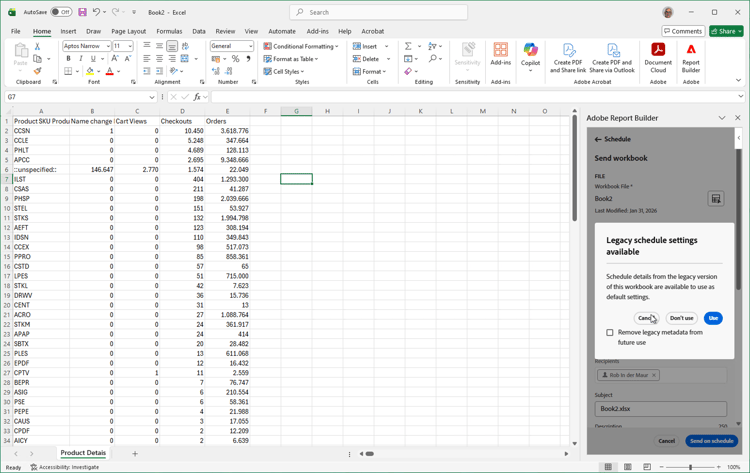
- Select Use to use the legacy schedule details. The schedule details are prepopulated in the Send workbook interface.
- Select Don’t use to not use the legacy schedule details.
- Select Cancel to cancel.
Select Remove legacy metadata from future use to not use the legacy schedule details for this workbook in the future.
Migrate from legacy Report Builder
Some features of the legacy Report Builder are not supported, partially supported, or implemented differently in Report Builder:
-
Real-time requests. Real-time requests are not supported and are removed from the converted legacy workbook.
-
Path/Fallout reporting. Fall-out requests are not supported and are removed from the converted legacy workbook.
-
FTP option for scheduled reports. The option to schedule reports to send to an FTP location is no longer available.
-
Publish workbook to Power BI option for scheduled reports. The option to schedule reports to Power BI is no longer available.
-
Visitors metrics. The following metrics are converted to unique visitors in the converted legacy workbook, even though the reporting result may not be an exact match:
visitorshourly,visitorsdaily,visitorsweekly,visitorsmonthly,visitorsquarterly, andvisitorsyearly. This conversion also applies tomobilevisitorshourly,mobilevisitorsdaily,mobilevisitorsweekly,mobilevisitorsmonthly,mobilevisitorsquarterly, andmobilevisitorsyearly. -
Automatic re-authentication. When you open a new Excel file, you need to re-authenticate explicitly. This re-authentication is a security feature of Office Add-ins functionality.
-
Copy a worksheet with a group of data blocks. To support the copy of a worksheet that contains more than one data blocks:
-
Select the worksheet tab in the Excel workbook that you want to copy.
-
From the context menu of the tab, select Move or Copy…
-
In the Move or Copy dialog:
- Select where you want the copied worksheet to copy to.
- Ensure you enable Create a copy.
- Select OK.
-
From the source worksheet:
- Select the cell range that encompasses all data blocks.
- Select

-
In the destination worksheet:
- Select the cell where you want the copied cell range to paste to.
- Select

-
-
Date range. Report Builder does not migrate the date range formatting options Show start and end period as applied to a row label for a date range in the legacy Report Builder.
-
Average. Report Builder does not migrate the selected formatting option Average options (Daily Average up until Yearly Average) applied to a metric in the legacy Report Builder. Use a calculated metric to substitute the selected option.
-
Prepend/postpend text. Report Builder does not migrate the Prepend/postpend text applied to a metric in the legacy Report Builder.
-
Subtotals. Report Builder does not migrate the formatting option SubTotal(this request) applied to a metric in the legacy Report Builder. When you have used SubTotal(this request) in a legacy workbook request, the functionality is converted to Total. For example: in a legacy data block with top 5 page names where you have used SubTotal(Page Views) to return the sum of the page views for the top 5 page names. After migration, the same data block with the top 5 page names returns the sum of page views for all page names. Use calculated metrics functionality to substitute the legacy SubTotal functionality.