Configure a fallout visualization
You can specify touchpoints to create a multi-dimensional fallout sequence. In many cases, a touchpoint is a page on your site. However, touchpoints are not limited to pages. For example, you can add events, such as units, as well as unique persons and return visits. You can also add dimensions, such as a category, browser type, or internal search term.
You can even add segments within a touchpoint. For example, you might want to compare segments, such as iOS and Android users. Drag the desired segments to the top of the fallout and information about those segments is added to the fallout report. If you want to show only those segments, you can remove the All Visits baseline.
Fallout visualizations have no limitation on the number of touchpoints you can add or the number of components you can use.
You can do pathing on dimensions, metrics, and segments. For example, suppose that someone is looking at shoes, shirt on one page, and on the next page they’re looking at shirt, socks. The next product flow report from shoes will be shirt and socks, NOT shirt.
Use
-
Add a

-
Drag a component to the Add touchpoint drop-down menu.
note tip TIP You can add a single page to the fallout report, rather than the entire dimension. Click the right arrow 

-
Continue adding touchpoints until your sequence is complete.
The circled numbers in the gray portion of the bar show the fallout between touchpoints (not the overall fallout to that point). The circled numbers in the green portion of the bar show the successful fall through from the previous touchpoint to the current touchpoint.
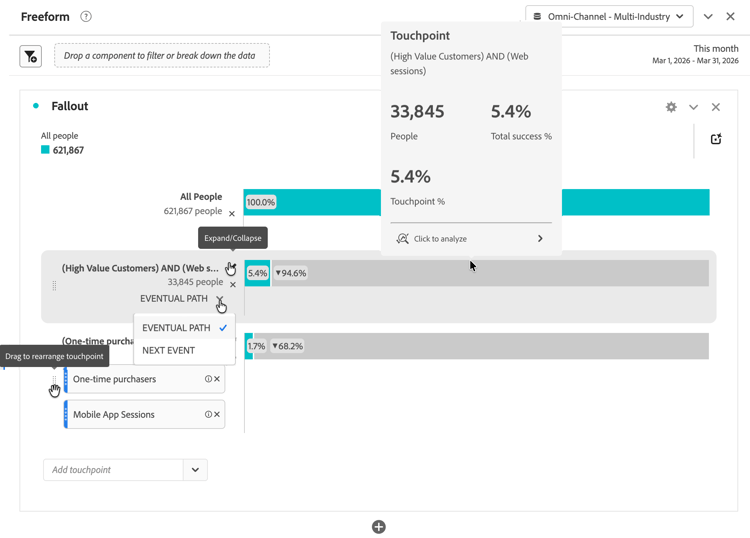
When adding touchpoints, you can do any of the following:
-
Combine multiple components by dragging one or more additional components onto a single touchpoint.
note NOTE Multiple segments are joined with AND, but multiple items such as dimension items and metrics are joined with OR. -
Reorder touchpoints by dragging them to a different level within the fallout hierarchy.
-
Combine two touchpoints by dragging one touchpoint onto another. Drop the touchpoint when you see the word Combine.
-
Constrain individual touchpoints to the next hit (as opposed to eventually) within the path. Beneath each touchpoint, there is a selector with the options Eventual path and Next hit, as shown here:
table 0-row-2 1-row-2 2-row-2 Option Description Eventual path (default) Visitors are counted that will eventually land on the next page in the path, but not necessarily on the next visit. Next hit Visitors are counted that will land on the next page in the path on the very next hit. -
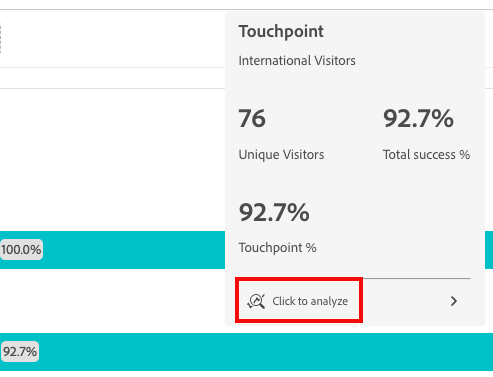
Hover over a touchpoint to see the fallout and other information about that level. Information includes the touchpoint’s name, the person count, and success rate. You can also compare the success rate to other touchpoints.
-
Settings
The following visualization settings are available:
Context menu
As part of the visualization, specific context menu options are available.
Access the context menu
You can access the context menu in either of the following ways:
-
Hover over a touchpoint in the visualization, then select Click to analyze.
-
Right-click a touchpoint in the visualization.
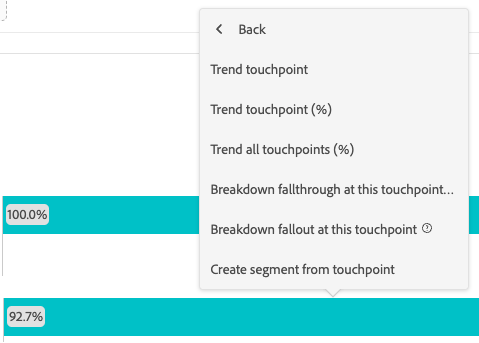
Context menu options
The following context menu options are available: