Standalone configuration
Content Analytics is licensed as a standalone product, but the configuration happens within Experience Platform and Customer Journey Analytics. These platforms provide the data collection and analysis infrastructure that Content Analytics requires and uses. This guide provides all the specific instructions that you need, even if you’re new to Experience Platform and Customer Journey Analytics.
Before you begin the setup of standalone Content Analytics, you should:
- Have a basic understanding of web and mobile analytics concepts, familiarity with tag management systems, and basic JavaScript knowledge. For Content Analytics for the mobile channel, you should have mobile app development skills.
- Plan 4-6 hours for the initial setup, plus additional time to test and validate the setup.
Terminology
This guide uses several technical terms, from Experience Platform and Customer Journey Analytics, which you might not be familiar with. Below is an explanation of these terms (with reference links) in the context of Content Analytics:
Setup overview
This configuration guides you in the setup of all applications that are required to have a working standalone Content Analytics implementation. You can divide the setup into three phases, where each phase builds upon the previous one:
Phase 1 - Prepare your environment. In this phase, you set up user permissions and verify your data infrastructure. With these proper permissions and data structure, you can complete the remaining steps. The steps involved are:
- Configure access control and permissions to support the Content Analytics configuration and implementation.
- Set up a schema and dataset to define the model (schema) of the data you want to collect content analytics insights from and where to collect that data (dataset).
Phase 2 - Configure data collection. In this phase, you create the pipeline that captures content data from your website. So, Content Analytics knows which content visitors engage with.
- Set up a datastream to configure how your collected data is routed to the dataset.
- Use website tags to configure rules and data elements against the data in your data layer on your website and to ensure that data is sent to the configured datastream.
- Deploy to a test environment and validate the data collection before you publish to a production environment.
Phase 3 - Set up reporting. In this phase, make your collected data available for analysis in reports. So, you can actually get the content performance insights you want to get out of Content Analytics.
- Set up a connection to your dataset.
- Set up a data view to define metrics and dimensions.
- Configure and implement Content Analytics.
- Set up a project to build your Content Analytics reports and visualizations.
Prepare your environment
In this phase, you set up user permissions and verify your data infrastructure.
Configure access control and permissions
This section documents what access you require to products, product profiles and which permissions are required to configure and set up standalone Content Analytics. Although you are only interested in the functionality of Content Analytics, for that functionality to work properly, you still require access and permissions for other Experience Platform products.
Access control
Access control determines whether you are allowed access to an Experience Platform product.
You need either a system administrator or a product administrator to add you as an administrator for a product or a product profile. A product administrator can only add you as an administrator for the administered product (profile), a system administrator can add product administrators to any product (profile).
See

You need to be a product admin to the following products and product profiles for standalone Content Analytics:
-
Adobe Experience Platform
- AEP-Default-All-Users (the default profile for access to the production sandbox)
-
Adobe Experience Platform Data Collection
- Default Data Collection All Access
-
Adobe Experience Platform Privacy Service
-
Customer Journey Analytics (Custom)
- Customer Journey Analytics (or any other default provisioned product profile)
You define product administrator access through the Admin Console:
- Access Admin Console.
- Select Products.
- Select the specific product.
- Select the Admins tab.
- Select Add admin to add an administrator to the product.
- Enter one or more email or user names in the Add product administrators dialog. Select Save to save.
You define product profile administrator access through the Admin Console:
- Access Admin Console.
- Select Products.
- Select the specific product. Ensure you already have product administrator access.
- Select Product profiles.
- Select the specific product profile.
- Select the Admins tab.
- Select Add admin to add an administrator to the product profile.
- Enter one or more email or user names in the Add product profile administrators dialog. Select Save to save.
Permissions
Permissions define what you can do within a product once you do have access to the product.
You define permissions for Experience Platform in the Permissions interface and you use attribute-based access control. For Customer Journey Analytics, you define permissions through the Admin Console.
Experience Platform
The Permissions interface in Experience Platform is based on the definition of a role. A role is a collection of resource-based permissions. In a new provisioned environment, two default roles are available: Default Production All Access and Sandbox Administrators.
For Content Analytics, you need to verify whether the following resources and associated permissions are added to these roles:
-
Default Production All Access role
-
Data Collection
- View Datastreams
- Manage Datastreams
-
Data Management
- View Datasets
- Manage Datasets
-
Data Modeling
- View Schemas
- Manage Schemas
- Manage Identity Metadata
-
-
Sandbox Administrators role
-
Sandboxes
- Prod
- (any other sandbox you want to use for Content Analytics)
-
Sandbox Administration
- Manage Packages
- Manage Sandboxes
- Reset Sandbox
- View Sandbox
-
Within the Permissions interface you can verify both roles and associated permissions. The interface also shows which users belong to the role.
-
Access Experience Platform for your organization.
-
In the welcome screen, in Quick access, select View all.
-
Enable the pin

-
Select Permissions.
-
Select

-
Select the specific role that you want to verify (for example, Default Production All Access). Select View all to see all permissions.
-
In the Details screen:
- Verify the Resources listed in Permissions.
- Verify the sandbox names in Sandboxes.
To make any updates, select

-
To add a missing resource, select Resource name

-
To add a missing permission, select

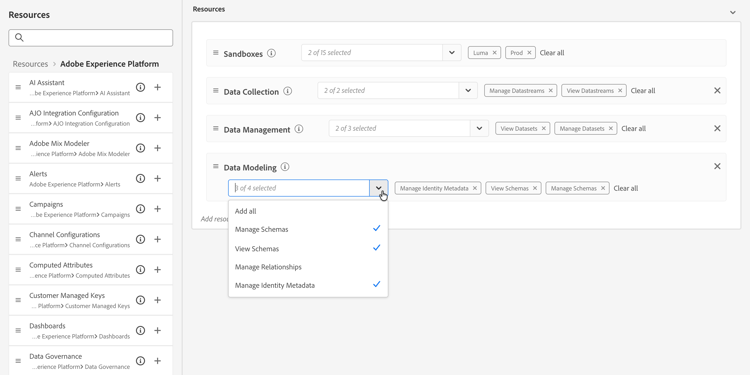
Select Save to save any update.
-
In the Users or Users groups screen:
-
Verify the right individual users or group of users are part of this role.
- Select

- Select
- Select
-
Customer Journey Analytics
Customer Journey Analytics does not support attribute-based access control. To specify permissions, you use the Admin Console.
For Content Analytics, you need to verify whether the following Customer Journey Analytics product profile permissions are included:
-
Data views
- All available data views.
-
Reporting Tools
- Calculated Metrics Creation
- Segment Creation
- Annotation Creation
- Audit Logs Access
- Share Project Links With Anyone
- Forecasting
- AI Assistant: Product Knowledge
- Data Insights Agent
- Intelligent Captions
-
Data View Tools
- Full Table Export
To verify and update these permissions for Customer Journey Analytics:
-
Access Admin Console.
-
Select Products.
-
Select the Customer Journey Analytics product.
-
Select Product profiles.
-
Select the default provisioned product profile that is available for Customer Journey Analytics. For example: Customer Journey Analytics.
-
In the product profile screen, select Permissions.
-
Select any of the
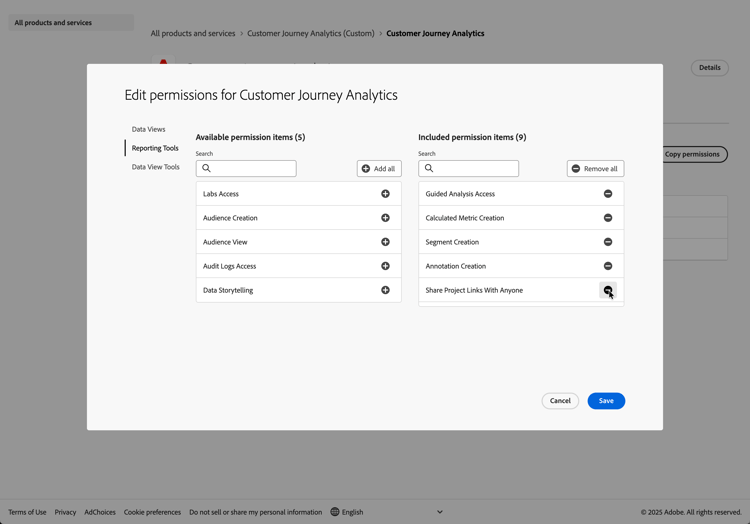
- Select Data Views and enable Auto-include: On. This toggle ensures that all data views are automatically part of the Included permission items.
- Select Reporting Tools and ensure all permissions listed above are part of the Included permission items.
- Select Data View Tools and ensure all permissions listed above are part of the Included permission items.
Select Save.
Set up schema and dataset
To collect data from your website for Content Analytics insights, you first need to define what kind of data you want to collect. You also need to define how that data is stored. Both concepts are explained in Set up a schema and dataset in the Ingest data via the Adobe Experience Platform Web SDK and Ingest data via the Adobe Experience Platform Mobile SDK quick start guide.
Configure data collection
In this phase you create the pipeline that captures content data from your website.
Set up a datastream
You have defined what data to collect and how to store that data. The next step is to ensure that the data collected from your website is routed to the dataset. You need to set up and configure a datastream, which is explained in Setup a datastream in the Ingest data via the Adobe Experience Platform Web SDK quick start guide.
Use Tags
You have defined what data to collect (schema), how to store that data (dataset) and how collected data from your website is routed to the dataset (datastream). As a next step, you need to tag your website to configure rules and data elements against the data in your data layer on your website. Tagging your website ensures that data is sent to the configured datastream. Tagging your website using Tags is explained in Use Tags in the Web SDK and Mobile SDK quick start guides.
Deploy and validate
You can now deploy the code on the development version of your website inside the <head> tag. When deployed, your website starts collecting data into Adobe Experience Platform. That data is then subject to Content Analytics.
Validate your implementation, correct it where necessary, and once correct, deploy it to your staging and production environment using the publishing workflow feature of Tags.
Set up reporting
In this phase you make the collected data available for analysis in reports.
Set up a connection to your dataset
To report on the collected data and to configure that data for Content Analytics, you need to set up a connection in Customer Journey Analytics. The connection connects to the dataset that contains the collected data. See Set up a connection in the Web SDK and Mobile SDK quick start guides.
Set up a data view
The final step before you can configure Content Analytics is to define a data view. A data view is a container specific to Customer Journey Analytics that lets you determine how to interpret data from a connection. A data view allows you to define metrics and dimensions from the data from one or more datasets to which Customer Journey Analytics is connected. See Set up a data view in the Web SDK and Mobile SDK quick start guides.
Configure Content Analytics
You now have everything in place to configure Content Analytics.
Guided configuration
Use the guided configuration wizard and select the data view you created as part of the Setup a data view step. That selection ensures that Content Analytics is configured and implemented on top of the data you collect from your website and mobile application.
Be aware that the guided configuration wizard configures the following additional specific Content Analytics objects:
-
Dataset, which is set up automatically for Content Analytics events. This dataset uses a specific Content Analytics schema that is already created and available.
-
Datastream, which is set up automatically to stream Content Analytics events into the Content Analytics dataset.
-
Tags property, which is set up automatically and configured with the Content Analytics extension. This Tags property ensures that your website sends Content Analytics data to the Content Analytics datastream and the Content Analytics dataset.
note important IMPORTANT Ensure you select the option to create a New Tags property as part of the Data collection step in the wizard.
Manual configuration
To implement Content Analytics for your website, you need to publish the Content Analytics Tags property manually.
Set up a project
Set up a project in Customer Journey Analytics to build your Content Analytics reports and visualizations. Alternatively, you can use a Content Analytics template to get started.