Include multiple dimension columns in a freeform table
You can include up to 5 dimension columns in a freeform table, allowing you to view multiple dimension items side by side. Each row of dimension items behaves like a single concatenated dimension item.
You can apply filters, sorting, breakdowns, and more to freeform tables with multiple dimension columns to create a deeper and more custom analysis.
Concatenated dimension items
When you add multiple dimension columns to a freeform table, each row of dimension items behaves like a single concatenated dimension item. This functionality allows you to see metric data for specific combinations of dimensions.
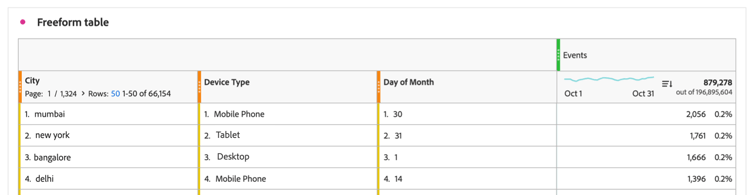
For example, consider a freeform table where the dimension columns are City, Device Type, and Day of Month and the metric is Events. The 3 dimension items in the first row of this table become a single concatenated dimension item showing that there were 2,056 events that took place in Mumbai from mobile phones on the 30th day of the month.
Following is how this table appears in Analysis Workspace:
Add multiple dimension columns
You can add multiple dimension columns one at a time or in bulk.
-
In Analysis Workspace, create a freeform table.
For more information, see Add visualizations to a panel in Visualizations overview.
-
Add dimensions to the freeform table. You can add dimensions one at a time or you can add multiple dimensions at once.
-
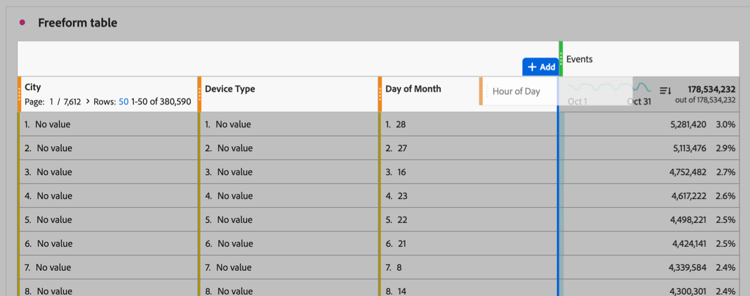
Drag dimensions one at a time into the freeform table. Place additional dimension columns to the left or right of existing dimension columns in the table. A blue vertical Add line displays where the new column will be created.
-
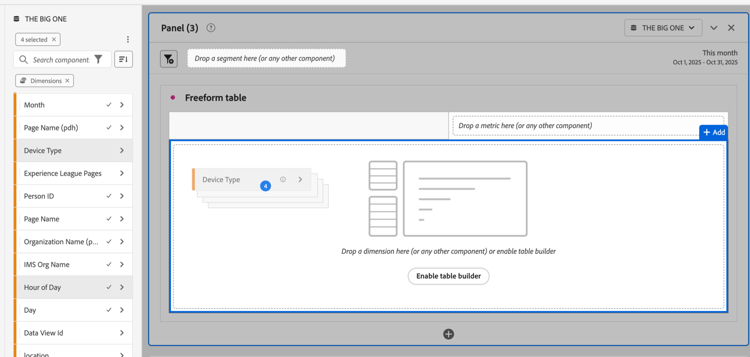
Select up to 5 dimensions in the component menu and drag them into the freeform table. Dimensions are added to the table from left to right in the order that you select them.
To select multiple dimensions, hold the Command key (on Mac) or the Ctrl key (on Windows).
-
-
View each row of the table as a single dimension item. For more information, see Concatenated dimension items.
Filter and sort tables
You can apply filtering and sorting to columns in a freeform table. You can sort the data of a freeform table by any columns, whether they are dimensions or metrics. You can even sort by multiple columns at the same time.
For information, see Filter and sort freeform tables.
Multiple dimension columns and breakdowns
Analysis Workspace provides the following ways to add multiple dimensions within a freeform table:
-
Include multiple dimension columns (as described in this article)
Both of these methods allow you to analyze dimensions against other dimensions. However, there are important differences, and both methods can be used in the same table for an even deeper analysis.
Differences between dimension columns and breakdowns
Multiple dimension columns allow you to:
-
Concatenate dimension items into distinct rows of data across multiple dimensions.
-
Include dimension items in concatenated rows only when dimension items apply to each dimension column in the table. To accomplish this, use the column filter to deselect the Include “No value” setting on each dimension column.
For more information, see Sort tables by multiple columns (Advanced sorting).
-
Sort data by multiple dimension and metric columns to see more customized data.
For more information, see Sort tables by multiple columns (Advanced sorting)
Breakdowns allow you to:
- Break down a dimension item in the freeform table by a secondary dimension. You can show up to 400 dimension items for the secondary dimension.
Add breakdowns to a table with multiple dimension columns
When you add a breakdown to a table that has multiple dimension columns, the breakdown applies to the concatenated dimension item (across all dimension columns) on the row where you add it.
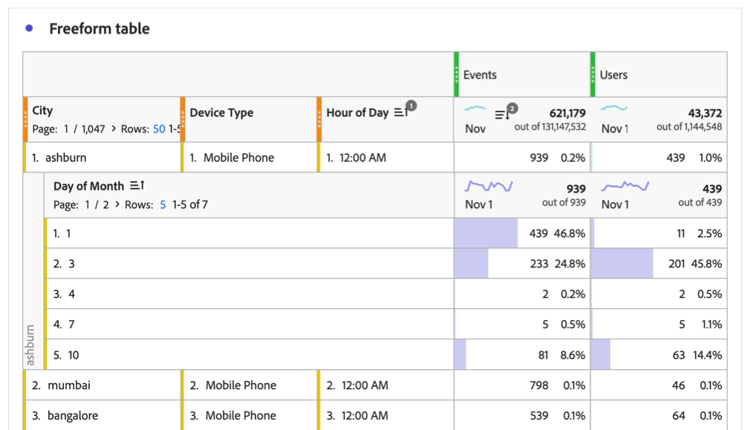
Furthermore, you can add multiple dimension columns within a breakdown. Each row of dimension items within the breakdown also behaves like a single concatenated dimension item.
For more information about how to add a breakdown, see Break down dimensions.
Create a segment based on a dimension item that spans multiple dimension columns
When you create a segment based on a dimension item that spans multiple dimension columns, each dimension item is included in the segment definition, with And operators joining them.
For information about creating a segment, see Create segments.
Unsupported dimensions and features unsupported
The following dimension combinations and features are not supported when using multiple dimension columns, and Analysis Workspace either prohibits their use or shows an error message:
-
Multiple dimensions that are from fields referencing different arrays of objects that are used together in the same freeform table.
Multiple dimensions are allowed together in the same freeform table if they reference the same array of objects.