How to handle No value
When working with Customer Journey Analytics, encountering No value entries in reports and dashboards raises important questions about data quality, collection methods, and reporting accuracy. These instances need careful monitoring, as they reveal hidden gaps in data collection. The challenge lies in distinguishing between two scenarios: when No value entries need investigation by data source providers, and when No value entries reflect the natural flow of data into Customer Journey Analytics. Understanding this distinction is crucial for maintaining efficient analytics operations. This guide helps you make informed decisions about No value appearances in your Customer Journey Analytics implementation.
Understand No value
No value appears when a dimension does not have a corresponding value for an event that otherwise contains a metric. Seeing No value in a report isn’t always a problem. In many cases, it reflects the expected structure of your dataset.
Dimension items fall into one of three categories:
- Expected No value: A natural result of how users move through your data, such as visitors who haven’t signed in yet, or dimensions that don’t apply to every event
- Problematic No value: The result of a failed data collection or an implementation error, where a value exists but is missing
- Valid value: The dimension successfully captured a value
The following diagram shows how Customer Journey Analytics arrives at each of these categories as data moves from your source through Adobe Experience Platform.
The flowchart illustrates how Customer Journey Analytics evaluations focus on incoming data by first checking for value presence, then determining whether missing values are expected or problematic. This clear assessment helps administrators and analysts differentiate between No value cases requiring source investigation and those representing normal operations.
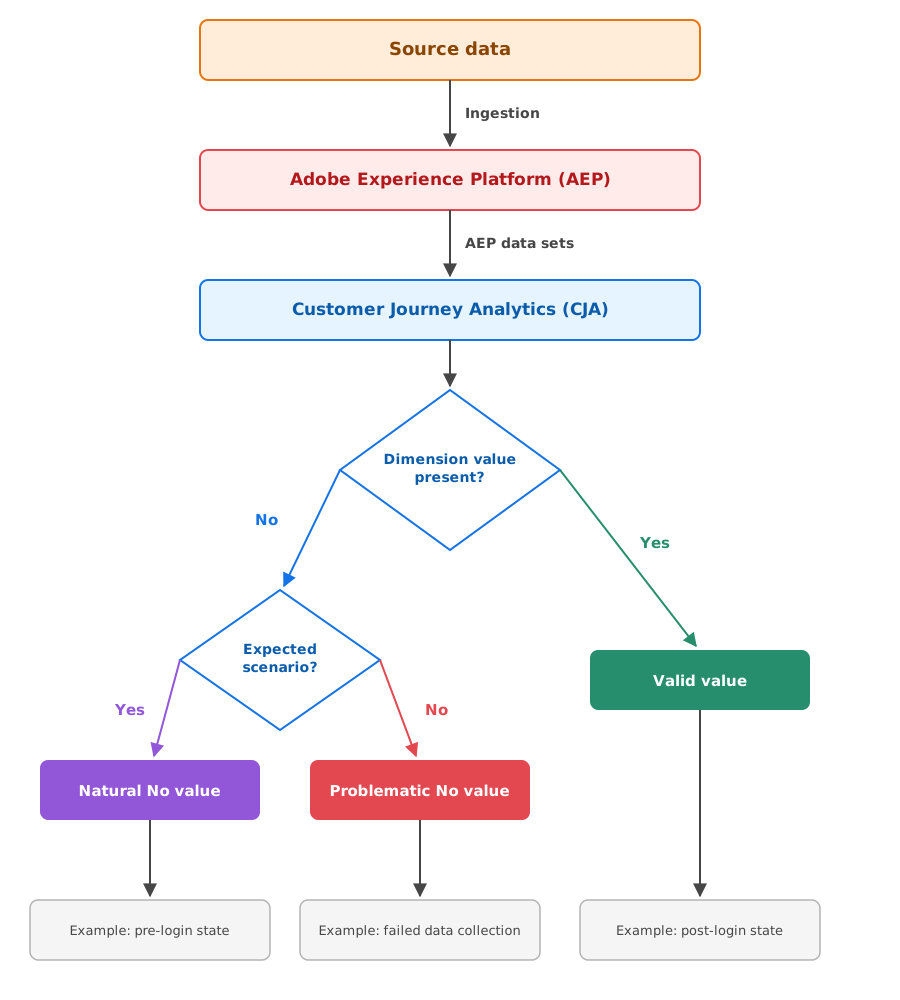
When No value is expected
The following are common, expected reasons for No value to appear in a report:
- A dimension only applies to specific scenarios, such as traffic source or device type
- A first-time visitor hasn’t been assigned an identifier yet
- A visitor is in a pre-login state and hasn’t provided user information
- A feature or product interaction doesn’t apply to a particular user journey
- A cross-device scenario doesn’t carry dimension values across devices
In these cases, No value indicates where a user is in their authentication journey, during the transition from an unidentified to an identified state, as illustrated below.

When No value needs attention
Investigate No value entries when they result from any of the following:
Implementation issues at the data source:
- Missing data elements or null values
- Incorrect variable mapping
- An improperly configured data layer
- Failed data collection
- A mismatch between incoming data and the defined schema
Data quality issues:
- Broken tracking code
- Incomplete data collection
- Integration failures
- Errors introduced during data transformation
- Disruptions in the data pipeline
Manage No value in data view settings
Data view settings give you control over how No value items display in reports, including renaming the label, showing or hiding the items by default, and treating No value as a legitimate string value. See No value options component settings for the full list of settings and how they affect percentage distributions, filtering, and segmentation.
When configuring these settings, evaluate your reporting requirements and assess how the presence of No value affects your analysis. Consider both immediate effects on data visibility and long-term impacts on trend analysis and reporting consistency. Well-chosen configurations enhance data clarity while keeping business insights accessible and actionable, regardless of how No value entries appear in your reports. The ideal configuration balances data representation with practical analytical needs, creating a reporting environment that delivers accurate and meaningful insights even when No value data is present.
The following table summarizes the various configurations available.
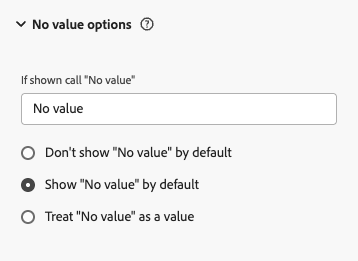
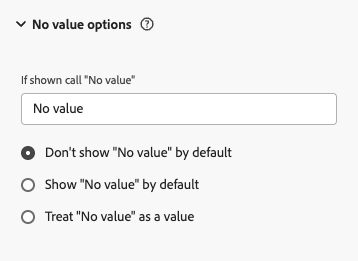
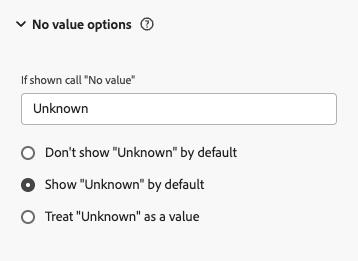
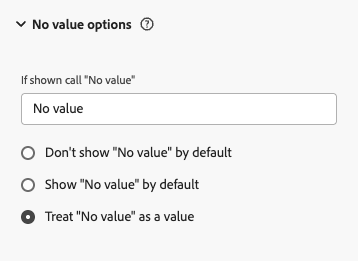
If shown, call “No value”
This setting lets you customize how No value rows display in reports. You can enter a custom name for the No value dimension item in the text field, providing more meaningful context through If shown, call “No value”. Using clear, business-friendly terms instead of No value helps your organization better understand report values. While you cannot use No value directly as a string in segments, you can achieve the same effect using the does not exist operator.
You can replace No value with descriptive terms like Pre-login User for authentication status, No Customer Tier for customers without tiers, or No Tracked Marketing Channel for unidentified marketing sources. This creates more intuitive reports. Pre-login User clearly shows where a customer is in their journey, while No Customer Tier provides specific context. Remember that your chosen description applies to all No value instances for that dimension, so select terms that accurately reflect all scenarios where dimension values are absent.
Don’t show No value by default
This setting determines whether to hide No value rows by default in reporting. When enabled, these rows are filtered out initially but can still be shown within a freeform table if needed by check box selection within the freeform table search filter. Note that hiding No value rows affects the percentage distribution of the remaining values, as percentages are recalculated based on the visible items only.
Show No value by default
This setting controls whether No value appears by default in reports. When enabled, No value entries are visible, though users can exclude them using the checkbox in the freeform table search filter. Including or excluding No value rows affects percentage distributions, as percentages are calculated based only on visible items.
Treat No value as a value
This setting treats No value as a string value (except for numeric dimensions), allowing you to customize its representation as a dimension value. This customization affects both attribution and the Include No value option in the Freeform table search filter. Keep in mind that when you assign a custom string value, all matching values in your dataset are consolidated under that same dimension string value.
The Treat “No value” as a value setting serves a different purpose than showing No value by default. While showing by default only controls visibility, treating as a value changes how Customer Journey Analytics logically handles these entries. Here’s why this distinction matters:
- It enables more granular control in filtering and segmentation, making No value a distinct, actionable dimension value.
- It maintains consistent attribution and representation throughout your analytics by treating No value as a legitimate dimension value in both attribution models and visualizations.
You treat No value as a value when:
- The absence of data itself is meaningful to your analysis (such as pre-login states or unattributed traffic).
- You need to create segments or calculated metrics that specifically target or exclude these cases.
In contrast, showing No value by default is better suited when you need basic visibility of missing data without the complexity of additional logic and attribution that comes with treating it as a value.
No value support for numeric dimensions
For numeric dimensions, several configuration options are available. In the Data view dimensions settings, you can configure all No value options except Treat “No value” as a value. You can also manage Include “No value” for numeric dimensions by check box selection within the freeform table search filter. When creating segments, you can use the exists or does not exist operators with numeric dimensions.
No value and item-level dimensions
Some dimensions apply at the item level within an array, rather than at the top level of an event. For example, productListItems.SKU, only has a value when a product list item exists for that event. This difference in data grain changes how No value behaves.
For a standard top-level dimension, Customer Journey Analytics can place a metric into a No value bucket whenever that dimension is missing or has a null value on an event that otherwise carries a metric. An item-level dimension depends on the item existing in the first place. If an event carries a metric but lacks product list items, Customer Journey Analytics has no row to attach that metric to or mark the data as No value.
Customer Journey Analytics doesn’t create a placeholder, or empty row for missing or empty arrays. As a result, you can configure your No value data view settings correctly and still not see No value entries in an item-level report, such as a SKU breakdown. The missing of entries is a data granularity difference and not a configuration issue. No value settings govern how existing rows display, and an empty array means no rows exist at that data granularity level.
When item-level No value counts look lower than expected, check whether missing array data explains the gap before assuming your data view setting needs adjustment.
Best practices
Once you’ve identified problematic **No value ** instances, you’ll need to develop and implement a remediation strategy. This remediation can be done in two ways:
- Adjust Data View component No Value option settings, or
- Fix issues at the data collection source.
Choose your approach carefully, as each path has different implications for both quick fixes and long-term data quality. Your implementation follows a methodical process that fixes current issues while preventing future ones. Success depends on planning, systematic execution, and ongoing monitoring.
Here are key strategic considerations for your remediation plan:
Prevent No value issues
- Validate data before it’s processed
- Set default dimension values where appropriate (never for a person ID)
- Document the scenarios where No value is expected
- Add quality checks at the point of data collection
- Monitor compliance with your data model
- Log errors during data collection
- Add automated tests for your implementation
- Require schema fields where a value always exists
Validate No value in your reports
- Create segments that isolate No value patterns
- Build a QA dashboard that monitors No value trends over time
- Set up alerts that track changes in No value volume
- Generate automated reports that highlight significant pattern changes
- Cross-reference No value patterns across related dimensions
- Conduct regular audits of your data view configuration
- Maintain a changelog of changes to your No value strategy
- Create standard operating procedures and documentation templates for stakeholders
Conclusion
Not every No value entry signals a problem. Interpreting No value correctly requires understanding your Adobe Experience Platform and Customer Journey Analytics data architecture, as well as how users move through your product or site. Rather than trying to eliminate every instance of No value, establish documented, organization-wide rules that distinguish expected No value from problematic No value, grounded in your own user journeys and business cases.