Auf dieser Seite: Erfahren Sie, wie Sie Ihren E-Mail-Inhalten im E-Mail-Designer benutzerdefiniertes CSS für erweiterte Stile hinzufügen, Ihr CSS gültig halten und Fehler bei nicht angewendeten Stilen beheben.
Beim Entwerfen Ihrer E-Mails können Sie Ihr eigenes benutzerdefiniertes CSS direkt im E-Mail-Designer von Journey Optimizer hinzufügen. Mit dieser Funktion können Sie erweiterte und spezifische Stile anwenden, um die Flexibilität und Kontrolle über das Erscheinungsbild Ihrer Inhalte zu erhöhen.
Definieren von benutzerdefiniertem CSS define-custom-css
Gehen Sie wie folgt vor, um benutzerdefiniertes CSS zu Ihren E-Mail-Inhalten hinzuzufügen.
-
Stellen Sie sicher, dass im E-Mail-Designer ein Inhalt definiert ist, indem Sie mindestens eine Komponente hinzufügen.
-
Wählen Sie entweder über den Navigationsbaum links oder oben im rechten Bereich Hauptteil aus. Der Abschnitt CSS-Stile wird auf der rechten Seite angezeigt.
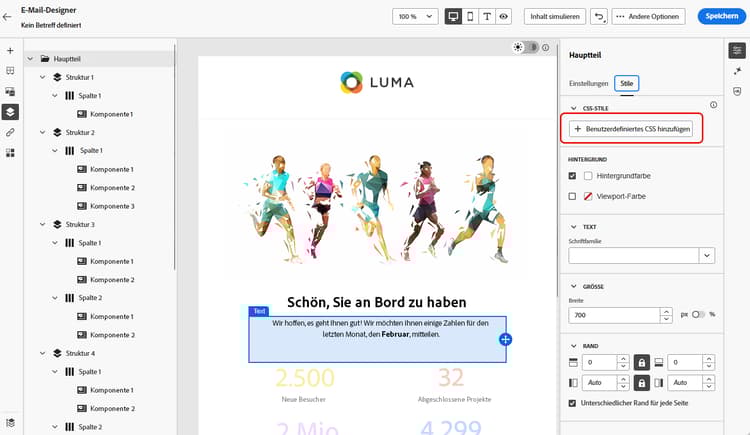
note NOTE Der Abschnitt CSS-Stile ist nur verfügbar, wenn bereits Inhalt im Editor vorhanden ist. -
Klicken Sie auf die Schaltfläche Benutzerdefiniertes CSS hinzufügen.
note NOTE Die Schaltfläche Benutzerdefiniertes CSS hinzufügen ist nur verfügbar, wenn Hauptteil ausgewählt ist. Sie können jedoch benutzerdefinierte CSS-Stile auf alle Komponenten in Ihrem Inhalt anwenden. -
Geben Sie Ihren CSS-Code in den entsprechenden Textbereich ein, der angezeigt wird. Stellen Sie sicher, dass das benutzerdefinierte CSS gültig ist und der richtigen Syntax folgt. Weitere Informationen
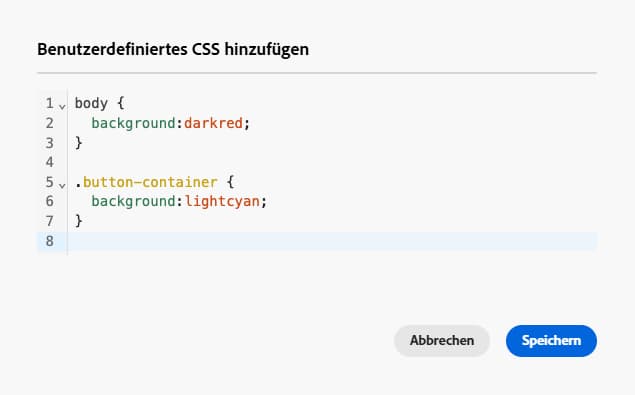
note NOTE Bei Verwendung einer Vorlage mit gesperrtem Inhalt können Sie Ihrem Inhalt kein benutzerdefiniertes CSS hinzufügen. Das Label der Schaltfläche ändert sich in Benutzerdefiniertes CSS anzeigen und bereits im Inhalt vorhandene benutzerdefinierte CSS sind schreibgeschützt. -
Speichern Sie das benutzerdefinierte CSS und überprüfen Sie, ob das benutzerdefinierte CSS korrekt auf Ihren Inhalt angewendet wird. Ist dies nicht der Fall, lesen Sie den Abschnitt Fehlerbehebung.
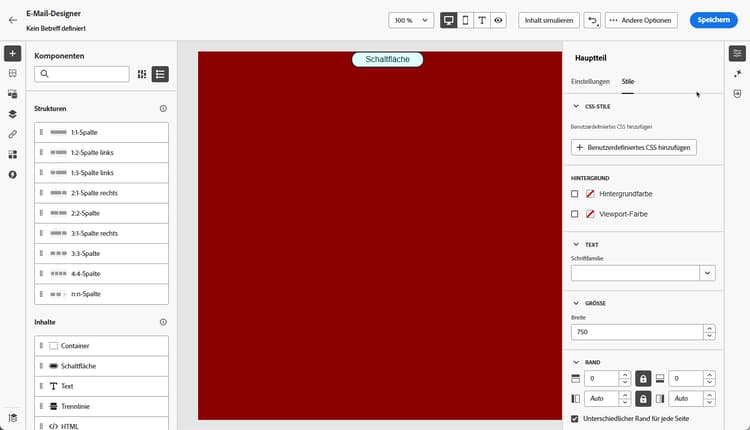
-
Wenn Sie den gesamten Inhalt entfernen, wird der Abschnitt ausgeblendet und das zuvor definierte benutzerdefinierte CSS wird nicht mehr angewendet.
-
Fügen Sie dem Editor wieder Inhalte hinzu, damit der Abschnitt CSS-Stile wieder angezeigt wird. Das benutzerdefinierte CSS wird erneut angewendet.
Sicherstellen, dass gültiges CSS verwendet wird use-valid-css
Sie können eine beliebige gültige CSS-Zeichenfolge im Textbereich Benutzerdefiniertes CSS hinzufügen eingeben. Richtig formatiertes CSS wird sofort auf den Inhalt angewendet.
Im Folgenden finden Sie Beispiele für gültiges CSS.
| code language-css |
|---|
|
| code language-css |
|---|
|
Wenn ungültiges CSS eingegeben wird, wird eine Fehlermeldung mit dem Hinweis angezeigt, dass das CSS nicht gespeichert werden kann. Im Folgenden finden Sie Beispiele für ungültiges CSS.
Die Verwendung von <style>-Tags wird nicht akzeptiert:
| code language-html |
|---|
|
Ungültige Syntax wie fehlende Klammern wird nicht akzeptiert:
| code language-css |
|---|
|
Technische Implementierung implementation
Ihr benutzerdefiniertes CSS wird am Ende des Abschnitts <head> als Teil eines <style>-Tags mit dem Attribut data-name="global-custom" hinzugefügt, wie im folgenden Beispiel dargestellt. Dadurch wird sichergestellt, dass die benutzerdefinierten Stile global auf die Inhalte angewendet werden.
| code language-html |
|---|
|
Das benutzerdefinierte CSS wird nicht vom Bereich Einstellungen des E-Mail-Designers interpretiert oder überprüft. Es ist vollkommen unabhängig und kann nur über die Option Benutzerdefiniertes CSS hinzufügen geändert werden.
Schutzmechanismen – Importierte Inhalte
Wenn Sie benutzerdefiniertes CSS mit Inhalten verwenden möchten, die in den E-Mail-Designer importiert wurden, sollten Sie Folgendes beachten:
-
Wenn Sie externe HTML-Inhalte einschließlich CSS importieren, werden diese Inhalte – sofern sie nicht konvertiert werden – im Kompatibilitätsmodus gespeichert, in dem der Abschnitt CSS-Stile nicht verfügbar ist. Weitere Informationen zum Importieren vorhandener Inhalte
-
Beim Importieren von mit dem E-Mail-Designer erstellten Inhalten, einschließlich CSS, das über die Option Benutzerdefiniertes CSS hinzufügen angewendet wurde, ist das zuvor angewendete CSS über dieselbe Option sichtbar und bearbeitbar.
Fehlerbehebung troubleshooting
Wenn Ihr benutzerdefiniertes CSS nicht angewendet wird, sollten Sie die folgenden Optionen in Betracht ziehen.
-
Stellen Sie sicher, dass Ihr CSS gültig und frei von Syntaxfehlern ist (z. B. fehlende Klammern, falsche Eigenschaftsnamen). Weitere Informationen
-
Stellen Sie sicher, dass Ihr CSS dem
<style>-Tag mit dem Attributdata-name="global-custom"hinzugefügt wird. -
Überprüfen Sie, ob für das
global-custom-Stil-Tag das Attributdata-disabledauftruefestgelegt ist. In diesem Fall wird das benutzerdefinierte CSS nicht angewendet.accordion Beispiel: code language-html <style data-name="global-custom" type="text/css" data-disabled="true"> body: { color: red; } </style> -
Stellen Sie sicher, dass Ihr CSS nicht durch andere CSS-Regeln überschrieben wird, einschließlich Designs, die auf Ihren Inhalt angewendet werden.
-
Verwenden Sie die Entwickler-Tools Ihres Browsers, um den Inhalt zu überprüfen und sicherzustellen, dass Ihr CSS auf die richtige Auswahl abzielt.
-
Erwägen Sie, Ihren Deklarationen
!importanthinzuzufügen, um sicherzustellen, dass sie Vorrang haben.accordion Beispiel: code language-css .acr-Form { background: red !important; }
-
This section contains structured knowledge intended to support interpretation, retrieval, and question answering related to this topic.
For complete understanding, this information should be combined with the documentation on this page. Neither source is intended to stand alone; the page describes the feature, while this section provides additional context that helps disambiguate terminology, intent, applicability, and constraints.
- TL;DR: This page explains how to add custom CSS to email content in the Email Designer for advanced styling, how to keep the CSS valid, how it is implemented in the HTML, and how to troubleshoot styles that are not applied.
Intents:
- Add custom CSS to email content for advanced and specific styling
- Ensure the entered CSS is valid so it is applied and can be saved
- Understand where custom CSS is injected in the generated HTML
- Troubleshoot custom CSS that is not applied
- Understand custom CSS behavior with imported content
Glossary:
- Add Custom CSS: The Email Designer option (available when Body is selected) to enter custom CSS in a dedicated text area (product-specific)
- CSS styles section: The section, shown when Body is selected and content is present, from which custom CSS is added (product-specific)
- global-custom: The
data-name="global-custom"<style>tag added to the end of the<head>where custom CSS is placed (product-specific) - Compatibility mode: The mode for imported external HTML content (unless converted) in which the CSS styles section is not available (product-specific)
Guardrails:
- The CSS styles section is only available when content is already present in the editor; the Add custom CSS button is only available when Body is selected.
- Custom CSS must be valid and follow proper syntax; invalid CSS (for example using
<style>tags, or syntax errors such as missing braces) triggers an error message and cannot be saved. - When using a template with locked content, you cannot add custom CSS; the button changes to View custom CSS and existing custom CSS is read-only.
- If you remove all content, the CSS styles section disappears and the previously defined custom CSS is no longer applied; adding content back reapplies it.
- For imported external HTML content in Compatibility mode (unless converted), the CSS styles section is not available.
- Users are responsible for the security of their custom CSS and should ensure it does not introduce vulnerabilities or break the layout.
- Custom CSS is not interpreted or validated by the Settings pane; it is independent and can only be modified through the Add Custom CSS option.
Terminology:
- Canonical name: Custom CSS — Acronym: CSS — variants: Add Custom CSS, custom CSS styles
- Synonyms: “Add custom CSS” = “Add Custom CSS” (button); becomes “View custom CSS” for locked content
- Do not confuse: “custom CSS” (
global-customstyle tag) ≠ default/system-generated CSS styles (otherdata-namestyle tags such asdefault,grid,acr-theme) - Do not confuse: “Compatibility mode” (imported external HTML, no CSS styles section) ≠ content created with the Email Designer (custom CSS visible and editable)
FAQ:
- Q: Why is the Add custom CSS button missing? — The CSS styles section requires content in the editor, and the button is only available when Body is selected.
- Q: What happens if my CSS is invalid? — An error message is displayed indicating the CSS cannot be saved;
<style>tags and syntax errors such as missing braces are not accepted. - Q: Where is my custom CSS added in the HTML? — To the end of the
<head>section as a<style data-name="global-custom">tag. - Q: My custom CSS is not applied — what should I check? — Verify the CSS is valid, that it is in the
global-customstyle tag, thatdata-disabledis not set totrue, and that it is not overridden by other rules including an applied theme; consider adding!important. - Q: Can I add custom CSS to a template with locked content? — No; the button becomes View custom CSS and any existing custom CSS is read-only.