[有限可用性]{class="badge informative"}
測量績效
瞭解Adobe Real-Time CDP Collaboration中的可用報表,並瞭解如何測量和分析各種管道中行銷活動的效能。
先決條件 prerequisites
您必須先執行下列作業,才能存取Collaboration中的測量報表:
檢視報告 view-reports
若要檢視測量標籤中可用的報表:
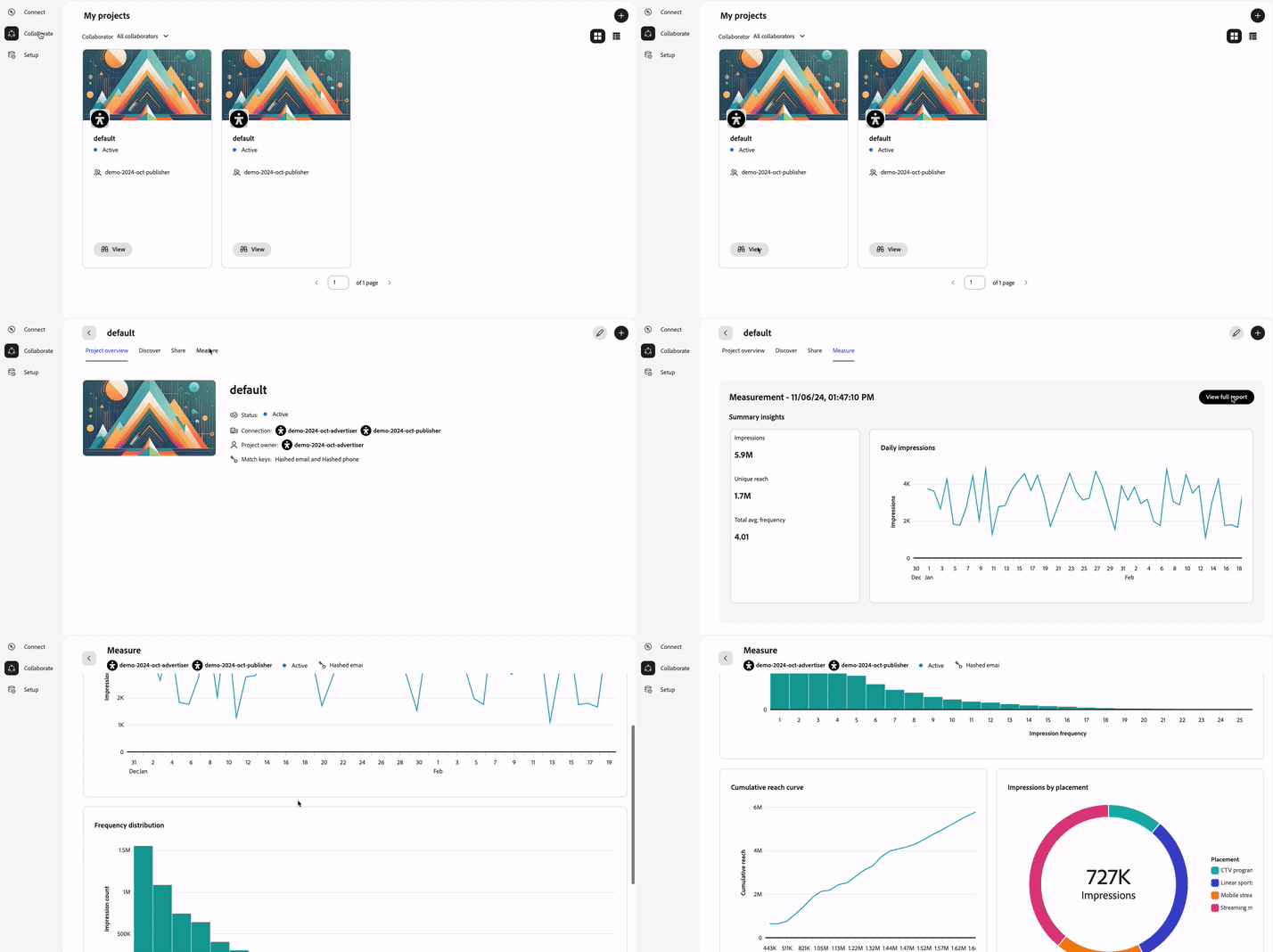
- 瀏覽至共同作業 > 我的專案。
- 針對您想要的專案,選取檢視。
- 在專案中,選取 量值 索引標籤。
選取 檢視完整報告 以存取各種可用的報告,詳細資訊如下。
摘要檢視
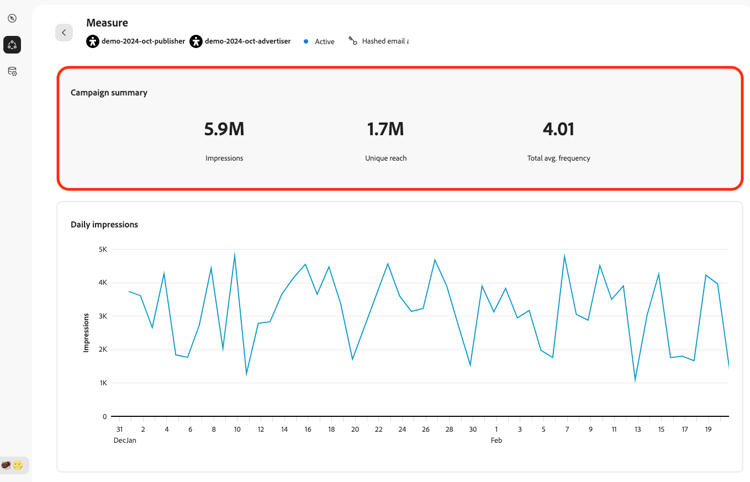
測量索引標籤中的頁面頂端檢視會顯示行銷活動摘要,其中包含一些可供您參考的高層級數字:
曝光次數:創意內容顯示的總次數。
唯一範圍:看過該創意的個人身分數量。
總平均頻率:曝光次數除以達到的唯一身分識別。 此圖指出每個身分在創意中顯示的頻率。
一段時間內的量度 metrics-over-time
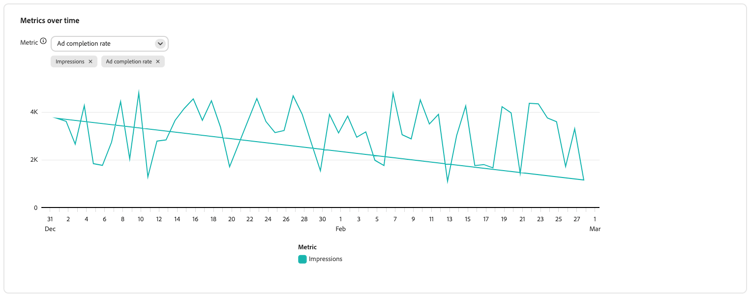
透過一段時間內的量度視圖,了解您的創意在整個行銷活動期間所顯示的印象總數量。 請注意,您最多可以選取兩個量度,以在報表中顯示和分析。
頻率分佈 frequency-distribution
使用頻率分佈檢視來瞭解向每位不重複使用者顯示的曝光次數劃分。 此檢視可協助您在未來的行銷活動中決定要從哪一個時間點開始抑制對象。 例如,您可能想要隱藏已看過三次創意內容的設定檔。

依維度劃分的量度 metric-by-dimension
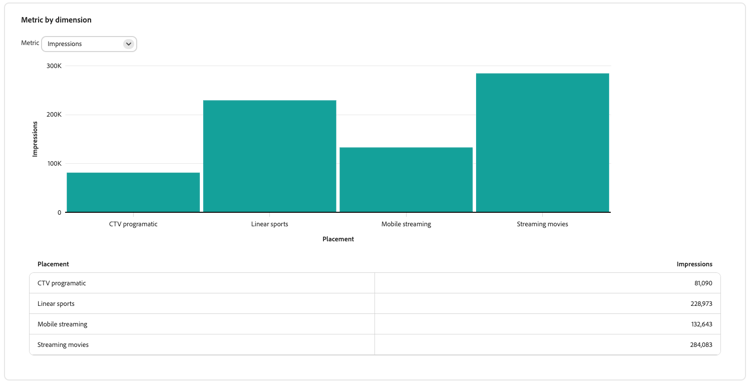
根據刊登版位媒體,分析不同的量度,例如曝光數、可檢視曝光數、不重複觸及率、成本等。 分析哪些媒體(例如行動串流、CTV程式化或其他)為您的行銷活動帶來最佳結果。
依維度
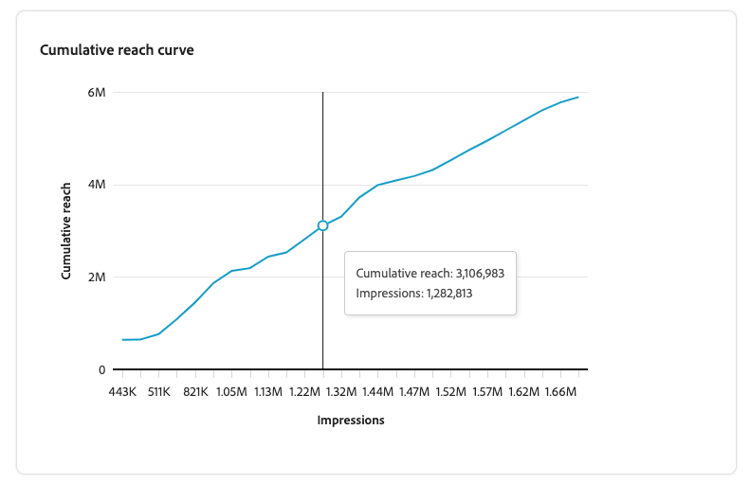
累計的觸及人數曲線 cumulative-reach-curve
隨著行銷活動進行且曝光次數增加,請瞭解您能夠聯絡的使用者數量是否也有所增加。 行銷活動中的常見模式是,在到達特定點後,達到平台期,創意內容會一遍又一遍地顯示給相同的使用者。 此檢視可幫助您調整未來行銷活動的長度,具體取決於不再聯絡新人的時間。
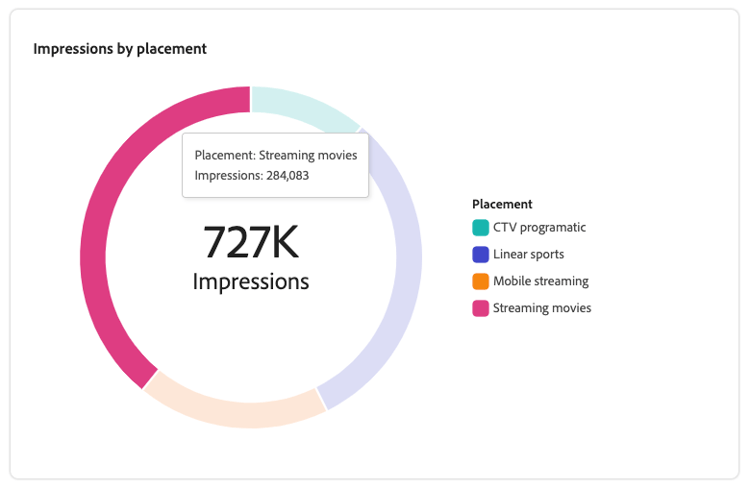
依刊登位置劃分的曝光數 impressions-by-placement
瞭解哪些媒體可提升創意的曝光率。 這可協助您決定要將廣告支出投資於未來行銷活動的位置。
累計轉換 cumulative-conversions
此檢視提供您選擇以表格格式測量的轉換事件的詳細劃分。 結果是在 促銷活動識別碼 層級上計算。 此表格包含:
- 轉換事件:您正在追蹤的每個轉換事件名稱。
- 轉換計數:行銷活動ID中每個事件發生的轉換總數。
- 轉換值:促銷活動ID歸因於每個轉換事件的值。
請檢閱此表格,以評估促銷活動在推動所需動作方面的成效。

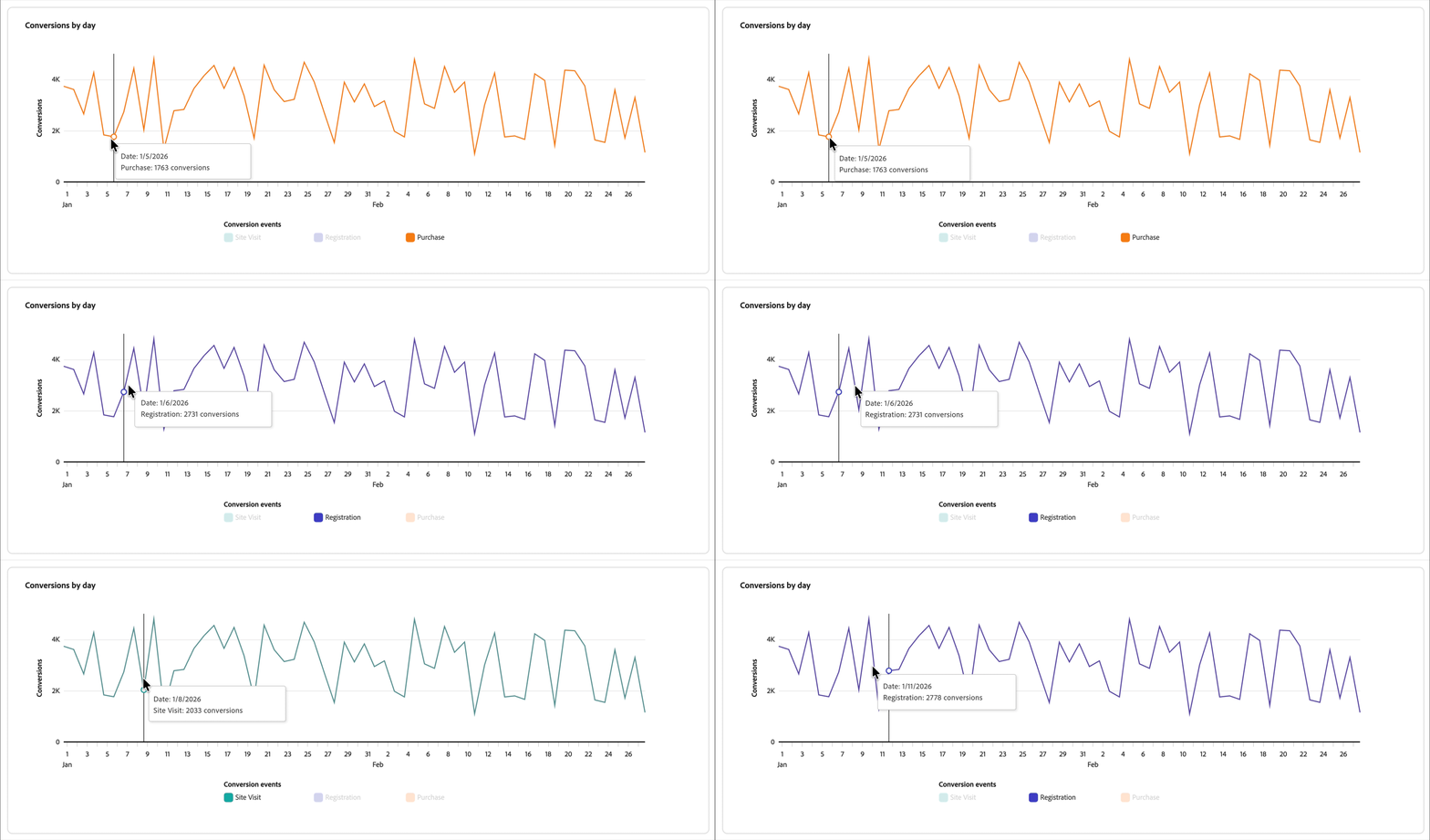
按日轉換 conversions-by-day
此圖表提供您建立歸因報表時為每個設定的事件逐日劃分轉換。 使用此檢視來發現每日模式、識別高轉換活動或低轉換活動的期間,並比較不同轉換事件在行銷活動時間軸上的執行方式。
依位置轉換 conversions-by-placement
此表格提供針對歸因報表選取之轉換事件的位置ID層級劃分。 單一行銷活動ID可包含多個位置ID,因此使用此檢視來檢視行銷活動中的轉換劃分方式。 針對每個選取的轉換事件,表格會顯示歸因於每個位置的轉換以及對應的轉換值。 此表格包含:
- 刊登版位名稱或ID:創意執行所在刊登版位的識別碼。
- 轉換計數:針對建立報表時選取的每個轉換事件,歸因於該位置的轉換計數。 位置可顯示最多三個轉換事件,符合每個報告允許的轉換事件數上限。
- 轉換值:歸因於該特定位置的每個轉換事件的值。

建立衡量報告 create-measurement-report
在Collaboration中,您可以建立兩種主要型別的測量報表:
- 行銷活動摘要:提供高層級量度,例如觸及率、曝光數、平均頻率以及依據管道的傳遞,快速瞭解整體行銷活動績效。
- 歸因:測量行銷活動曝光度如何推動轉換或購買等下游動作,協助您瞭解行銷活動的成效。
您可以自行執行「行銷活動摘要」報表,而「歸因」報表需要同時選取這兩種報表型別。
建立行銷活動摘要報告 create-campaign-summary-report
發佈者和廣告商都可以產生 行銷活動摘要 報告,以評估行銷活動績效。 使用這些報告深入瞭解關鍵量度,例如達到、頻率和曝光數,並瞭解您的行銷活動的傳遞方式及其整體影響。
若要產生 行銷活動摘要 報告,請從 Collaborator 工作區導覽至專案工作區。 從 量值 索引標籤中,選取新增圖示(

如果這是您的第一個報告,您也可以選取 執行報告 選項。
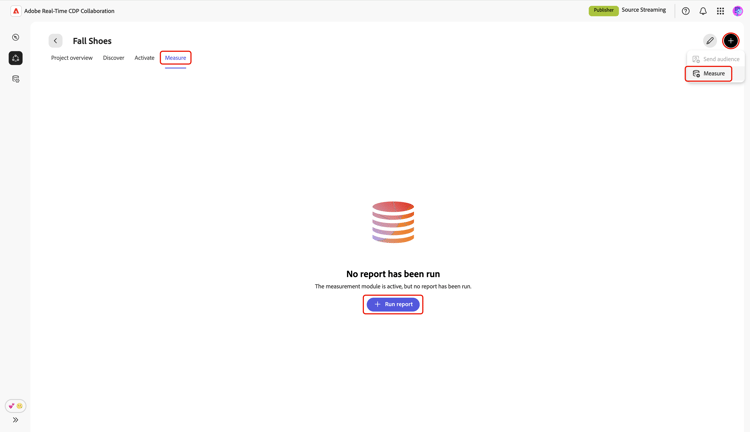
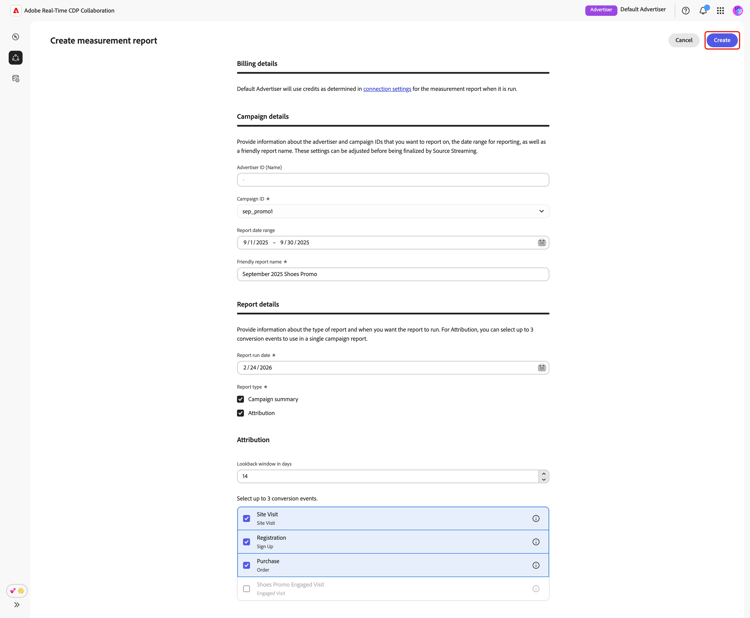
建立測量報告畫面顯示,其中資訊和輸入欄位分組在帳單詳細資料、行銷活動詳細資料和 報告詳細資料 區段。
計費詳細資料 billing-details
本節說明如何在產生測量報表時使用積分。 在連線設定期間已建立信用責任。 在執行任何報表之前,請務必與共同作業人員檢閱並確認信用分割設定和報告角色。
行銷活動詳細資料 campaign-details
在 行銷活動詳細資料 區段中,選取適當的 廣告商ID 以與您的報告產生關聯。 這些廣告商名稱或ID是在連線設定期間新增的。 如果只設定了一個名稱,預設會顯示該名稱。 如果未設定名稱,則會停用 廣告商ID (名稱) 欄位,並預先填入廣告商帳戶名稱。
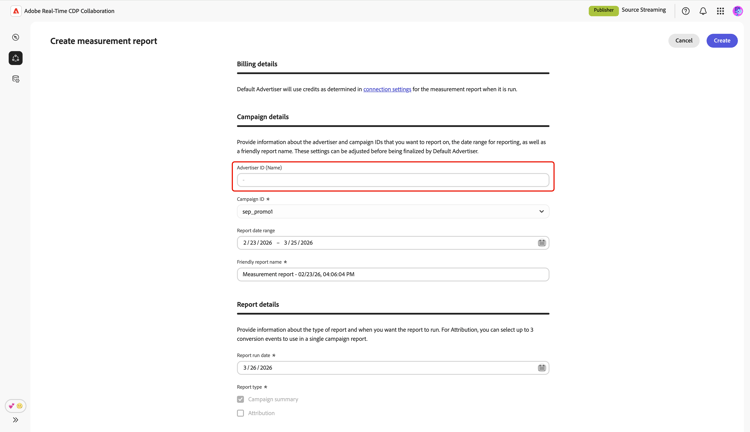
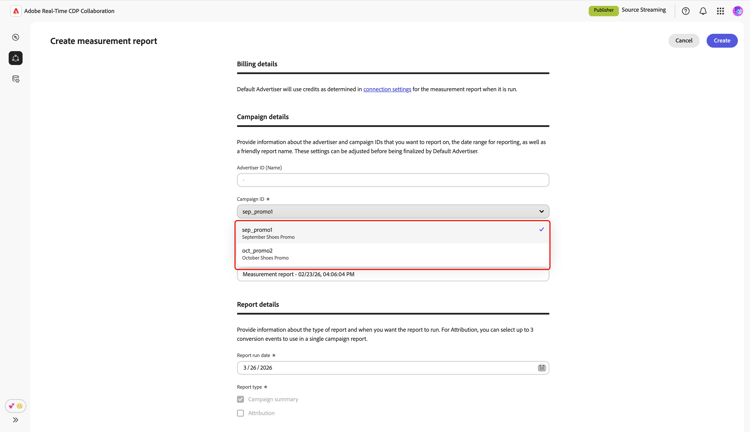
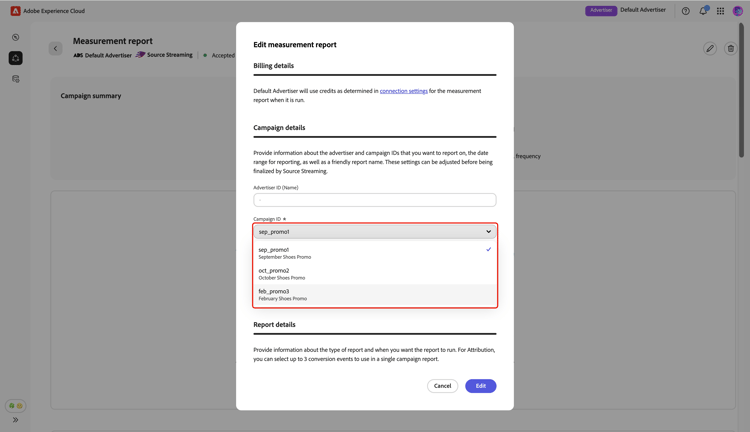
然後,從 促銷活動ID 下拉式功能表中選取所需的促銷活動。 此功能表會列出發佈者為您的專案輸入的所有促銷活動ID。 如果您需要的行銷活動無法使用,請在產生報告之前將它新增到UI。
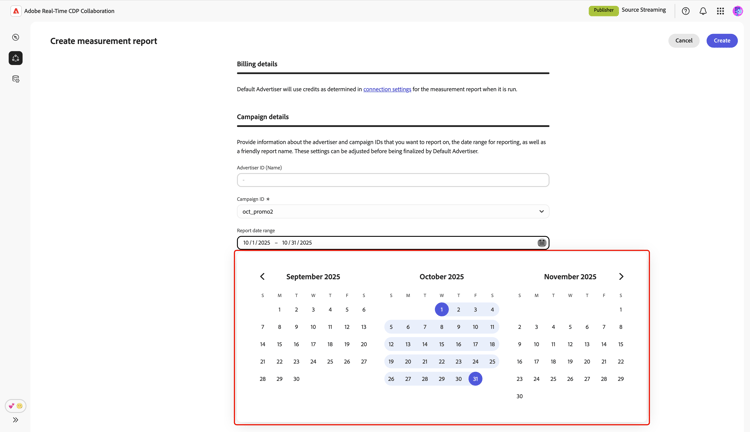
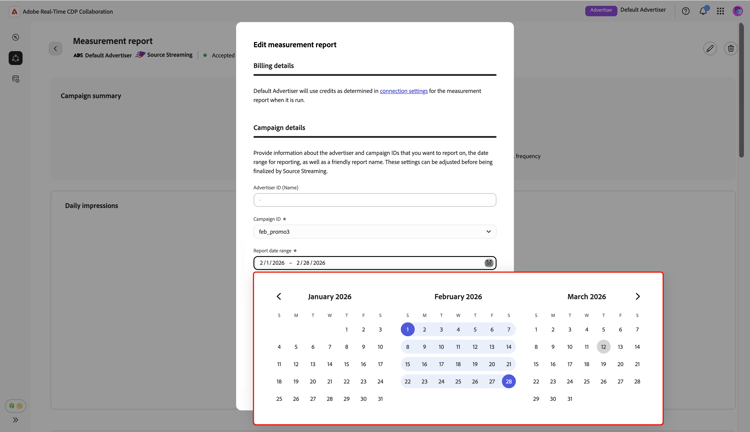
接著,指定您要報表涵蓋的期間。 選取報告日期範圍,然後使用行事曆選擇開始和結束日期。
報告詳細資料 report-details
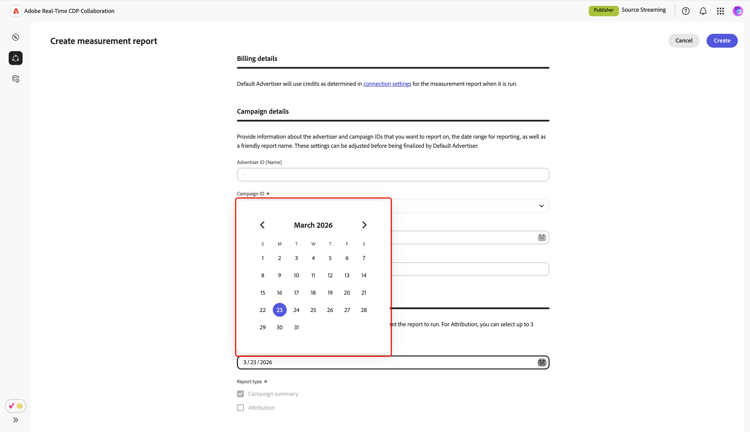
報告執行日期
在 報告詳細資料 區段中,選擇報告應該執行的日期。 選取報告執行日期,並從行事曆中選擇您偏好的日期。
- 如果您選擇今天的日期或過去的日期,行銷活動摘要報告就會立即執行。
- 如果您選擇未來的日期,行銷活動摘要報告將排程在該日執行。
報告型別
- 如果您是廣告商,您可以從可用選項中選取 行銷活動摘要 報告型別。 只有廣告商可以產生歸因報表。
- 如果您是發佈者,行銷活動摘要報告型別是預先選取且無法變更。 發佈者目前無法執行歸因報表。
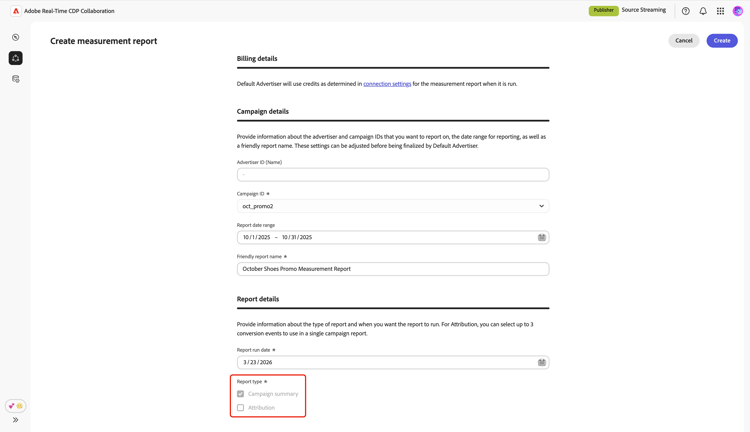
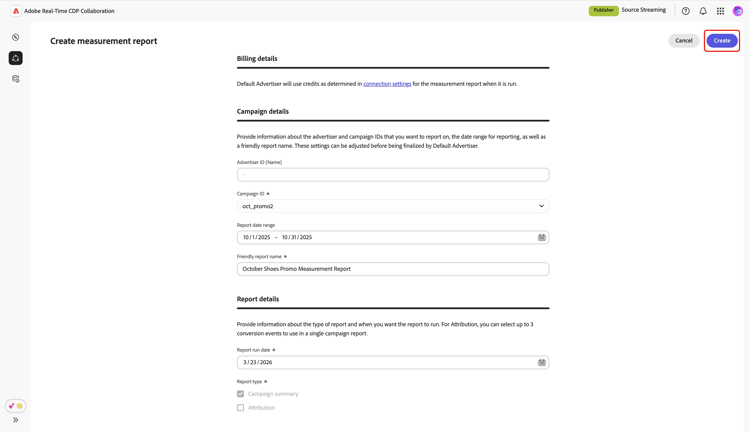
最後,檢閱您的設定並選取建立。 如果執行日期為當天或之前,或是在所選的未來日期,則會立即產生行銷活動摘要報表。 您可以在排程報告執行日期之前編輯排程報告。 如需逐步指示,請參閱[編輯測量報告]區段。
一旦可用,您就可以隨時在專案工作區的 量值 索引標籤中檢視報告。
建立歸因報表 create-attribution-report
作為廣告商,您可以產生 歸因 報告,以評估您的行銷活動曝光對註冊或購買等關鍵結果的貢獻。 使用這些報表來瞭解使用者與行銷活動的互動、識別哪些接觸點帶來最大的影響,並告知更有效率的行銷策略。
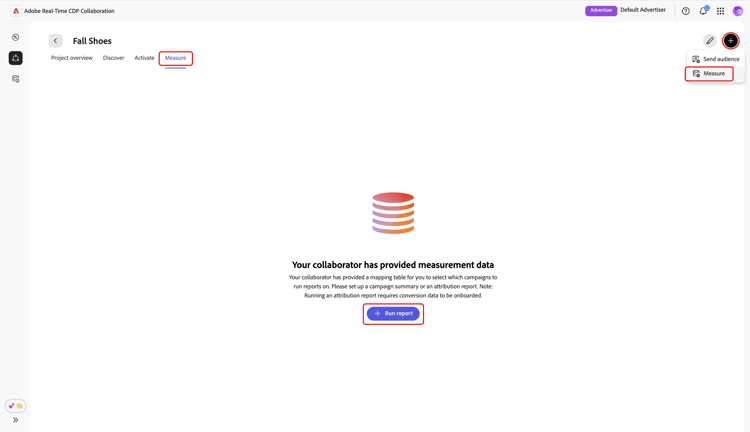
![具有測量資料需求及停用的測量選項的[測量]索引標籤。](./media_1b1b18cf7a7ecbf701a3455e3b31b7006ebeb8c67.png?width=750&format=png&optimize=medium)
若要產生 歸因 報告,請從 Collaborator 工作區瀏覽至專案工作區。 從 量值 索引標籤中,選取新增圖示(
如果這是您的第一個報告,您也可以選取 執行報告 選項。
建立測量報告畫面顯示,其中資訊和輸入欄位分組在帳單詳細資料、行銷活動詳細資料和 報告詳細資料 區段。
閱讀並遵循建立行銷活動摘要報告區段中的步驟來設定下列設定:
歸因報表的報表詳細資料 report-details-attribution
報告執行日期
報告執行日期≥報告結束日期+回顧期間+ 1
在 報告詳細資料 區段中,選擇報告應該執行的日期。 選取報告執行日期,並從行事曆中選擇您偏好的日期。
報告型別
作為廣告商,除了 行銷活動摘要 之外,您還可以選取 歸因 作為報表型別。 選擇「歸因」報表時,您的結果會包含標準「促銷活動摘要」量度和詳細的「歸因」分析,以提供促銷活動績效的完整檢視。
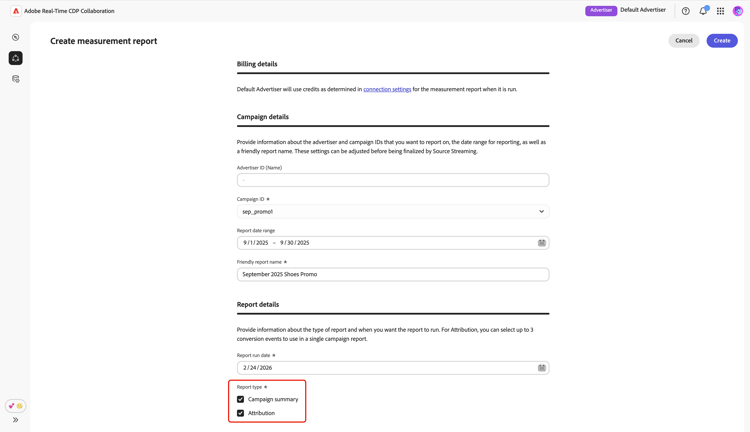
當您選取 歸因 作為報表型別時,會出現 歸因 組態區段,其中包含其他必要的設定:
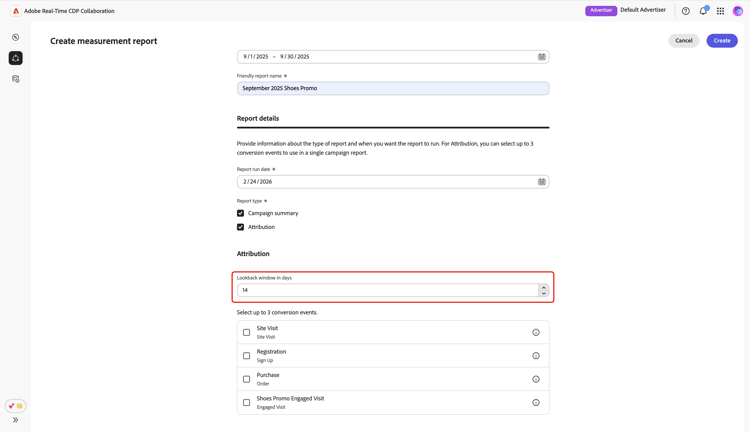
- 以天為單位的回顧期間:定義報告在每次轉換前要考慮多久以前的促銷活動曝光數。 只有此期間的曝光才符合歸因點數的資格。
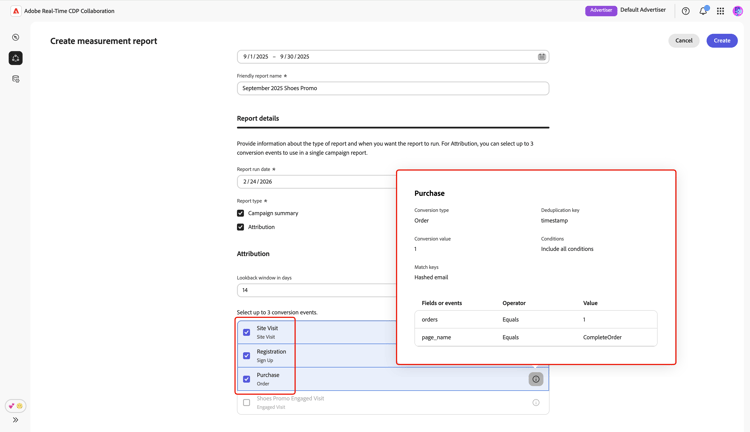
- 轉換事件:指定您要測量的轉換動作,例如購買或註冊。 當您將測量資料來源至Collaboration時,必須預先設定這些事件。
首先,輸入 以天 為單位的回顧期間值,或使用增加/減少選項進行調整。
接著,從可用清單中選擇最多 3 個轉換事件。 如需特定事件的詳細資訊,請選取 i 圖示以檢視其詳細資料。
最後,檢閱您的設定並選取 建立 以排程報告。 您的歸因報告將會在指定的執行日期產生。 您可以在排程報告執行日期之前編輯排程報告。 如需逐步指示,請參閱[編輯測量報告]區段。
一旦可用,您就可以隨時在專案工作區的 量值 索引標籤中檢視報告。
編輯衡量報告 edit-measurement-report
更新測量報告設定,以確保報告提供特定期間內行銷活動的正確分析,並在所需日期執行。
若要開始,請導覽至您要更新之測量報告的工作區。 選取刪除圖示旁的編輯圖示(

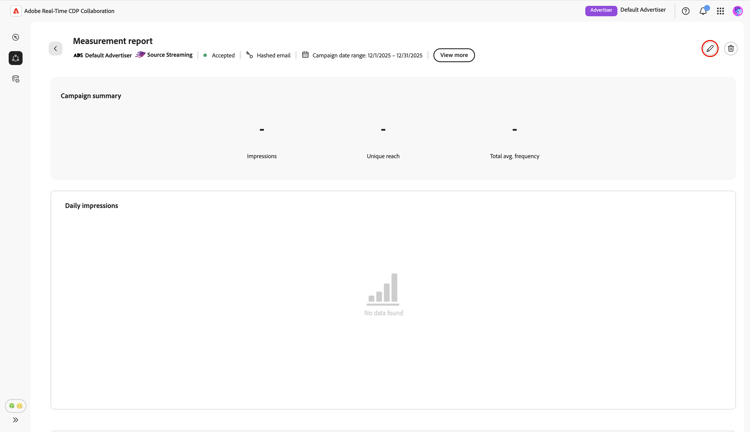
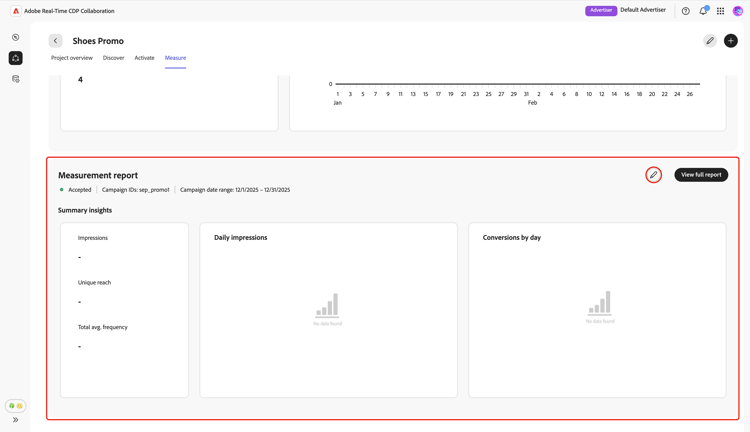
編輯測量報告對話方塊會出現,並在下列區段中顯示報告目前的設定:
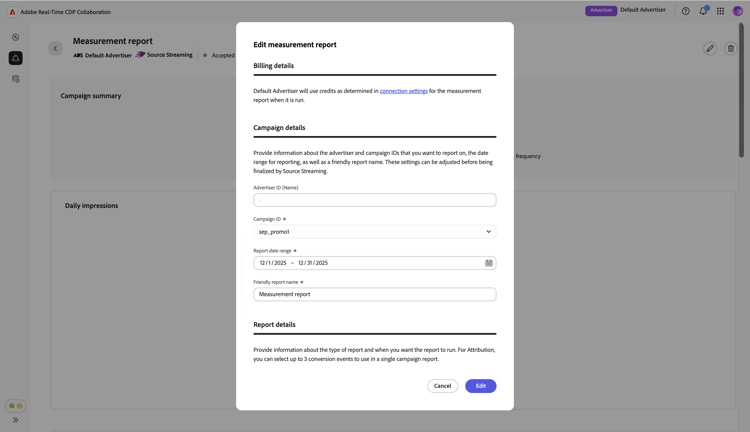
編輯行銷活動詳細資料 edit-campaign-details
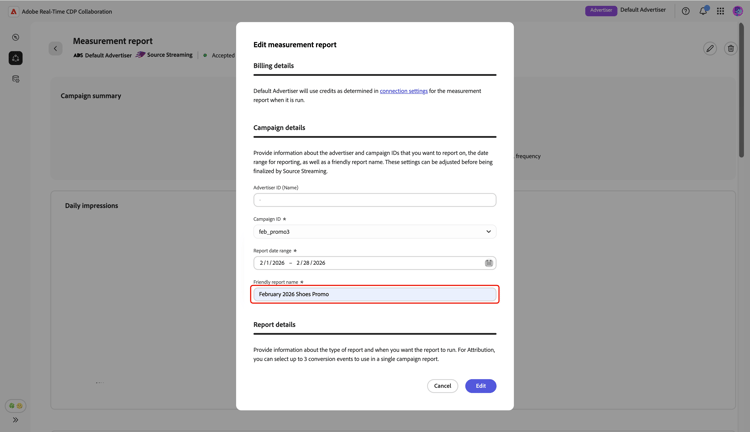
在 編輯測量報告 對話方塊中,使用 廣告商ID (名稱) 和 促銷活動ID 下拉式功能表,編輯報告的廣告商和促銷活動ID。
接著,選取 報告日期範圍 並使用行事曆變更報告的開始和結束日期。
輸入更新的易記報告名稱以擷取您最近的變更。 這可協助您日後識別並尋找此報表。
編輯報告詳細資訊 edit-report-details
若要將報表排程為不同的日期,請導覽至 報表詳細資料 區段。 選取目前的執行日期選項,然後使用行事曆選擇您偏好的日期。
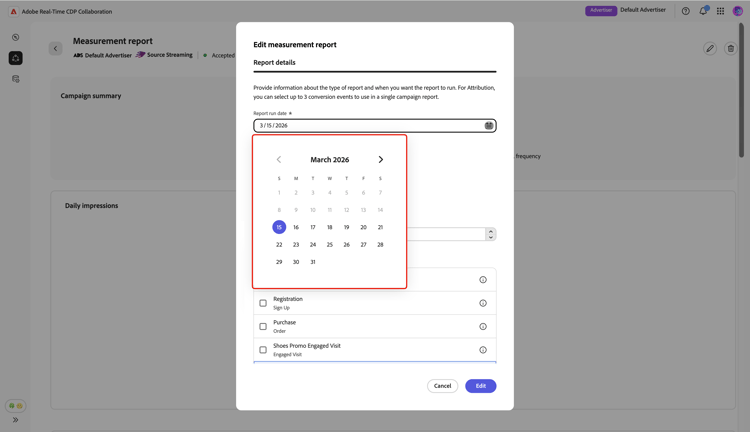
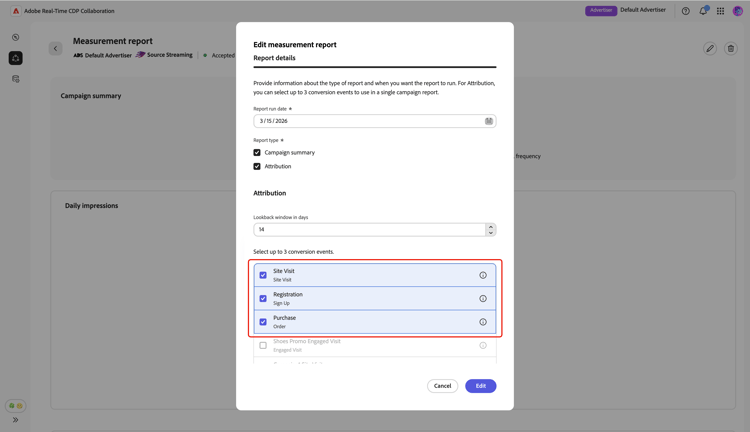
作為廣告商,除了 行銷活動摘要 之外,您還可以選擇選取或移除 歸因 報告型別。 如果您選擇歸因,則您的歸因報表會包含標準「促銷活動摘要」量度和深入的「歸因」深入分析。 如需 促銷活動摘要 和 歸因 報告型別的詳細資訊,請參閱建立測量報告區段。
- 如果您選擇 歸因 作為報表型別,則必須在 歸因 區段中填寫必填欄位。 如需設定指示,請參閱歸因報告詳細資料區段。
- 如果您先前在建立報告時已設定歸因設定,您可以選擇編輯回顧期間(以天為單位測量),並選取要報告的轉換事件。
若要以天數 更新 回顧期間,請輸入數值,或使用增加/減少選項進行調整。 接著,選取您要報告的轉換事件。 您可以從可用清單中選擇最多 3 個轉換。
完成之後,請檢閱更新並選取 編輯 以套用您的變更。
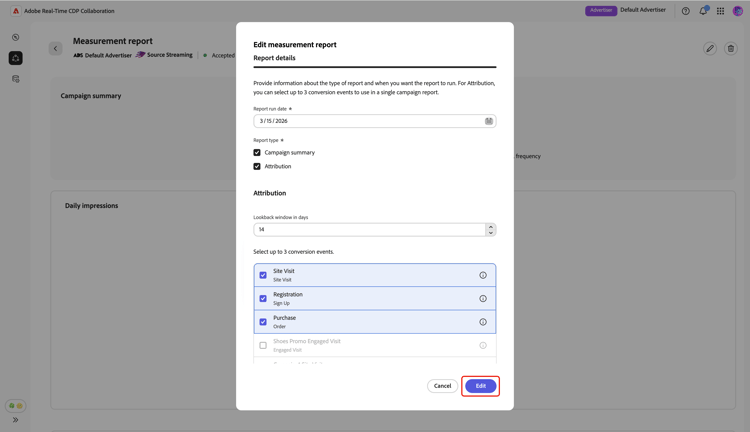
確認對話方塊會確認您的報告已成功儲存。
刪除測量報告 delete-measurement-report
刪除Collaboration中的測量報告會將其從系統中永久移除。 此動作無法還原。 若要這麼做,請在 量值 索引標籤中選取您要刪除的報告。
在測量報表工作區中,選取刪除圖示(

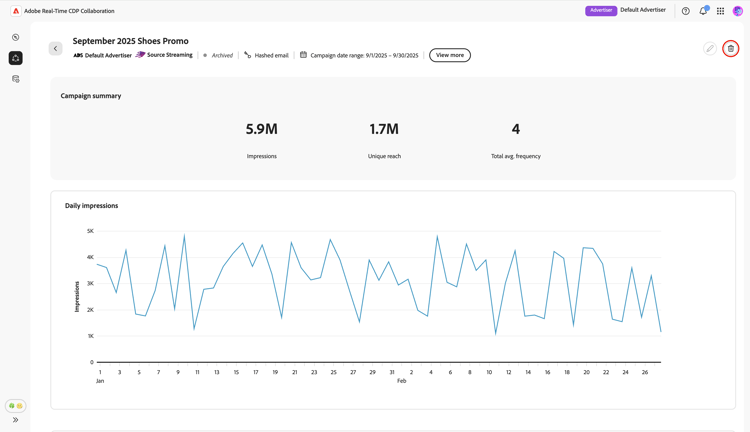
刪除報告對話方塊會出現,提示您確認刪除。 選取「刪除」。
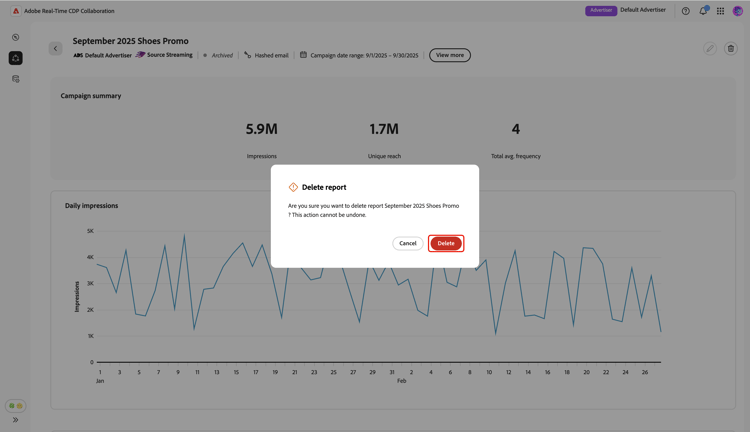
確認對話方塊會確認報告已成功刪除。