1.6.3使用ChatGPT和MCP伺服器縮放內容片段
1.6.3.1建立內容片段模型
返回您的Adobe Experience Manager作者環境,前往工具,然後前往設定瀏覽器。
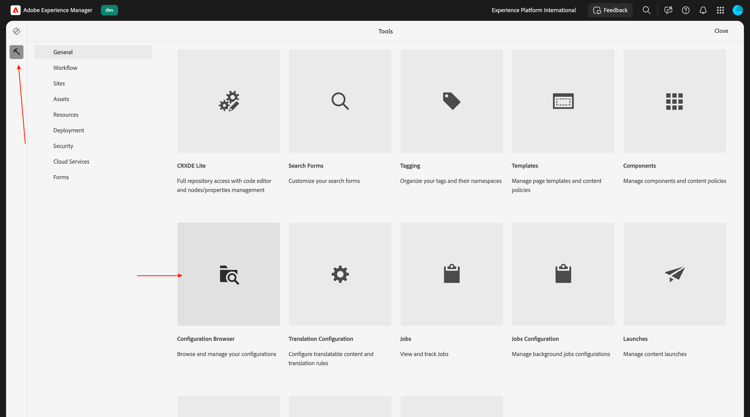
按一下建立。
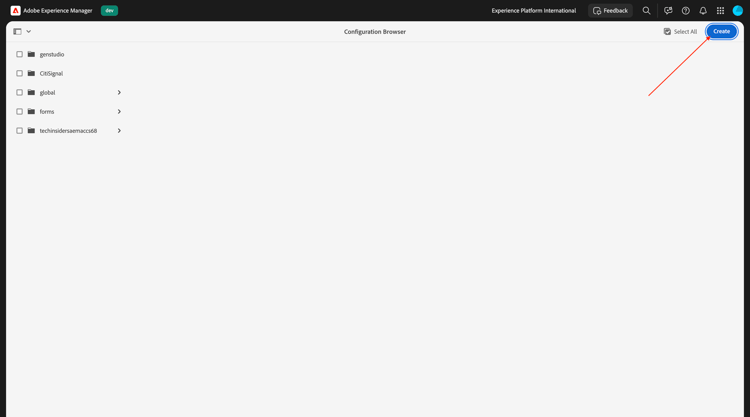
Content Fragments用於欄位 標題 和名稱。
請確定選項 內容片段模型 和 GraphQL持續查詢 皆已啟用。
按一下建立。
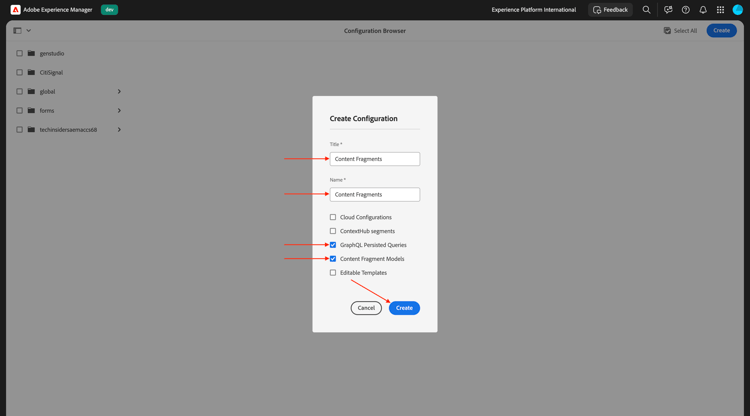
返回您的Adobe Experience Manager作者環境,然後前往內容片段。
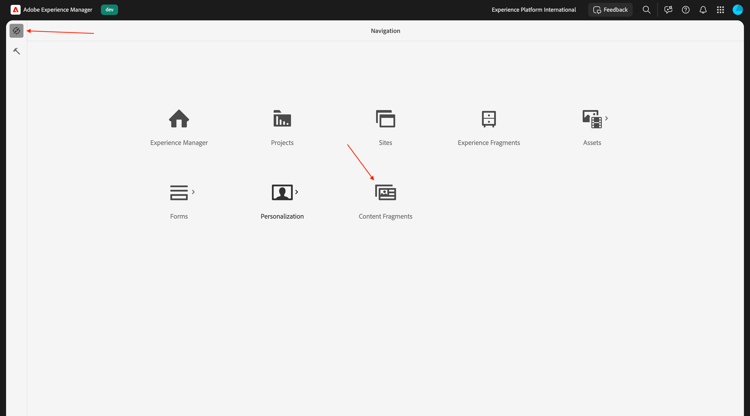
移至內容片段模型,選取您的設定內容片段,然後按一下建立。
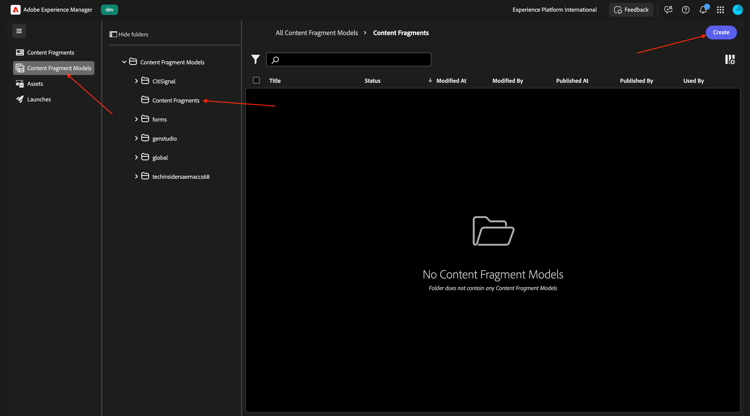
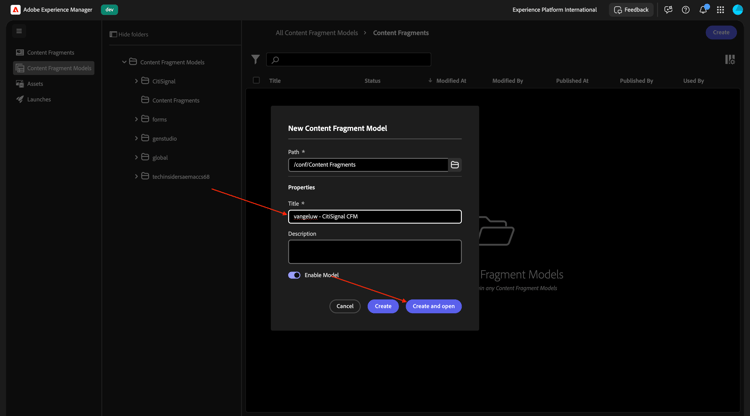
使用名稱--aepUserLdap-- - CitiSignal CFM。 按一下建立並開啟。
您應該會看到此訊息。 將 單行文字 欄位拖放到畫布上。
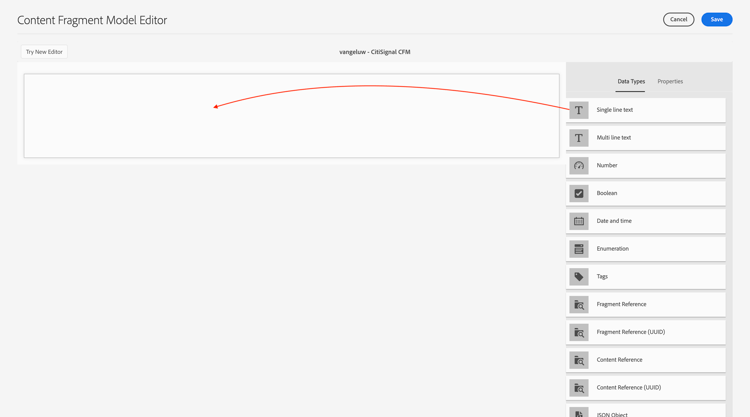
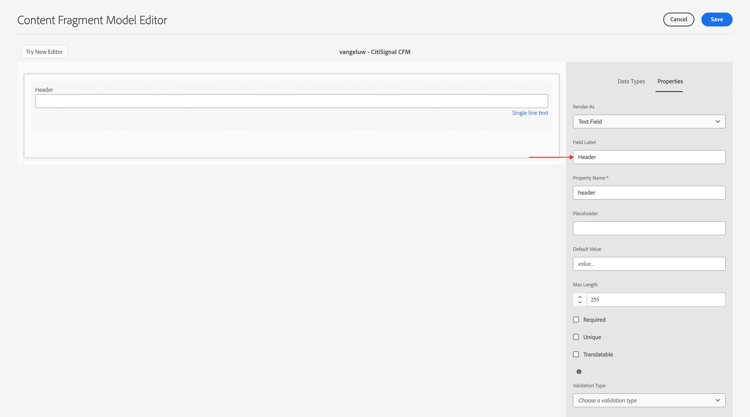
將欄位 欄位標籤 變更為Header。
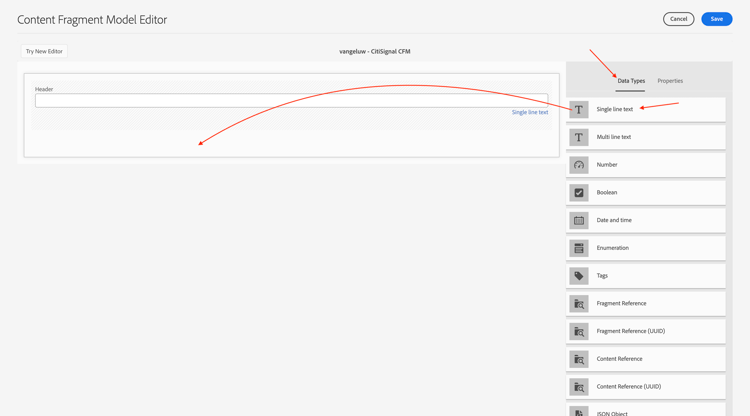
返回資料型別。 將 單行文字 欄位拖放到畫布上。
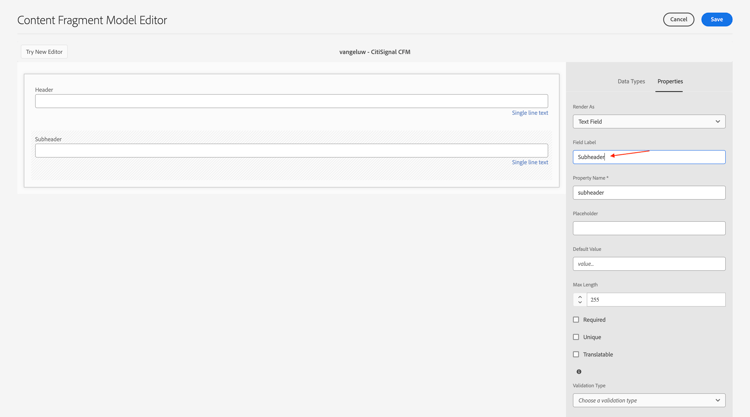
將欄位 欄位標籤 變更為Subheader。
返回資料型別。 將 多行文字 欄位拖放到畫布上。
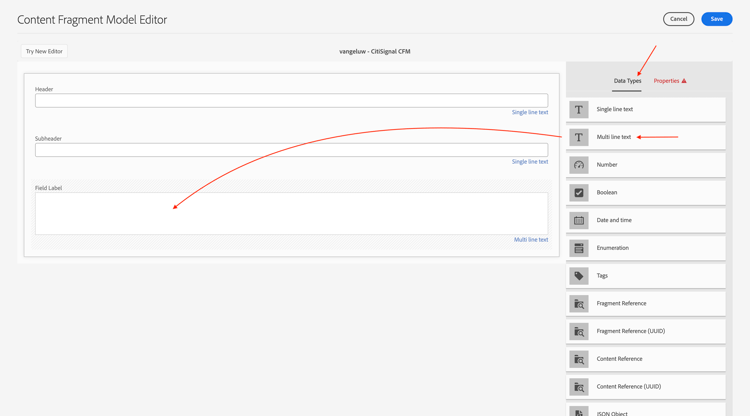
將欄位 欄位標籤 變更為Detail Description。
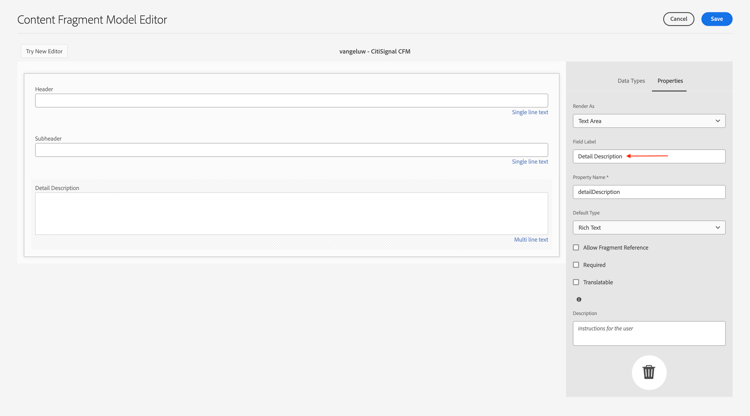
返回資料型別。 將 單行文字 欄位拖放到畫布上。
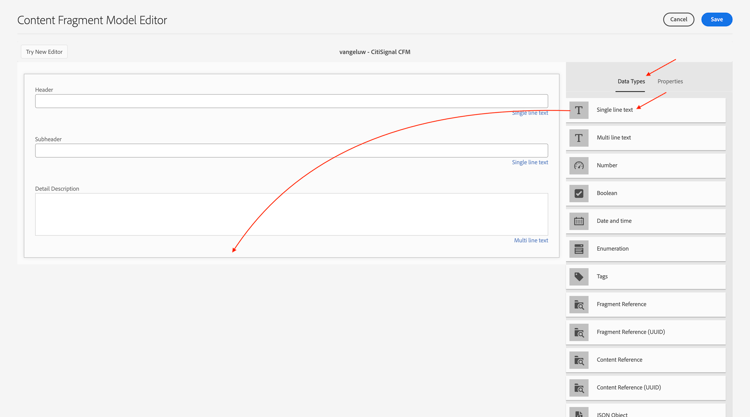
將欄位 欄位標籤 變更為CTA Text。
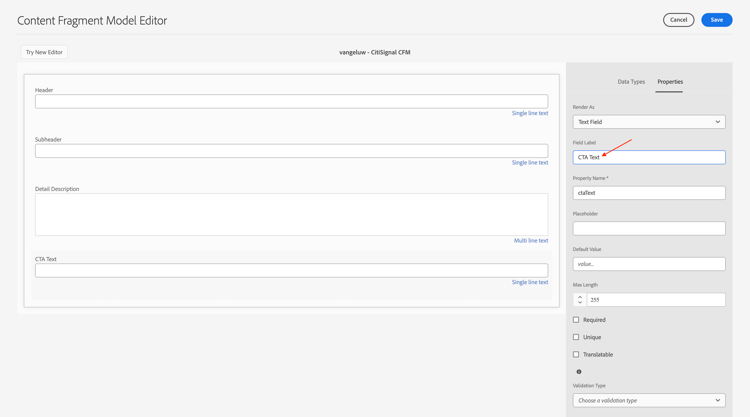
返回資料型別。 將 單行文字 欄位拖放到畫布上。
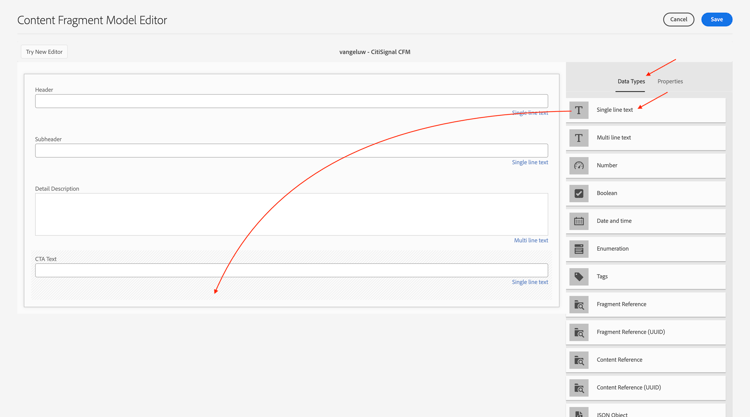
將欄位 欄位標籤 變更為CTA Link。 按一下儲存。
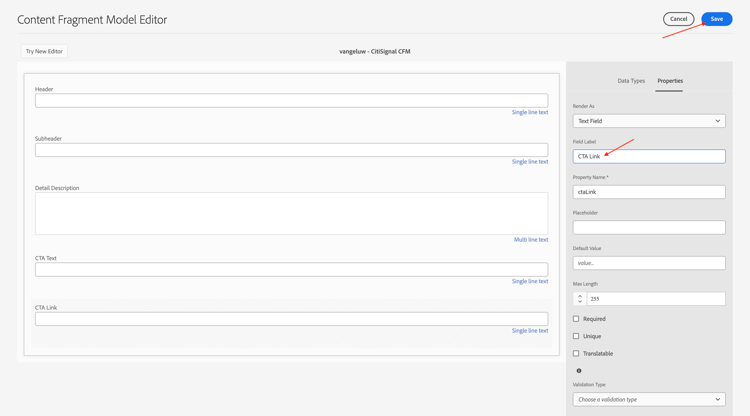
您應該會看到此訊息。
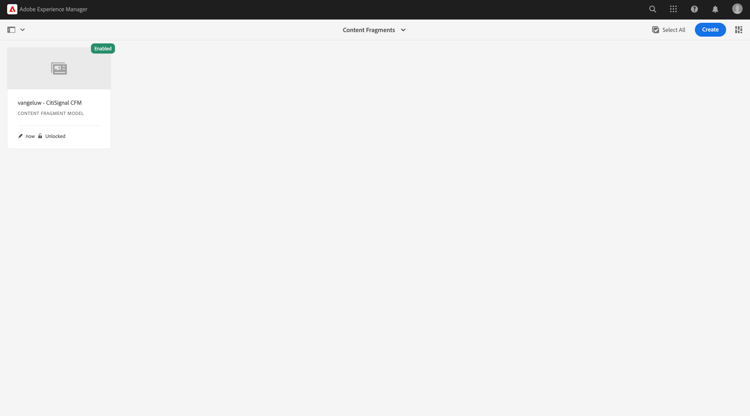
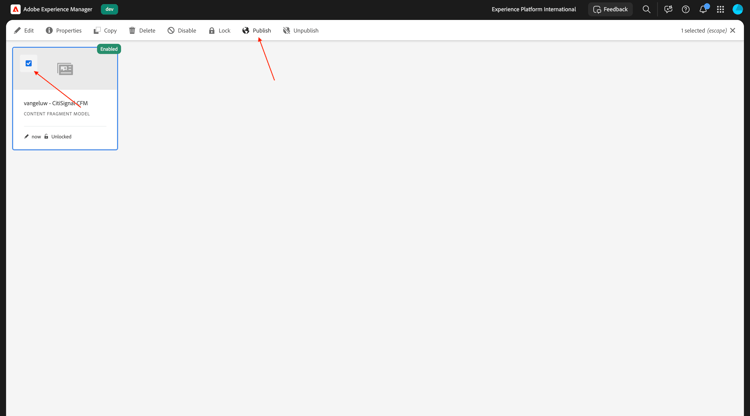
選取您的內容片段模式,然後按一下發佈。
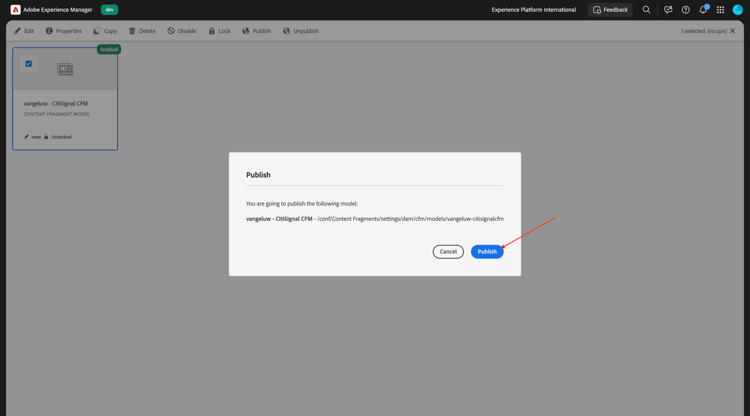
按一下發佈。
1.6.3.2建立內容片段
返回您的Adobe Experience Manager作者環境,然後前往內容片段。
您應該會看到此訊息。 按一下建立,然後選取資料夾。
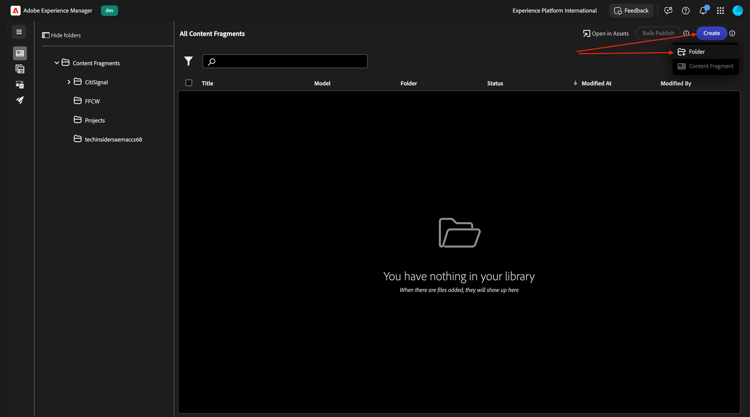
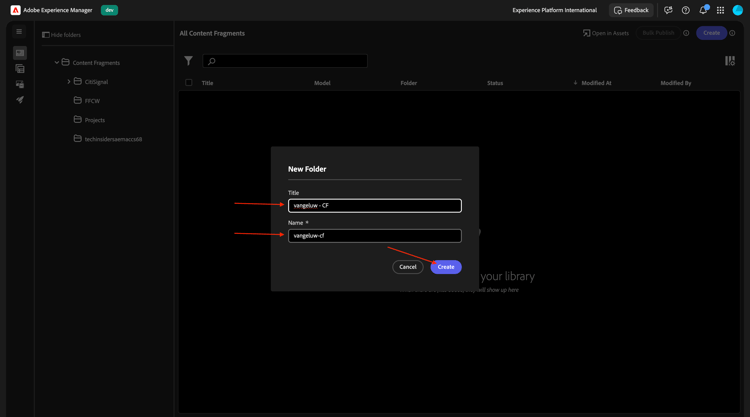
輸入標題: --aepUserLdap-- - CF。 按一下建立。
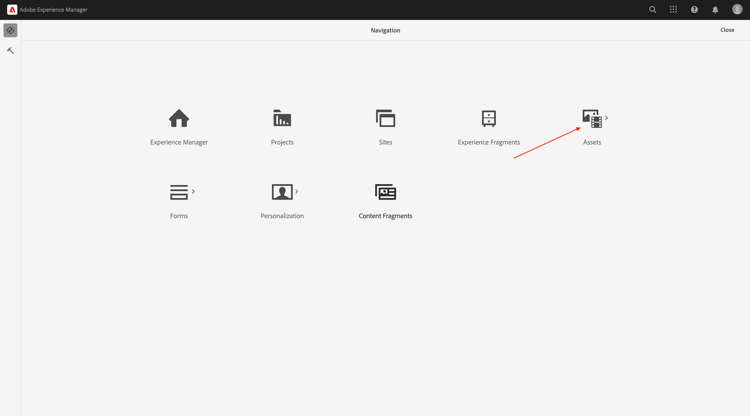
返回您的Adobe Experience Manager作者環境,然後前往Assets。
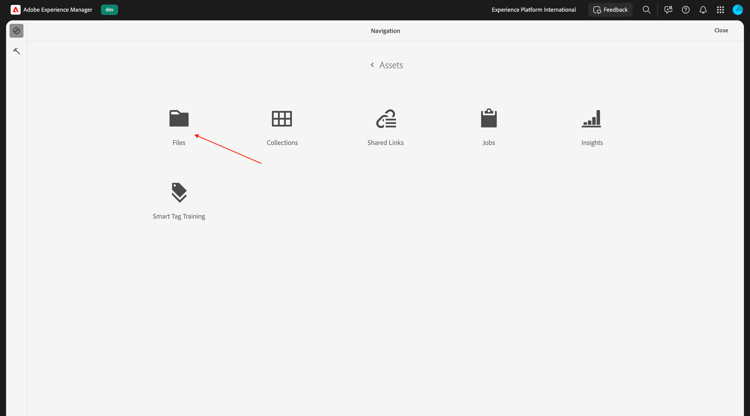
移至檔案。
選取您剛建立的資料夾(應該命名為--aepUserLdap-- - CF),然後按一下內容。
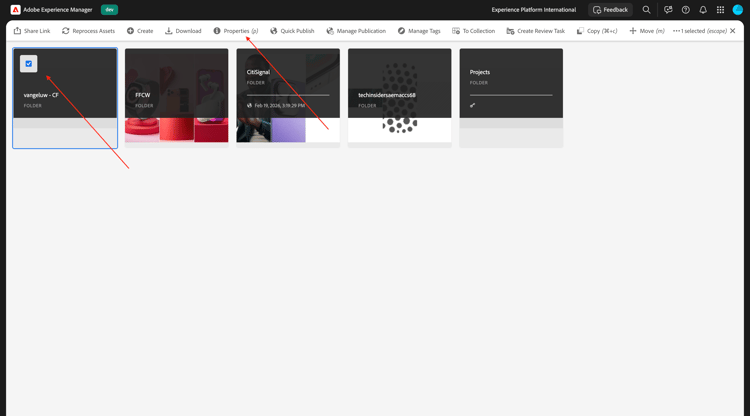
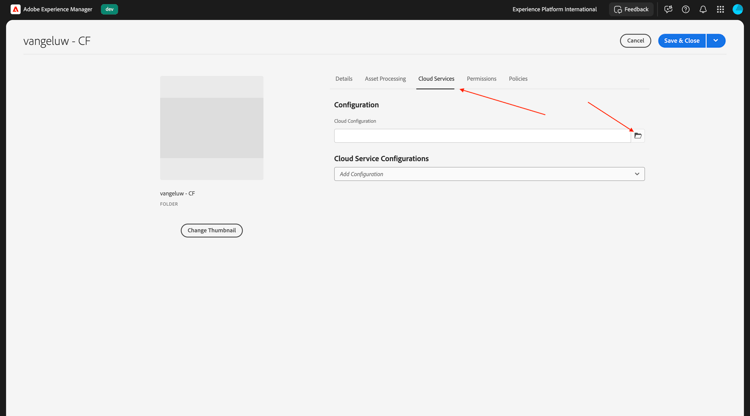
移至雲端服務,然後按一下 資料夾 圖示。
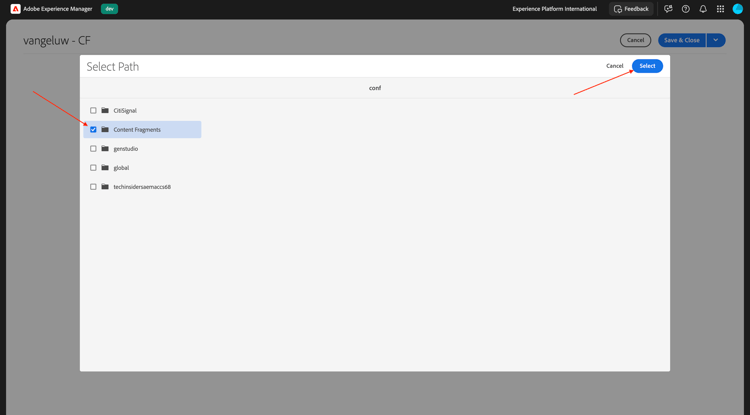
選取您之前建立的雲端設定,應命名為內容片段。 按一下選取。
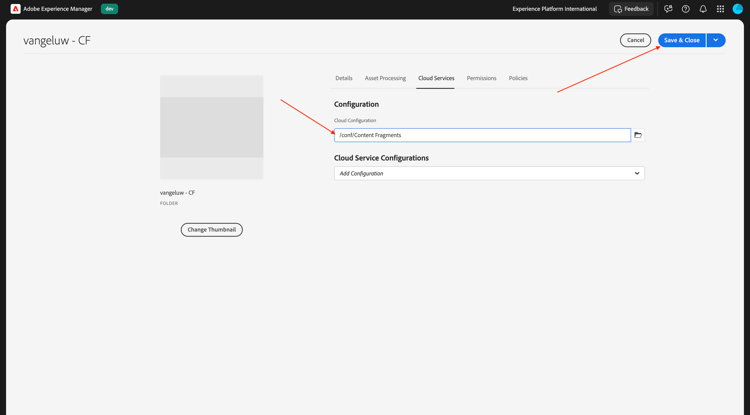
然後您應該會看到此訊息。 按一下「儲存並關閉」。
返回您的Adobe Experience Manager作者環境,然後前往內容片段。
您應該會看到此訊息。 按一下建立,然後選取內容片段。
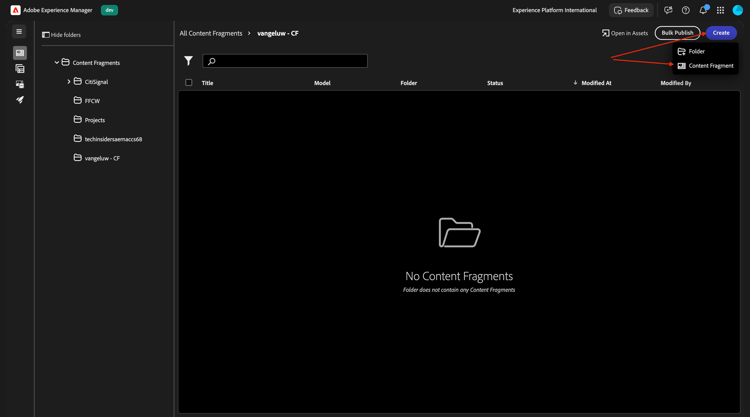
選取您之前建立的內容片段模式,其名稱應該是--aepUserLdap-- - CitiSignal CFM。 使用名稱--aepUserLdap-- CitiSignal Fiber Max。
按一下建立並開啟。
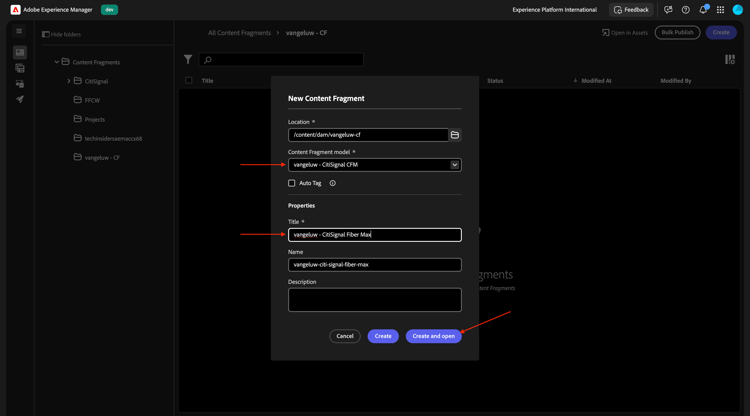
您應該會看到此訊息。
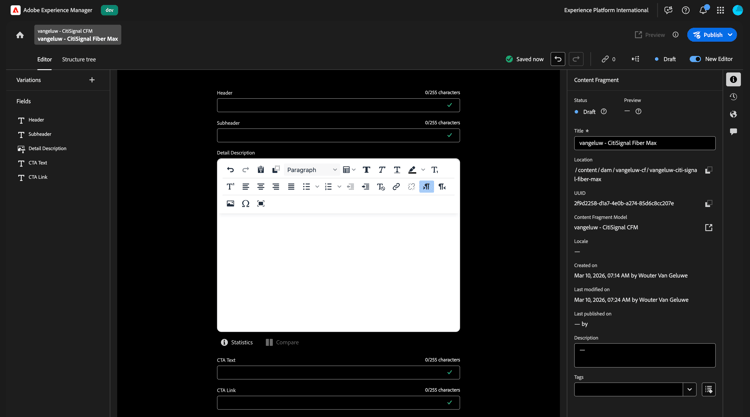
填寫欄位,如下所示:
- 標頭:
CitiSignal Fiber Max - 子標題:
Experience high speed internet now - 詳細描述:
Experience the future of connectivity with CitiSignal Fiber Max, the ultimate solution for high-speed internet. Designed for homes and businesses that demand performance, Fiber Max delivers blazing-fast fiber speeds, ensuring seamless streaming, ultra-responsive gaming, and crystal-clear video calls.

Key Features:

Unmatched Speed: Enjoy lightning-fast downloads and uploads powered by cutting-edge fiber technology.
Reliable Performance: Consistent connectivity for work, entertainment, and everything in between.
Future-Ready: Built to handle the growing demands of smart homes and digital lifestyles.
Unlimited Potential: No data caps, no throttling—just pure speed.
Why Choose CitiSignal Fiber Max? Stay ahead with internet that works as hard as you do. Whether you’re powering a remote office or streaming in 4K, Fiber Max ensures you never miss a beat.
CTA文字: Upgrade now by signing your new contract!
CTA連結: https://techinsiders68.adobedemosystem.com/
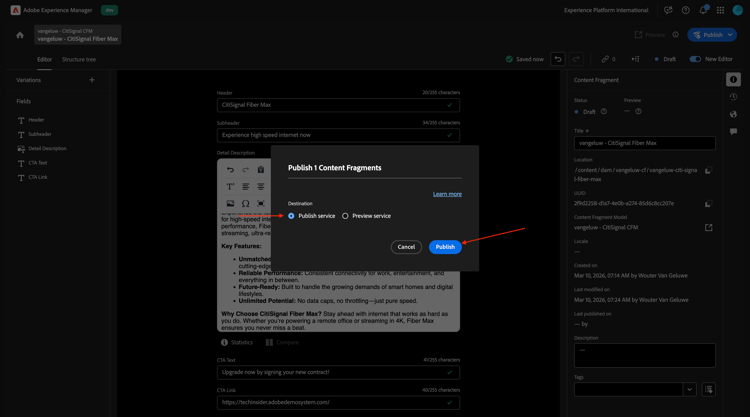
按一下發佈,然後選取立即。

按一下發佈。
1.6.3.3在ChatGPT中設定MCP伺服器
- OpenAI的ChatGPT Enterprise付費版本
- 使用ChatGPT Enterprise Web使用者端
移至https://chatgpt.com/並使用您的帳戶詳細資料登入。 登入後,您應該會看到此訊息。 按一下您的使用者名稱,然後選取設定。
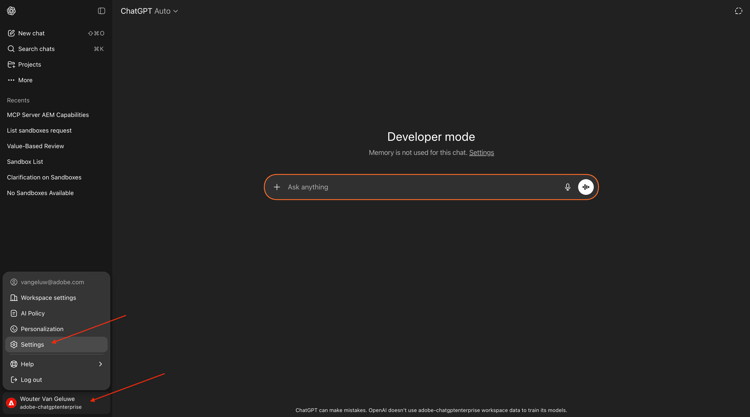
移至應用程式,然後選取進階設定。
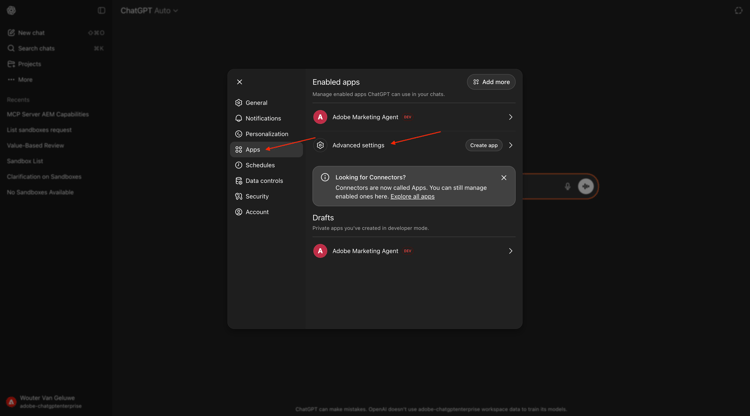
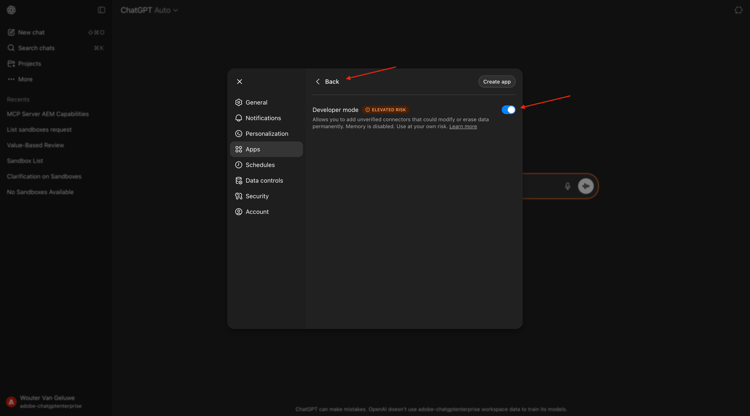
開啟開發人員模式,然後按一下上一步。
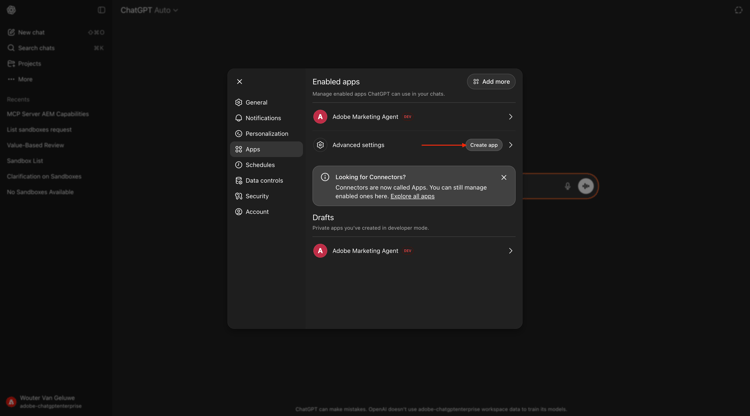
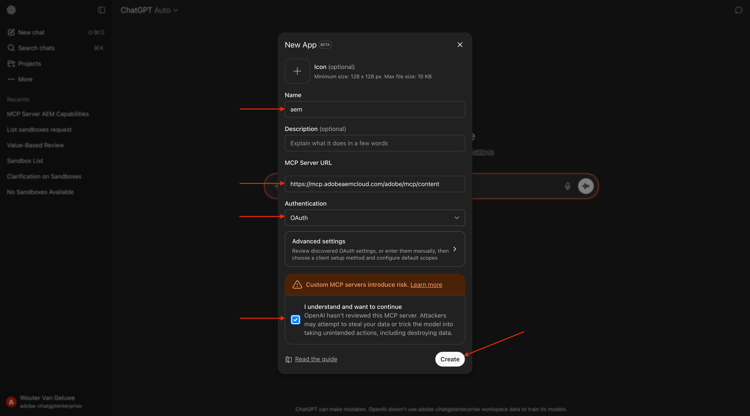
按一下建立應用程式。
填寫欄位,如下所示:
- 名稱:
aem - MCP伺服器URL:
https://mcp.adobeaemcloud.com/adobe/mcp/content - 驗證:
OAuth
勾選 我瞭解並想要繼續 的核取方塊。
按一下建立。
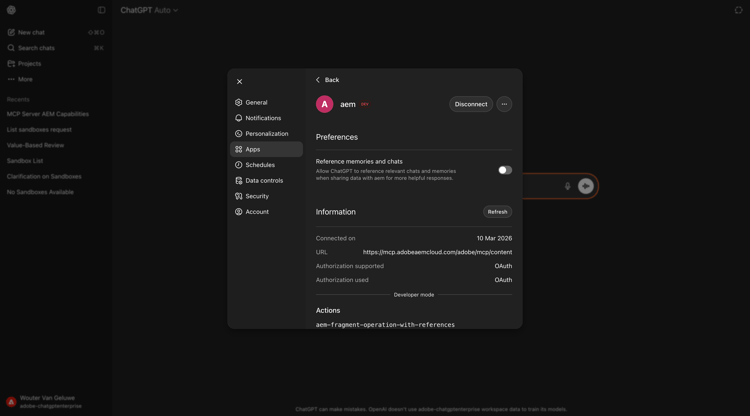
ChatGPT現在將嘗試連線至您的Adobe帳戶。 選取允許存取,然後您必須使用您的Adobe帳戶登入。
成功登入後,您應該會看到Adobe Marketing Agent現在已成功連線。
1.6.3.4在ChatGPT中使用AEM MCP伺服器
關閉此視窗。
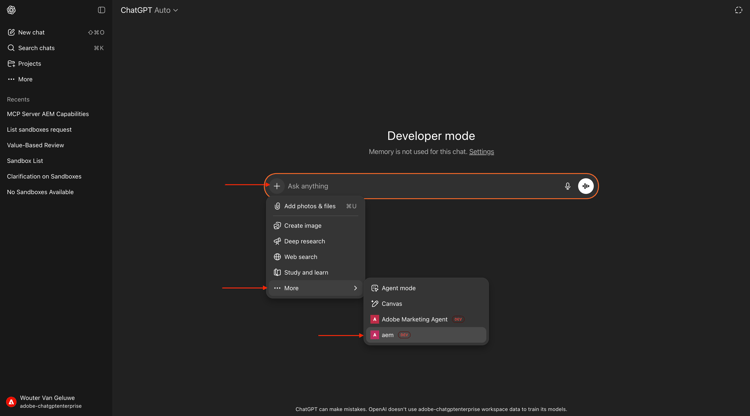
您應該會看到此訊息。 按一下 + 圖示,移至更多,然後選取aem。
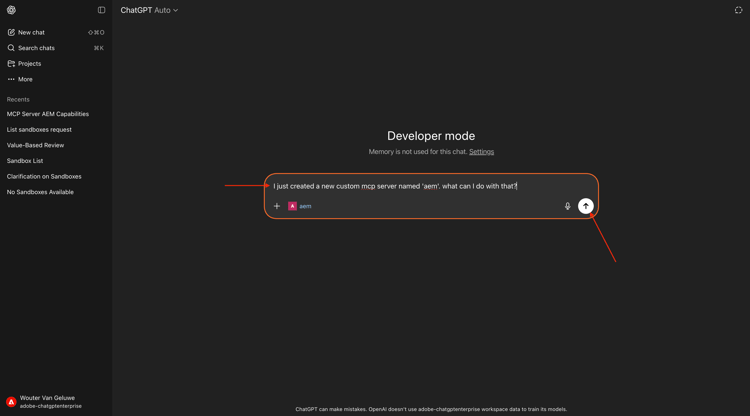
輸入以下提示並按一下傳送。
I just created a new custom mcp server named 'aem'. what can I do with that?
您應該會看到類似這樣的內容。 輸入以下提示並按一下傳送。
use the author url https://author-pXXXXXX-eXXXXXXX.adobeaemcloud.com/ from now on
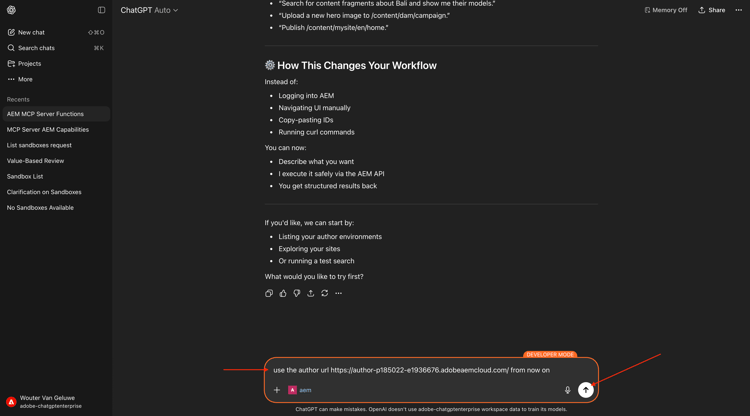
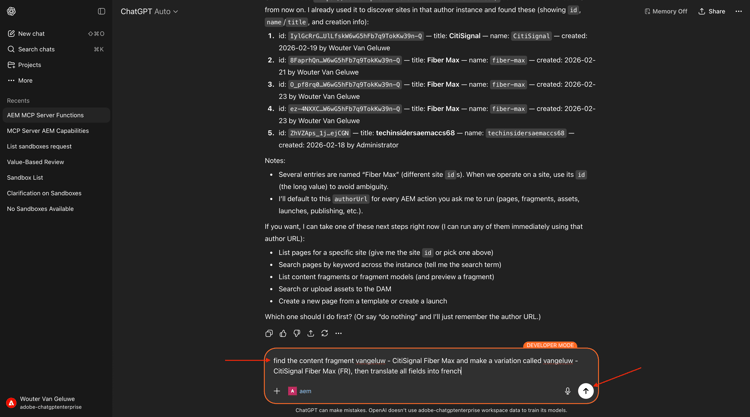
您應該會看到類似這樣的內容。 輸入以下提示並按一下傳送。
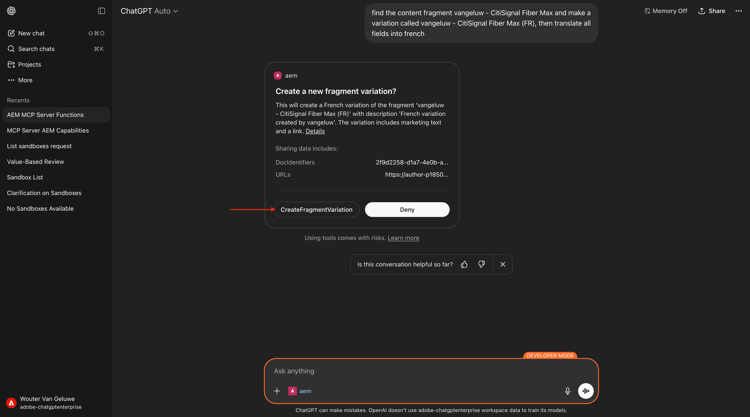
find the content fragment --aepUserLdap-- - CitiSignal Fiber Max and make a variation called --aepUserLdap-- - CitiSignal Fiber Max (FR), then translate all fields into french
按一下CreateFragmentVariation。
按一下UpdateFragment。
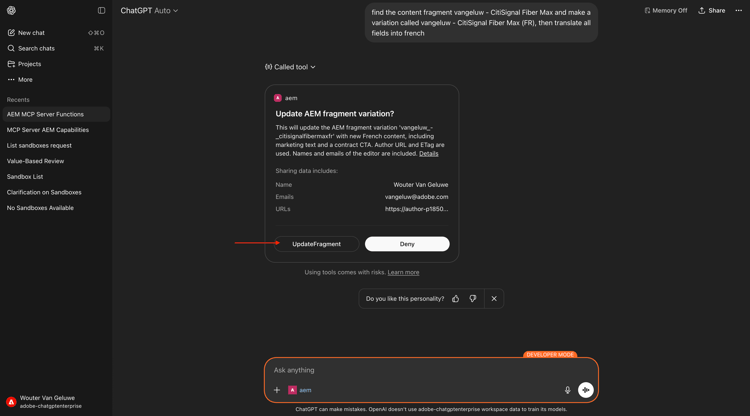
您應該會看到此訊息。 已成功建立您的片段變數。
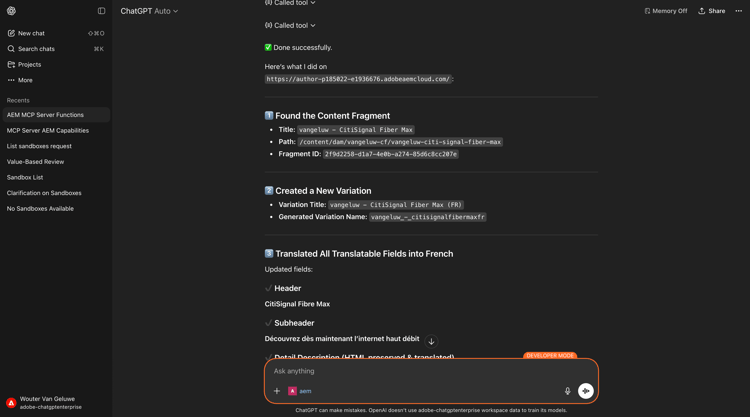
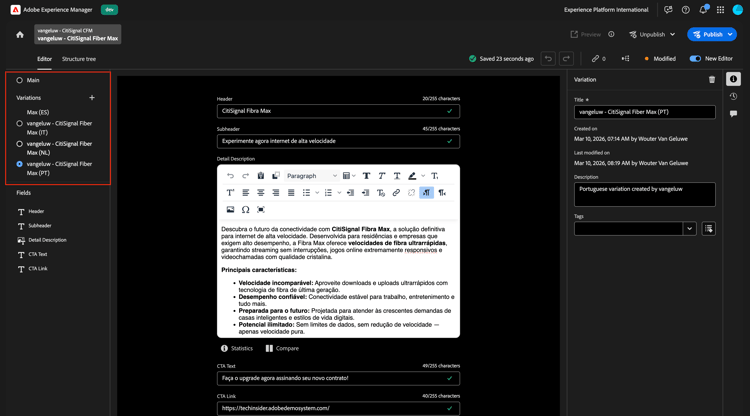
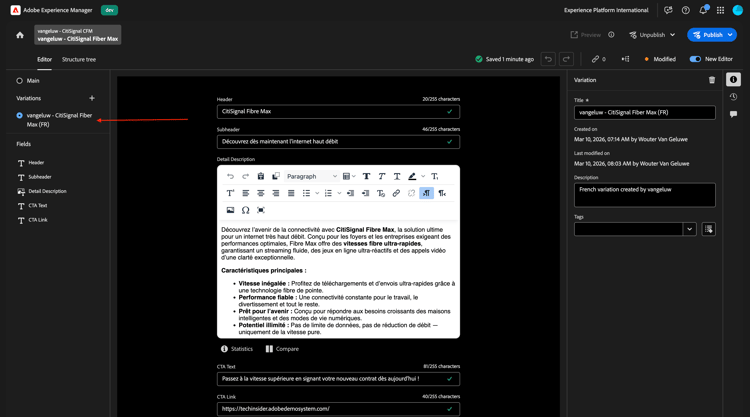
您現在也可以在AEM UI中看到新的變數。
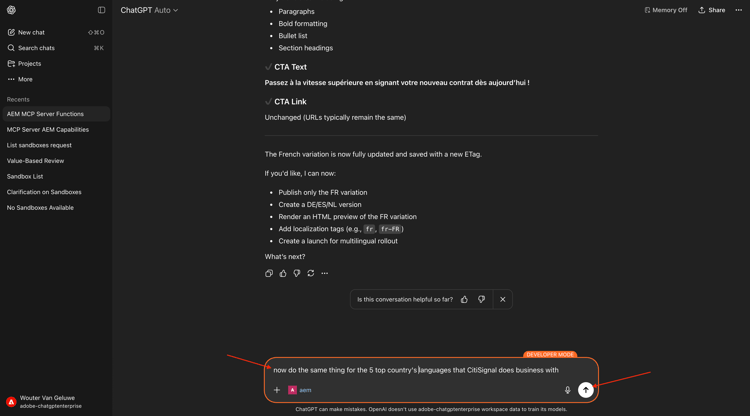
接下來,使用ChatGPT將您的內容片段翻譯成更多變化。 輸入以下提示並按一下傳送。
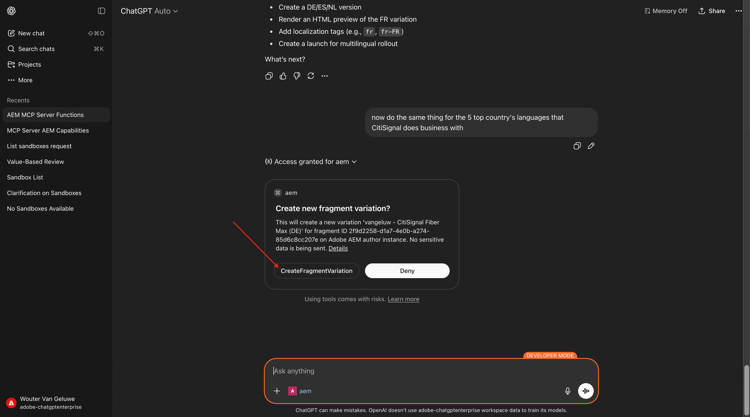
now do the same thing for the 5 top country's languages that CitiSignal does business with
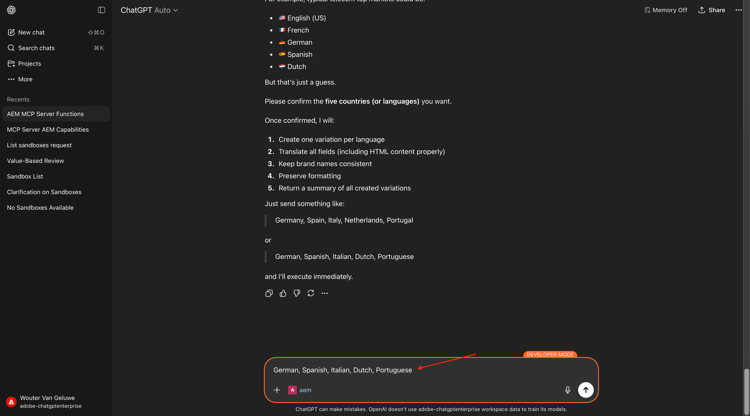
確認您的語言選擇。
按一下CreateFragmentVariation。
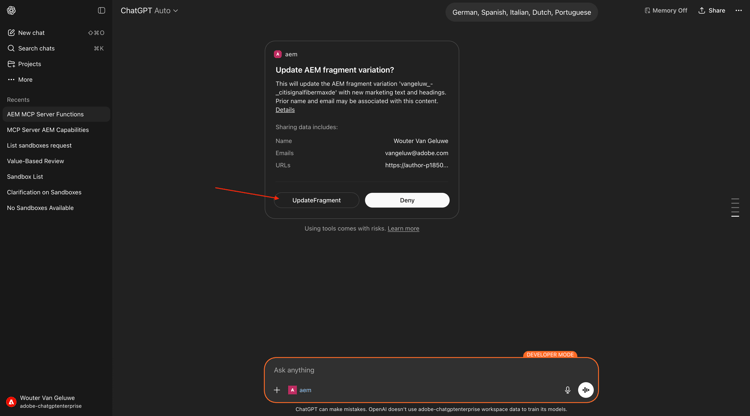
按一下UpdateFragment。
為您選取的每種語言重複此程式。 完成後,您應該會看到類似這樣的內容。
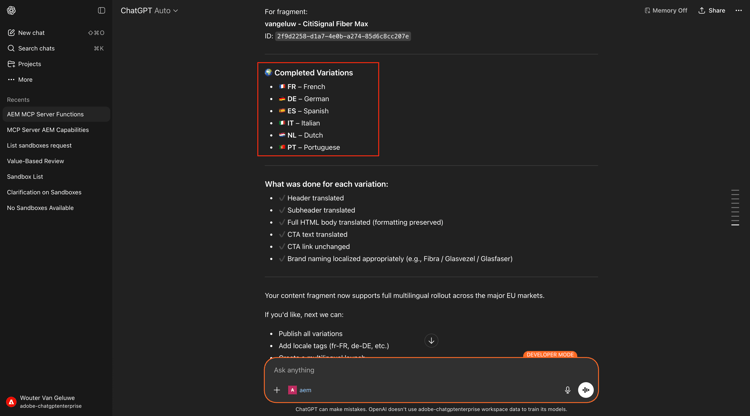
返回AEM UI並重新整理畫面。 您現在可以在內容片段中看到新的變數。