1.1.2適用於ChatGPT Enterprise的Adobe Marketing Agent
[Beta]{class="badge informative"}
影片
在這段影片中,您將獲得本練習中所有步驟的說明和示範。
1.1.2.1在ChatGPT Enterprise for Adobe Marketing Agent中建立自訂應用程式
- OpenAI的ChatGPT Enterprise付費版本
- 使用ChatGPT Enterprise Web使用者端
移至https://chatgpt.com/並使用您的帳戶詳細資料登入。 登入後,您應該會看到此訊息。 按一下您的使用者名稱。
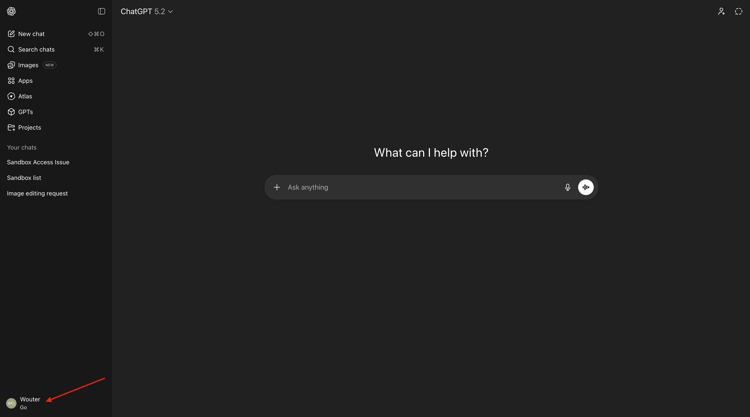
選取設定。
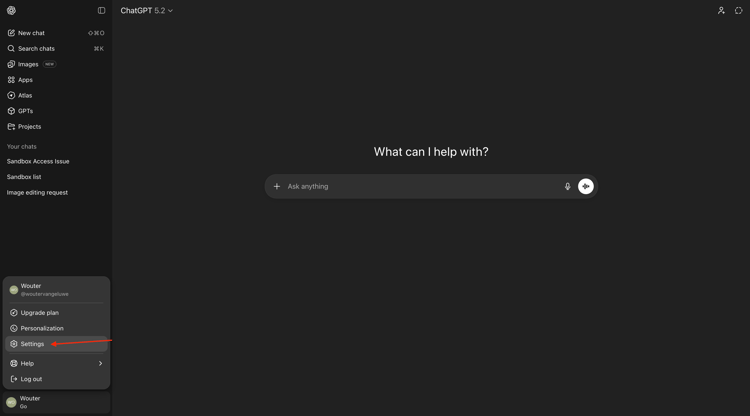
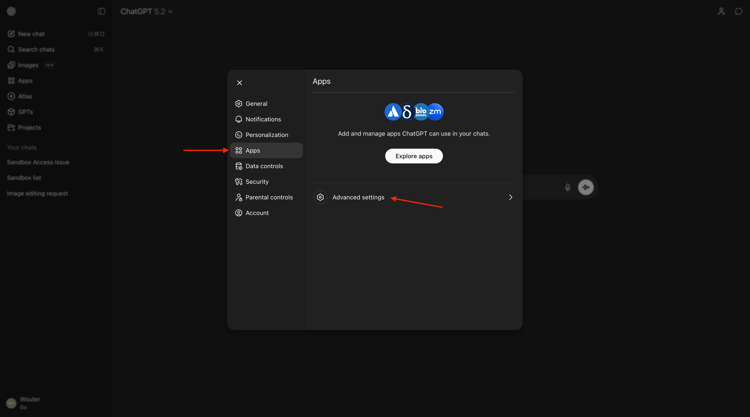
移至應用程式,然後選取進階設定。
開啟開發人員模式,然後按一下上一步。
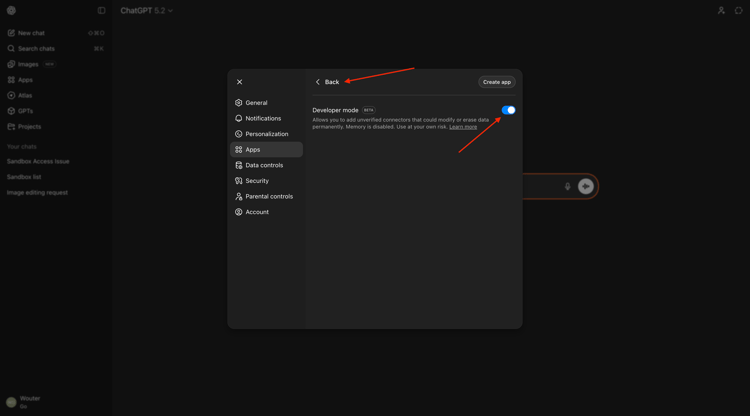
按一下建立應用程式。
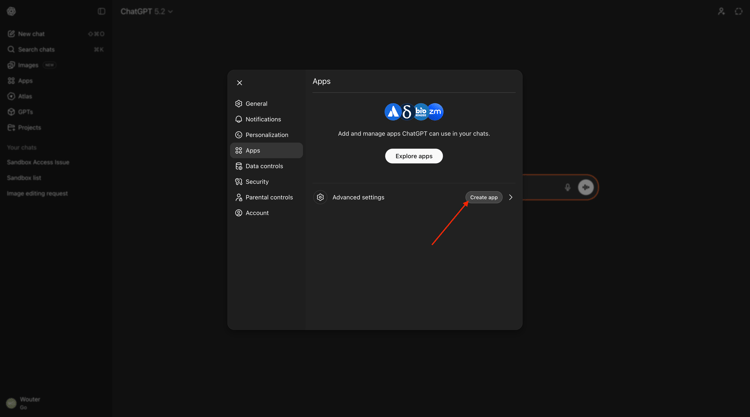
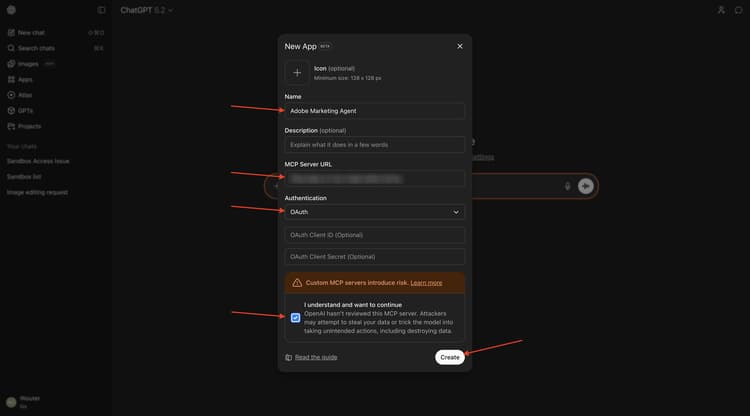
填寫欄位,如下所示:
- 名稱:
Adobe Marketing Agent - MCP伺服器URL:請洽詢您的Adobe代表
- 驗證:
OAuth
勾選 我瞭解並想要繼續 的核取方塊。
按一下建立。
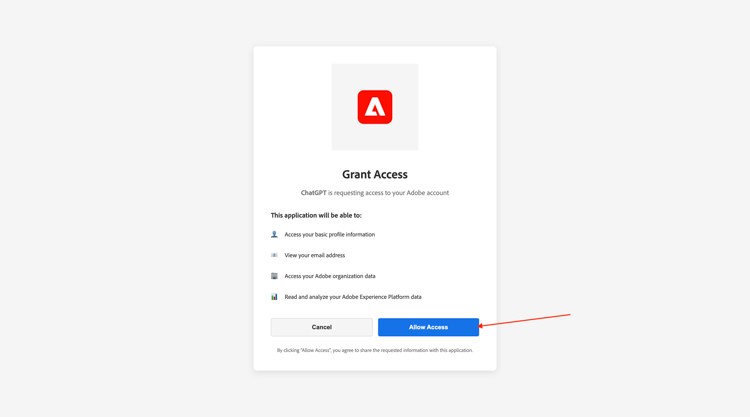
ChatGPT現在將嘗試連線至您的Adobe帳戶。 選取允許存取,然後您必須使用您的Adobe帳戶登入。
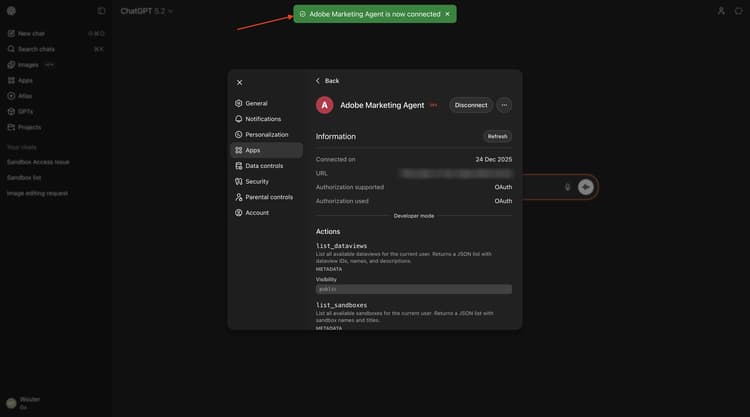
成功登入後,您應該會看到Adobe Marketing Agent現在已成功連線。
1.1.2.2在Adobe Marketing Agent中設定內容
關閉此視窗。
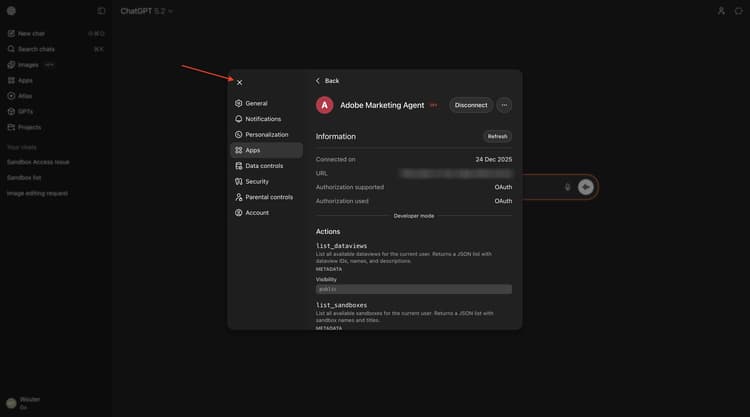
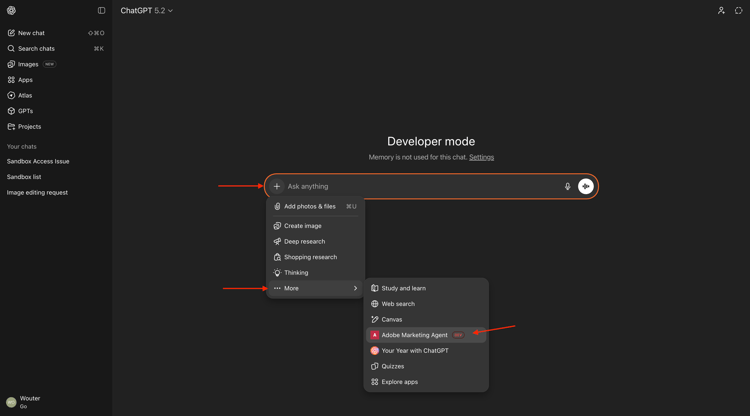
您應該會看到此訊息。 按一下 + 圖示,移至更多,然後選取Adobe Marketing Agent。
在透過ChatGPT進一步與Adobe Marketing Agent互動之前,需要設定內容。
在本練習中,需要將內容設定為使用:
- 沙箱: Prod — 加速(VA7)
沙箱設定可協助識別ChatGPT在詢問問題時應檢視的沙箱。
- 資料檢視: 加速2026 B2C
資料檢視設定可協助識別ChatGPT在詢問問題時應檢視的資料檢視。
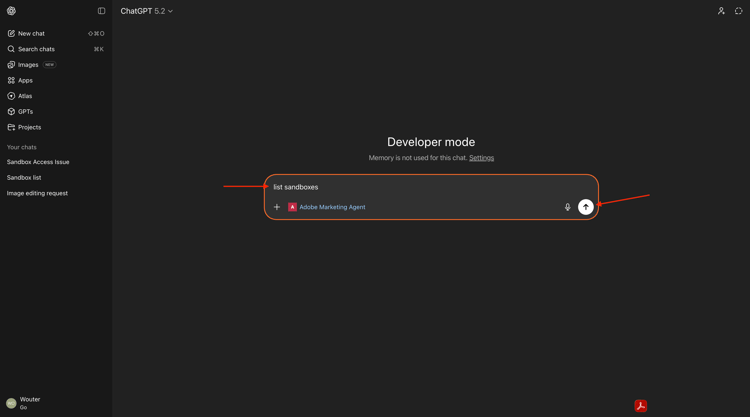
輸入下列 提示 並按一下 傳送 按鈕。
list sandboxes
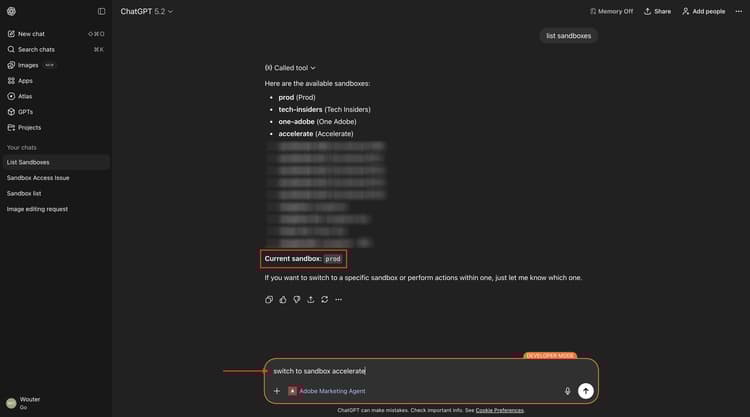
之後,您應該會看到類似的可用沙箱清單。 此範例中的目前沙箱設定為prod。
若要將其變更為需要使用的沙箱,請輸入下列 提示 並按一下 傳送 按鈕。
switch to sandbox accelerate
您應該會看到此訊息。 按一下設定內容。
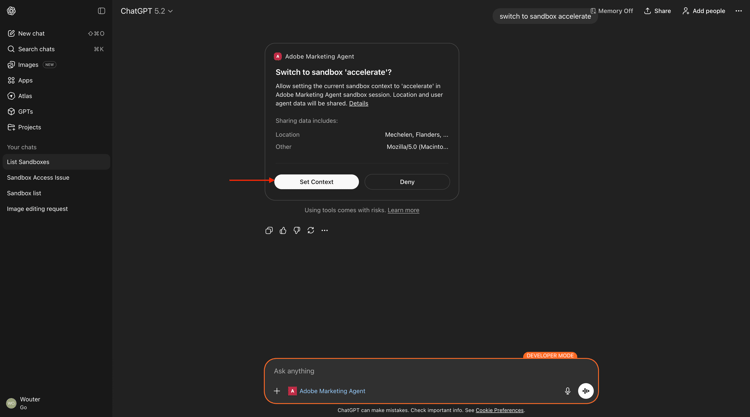
您應該會看到此訊息。 輸入下列 提示 並按一下 傳送 按鈕,設定要使用的資料檢視。
list dataviews
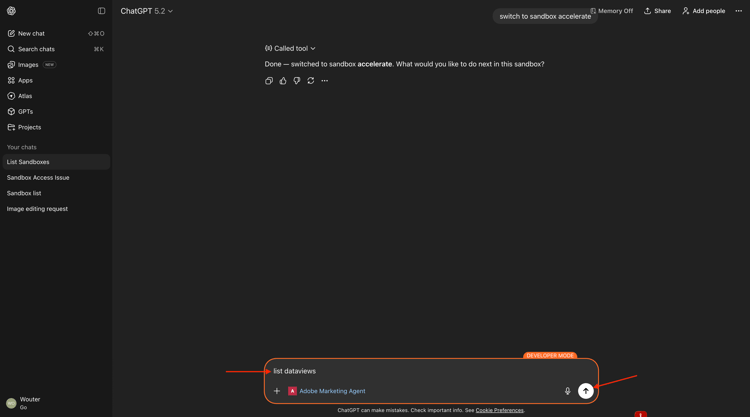
之後,您應該會看到類似的可用資料檢視清單。
若要設定需要使用的資料檢視,請輸入下列 提示 並按一下 傳送 按鈕。
switch to Accelerate 2026 B2C
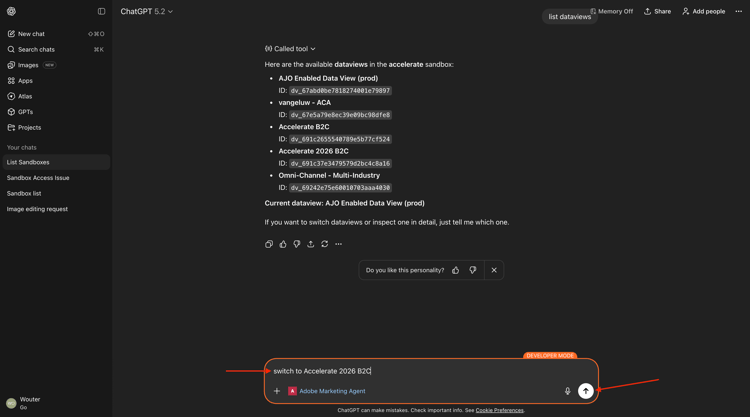
您應該會看到此訊息。 按一下設定內容。
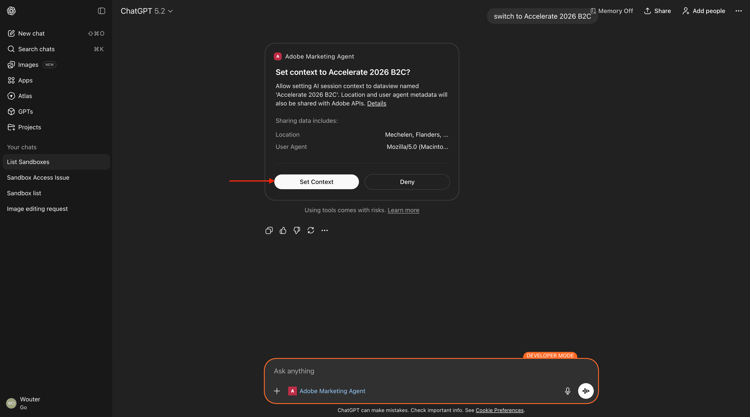
您應該會看到此訊息。
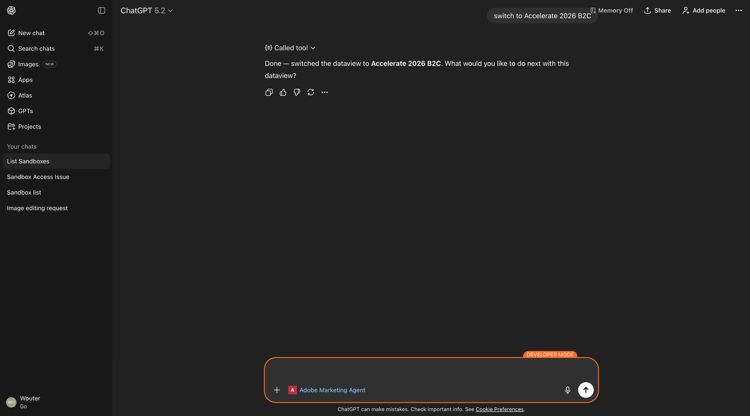
您的內容現在已正確設定,因此您之後可以開始傳送特定提示。
1.1.2.3從整體購買趨勢開始,錨定內容並放大光纖
意圖
獲得全方位的類別需求脈衝:行動、有線電話、網際網路、電視、光纖,特別是最近60天的應用。 這會設定紐約推出後的季節性、促銷效果及區域差異的基線。
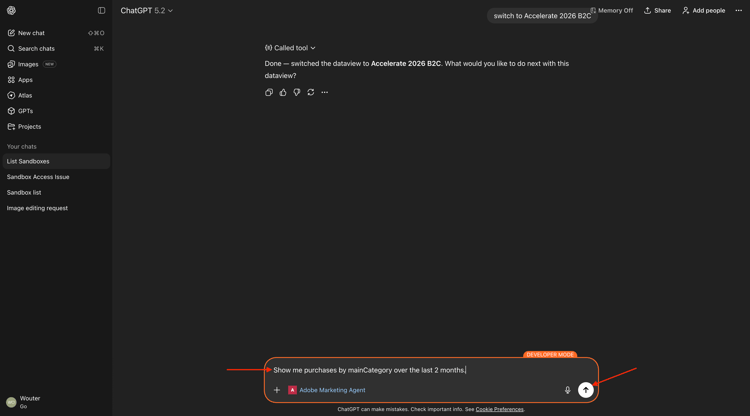
輸入下列 提示 並按一下 傳送 按鈕。
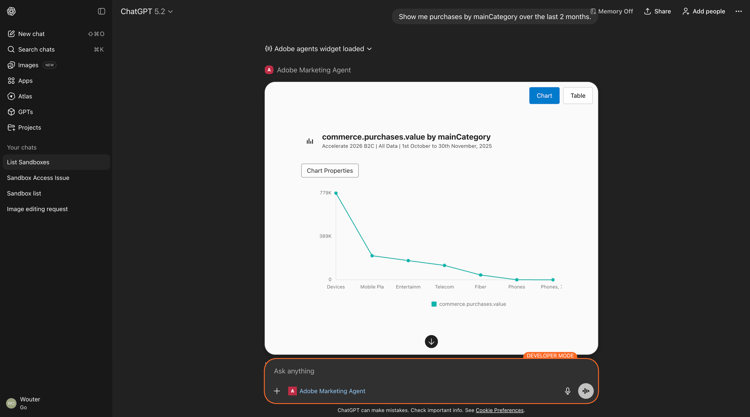
Show me purchases by mainCategory over the last 7 months.
您應該會看到以下內容:
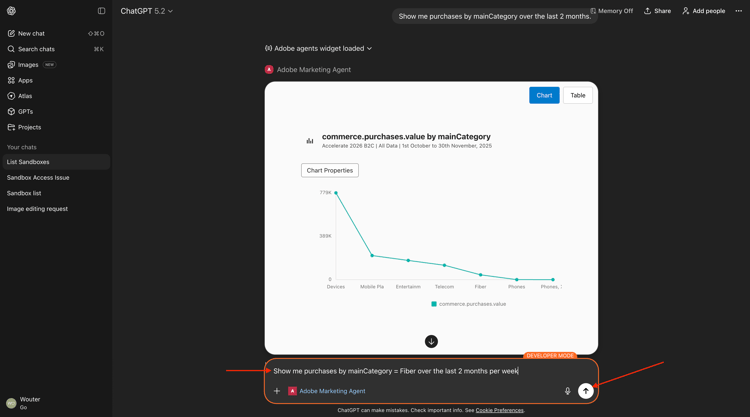
輸入下列 提示 並按一下 傳送 按鈕。
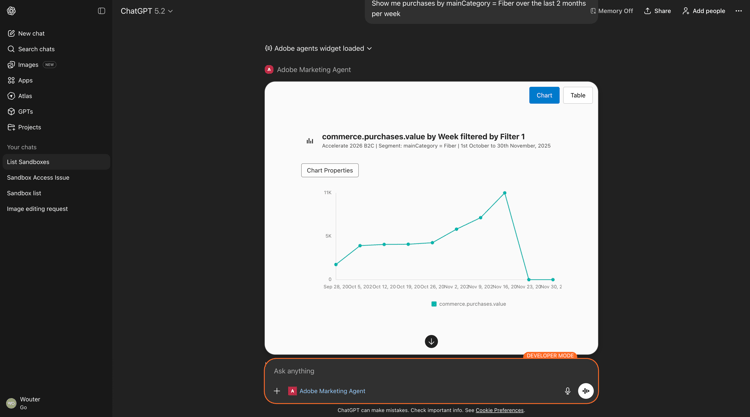
Show me purchases by mainCategory = Fiber over the last 7 months per week
您應該會看到此資訊,深入瞭解光纖特有的趨勢。
1.1.2.4將訂單與內容偏好設定建立關聯
意圖
測試特定型別(例如SciFi、Sports、Drama)的偏好預測寬頻升級行為的假設 — 尤其是針對高頻寬需求。
首先,您需要找出哪個欄位用於儲存型別偏好設定。
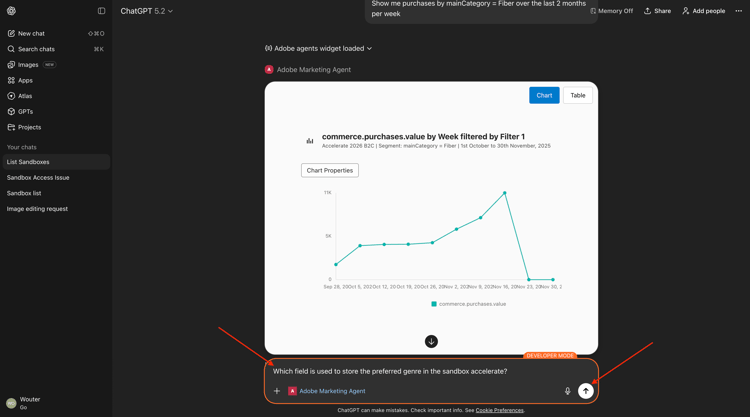
輸入下列 提示 並按一下 傳送 按鈕。
Which field is used to store the preferred genre in the sandbox accelerate?
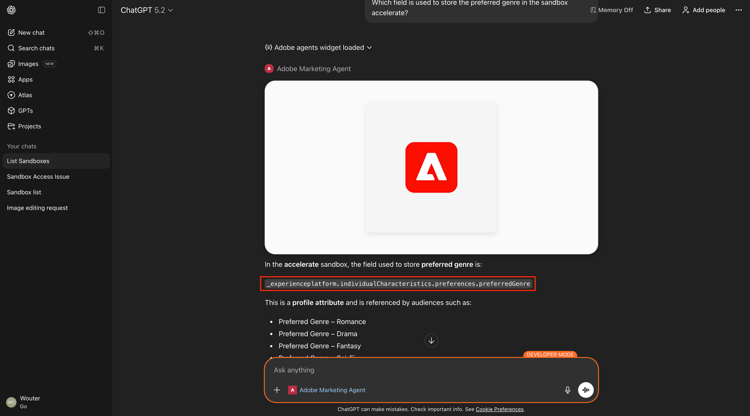
您應該會看到此訊息,其中顯示用於型別的欄位是_experienceplatform.individualCharacteristics.preferences.preferredGenre。
有了這些資訊,您就可以開始向下鑽研購買資料。
輸入下列 提示 並按一下 傳送 按鈕。
Show me ordersYTD by preferredGenre for the last 7 months
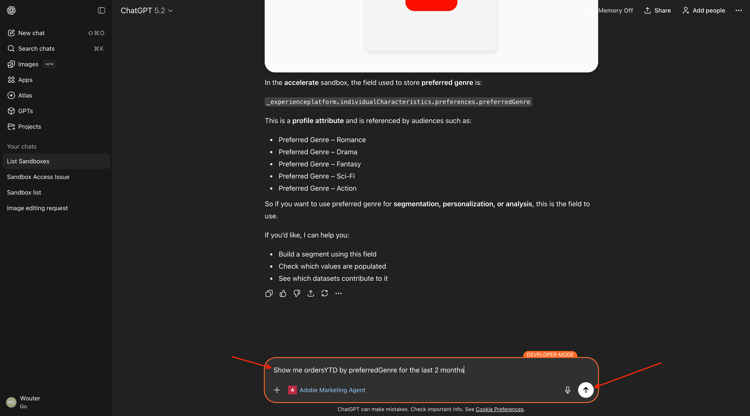
您應該會看到此訊息。 按一下研究。
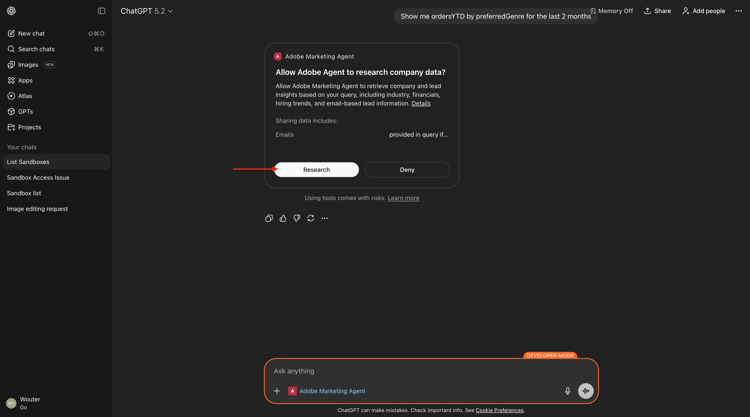
您應該會看到此訊息。
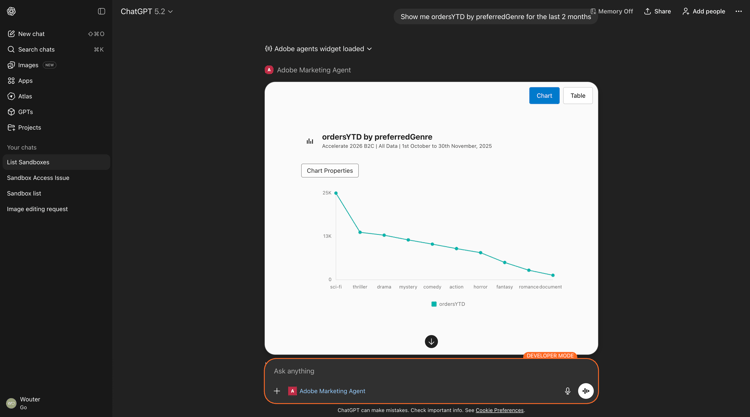
向下捲動以檢視詳細資訊。
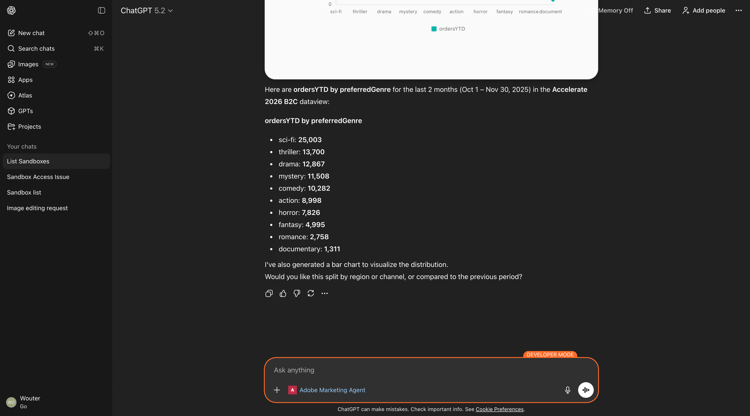
1.1.2.5識別現有的Fiber歷程
意圖
探索標題中包含「Fiber」的活動或最近結束的歷程,例如「Fiber Upgrade NYC - September」、「Fiber Trial - Streaming Bundle」。
輸入下列 提示 並按一下 傳送 按鈕。
What journeys exist?
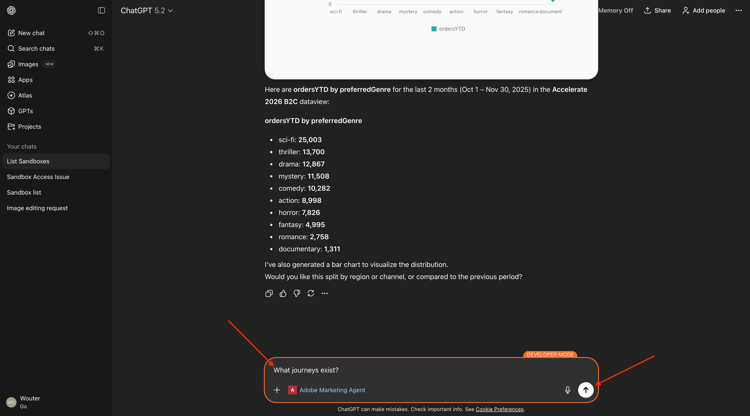
您應該會看到此訊息。 按一下研究。
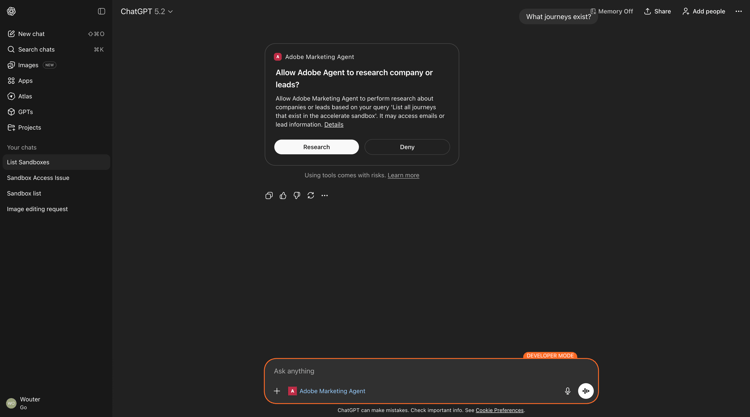
之後,您應該會看到歷程清單。
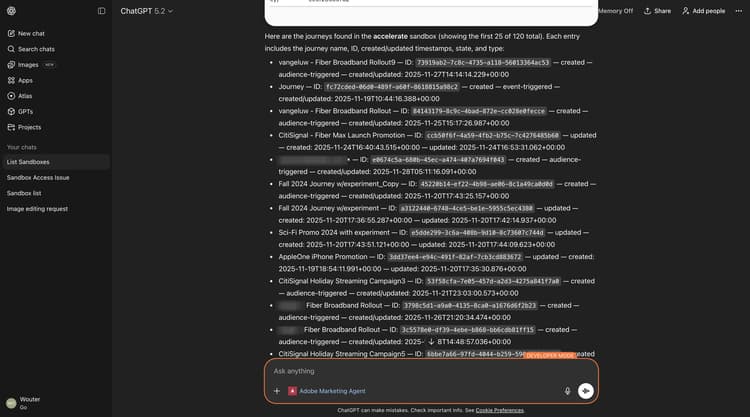
輸入下列 提示 並按一下 傳送 按鈕。
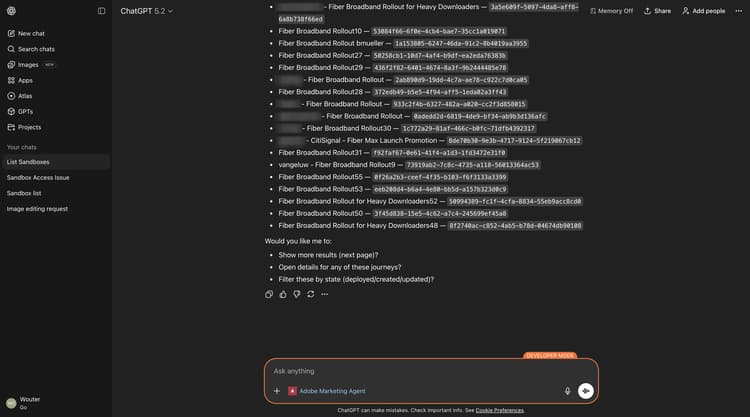
Which of these journeys has 'Fiber' in its name?
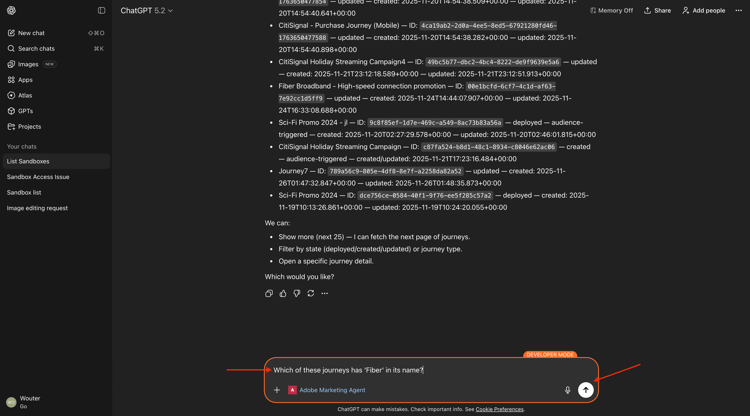
您應該會看到此訊息。 按一下研究。
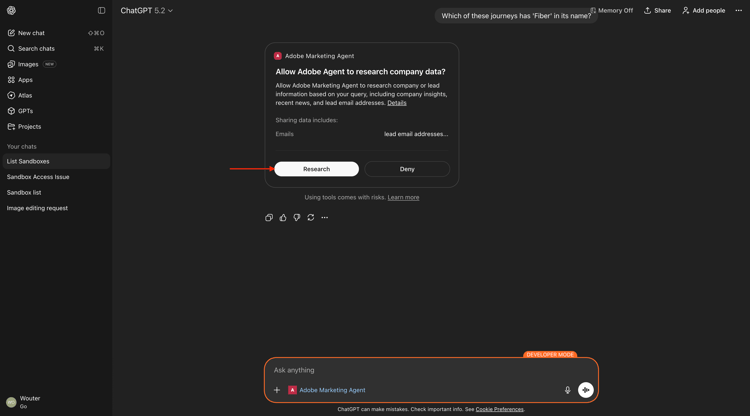
您應該會看到此訊息。
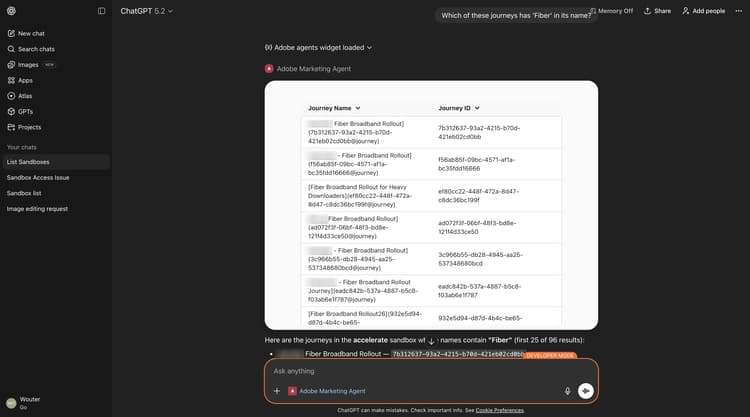
向下捲動以檢視更多詳細資料。
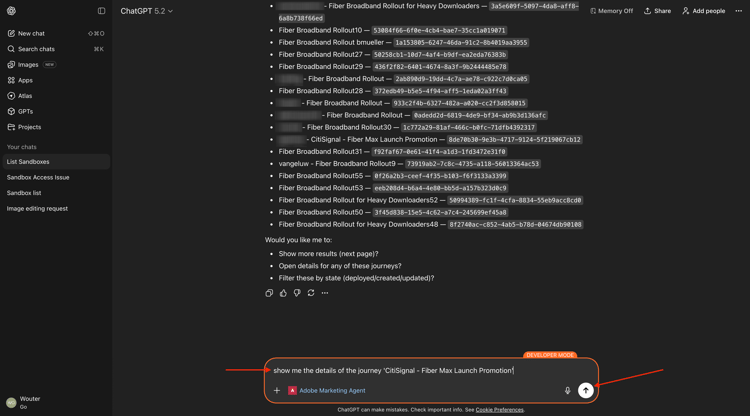
輸入下列 提示 並按一下 傳送 按鈕。
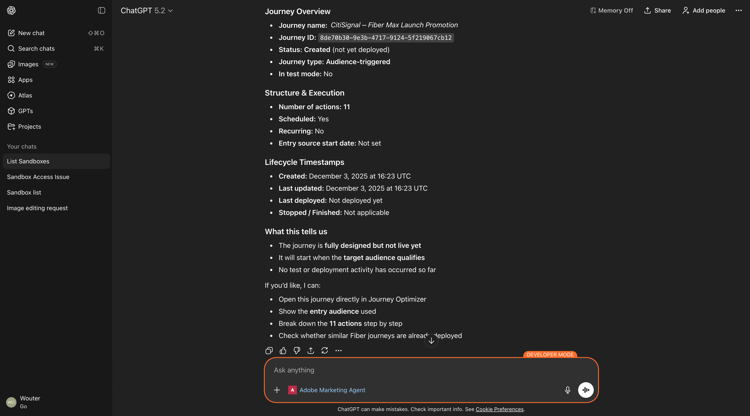
show me the details of the journey 'CitiSignal - Fiber Max Launch Promotion'
您應該會看到此訊息。
1.1.2.6透過流失分析驗證歷程績效
意圖
您想要瞭解歷程效能流失,以瞭解歷程中是否有任何節點或條件發生大量設定檔被捨棄的情況。 這有助於瞭解歷程中是否需要其他調整。
輸入下列 提示 並按一下 傳送 按鈕。
Create a fall-out report on the "CitiSignal - Fiber Max Launch Promotion" journey
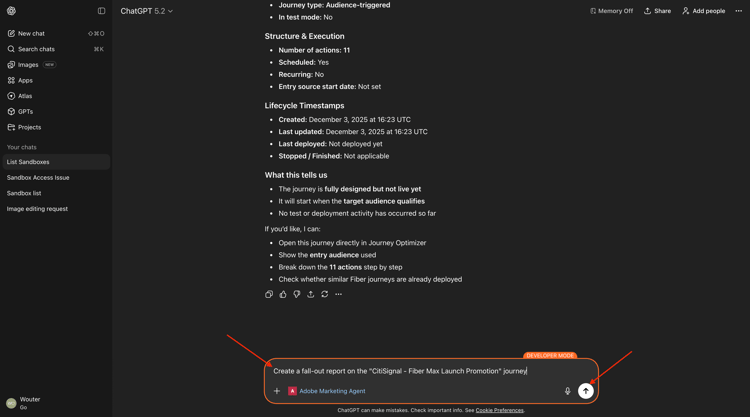
您應該會看到此訊息。
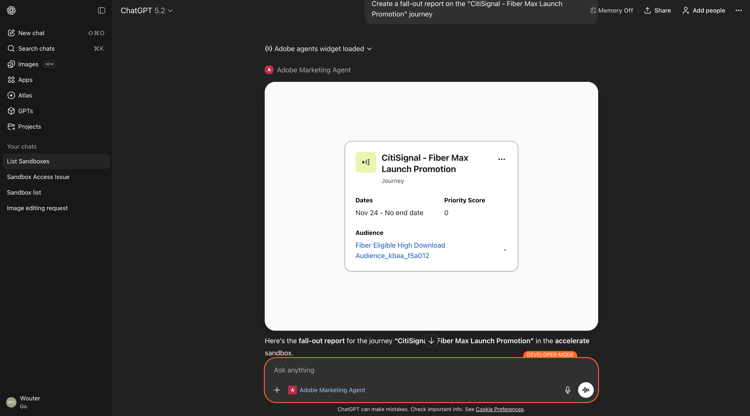
向下捲動一點。 您現在可以透過檢查每個節點及其各自的輸入編號、流失編號和流失率來檢閱表格。
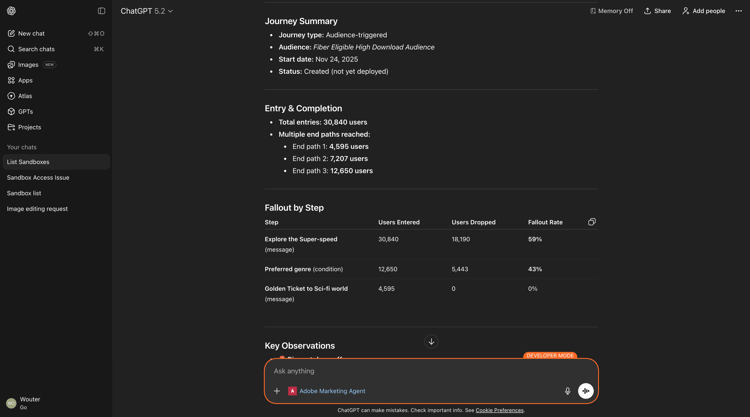
再向下捲動一點以檢視觀察結果和建議。
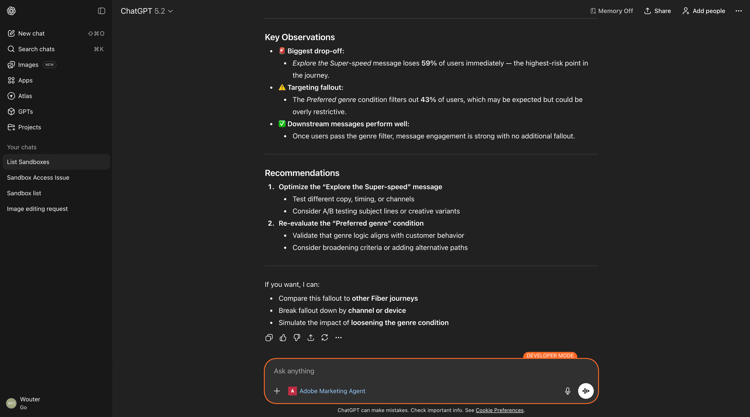
您現在已經完成了這個實驗。
後續步驟
移至Adobe Marketing Agent for Microsoft 365 Copilot