在Marketo Sales Insight中安裝並設定Microsoft Dynamics 2011 install-and-configure-marketo-sales-insight-in-microsoft-dynamics
Marketo Sales Insight是您銷售團隊的好工具。 以下逐步說明如何在Microsoft Dynamics 2011內部部署中安裝和設定它。
匯入解決方案 import-solution
-
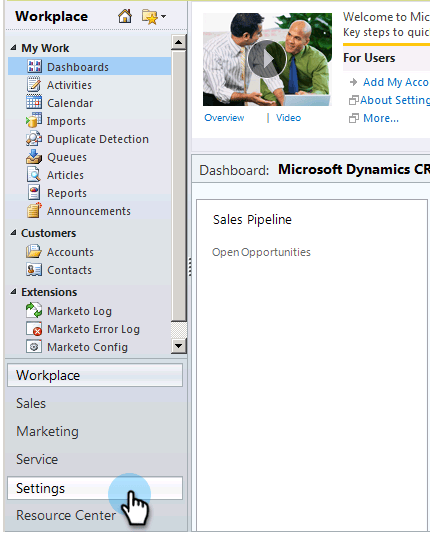
登入Microsoft Dynamics CRM。 按一下左下方功能表中的 Settings。
-
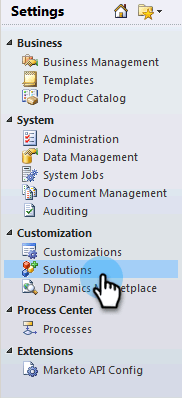
在樹狀結構中選取 Solutions。
-
按一下 匯入 (


note note NOTE 在繼續之前,您應該已安裝並設定 Marketo解決方案。 -
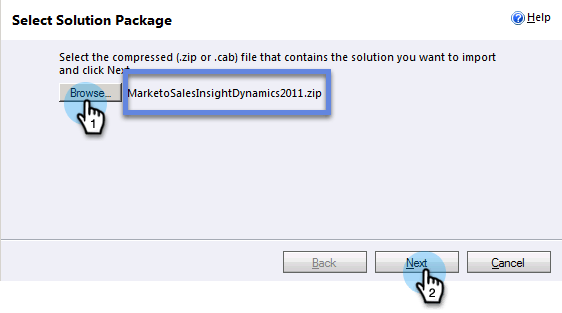
按一下 Browse。 選取您Marketo Sales Insight下載的解決方案。 按一下「Next」。
-
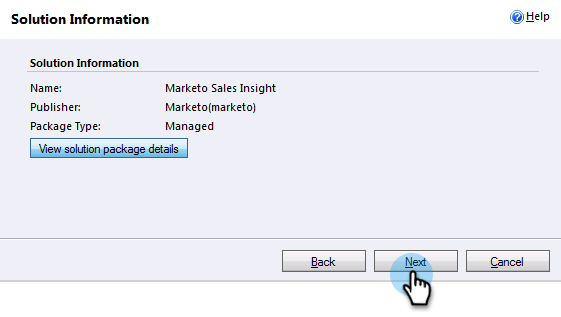
驗證解決方案的詳細資料,然後按一下 Next。
-
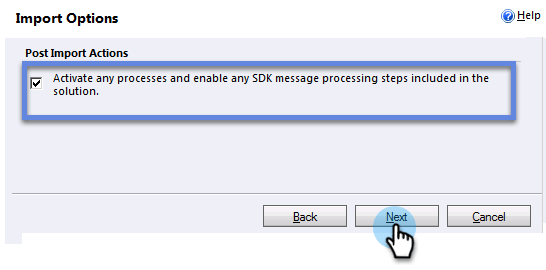
請確定已勾選SDK訊息選項。 按一下「Next」。
-
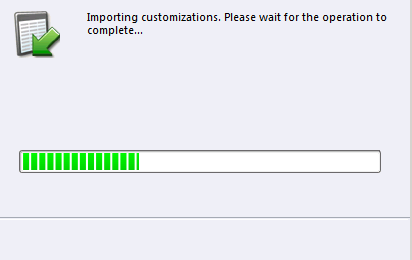
現在請等待匯入完成。
-
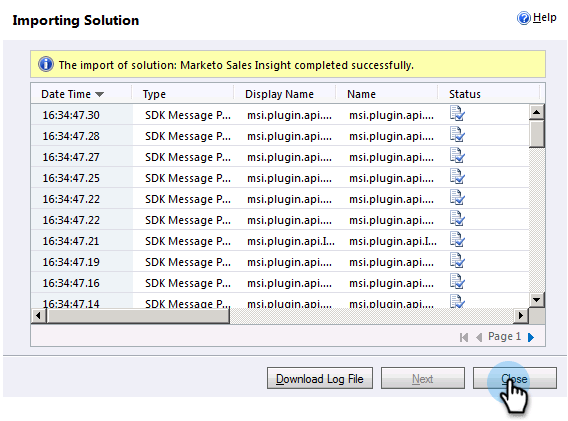
按一下「Close」。
-
Marketo Sales Insight現在會顯示在方案清單中。 耶!

-
選取Marketo Sales Insight並按一下 發佈所有自訂 (


連結Marketo與Sales Insight connect-marketo-and-sales-insight
-
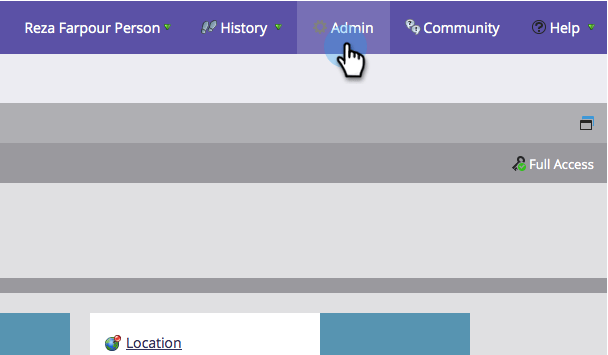
登入Marketo並按一下 Admin。
-
在 Sales Insight 區段下,按一下 Edit API Configuration。
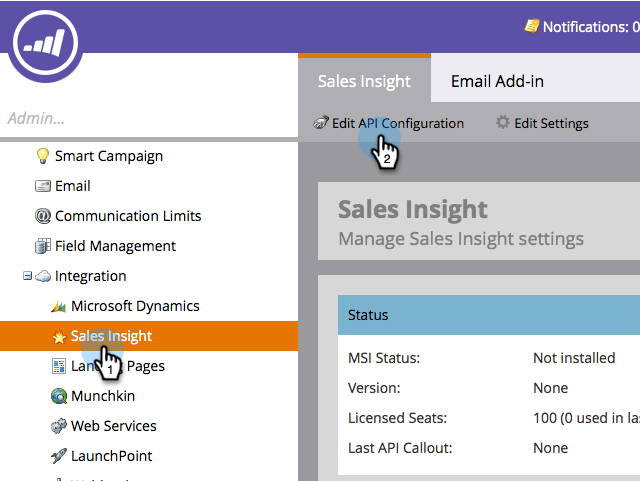
-
複製 Marketo Host、API URL 和 API User Id 以供稍後步驟使用。 輸入您選擇的 API Secret Key 並按一下 Save。
note caution CAUTION 請勿在您的API秘密金鑰中使用&符號。 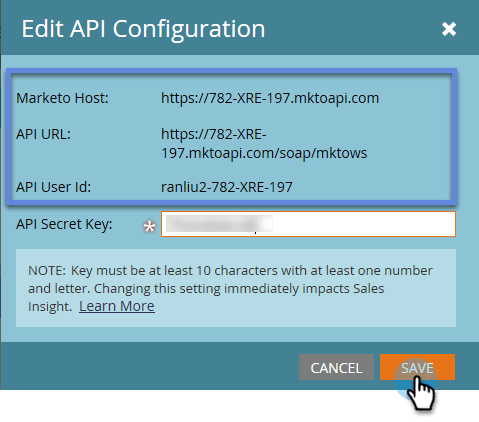
note note NOTE 下列欄位必須與Marketo同步,銷售機會和連絡人 才能讓銷售Insight運作: - 優先順序
- 急迫性
- 相對分數
如果缺少這些欄位,您會在Marketo中看到錯誤訊息,其中包含缺少欄位的名稱。 若要修正此問題,請執行此程式。 -
返回Dynamics,選取 Settings。
-
在樹狀結構中選取 Marketo API Config。
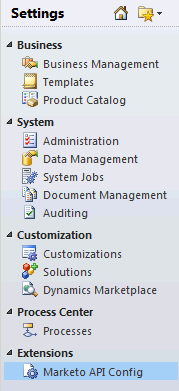
-
按一下「Default Configuration」。

-
輸入您先前從Marketo取得的資訊。
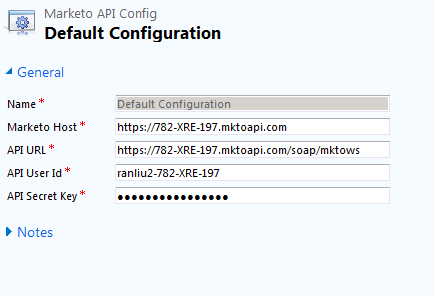
-
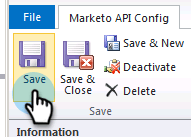
按一下「Save」。
設定使用者存取權 set-user-access
設定使用者角色以授與特定使用者對Sales Insight的存取權。
-
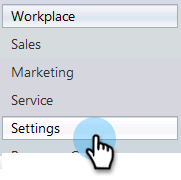
選取「Settings」。
-
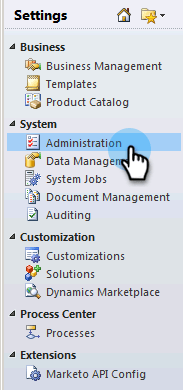
在樹狀結構中選取 Administration。
-
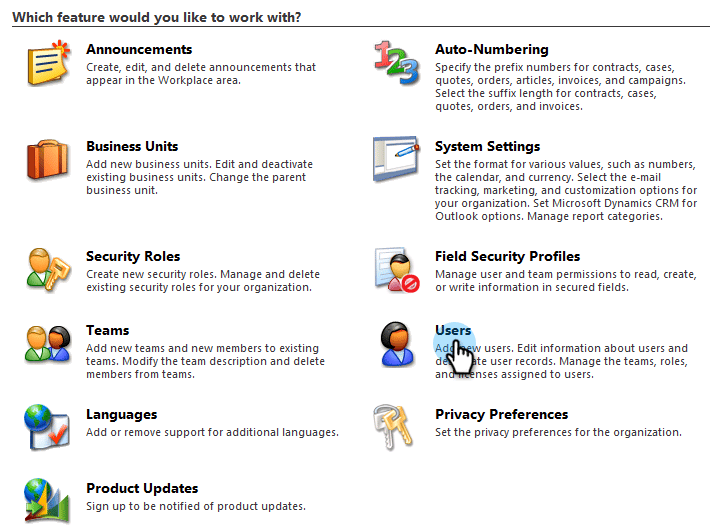
按一下「Users」。
-
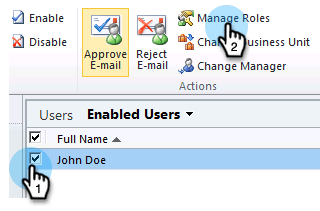
選取您要授與存取許可權的使用者,然後按一下 Manage Roles。
-
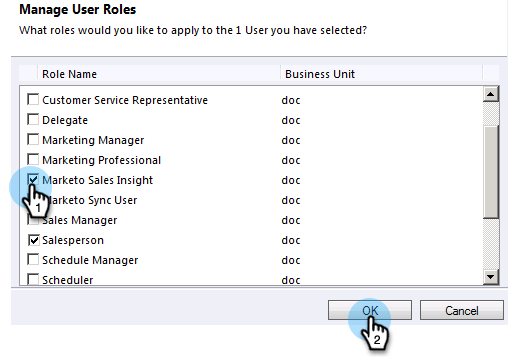
選取 Marketo Sales Insight 角色並按一下 OK。
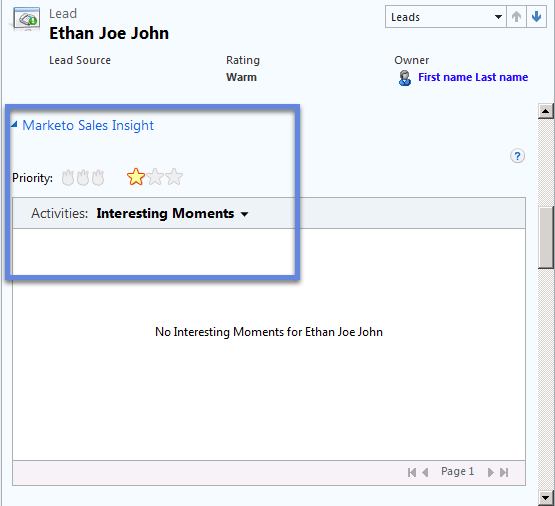
就是這樣! 所有使用者有權存取,現在可以在銷售機會/聯絡人詳細資料檢視中檢視銷售insight區段。
恭喜! 您現在已釋放Marketo Sales Insight的力量。