在此頁面上:設定專案目錄並編輯其結構描述,以便組織您的決定專案並定義製作時可用的標準和自訂屬性。
在決策中,目錄可作為中央容器來組織決策專案。 每個目錄都連結到Adobe Experience Platform結構描述,包含可指派給決定專案的所有屬性。
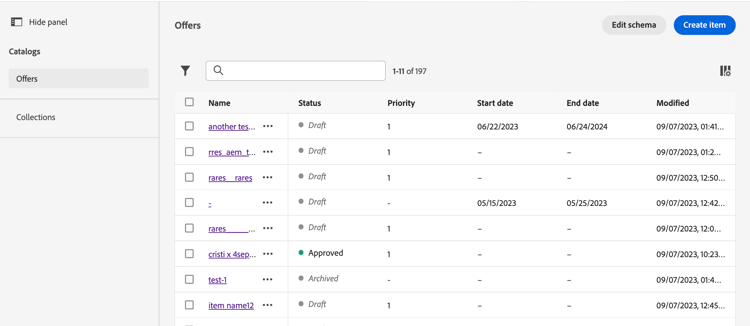
目前,所有已建立的決定專案已整合至單一「優惠」目錄中,可透過 目錄 功能表存取。
顯示優惠方案目錄的
護欄與限制
為了確保最佳效能和一致性,Decisioning會強制實行下列護欄和限制:
-
支援的資料型別
目前,Decisioning僅支援下列資料型別:字串、整數、布林值、日期、日期時間、Decisioning資產、Decisioning內容和物件。 在製作決定專案或目錄時,落在這些資料型別之外的任何欄位都無法使用。
note NOTE 若要讓欄位可用於個人化,請選取 決策內容 型別。 了解更多 -
自訂屬性限制
每個決定專案最多可包含100個自訂屬性。
-
巢狀限制
最多支援四個巢狀層級。 最後層級不支援影像。
-
欄位命名和資料型別
在目錄結構描述中,欄位名稱和資料型別必須在欄位群組中保持一致。 您不能在另一個欄位群組中定義具有不同大寫或不同資料型別的相同欄位。 如果您需要使用不同的資料型別,請在不同的路徑中建立欄位。
存取及編輯目錄的結構描述 access-catalog-schema
若要存取儲存決定專案屬性的目錄結構,請執行下列步驟:
-
從專案清單中,按一下 建立專案 按鈕旁的 編輯結構描述 按鈕。
-
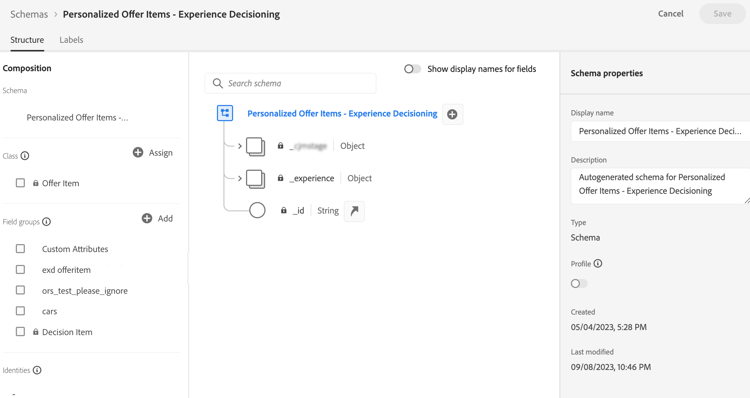
目錄的結構會在新標籤中開啟,遵循以下結構:
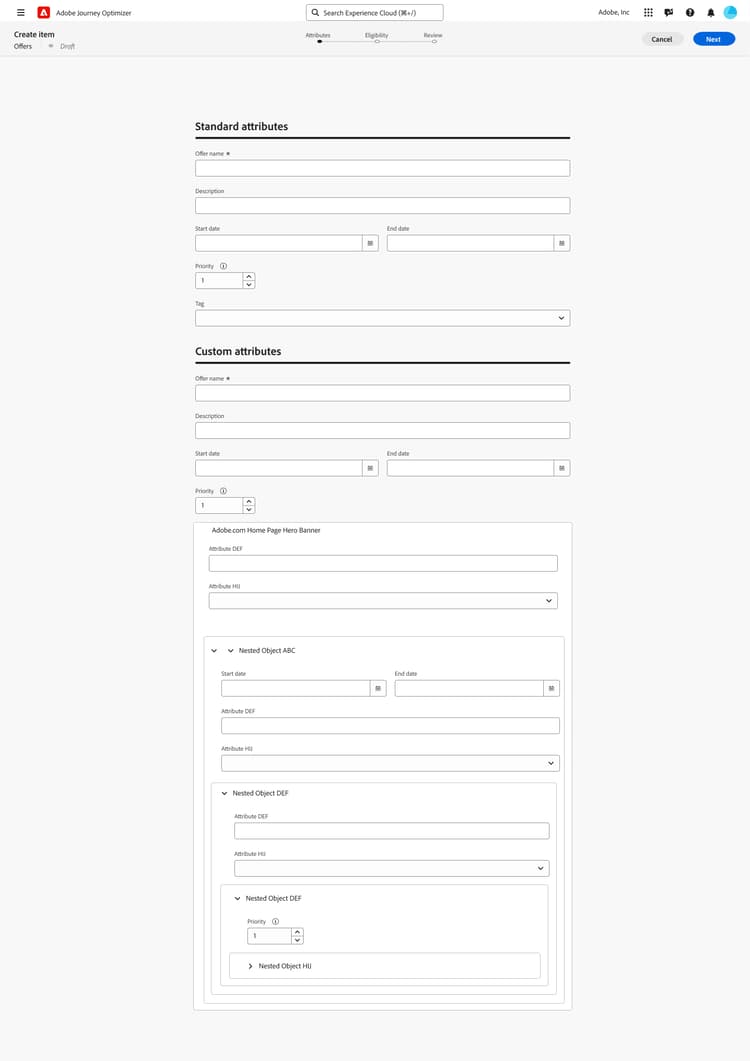
_experience節點包含標準決定專案屬性,例如名稱、開始和結束日期以及說明。_<imsOrg>節點內含自訂決定專案屬性,其中<imsOrg>會由您組織的名稱取代(例如Luma公司的_luma)。 預設不會設定自訂屬性,但您可以視需要新增更多屬性以符合您的需求。 完成後,自訂屬性會與標準屬性一起出現在決定專案建立畫面中。
-
若要將自訂屬性新增到結構描述中,請展開您組織的節點(例如
_luma),然後按一下結構中所需位置的「+」按鈕。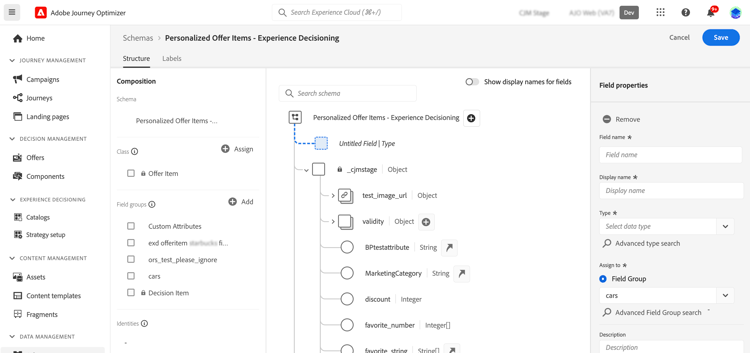
-
填寫新增屬性的必要欄位。
-
若要讓自訂屬性可用於個人化,請選取 決策內容 型別。 這可讓您使用設定檔、內容、歷程和受眾資料,定義傳送時的屬性值。 了解更多

-
按一下套用。
在具有決策資產屬性的屬性上輸入的值是公用URL。 在大多數情況下,這會指向影像。 有關如何使用Adobe Experience Platform結構描述的詳細資訊,請參閱XDM系統檔案。
-
新增您所需的自訂屬性後,請儲存結構。 新欄位現在可在 自訂屬性 區段的決定專案建立畫面中使用。
下列範例顯示具有自訂屬性(例如結構描述中定義的物件)的專案建立畫面。