在此頁面上:瞭解如何使用Journey Optimizer中的Adobe Express整合來編輯您的資產,以調整影像大小、移除背景、裁切視覺效果,以及將資產轉換為JPEG或PNG。
Adobe Journey Optimizer 中的 Adobe Express 整合讓您可以在建立內容時,輕鬆存取 Adobe Express 強大的編輯工具。 此整合功能讓您可以調整影像大小、移除背景、裁切視覺效果,並將資產轉換成 JPEG 或 PNG 格式,就不必在不同解決方案之間切換。
若要進一步瞭解Adobe Express,請參閱本檔案。
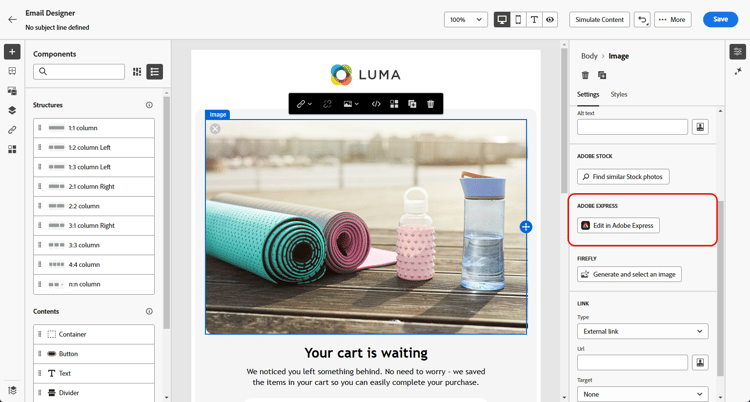
若要存取 Adobe Express 功能表,請從[電子郵件Designer]存取您的影像設定,然後按一下[在Adobe Express中編輯]。
➡️ 在影片中探索此功能
搭配使用Adobe Express與企業授權 licence
沒有Adobe Express Enterprise授權的使用者可存取以下各節中詳述的功能。
透過企業授權,使用者擁有Adobe Express網頁編輯器的完整存取權,可調整資產設定、使用Firefly產生內容、新增文字及套用其他自訂。
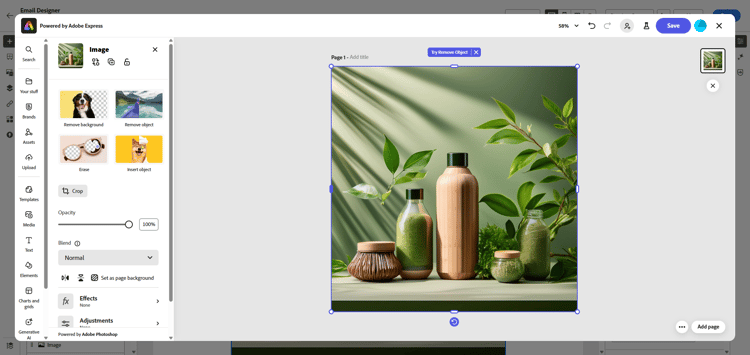
有關擁有Adobe Express企業授權的使用者可用使用案例的詳細資訊,請參閱Adobe Express網頁檔案。
在沒有企業授權的情況下使用Adobe Express edit
在沒有Enterprise授權的情況下,使用者可以存取Adobe Express提供的下列使用案例:
調整影像大小 resize
-
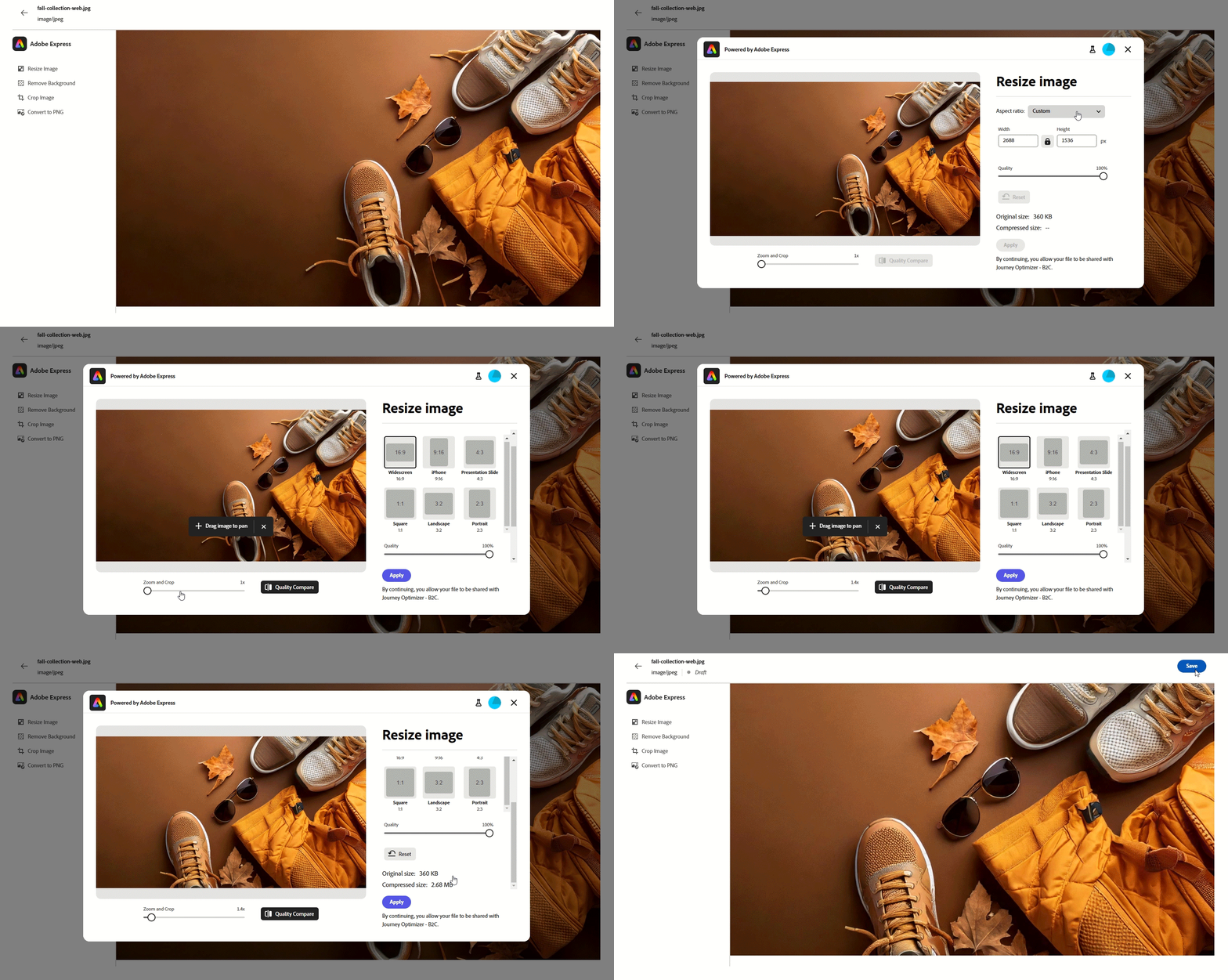
在Adobe Express功能表中,選取調整影像大小。
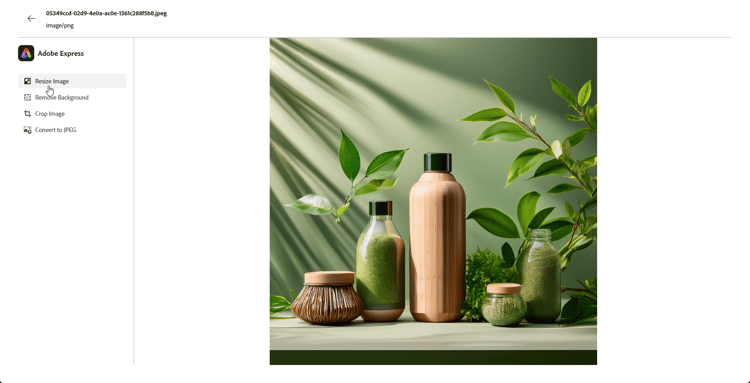
-
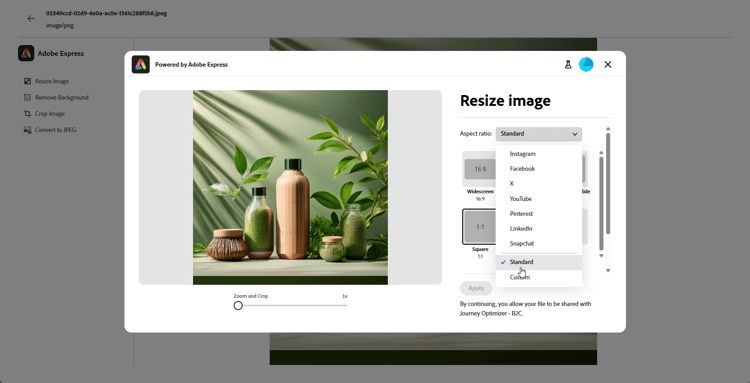
選取最符合資產比例的外觀比例。
-
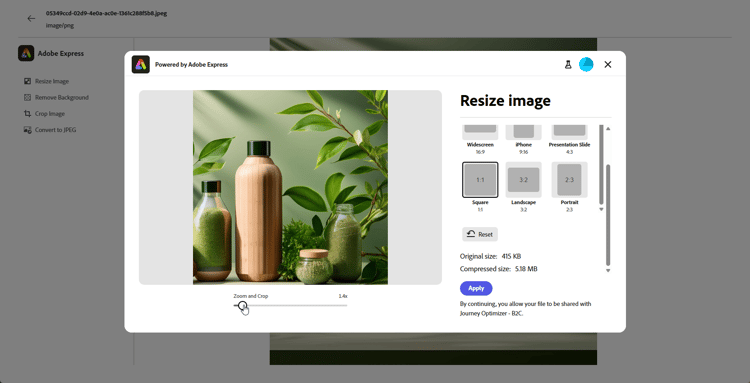
使用滑桿來縮放和裁切您的資產,並拖曳以平移和調整可見區域。
-
按一下重設,將您的資產還原成原始狀態。
-
當影像大小調整符合您的需求時,請按一下套用。 然後,儲存您修改的資產。
-
在 上傳影像 視窗中,按一下下一步,然後選取資料夾以儲存您修改的資產。
然後,按一下匯入。
您的影像現在已準備好用於內容中。
移除背景 background
-
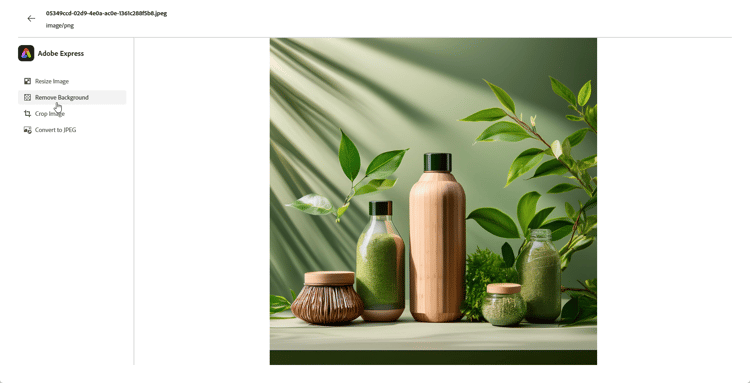
在Adobe Express功能表中,選取移除背景。
-
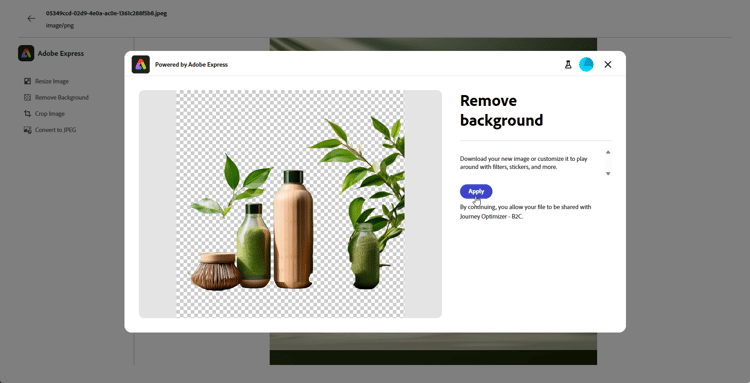
系統會自動顯示您的資產,而不會顯示其背景。
按一下[套用]以將此用於您的內容。
-
按一下儲存。
-
在 上傳影像 視窗中,按一下下一步,然後選取資料夾以儲存您修改的資產。
然後,按一下匯入。
您的影像現在已準備好用於內容中。
裁切影像 crop-image
-
從Adobe Express功能表選取裁切影像。
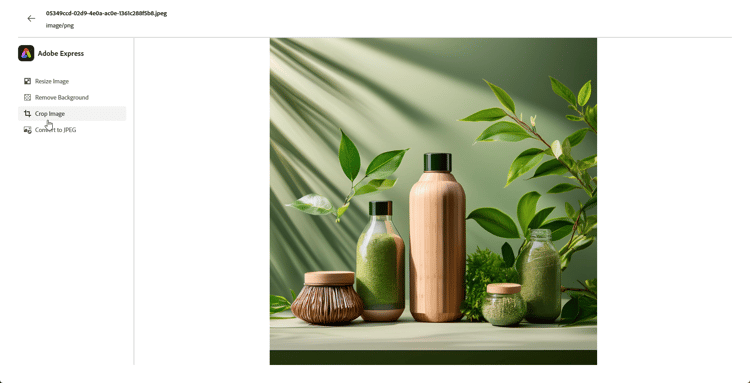
-
拖曳角落控點以視需要調整及裁切影像。
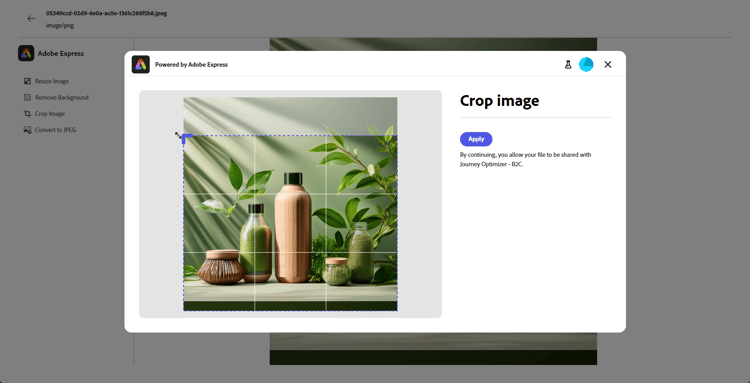
-
按一下[套用]以將此用於您的內容。 然後,儲存您修改的資產。
-
在 上傳影像 視窗中,按一下下一步,然後選取資料夾以儲存您修改的資產。
然後,按一下匯入。
您的影像現在已準備好用於內容中。
轉換為JPEG或PNG convert
-
在Adobe Express功能表中,依影像原始格式選取 轉換成JPEG 或轉換成PNG。
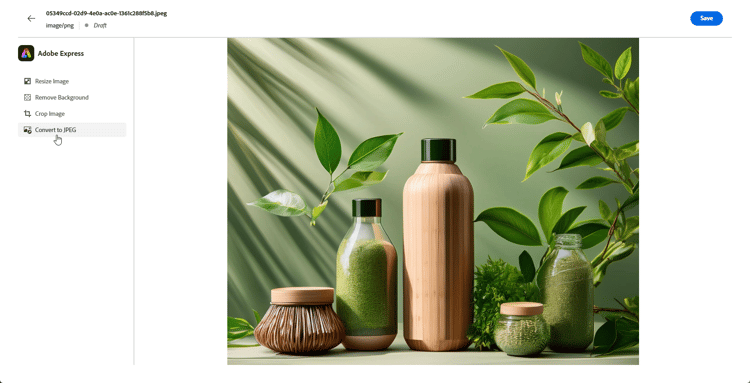
-
按一下 套用 開始轉換。
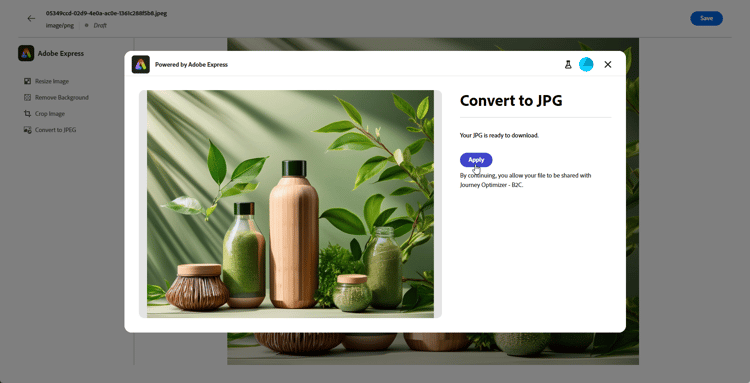
-
按一下儲存。
-
隨著格式變更,您可以將其儲存為具有不同名稱的新影像。 更新 名稱 並按一下儲存。
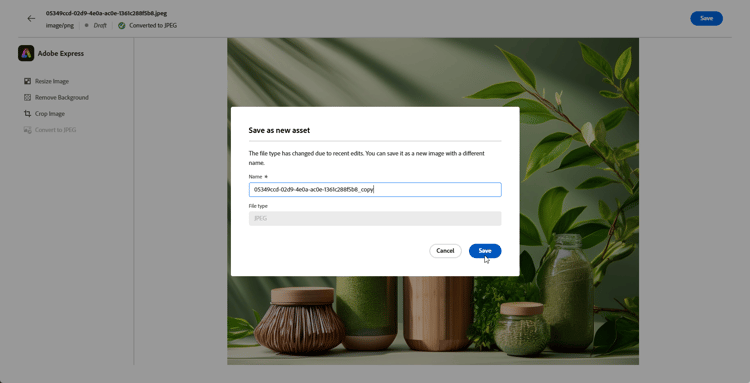
-
在 上傳影像 視窗中,按一下下一步,然後選取資料夾以儲存您修改的資產。
然後,按一下匯入。
您的影像現在已準備好用於內容中。
作法影片 video
了解如何使用 Adobe Express 工具在 Adobe Journey Optimizer 編輯您的資產。
This section contains structured knowledge intended to support interpretation, retrieval, and question answering related to this topic.
For complete understanding, this information should be combined with the documentation on this page. Neither source is intended to stand alone; the page describes the feature, while this section provides additional context that helps disambiguate terminology, intent, applicability, and constraints.
- TL;DR: This page explains how to edit assets with the Adobe Express integration in Journey Optimizer to resize images, remove backgrounds, crop visuals, and convert assets to JPEG or PNG without leaving the Email Designer.
Intents:
- Open the Adobe Express menu from Image settings in the Email Designer
- Resize an image by aspect ratio and save it to an Assets folder
- Remove the background of an image
- Crop an image
- Convert an image to JPEG or PNG
- Use the full Adobe Express Web editor with an Enterprise license
Glossary:
- Adobe Express integration: The Journey Optimizer integration that provides Adobe Express editing tools inside the Email Designer (product-specific)
- Edit in Adobe Express: The action, available from an image’s Image settings, that opens the Adobe Express menu (product-specific)
- Adobe Express Web editor: The full editor available with an Enterprise license for adjusting settings, generating content with Firefly, adding text, and applying additional customizations (product-specific)
Guardrails:
- Using the Adobe Express integration causes data to leave Journey Optimizer; do not use this integration with PHI or other health data.
- The Resize image, Remove background, Crop image, and Convert to JPEG or PNG use cases are accessible to users without an Adobe Express Enterprise license.
- Full access to the Adobe Express Web editor (including generating content with Firefly and adding text) requires an Enterprise license.
Terminology:
- Canonical name: Adobe Express integration — Acronym: n/a — variants: Adobe Express, Edit in Adobe Express
- Do not confuse: “Convert to JPEG” ≠ “Convert to PNG” (chosen depending on the image’s original format)
- Do not confuse: with an Enterprise license (full Adobe Express Web editor) ≠ without an Enterprise license (Resize, Remove background, Crop, Convert only)
FAQ:
- Q: How do I open Adobe Express from Journey Optimizer? — Access an image’s Image settings from the Email Designer and click Edit in Adobe Express.
- Q: Which editing use cases are available without an Enterprise license? — Resize Image, Remove Background, Crop Image, and Convert to JPEG or PNG.
- Q: What does an Enterprise license add? — Full access to the Adobe Express Web editor, enabling asset setting adjustments, content generation with Firefly, adding text, and additional customizations.
- Q: Can I use this integration with health data? — No; data leaves Journey Optimizer, so it must not be used with PHI or other health data.
- Q: Where does my edited image go after saving? — In the Upload Image window you click Next, select a folder to store the modified asset, then click Import.