在此頁面上:設定並使用Marketo Engage自訂動作,以便您將歷程中的人員和自訂物件資料同步到Marketo Engage中。
開始與Marketo Engage無縫資料整合的歷程。 您可在整合Adobe Journey Optimizer和Marketo Engage的歷程中使用特定的自訂動作。 此自訂動作支援擷取兩種關鍵資料型別:
- 人員 (設定檔): Marketo會將設定檔轉換為可操作的深入分析。
- 自訂物件:使用自訂物件(例如產品)量身打造您的資料,以提供個人化的行銷方式。
先決條件 prerequisites
下列先決條件適用於此整合:
- Marketo Engage的客戶例項必須啟用IMS
- Marketo Engage執行個體和Adobe Experience Platform/Journey Optimizer執行個體必須位於相同組織
- 客戶必須布建MktoSync:內嵌服務存取
設定動作 configure-marketo-action
在Journey Optimizer中,您必須為Marketo Engage設定自訂動作。 請依照下列步驟操作:
-
在[管理]功能表區段中選取組態。
-
在 動作 區段中,按一下建立動作。 動作設定窗格會在畫面右側開啟。
-
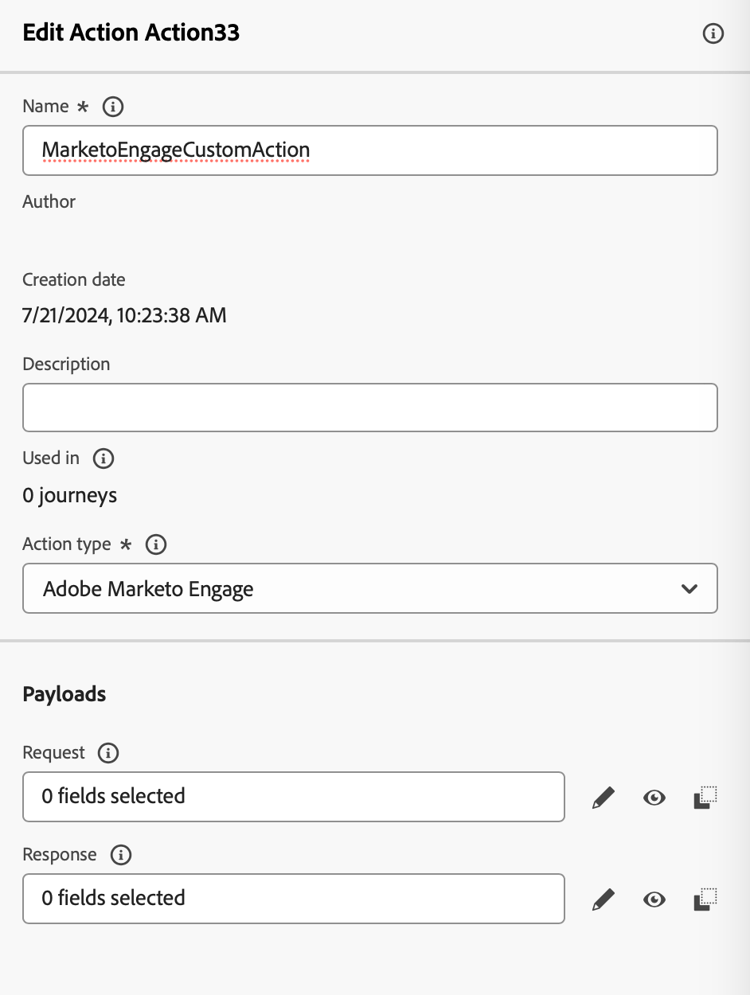
輸入名稱、說明,然後選取 Adobe Marketo Engage 做為動作型別
-
按一下您的 要求 和 回應 裝載的 編輯裝載 圖示。
-
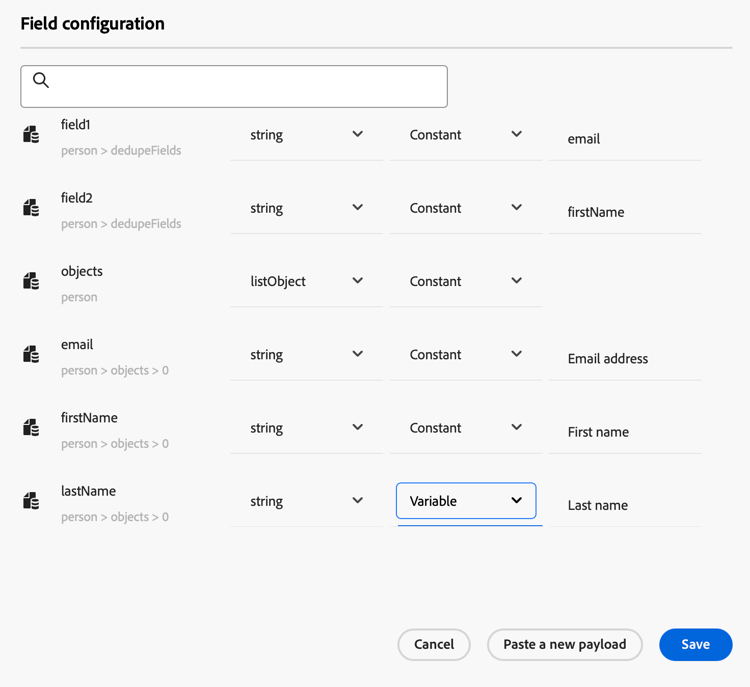
針對這兩者,撰寫您的裝載並貼到專用的快顯視窗中。
-
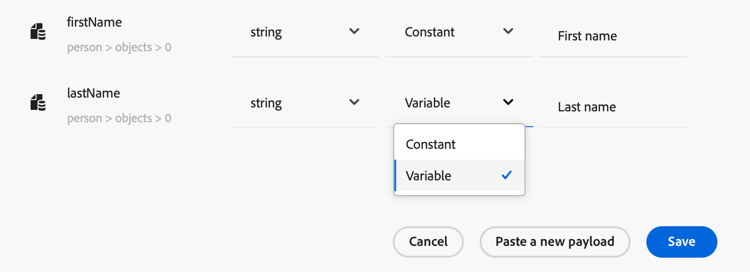
檢查並設定裝載值
注意:若要以動態方式傳遞值,請針對每個欄位變更 常數 至變數。
-
在[欄位]設定畫面中按一下[儲存]。,然後按一下[儲存]。您的自訂動作。
您現在可以在歷程畫布上使用自訂動作。
裝載語法 payload-syntax
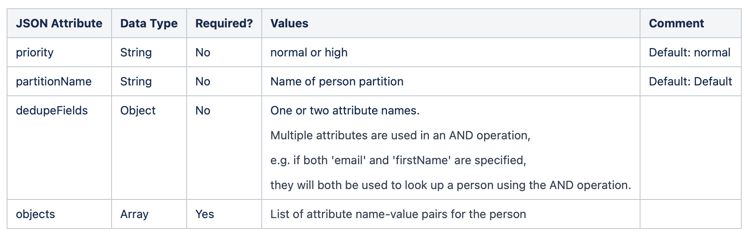
人員
CustomObject

人員 的 裝載範例
{
   "munchkinID": "388-KKG-245",
   "person": {
    "priority": "normal",
    "partitionName": "XYZ",
    "dedupeFields": {
      "field1": "email",
      "field2": "firstName"
    },
    "objects": [
      {
        "email": "Email address",
        "firstName": "First name",
        "lastName": "Last name"
      }
    ]
  }
}
自訂物件的裝載範例
{
  "munchkinID": "388-KKG-245",
  "customObject": {
    "priority": "normal",
    "objectName": "products",
    "objects": [
      {
        "email": "Email Address",
        "productName": "Product Name",
        "productQty": "Product Quantity",
        "priceTotal": "Price Total"
      }
    ]
  }
}
使用動作 engage-using
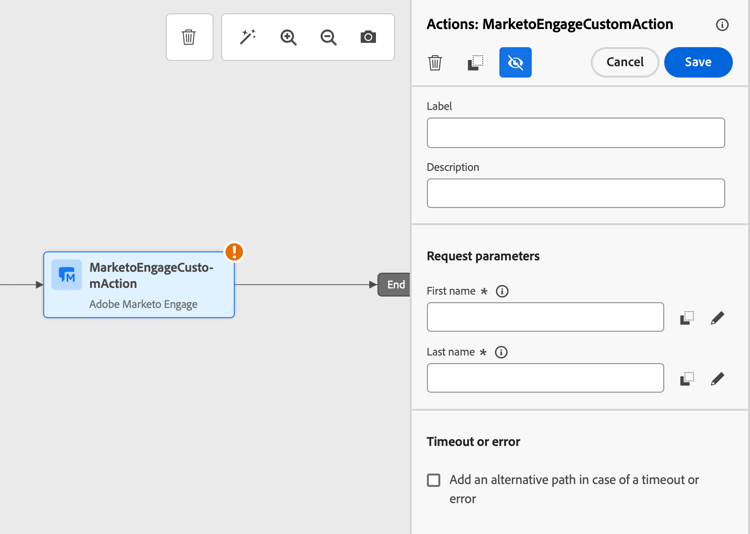
對於已設定的每個動作,歷程設計器浮動視窗中都會提供Marketo Engage動作活動。
若要使用,請依照下列步驟進行:
-
將自訂動作拖曳至歷程畫布。
-
輸入此動作的標籤和說明。
-
在 要求引數 區段中,按一下每個引數的 編輯 圖示,並選取您已在承載中設定的動態值。
This section contains structured knowledge intended to support interpretation, retrieval, and question answering related to this topic.
For complete understanding, this information should be combined with the documentation on this page. Neither source is intended to stand alone; the page describes the feature, while this section provides additional context that helps disambiguate terminology, intent, applicability, and constraints.
- TL;DR: This page explains how to configure and use the Marketo Engage custom action so you can sync person and custom object data from your journeys into Marketo Engage.
Intents:
- Understand which data types the Marketo Engage custom action supports
- Verify the prerequisites required for the integration
- Configure a Marketo Engage custom action from the Configurations administration menu
- Compose the Request and Response payloads and pass values dynamically
- Use the Marketo Engage action activity on the journey canvas
Glossary:
- Marketo Engage custom action: A specific custom action available in your journeys to integrate Adobe Journey Optimizer and Marketo Engage (product-specific)
- Persons (Profiles): One of the two supported data types; Marketo transforms profiles into actionable insights (product-specific)
- Custom Objects: One of the two supported data types, such as products, used for a personalized marketing approach (product-specific)
- munchkinID: A field included in the Person and Custom Object payloads (product-specific)
- Constant / Variable: The setting changed per field so values can be passed dynamically in the payload (product-specific)
Guardrails:
- The customer instance of Marketo Engage must be IMS-enabled.
- The Marketo Engage instance and the Adobe Experience Platform/Journey Optimizer instance must be in the same organization.
- The customer must be provisioned with MktoSync: Ingestion Service access.
- This custom action supports the ingestion of two data types: Persons (Profiles) and Custom Objects.
- To pass values dynamically, each field must be changed from Constant to Variable.
Terminology:
- Canonical name: Adobe Marketo Engage — Acronym: n/a — variants: Marketo Engage, Marketo Engage action, Marketo Engage custom action
- Do not confuse: “Persons (Profiles)” ≠ “Custom Objects” (the two supported data types)
- Do not confuse: “Request” payload ≠ “Response” payload (both are edited when configuring the action)
FAQ:
- Q: What data can the Marketo Engage custom action sync? — It supports the ingestion of two data types: Persons (Profiles) and Custom Objects, such as products.
- Q: What are the prerequisites for this integration? — The Marketo Engage instance must be IMS-enabled, the Marketo Engage and Adobe Experience Platform/Journey Optimizer instances must be in the same organization, and the customer must be provisioned with MktoSync: Ingestion Service access.
- Q: Which action type do I select when configuring the custom action? — Select Adobe Marketo Engage as the Action type.
- Q: How do I pass values dynamically in the payload? — For each field, change Constant to Variable.
- Q: How do I use the action in a journey? — For each configured action a Marketo Engage action activity is available in the journey designer palette; drag it onto the canvas and, in the Request parameters section, select the dynamic values configured in the payload.