在此頁面上:設定您的推送認證和Live Activity頻道設定,以便您可以授權Adobe Journey Optimizer傳送即時更新至您的iOS應用程式。
在傳送即時活動之前,您必須設定您的Adobe Journey Optimizer環境。 若要執行此動作:
步驟1:在Journey Optimizer中新增應用程式推送認證(選用) push-credentials-launch
行動應用程式推播認證註冊為必填,才能授權Adobe代表您傳送推播通知。
如果您的推送認證已設定,則步驟1為選用,因為這些認證可重複用於即時活動通道設定。 如果未定義認證,您必須為應用程式建立新的推送認證。 請參閱以下詳細步驟:
-
存取管道 > 推播設定 > 推播認證功能表。
-
按一下建立推播認證。
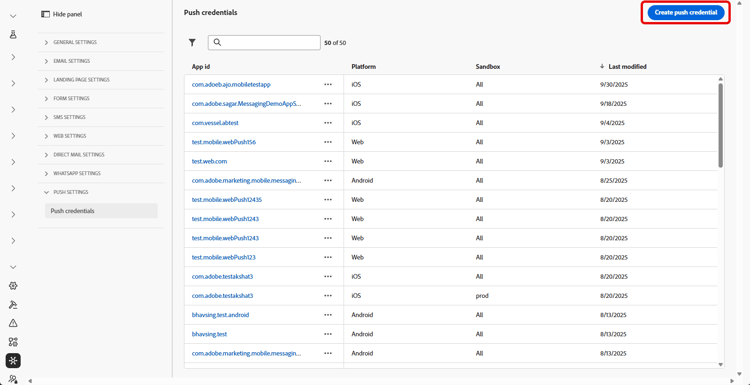
-
從 平台 下拉式清單中,選取iOS。
-
輸入行動應用程式應用程式識別碼。
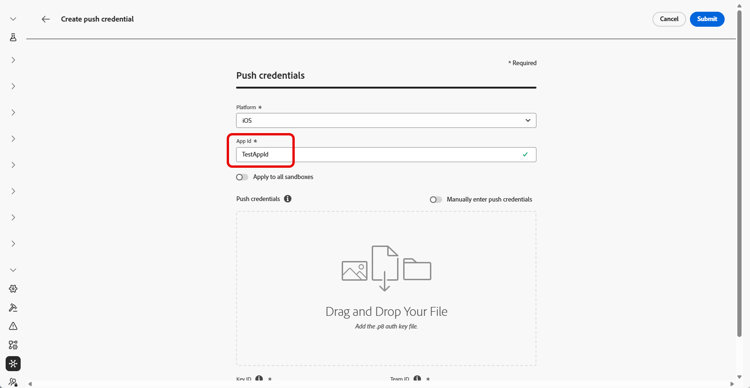
-
啟用 套用至所有沙箱 選項,讓這些推送認證可用於所有沙箱。 如果特定沙箱針對相同的平台和應用程式ID組有自己的認證,系統會優先採用這些沙箱專屬的認證。
-
已開啟 手動輸入推播認證 按鈕以新增您的認證。
-
拖放您的.p8 Apple推播通知驗證金鑰檔案。 此金鑰可從憑證、識別碼和 設定檔 頁面取得。
-
提供金鑰識別碼。 這是在p8驗證金鑰建立期間指派的10字元字串。 您可以在憑證、識別碼和 設定檔 頁面中的 金鑰 索引標籤下找到它。
-
提供團隊識別碼。 這是字串值,可在「成員資格」標籤下找到。
-
按一下 提交 以建立您的應用程式設定。
-
存取管道 > 推播設定 > 推播認證功能表。
-
按一下建立推播認證。
-
從 平台 下拉式清單中,選取Android。
-
輸入行動應用程式應用程式識別碼。

-
啟用 套用至所有沙箱 選項,讓這些推送認證可用於所有沙箱。 如果特定沙箱針對相同的平台和應用程式ID組有自己的認證,系統會優先採用這些沙箱專屬的認證。
-
已開啟 手動輸入推播認證 按鈕以新增您的認證。

-
拖放您的 .json private 私密金鑰檔案。
-
按一下 提交 以建立您的應用程式設定。
步驟2:建立您的上線活動設定 config-live-activity
-
在左側邊欄中,瀏覽至管理 > 管道並選取一般設定 > 管道設定。 按一下 建立通道組態 按鈕。
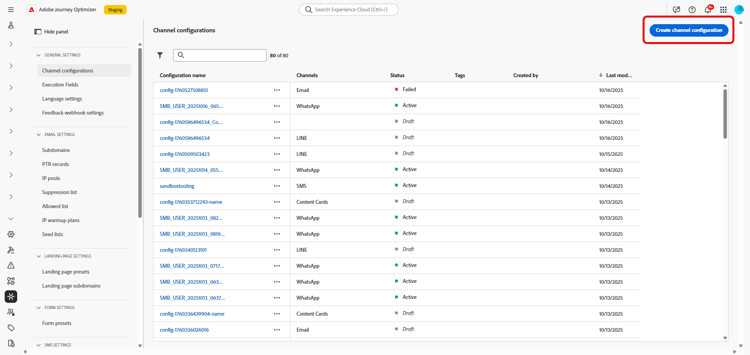
-
輸入設定的名稱和說明(選用),然後選取「即時」活動頻道。
note NOTE 名稱必須以字母(A-Z)開頭。 它只能包含英數字元。 您也可以使用底線 _、點.和連字號-字元。 -
選取 Live activity 作為您的頻道。

-
選取行銷動作,以使用此設定將同意原則與訊息相關聯。 系統會運用與行銷動作相關的所有同意政策,以尊重客戶的偏好設定。 了解更多
-
選擇您的平台。
-
從下拉式清單中選取與上方設定之推播認證相同的應用程式識別碼,或選擇現有的應用程式識別碼。
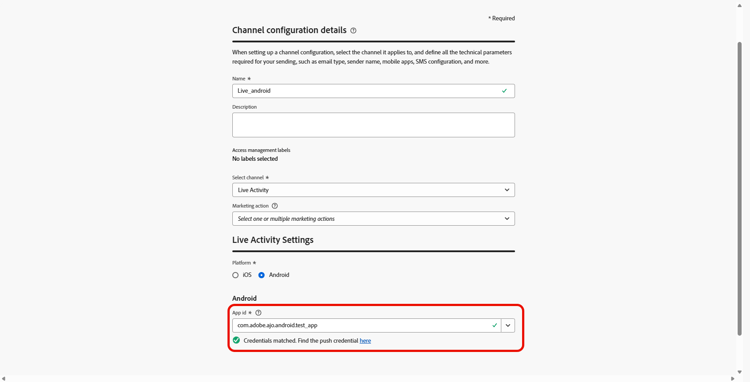
-
設定完所有引數後,按一下 提交 確認。 您也可以將頻道設定儲存為草稿,並稍後繼續其設定。
-
建立管道設定後,它就會顯示在狀態為 處理中 的清單中。
note NOTE 如果檢查不成功,請在本節中進一步瞭解可能的失敗原因。 -
檢查成功後,通道設定會取得 作用中 狀態。 已準備好用於傳遞訊息。
您現在可以開始與Adobe Experience Platform Mobile SDK整合,以在鎖定畫面和動態島上啟用即時動態更新。
➡️ 進一步瞭解Adobe Experience Platform Mobile SDK整合
This section contains structured knowledge intended to support interpretation, retrieval, and question answering related to this topic.
For complete understanding, this information should be combined with the documentation on this page. Neither source is intended to stand alone; the page describes the feature, while this section provides additional context that helps disambiguate terminology, intent, applicability, and constraints.
- TL;DR: This page explains how to set up your app push credentials and create a Live activity channel configuration so Adobe Journey Optimizer is authorized to deliver real-time updates to your iOS app.
Intents:
- Add app push credentials (optional if already configured) for iOS (a .p8 Apple Push Notification Authentication Key, Key ID, and Team ID) or for Android (a .json private key file)
- Reuse existing push credentials or make them available across sandboxes
- Create a Live activity channel configuration under Administration, Channels, General settings, Channel configurations
- Associate consent policies by selecting marketing action(s)
- Choose the Platform and select the matching App ID, then submit or save as draft
Glossary:
- Push credential: A registration required to authorize Adobe to send push notifications on your behalf (product-specific)
- .p8 Apple Push Notification Authentication Key: The key file dragged and dropped when manually entering iOS push credentials; for Android, a .json private key file is dragged and dropped instead
- Key ID: A 10 character string assigned during creation of the .p8 auth key
- Team ID: A string value found under the Membership tab
- Apply to all sandboxes: An option that makes push credentials available across all sandboxes; sandbox-specific credentials for the same Platform and App ID pair take precedence (product-specific)
- Channel configuration: A configuration created under General settings to deliver messages through the Live activity channel (product-specific)
- Marketing action(s): A selection that associates consent policies to messages using the configuration (product-specific)
- Processing / Active: The statuses a channel configuration passes through; Active means it is ready to deliver messages (product-specific)
Guardrails:
- Step 1 (adding push credentials) is optional if push credentials are already configured, as they can be reused for the Live activity channel configuration.
- Configuration names must begin with a letter (A-Z) and can only contain alpha-numeric characters plus underscore, dot, and hyphen characters.
- If a specific sandbox has its own credentials for the same Platform and App ID pair, those sandbox-specific credentials take precedence over credentials applied to all sandboxes.
- All consent policies associated with the selected marketing action are leveraged in order to respect the preferences of your customers.
- The channel configuration is ready to deliver messages only once the checks are successful and it reaches the Active status; if the checks are not successful, review the possible failure reasons in the channel surfaces documentation.
Terminology:
- Canonical name: Live activity channel configuration — Acronym: n/a — variants: channel configuration, Live activity configuration
- Do not confuse: “Processing” (status while the checks run) ≠ “Active” (status once the checks are successful, ready to deliver)
- Do not confuse: “Key ID” (10 character string for the .p8 auth key) ≠ “Team ID” (string found under the Membership tab)
FAQ:
- Q: Do I always need to create new push credentials? — No; Step 1 is optional if push credentials are already configured, as they can be reused for the Live activity channel configuration.
- Q: What are the naming rules for a configuration? — Names must begin with a letter (A-Z) and can only contain alpha-numeric characters plus underscore, dot, and hyphen.
- Q: Which platform do I select for a Live activity configuration? — Choose your Platform and select the same App ID as the push credential configured for the app, or choose an existing one.
- Q: How do I associate consent to messages using this configuration? — Select marketing action(s); all consent policies associated with the marketing action are leveraged to respect customer preferences.
- Q: When is the configuration usable? — Once the checks are successful and the channel configuration reaches the Active status.
- Q: What does Apply to all sandboxes do? — It makes the push credentials available across all sandboxes; sandbox-specific credentials for the same Platform and App ID pair take precedence.