在此頁面上:瞭解如何建立意見與追蹤式重新目標定位規則,這些規則會根據收件者回應先前協調行銷活動的方式,跟進收件者。
重新定位可讓您根據收件者對先前已協調行銷活動的回應方式,來追蹤收件者。 例如,您可以傳送第二封電子郵件給已收到但未點按第一封的收件者。
協調的行銷活動為此提供兩個主要結構描述:
- 訊息回饋:擷取傳遞相關的事件,例如已傳送、已開啟、已退回的訊息等。它也會儲存新增至您訊息的執行中繼資料,您可以使用這些中繼資料來鎖定收件者 (可用性限制)。
- 電子郵件追蹤:擷取使用者動作,例如點按和開啟。
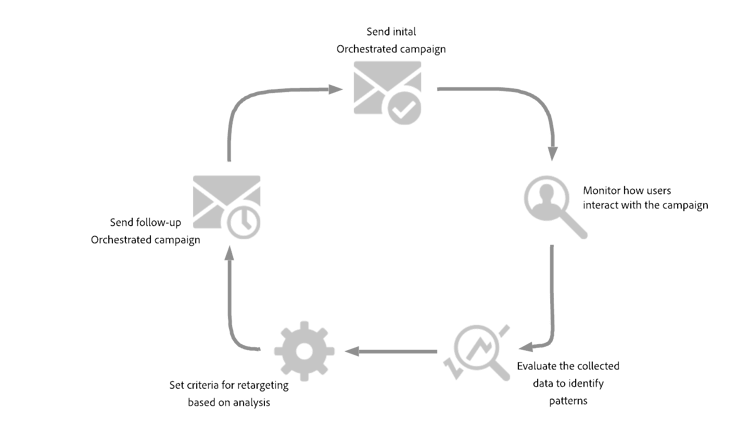
建立意見反應式重新鎖定目標規則 feedback-retarget
回饋式重新目標定位規則可讓您根據 訊息回饋 結構描述中擷取的訊息傳遞事件,重新目標定位收件者。 這些事件包括已傳送、已開啟、已退回或標示為垃圾郵件的郵件等結果。
您可以使用此資料定義規則,識別收到先前訊息的收件者,以啟用根據特定傳遞狀態的後續通訊。
-
建立新的協調的行銷活動。
-
新增 建置對象 活動,並將目標維度設為收件者(caas)。 按一下繼續。
-
若要快速開始,您可以使用內建的 行銷活動回饋 篩選器,根據訊息傳遞事件來鎖定收件者。
accordion 詳細逐步說明 -
在 規則產生器 中,按一下選取或儲存篩選器,然後從清單中選擇行銷活動意見回饋。
-
選取篩選規則並選擇您要鎖定的行為,例如已傳送的訊息。
-
按一下

-
選取特定行銷活動:從清單中選擇特定行銷活動,以重新鎖定與該行銷活動互動的收件者。
-
來自轉換的行銷活動:參考您協調行銷活動中先前活動的行銷活動。
-
-
-
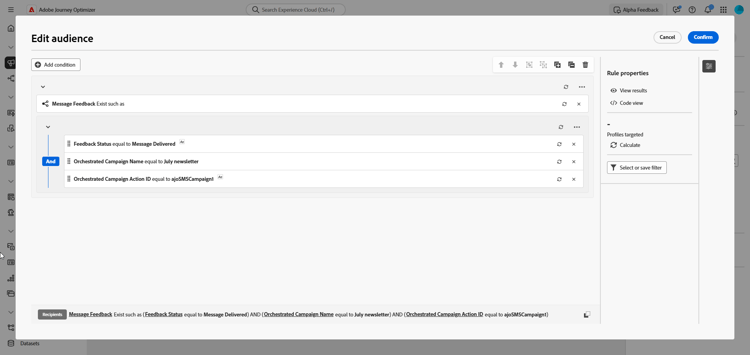
或者,您也可以手動建置自訂規則。 在 規則產生器 中,按一下新增條件,然後從 屬性選擇器 中選取訊息回饋。 按一下 確認 建立 訊息回饋存在,例如 條件。
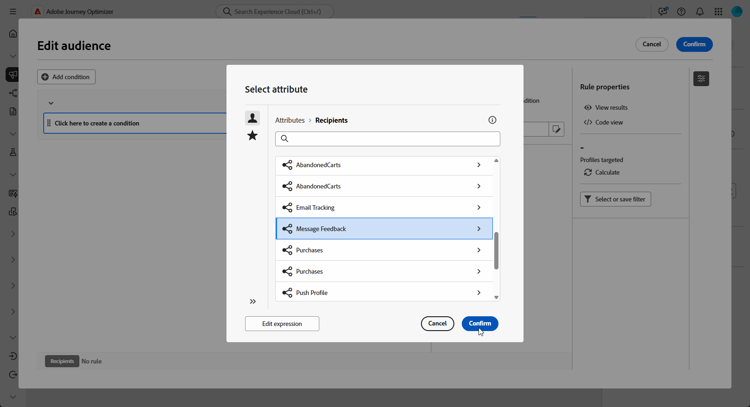
建立 訊息回饋(例如 條件)之後,請新增連結至 訊息回饋 屬性的條件,以定義要鎖定哪些訊息。 從下列選項中選擇,然後視需要加以組合。
目標傳遞狀態 feedback-status
使用 意見狀態 屬性來鎖定訊息傳遞事件。
-
新增連結到 訊息回饋 屬性的另一個條件。
-
搜尋 意見狀態 屬性並按一下確認。
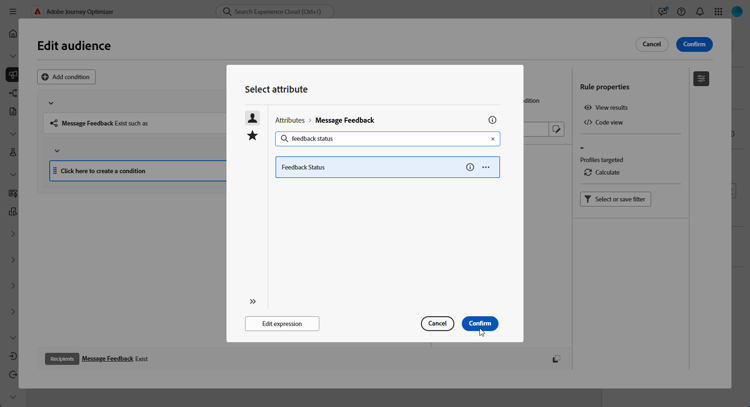
-
在 自訂條件 功能表中,於 值 下拉式清單中選擇要追蹤的傳遞狀態。
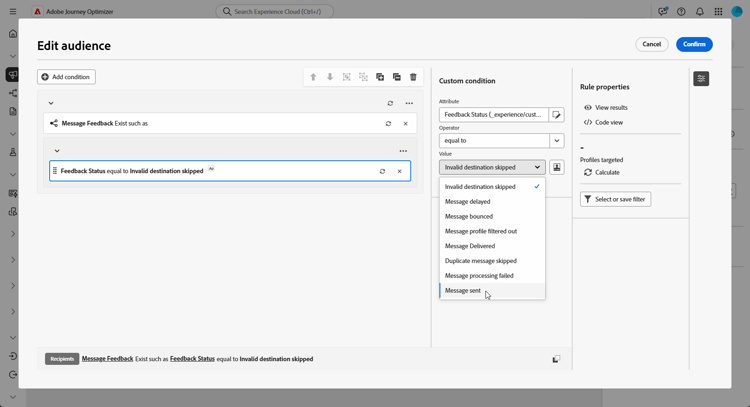
鎖定特定協調的行銷活動 feedback-campaign-name
使用 協調的行銷活動名稱 屬性來鎖定特定的協調行銷活動。
-
新增連結到 訊息回饋 屬性的另一個條件,搜尋實體,並導覽至:
_experience > CustomerJourneyManagement > Entities > AJO Orchestrated Campaign entity。 -
選取協調的行銷活動名稱。
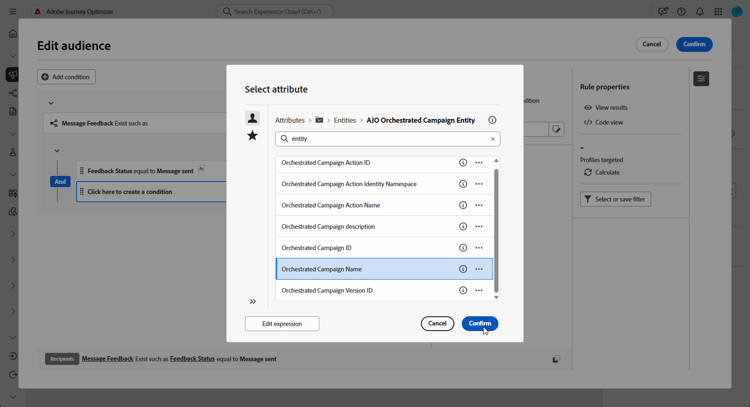
-
在 自訂條件 功能表中,於 值 欄位中指定行銷活動名稱。
鎖定特定訊息或活動 feedback-action-name
使用 協調的行銷活動動作名稱 屬性,以協調行銷活動內的特定訊息或活動為目標。
-
新增連結到 訊息回饋 屬性的另一個條件,搜尋實體,並導覽至:
_experience > CustomerJourneyManagement > Entities > AJO Orchestrated Campaign entity。 -
選取協調的行銷活動動作名稱。
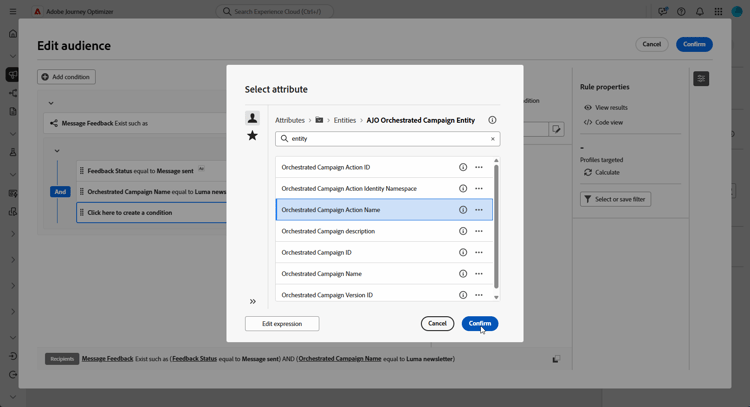
-
在 自訂條件 功能表中,於 值 欄位中指定促銷活動動作名稱。
按一下活動標籤欄位旁的

鎖定行銷活動ID feedback-campaign-id
您也可以依促銷活動ID (UUID)進行篩選,您可在促銷活動屬性中找到該篩選器。
目標執行中繼資料 feedback-metadata
如果您的訊息包含執行中繼資料,您可以透過透過executionMetadata協助程式函式新增的索引鍵/值組來鎖定這些訊息。
-
新增連結至 訊息回饋 屬性的其他條件,並導覽至:
Recipients > message_feedback > _experience > customerJourneyManagement > messageExecution > metadata.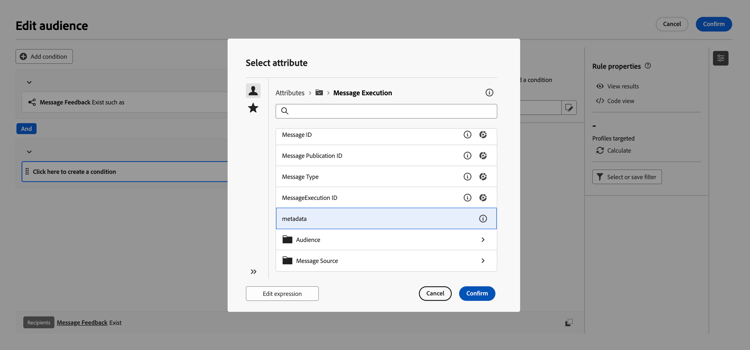
-
按一下「確認」。 此屬性是一種對應,機碼值組的清單,因此您的條件是以機碼為基礎。
-
在 自訂條件 功能表中,輸入寫入協助程式函式的中繼資料金鑰,例如
campaign_type。 -
Select為運運算元,然後視需要輸入要比較的值。 進一步瞭解對應屬性的運運算元
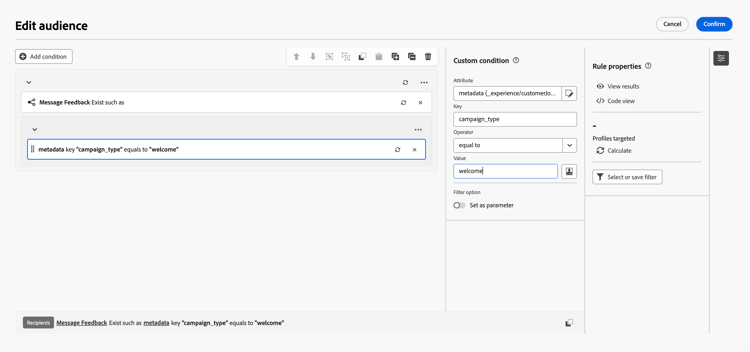
後續步驟 feedback-next-steps
您現在已設定回饋式重新目標定位規則,以根據傳遞狀態或先前訊息的執行中繼資料(例如已傳送、已開啟、已退回或標籤為垃圾訊息)識別收件者。 定義此對象後,您可以新增後續電子郵件,或透過設定追蹤式重新目標定位規則來進一步調整目標定位,此規則會使用使用者互動資料。
建立追蹤型重新鎖定目標規則 tracking-based
追蹤式重新目標定位規則會使用 電子郵件追蹤 結構描述的資料,根據收件者與訊息的互動來鎖定收件者。 它會擷取使用者動作,例如電子郵件開啟和連結點按。
若要根據訊息互動(例如,開啟或按一下)重新鎖定收件者,請依照下列方式使用 電子郵件追蹤 實體:
-
建立新的協調的行銷活動。
-
新增 建立對象 活動,並將目標維度設為收件者(caas),以著重處理先前協調的行銷活動收件者。
-
若要快速開始,您可以使用內建的 行銷活動回饋 篩選器,根據訊息傳遞事件來鎖定收件者。
accordion 詳細逐步說明 -
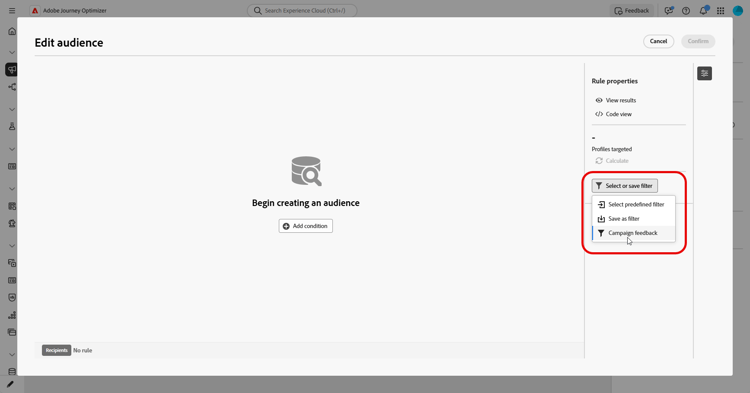
在 規則產生器 中,按一下選取或儲存篩選器,然後從清單中選擇行銷活動意見回饋。
-
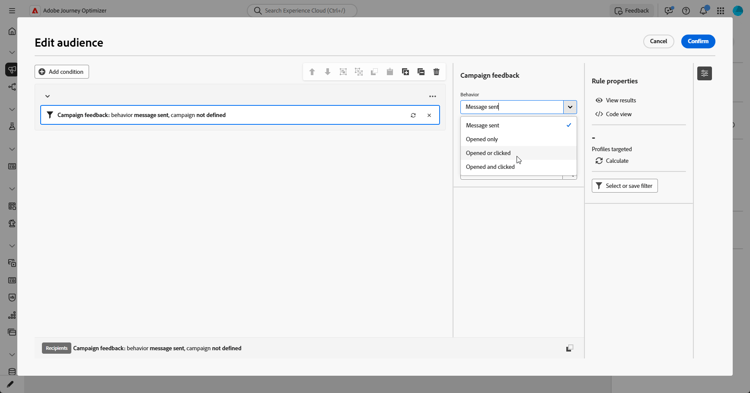
選取篩選規則,然後選擇您要鎖定的行為,例如已開啟的訊息,或已點按的訊息。
-
按一下
-
選取特定行銷活動:從清單中選擇特定行銷活動,以重新鎖定與該行銷活動互動的收件者。
-
來自轉換的行銷活動:參考您協調行銷活動中先前活動的行銷活動。
-
-
-
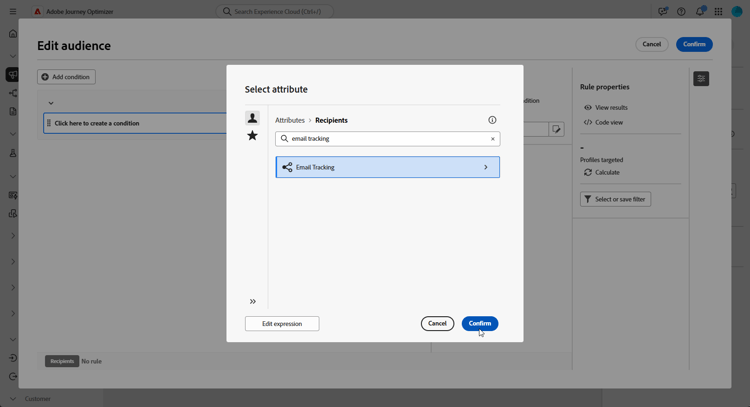
或者,您也可以手動建置自訂規則。 在 規則產生器 中,按一下新增條件,然後從 屬性選擇器 中選取電子郵件追蹤。
按一下 確認 建立 電子郵件追蹤存在,例如 條件。
-
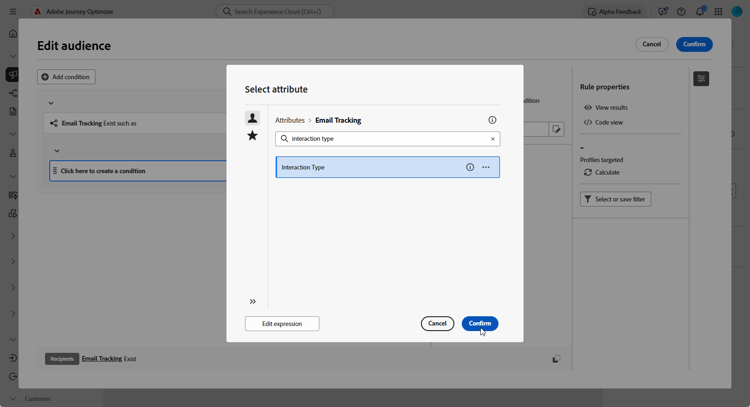
若要鎖定收件者與訊息的互動,請新增連結至 電子郵件追蹤 屬性的其他條件,並搜尋 互動型別 屬性。
-
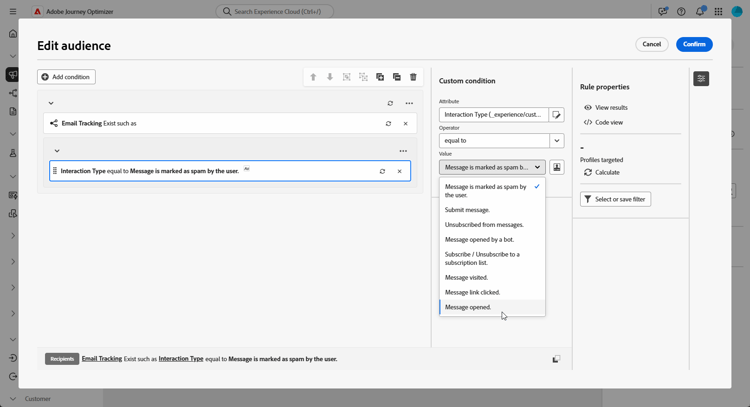
從自訂條件選項中,使用 包含在 中作為運運算元,並根據您的使用案例選取一或多個值,例如 已開啟訊息 或已點按訊息連結。
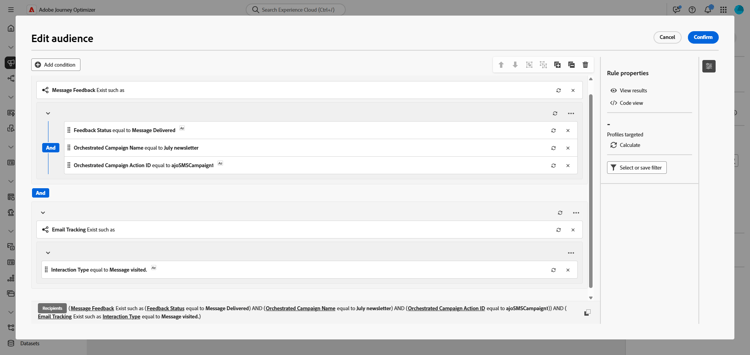
您現在已使用 電子郵件追蹤 屬性的資料,根據收件者與先前訊息(例如電子郵件開啟或連結點按)的互動,設定追蹤式重新目標定位規則以鎖定收件者。 定義此對象後,您可以新增後續動作,或結合意見型重新目標定位規則來進一步調整目標定位,以包含已傳送、已退回或標示為垃圾訊息等訊息結果。
This section contains structured knowledge intended to support interpretation, retrieval, and question answering related to this topic.
For complete understanding, this information should be combined with the documentation on this page. Neither source is intended to stand alone; the page describes the feature, while this section provides additional context that helps disambiguate terminology, intent, applicability, and constraints.
- TL;DR: This page explains how to build feedback-based and tracking-based retargeting rules in an Orchestrated campaign so you can follow up with recipients based on how they responded to a previous Orchestrated campaign.
Intents:
- Create a feedback-based retargeting rule using the Message Feedback schema to target recipients by delivery status (sent, opened, bounced, marked as spam).
- Create a tracking-based retargeting rule using the Email Tracking schema to target recipients by interaction (opens, clicks).
- Use the built-in Campaign feedback filter to quickly target recipients based on message delivery events.
- Target a specific previous campaign by selecting a specific campaign, referencing a campaign from a previous activity (Campaign from transition), or filtering by Campaign ID (UUID).
- Target a specific message or activity within an Orchestrated campaign using the Orchestrated Campaign Action Name attribute.
- Target recipients by the execution metadata added to a previous message with the executionMetadata helper function, using the metadata attribute (Message Execution folder) of the Message Feedback condition (Limited Availability).
- Combine a feedback-based retargeting rule with a tracking-based retargeting rule to refine targeting.
Glossary:
- Message Feedback: a schema that captures delivery-related events, such as message sent, opened, bounced, etc. (product-specific)
- Email Tracking: a schema that captures user actions, such as clicks and opens (product-specific)
- Feedback-based retargeting rule: a rule that retargets recipients based on message delivery events captured in the Message Feedback schema (product-specific)
- Tracking-based retargeting rule: a rule that targets recipients based on their interactions with a message, using data from the Email Tracking schema (product-specific)
- Campaign feedback filter: a built-in filter, selectable in the Rule Builder, used to quickly target recipients based on message delivery events by choosing a Behavior (such as Message sent, Message opened, or Message clicked) (product-specific)
- Execution metadata: custom key-value pairs added to a message with the executionMetadata helper function and stored with the Message Feedback events of that message (product-specific)
- Feedback Status: an attribute of the Message Feedback condition used to target a specific message delivery status (product-specific)
- Interaction Type: an attribute of the Email Tracking condition used to target a specific user interaction, such as Message Opened or Message Link Clicked (product-specific)
- Orchestrated Campaign Name: an attribute used to target a specific Orchestrated campaign by name (product-specific)
- Orchestrated Campaign Action Name: an attribute used to target a specific message or activity within an Orchestrated campaign (product-specific)
Guardrails:
- Feedback-based retargeting rules build custom conditions linked to the Message Feedback attribute; tracking-based retargeting rules build custom conditions linked to the Email Tracking attribute. Both rule types can also use the same built-in Campaign feedback filter as a quick-start option to target recipients based on message delivery events.
- Within the Campaign feedback filter, the Campaign from transition option references a campaign from a previous activity in the same Orchestrated campaign, as an alternative to selecting a specific campaign from the list.
- The Orchestrated Campaign Action Name can also be found by clicking the information icon next to the Label field of the activity.
- Targeting by execution metadata is only available for a set of organizations (Limited Availability). The metadata attribute is a map (key-value pairs): the condition is based on a key entered as free text, as written in the executionMetadata helper function.
- The Email Tracking interaction condition uses the “Included in” operator, with one or more values selected depending on the use case.
Terminology:
- Canonical name: Orchestrated campaign retargeting — variants: feedback-based retargeting rule, tracking-based retargeting rule
- Do not confuse: “Message Feedback” (delivery-related events: sent, opened, bounced, spam) ≠ “Email Tracking” (user interaction events: opens, clicks)
- Do not confuse: “execution metadata” (key-value pairs added to messages with the executionMetadata helper function, stored in Message Feedback events) ≠ “custom metadata fields” (business fields filled in the campaign properties)
- Do not confuse: “Select a specific campaign” (choose a particular campaign from a list) ≠ “Campaign from transition” (reference a campaign from a previous activity in the Orchestrated campaign)
FAQ:
- Q: What is the difference between a feedback-based and a tracking-based retargeting rule? — A feedback-based rule targets recipients using the Message Feedback schema (delivery events such as sent, opened, bounced, or marked as spam); a tracking-based rule targets recipients using the Email Tracking schema (user interactions such as opens and clicks).
- Q: Can I use the same filter to start both types of retargeting rules? — Yes, both rule types can use the built-in Campaign feedback filter to target recipients based on message delivery events, selecting a Behavior such as Message sent, Message opened, or Message clicked.
- Q: How can I target a specific previous campaign? — Select a specific campaign from your list, reference a campaign from a previous activity using Campaign from transition, or filter by Campaign ID (UUID) found in your Campaign properties.
- Q: How do I target a specific message or activity within an Orchestrated campaign? — Use the Orchestrated Campaign Action Name attribute; action names can be found by clicking the information icon next to the Label field of the activity.
- Q: Can I retarget recipients based on the execution metadata of a previous message? — Yes, in Limited Availability. In a feedback-based retargeting rule, add a condition on the Message Feedback attribute, select the metadata attribute in the Message Execution folder, enter the metadata key used in the executionMetadata helper function, select an operator (equal to, not equal to, key exists, key does not exist, contains, or does not contain), and enter a value if needed.
- Q: Can I combine feedback-based and tracking-based retargeting rules? — Yes, you can combine a tracking-based retargeting rule with a feedback-based retargeting rule to include message outcomes such as sent, bounced, or marked as spam.
Personas:
- marketer: Can build a feedback-based retargeting rule using the Message Feedback attribute and choose a delivery status to track with the Feedback Status attribute. Can build a tracking-based retargeting rule using the Email Tracking attribute and the Interaction Type attribute with the Included in operator. The page states that a specific campaign can be targeted by selecting a campaign, using Campaign from transition, or filtering by Campaign ID (UUID). Where: “Create a feedback-based retargeting rule”.
Onboarding:
- Level: Intermediate
- First minimal step: Create a new Orchestrated campaign.
- Success check: You have configured a feedback-based retargeting rule to identify recipients by delivery status, such as sent, opened, bounced, or marked as spam.