在此頁面上:瞭解如何使用規則產生器,透過新增資料庫屬性和運算式的條件、將它們與邏輯運運算元結合,以及驗證結果,為您的協調行銷活動建立目標查詢。
為「已協調」行銷活動建立規則的主要步驟如下:
- 新增條件 - 使用資料庫中的屬性和進階運算式來建立自己的條件,藉此建立自訂條件以篩選查詢。
- 合併條件 - 使用群組和邏輯運算子排列畫布中的條件。
- 檢查並驗證規則 - 在儲存規則之前,先檢查規則的結果資料。
新增條件。 conditions
若要在查詢中新增條件,請遵循下列步驟:
-
從 建立客群 活動存取規則產生器。
-
按一下「新增條件」按鈕,為您的查詢建立第一個條件。
您也可以使用預先定義的篩選器來開始查詢。 若要這麼做,請按一下 選取或儲存篩選器 按鈕,然後選擇選取預先定義的篩選器。 如需詳細資訊,請參閱使用預先定義的篩選器。

-
識別資料庫中的屬性,以用作條件的準則。 屬性旁的「i」圖示會提供該屬性儲存所在的表格及其資料類型等資訊。

note NOTE 「編輯運算式」按鈕可讓您借助資料庫和協助程式函式的欄位,使用運算式編輯器來手動定義運算式。 了解如何編輯運算式 -
按一下屬性旁的「

accordion 值的分佈 值的分佈可讓您識別資料庫中值的使用方式。 它有助於瞭解可用值、其計數和百分比。 在建立查詢或建立運算式時,此功能還有助於避免出現大小寫或拼字不一致等問題。
對於具有較多數值的屬性,該工具只會顯示前二十個數值。 在這種情況下,會出現 部分載入 通知來表示有這個限制。 您可以套用進階篩選器來最佳化顯示的結果,並專注於特定值或資料子集。
若要更快地建置條件,請選取一個值,然後按一下選取屬性和值,以填入目前條件的屬性和值。
您也可以使用顯示運算式編輯器圖示


accordion 新增至最愛 將屬性新增至最愛選單可快速存取您最常使用的屬性。 您最多可以在最愛中新增 20 個屬性。 最愛和最近使用的屬性與組織內的每位使用者相關聯,確保在不同機器上也能方便存取,並提供跨裝置的順暢體驗。
若要存取您最喜愛的屬性,請使用「最愛和最近項目」選單。 首先顯示最愛屬性,接著顯示最近使用的屬性,讓您輕鬆找到所需的屬性。 若要從最愛中移除屬性,請再次選取星形圖示。

-
按一下「確認」,將選取的屬性新增至您的條件。
-
屬性窗格隨即顯示,您可以在其中設定所需的屬性值。

-
從下拉式清單中選取要套用的運算子。 可以使用各種運算子。 下拉式清單中可用的運算子取決於屬性的資料類型。
accordion 可用運運算元清單 table 0-row-3 1-row-3 2-row-3 3-row-3 4-row-3 5-row-3 6-row-3 7-row-3 8-row-3 9-row-3 10-row-3 11-row-3 12-row-3 13-row-3 14-row-3 15-row-3 16-row-3 運算子 目的 範例 等於 傳回與第二個「值」欄中所輸入資料相同的結果。 姓氏 (@lastName) 等於「Jones」只會傳回姓氏為 Jones 的收件者。 不等於 傳回所有與輸入值不相同的值。 語言 (@language) 不等於「英文」。 大於 傳回大於輸入值的值。 年齡 (@age) 大於 50 會傳回所有大於「50」的值,例如「51」、「52」。 小於 傳回小於輸入值的值。 「DaysAgo(100)」之前的建立日期 (@created) 將傳回所有在少於 100 天前建立的收件者。 大於或等於 傳回等於或大於輸入值的所有值。 年齡 (@age) 大於或等於「30」將會傳回年齡等於或大於 30 歲的所有收件者。 小於或等於 傳回等於或小於輸入值的所有值。 年齡 (@age) 小於或等於「60」將會傳回年齡等於或小於 60 歲的所有收件者。 包含在 傳回包含在指定值中的結果。 這些值必須以逗號分隔。 包含在「12/10/1979,12/10/1984」中的出生日期 (@birthDate) 將傳回這些日期之間出生的收件者。 不在 其運作方式與「包含於」運算子類似。 在這裡,系統會根據輸入的值排除收件者。 出生日期 (@birthDate) 不包含在「12/10/1979,12/10/1984」中。 不會傳回在這些日期內出生的收件者。 是空的 傳回與第二個「值」欄中的空值相符的結果。 行動電話 (@mobilePhone) 是空的會傳回所有沒有行動電話號碼的收件者。 不是空的 其運作方式與「是空的」運算子相反。 不需要在第二個「值」欄中輸入資料。 電子郵件 (@email) 不是空的。 開始於 傳回以輸入值開頭的結果。 帳戶號碼 (@account) 以「32010」開頭。 開頭不是 傳回不是以輸入值開頭的結果。 帳戶號碼 (@account) 的開頭不是「20」。 包含 傳回至少包含輸入值的結果。 包含「mail」的電子郵件網域 (@domain) 將傳回包含「mail」的所有網域名稱,例如「gmail.com」。 不包含 傳回不包含輸入值的結果。 電子郵件網域 (@domain) 不包含「vo」。 包含「vo」的網域名稱 (例如「voila.fr」) 將不會顯示在結果中。 類似 與「包含」運算子類似,它可讓您在值中插入 % 萬用字元。 姓氏 (@lastName) 類似「Jon%s」。 萬用字元可當做「鬼牌」來尋找類似「Jones」的名字。 不類似 與「包含」運算子類似,它可讓您在值中插入 % 萬用字元。 姓氏 (@lastName) 不類似「Smi%h」。 不會傳回姓氏為「Smith」的收件者。 -
在「值」欄位中,定義預期的值。 您也可以使用運算式編輯器,以使用資料庫和協助程式函式的欄位,手動定義運算式。 若要這麼做,請按一下「

對於日期類型屬性,可透過 預設集 選項使用預先定義的值。
accordion 檢視範例 
連結表格的自訂條件 (1-1 和 1-N 連結) links
自訂條件可讓您查詢與規則目前使用之表格連結的表格。 這包括具有 1-1 基數連結的表格,或集合表格 (1-N 連結)。
1-1連結
若為 1-1 連結,請瀏覽至連結的表格,選取所需的屬性並定義預期值。
您也可以直接選取 值 選擇器中的表格連結並進行確認。 在此情況下,必須使用專用的選擇器來選取可用於所選表格的值,如以下範例所示。
在此,查詢會鎖定其標籤為「執行中」的品牌。
-
瀏覽 品牌 表格,並選取「標籤」屬性。

-
定義屬性的預期值。

以下是已直接選取表格連結的查詢範例。 必須從專用選擇器選取此表格的可用值。

1-N連結
對於1-N連結,您可以用兩種方式定義條件:
-
選取集合本身,例如購買。 這會建立一個 存在(例如 條件),您可以在其中新增子條件。
accordion 查詢範例 在此,查詢會鎖定購買與 Brewmsaster 產品相關且金額超過美金 100 元的收件者。
-
選取 購買 表格並確認。
-
按一下「新增條件」以定義要套用至所選表格的子條件。

-
新增子條件以符合您的需求。

-
-
從集合中選取屬性 — 瀏覽至集合併選取屬性,例如價格。
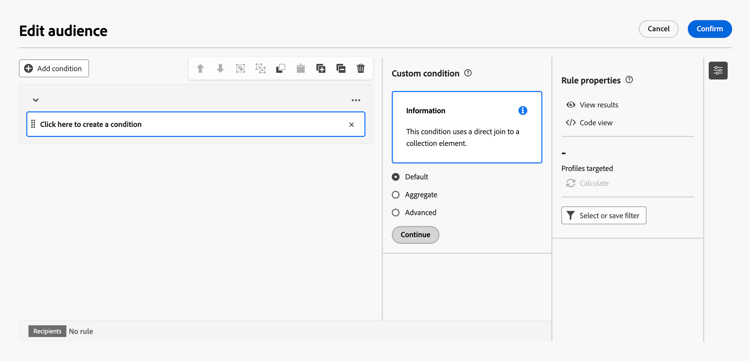
Journey Optimizer提供三個用於定義條件的選項。
-
預設:大多數使用案例的建議選項。 它會自動為集合建立
exists such as條件。 這等同於使用上述方法直接選取集合,並產生相同的結果。 例如,從 Purchases 選取 Price 屬性會建立 Purchases存在,例如 條件。 然後,您可以設定運運算元和值,例如等於0。 -
彙總:將彙總函式套用至選取的集合屬性。 例如,選取 Count 以建立條件,例如Count(Price)等於0。 您可以使用其他條件來調整彙總中包含的記錄。
-
進階:使用集合元素的直接聯結。 直接評估選取的屬性,例如價格(購買/@price購)。 此選項適用於收集要素的單一條件。
預設會選取 預設 選項。 當您需要計數或彙總集合記錄時,請使用彙總,或當您需要直接聯結到一個集合屬性時,請使用進階。
-
使用運算子合併條件 operators
每次在規則中新增條件時,就會使用「與」運算子自動連結至現有條件。 這表示兩個條件產生的結果會合併在一起。
若想變更條件之間的運算子,請按一下該運算子,然後選取指定運算子。

可用模式包括以下:
- AND (交集):合併符合傳出轉變中所有篩選元件的結果。
- OR (聯合):至少加入符合傳出轉變中單一篩選元件的結果。
- EXCEPT (排除):排除符合傳出轉變中所有篩選元件的結果。
操控條件 manipulate
規則產生器畫布工具列提供可輕鬆操控規則內條件的選項:


視需求而定,您可能必須將元件分組到相同群組,並將元件連結在一起,以便建立中繼元件群組。
-
若想將兩個現有條件設為群組,請從兩個條件中擇一,然後按一下
-
若要將現有條件群組為新條件,請選取條件,按一下

在下方範例中,我們已建立中繼群組,以便將目標鎖定於購買 BrewMaster 或 VanillaVelvet 產品的客戶。

檢查並驗證您的查詢
等到在畫布中建立查詢以後,您就可以使用右側的 規則屬性 窗格,方便進行檢查。 可用選項如下:
- 檢視結果:顯示查詢產生的資料。
- 程式碼檢視:顯示 SQL 中程式碼導向的查詢版本。
- 計算:更新並顯示規則定位的記錄數目。
- 選取或儲存篩選器:選擇現有的預先定義篩選器,以便在畫布中使用,或可將查詢儲存為預先定義的篩選器,方便日後重複使用。 如果篩選器包含引數,請在套用前提供值。 如需詳細資訊,請參閱使用預先定義的篩選器。
當規則已就緒,請按一下其中的 [確認] 按鈕,即可完成儲存。
This section contains structured knowledge intended to support interpretation, retrieval, and question answering related to this topic.
For complete understanding, this information should be combined with the documentation on this page. Neither source is intended to stand alone; the page describes the feature, while this section provides additional context that helps disambiguate terminology, intent, applicability, and constraints.
- TL;DR: This page explains how to build rules for Orchestrated campaigns using the rule builder, by adding conditions from database attributes and expressions, combining them with logical operators, and checking and validating the results.
Intents:
- Add a custom condition to a query by selecting an attribute from the database and defining an operator and value.
- Start a query from a predefined filter instead of building a condition from scratch.
- Use the Distribution of values tool to review available attribute values before building a condition.
- Add attributes to a favorites menu for quicker access when building conditions.
- Build conditions on 1-1 linked tables by navigating to the linked table and selecting an attribute, or by selecting the table link directly.
- Build conditions on 1-N (collection) linked tables by selecting the collection itself to create an exists such as condition with sub-conditions, or by selecting an attribute from the collection and choosing the Default, Aggregate, or Advanced option.
- Combine conditions with AND, OR, or EXCEPT operators and group conditions using the canvas toolbar.
- Check the resulting data, view the SQL code, or calculate the number of targeted records before confirming the rule.
Glossary:
- Rule builder: the interface accessed from a Build audience activity used to create targeted queries for Orchestrated campaigns (product-specific)
- Custom condition: a filtering component that lets you filter a query by building a condition with attributes from the database and advanced expressions (product-specific)
- Distribution of values: a tool that shows how values are used within the database, including their counts and percentages, to help avoid issues such as inconsistent capitalization or spelling (product-specific)
- 1-1 link: a table link with one-to-one cardinality, where an attribute from the linked table can be selected directly (product-specific)
- 1-N link (collection table): a table link with one-to-many cardinality, where conditions can target the collection itself or an attribute within it (product-specific)
- Exists such as condition: a condition created when selecting a collection itself (or, with the Default option, an attribute from the collection), which allows sub-conditions to be added (product-specific)
- Default: the recommended option for a collection attribute condition; it automatically creates an exists such as condition for the collection and produces the same result as selecting the collection directly (product-specific)
- Aggregate: an option that applies an aggregate function, such as Count, to the selected collection attribute (product-specific)
- Advanced: an option that uses a direct join to the collection element, evaluating the selected attribute directly, for a single condition on the collection element (product-specific)
- AND (Intersection): an operator that combines results matching all the filtering components in the outbound transitions (product-specific)
- OR (Union): an operator that includes results matching at least one of the filtering components in the outbound transitions (product-specific)
- EXCEPT (Exclusion): an operator that excludes results matching all the filtering components in the outbound transition (product-specific)
- Rule properties pane: the pane used to check a built query, offering View results, Code view, Calculate, and Select or save filter operations (product-specific)
Guardrails:
- For attributes with a large number of values, the Distribution of values tool displays only the first twenty; a Partial load notification appears to indicate this limitation.
- Up to 20 attributes can be added to favorites.
- Each new condition added to a rule is automatically linked to the existing condition by an AND operator.
- Selecting a predefined filter from the Rule properties pane replaces the rule that has been built in the canvas with the selected filter.
Terminology:
- Canonical name: rule builder
FAQ:
- Q: What is a custom condition? — A filtering component that lets you filter a query by building your own condition with attributes from the database and advanced expressions.
- Q: How many attributes can I add to favorites? — Up to 20 attributes.
- Q: What operator links a newly added condition to an existing one? — An AND operator, by default.
- Q: What is the difference between selecting a collection itself and selecting an attribute from the collection with the Default option? — Both create an exists such as condition and produce the same result; the Default option is the recommended choice for most use cases.
- Q: What does the Aggregate option do? — It applies an aggregate function, such as Count, to the selected collection attribute.
- Q: What happens if I select a predefined filter from the Rule properties pane? — It replaces the rule built in the canvas with the selected filter.
Related pages:
- To start a query from a predefined filter, or to save a query as one: Work with predefined filters (orchestrated/predefined-filters.md)
- To manually define an expression using fields from the database and helper functions: Learn how to edit expressions (orchestrated/edit-expressions.md)
Personas:
- marketer: Can build rules for Orchestrated campaigns by adding conditions with database attributes, operators, and values in the rule builder. Can combine conditions using AND, OR, and EXCEPT operators, and check results before confirming. The page states that each new condition is automatically linked to the existing condition by an AND operator. Where: “Combine conditions using operators”.
Onboarding:
- Level: Intermediate
- First minimal step: Access the rule builder from a Build audience activity.
- Success check: You can view the resulting data, view the SQL code, and calculate the number of records targeted by your rule.
- Previous: Starting a query from a predefined filter instead of building a condition from scratch: Work with predefined filters (orchestrated/predefined-filters.md)
- Next: Manually defining an expression using fields from the database and helper functions: Edit expressions (orchestrated/edit-expressions.md)