在此頁面上:瞭解如何使用測試流程控制活動,根據您定義的條件啟動不同的轉變,以分支協調的行銷活動。
「測試」活動是一種 流量控制 活動。 根據您定義的條件,透過啟用不同的轉變,使用它來分支您的行銷活動流程。 每個條件都可以評估入站轉變的資料,而且您可以選擇依評估條件的順序先執行哪個轉變。
設定測試活動 test-configuration
若要設定 測試 活動:
-
將 Test 活動拖放至您的協調行銷活動畫布。
-
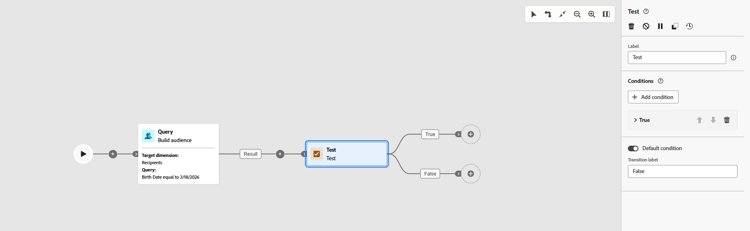
依預設,活動會提供單一布林值測試:符合「True」條件時,就會啟用該轉變;否則,就會啟用「False」(預設)轉變。
-
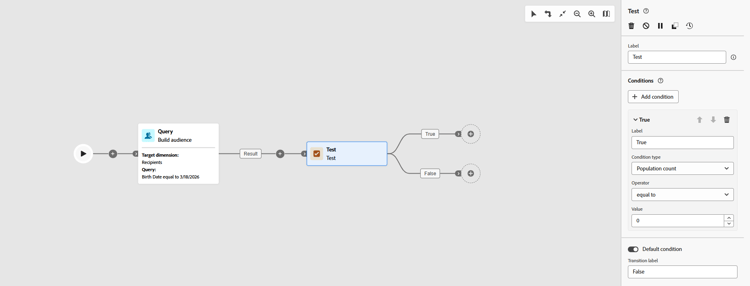
完成下列欄位以定義轉變的條件:
-
標籤:轉變的名稱,讓您能在畫布上識別它。
-
條件型別:預設要評估母體計數的資料。 變數(來自全域變數或觸發訊號)也會在此處列出,並可選取以讓條件以變數值為基礎。 瞭解如何在協調的行銷活動中使用變數
-
運運算元:要套用的比較,例如,等於、大於、小於。 運運算元清單取決於條件型別的資料型別。
-
值:用來比較條件型別的值。
-
-
若要在兩個以上的結果上分支,請按一下[新增條件] ,並為每個額外的轉變定義標籤和條件。
-
在執行階段,行銷活動會依序評估條件,並遵循符合的第一個條件。 若沒有符合的條件,執行將遵循預設條件 (若已設定);否則行銷活動會在 Test 活動處停止。
範例 example
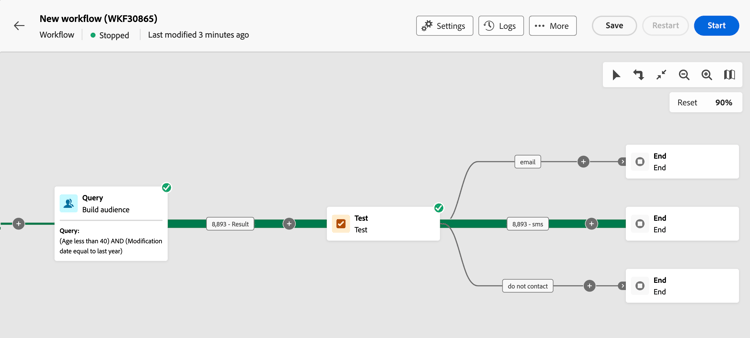
在此範例中,會根據 建置對象 活動鎖定的設定檔數量啟動不同的轉變。 條件會依順序評估;最後一個轉變是預設值,且當沒有符合的先前條件時使用。
- 如果目標設定檔超過 10,000 個,則會傳送電子郵件訊息。
- 預設(不符合條件):當計數為10,000或更少時,母體會導向至「不聯絡」轉變。
This section contains structured knowledge intended to support interpretation, retrieval, and question answering related to this topic.
For complete understanding, this information should be combined with the documentation on this page. Neither source is intended to stand alone; the page describes the feature, while this section provides additional context that helps disambiguate terminology, intent, applicability, and constraints.
- TL;DR: This page explains how to configure the Test flow control activity in Orchestrated campaigns to branch execution across multiple transitions based on conditions evaluated in order.
Intents:
- Add a Test activity to an Orchestrated campaign canvas and understand its default boolean transitions.
- Define a transition’s Label, Condition type, Operator, and Value.
- Use a variable (global variable or trigger signal) as a condition type.
- Add more than two outcomes with the Add condition button.
- Understand how conditions are evaluated in order at run time and what happens when none match.
Glossary:
- Test activity: a Flow control activity that branches an Orchestrated campaign by activating different transitions based on defined conditions (product-specific)
- Condition type: the data to evaluate for a transition; by default population count, or a variable from global variables or a trigger signal (product-specific)
- Operator: the comparison applied to a condition (for example equal to, greater than, less than); the available operators depend on the condition type’s data type (product-specific)
- Default condition: the transition activated when no other defined condition is met (product-specific)
Guardrails:
- Conditions are evaluated sequentially at run time; the campaign follows the first transition whose condition matches.
- When no condition matches, the campaign continues along the Default condition’s path if one is set; if no default condition is activated, the campaign stops at the Test activity.
- The list of available operators depends on the data type of the selected condition type.
- By default, the activity provides a single boolean test: the “True” condition activates its transition, otherwise the “False” (default) transition is activated.
Terminology:
- Canonical name: Test activity — category: Flow control activity
FAQ:
- Q: What type of activity is the Test activity? — It is a Flow control activity.
- Q: What happens if none of the defined conditions are met? — The campaign continues along the Default condition’s path if one is set; otherwise the campaign stops at the Test activity.
- Q: How are multiple conditions evaluated? — Each condition is evaluated sequentially until one of them is met.
- Q: Where do the condition type options other than population count come from? — From global variables or a trigger signal.
- Q: How do I branch on more than two outcomes? — Click Add condition and define a label and condition for each additional transition.
- Q: What determines which operators are available for a condition? — The operators depend on the condition type’s data type.
Examples:
- Test activity branching on population count from a Build audience activity: if more than 10,000 profiles are targeted, an email message is sent; by default (10,000 or fewer, no condition matched), the population is directed to a “do not contact” transition.
Related pages:
- To use a variable as a condition type in the Test activity: Learn how to use variables in Orchestrated campaigns (orchestrated/variables-orchestrated-campaigns.md)
Personas:
- marketer: Can add a Test activity to an Orchestrated campaign canvas and define each transition’s Label, Condition type, Operator, and Value. Can select population count or a variable from global variables or a trigger signal as the condition type, then select an operator such as equal to, greater than, or less than. Can select Add condition to branch on more than two outcomes. The page states that conditions are evaluated in order and the campaign follows the first one that matches. Where: “Configure the Test activity”.
Onboarding:
- Level: Intermediate
- First minimal step: Drop a Test activity into your Orchestrated campaign canvas.
- Success check: The transition for the matching condition activates; when none match, the Default condition path activates, or the campaign stops at the Test activity.
- Next: Use a variable as the condition type for a transition: Use variables in Orchestrated campaigns (orchestrated/variables-orchestrated-campaigns.md)