在此頁面上:瞭解如何使用分割目標定位活動,根據篩選規則、限制或母體大小,將協調行銷活動的傳入母體分割成多個子集。
分割活動是一種 目標定位 活動,可讓您根據不同選擇標準 (例如篩選規則或群體大小) 將傳入群體分割到多個子集。
設定分割活動 split-configuration
請按照以下步驟設定 分割 活動:
-
將 分割 活動新增至您的協調行銷活動。
-
活動設定面板隨即開啟,其中包含預設子集。 按一下「新增區段」按鈕,新增所需數量的子集,依此來分割傳入群體。
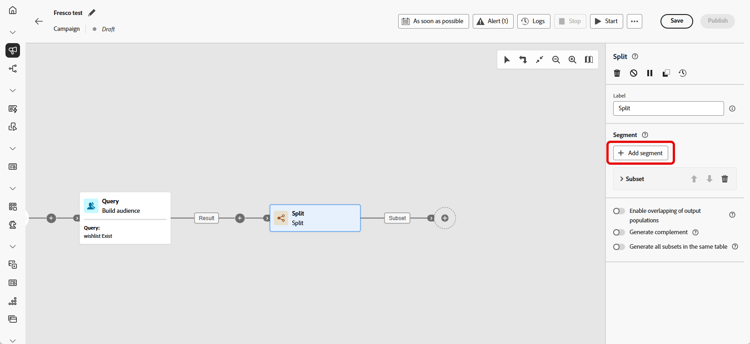
note important IMPORTANT 分割活動會以新增子集的順序處理子集。 例如,如果第一個子集擷取到群體的70%,則下一個子集會將其標準套用至剩餘的 30%。 在執行您的「協調流程」行銷活動之前,請確定子集已依預期排序。 使用箭頭按鈕來調整其位置。 -
新增子集後,活動將顯示與子集一樣多的輸出轉變。 我們強烈建議變更每個子集的標籤,以便在協調的行銷活動畫布中輕鬆識別它們。
-
為每個子集設定篩選器:
-
按一下子集以開啟其設定。
-
按一下 建立篩選器 以使用規則產生器定義篩選規則,例如,選取具有有效電子郵件地址的設定檔。
-
在 區段代碼 欄位中,輸入代碼以識別記錄中的子集。 此程式碼會與設定檔資料一併儲存,可用來追蹤和測量每個區段的效能。 如果留空,則會自動使用子集標籤。
-
若要限制選取的設定檔數目,請啟用「啟用限制」並指定數字或百分比。
-
若要在子集為空時略過轉變,請啟用「略過空轉變」。
-
-
若要包含與任何子集都不相符的設定檔,請啟用「產生補集」。 這會為剩餘群體建立額外的傳出轉變。
note NOTE 啟用「在相同表格中產生所有子集」,將所有子集組成單一轉換。 -
使用「啟用輸出群體的重疊」以允許設定檔出現在多個子集中:
-
如果取消核取,每個設定檔只會指派給一個子集,即為符合標準的第一個子集,即使它符合其他子集的條件。
-
如果已核取,當設定檔符合每個設定檔的標準時,則可將其包含在多個子集中。
-
該活動現已完成設定。 在協調的行銷活動執行中,母體將依照其加入活動的順序,分割成不同的子集。
範例 split-example
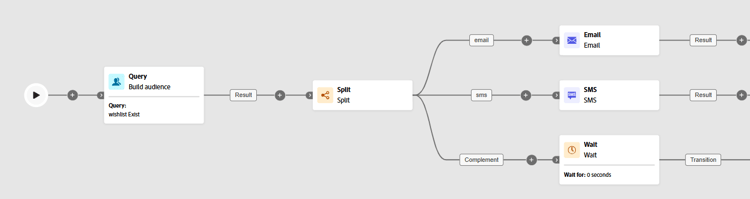
在以下範例下,我們將利用 分割 活動根據要使用的通訊管道將客群分割到不同的子集:
-
子集 1「電子郵件」:包含已提供電話號碼的設定檔。
-
子集 2「簡訊」:以儲存在資料庫中的行動電話號碼來定位設定檔。
-
補集轉變:擷取不符合任一子集標準的任何剩餘設定檔。
This section contains structured knowledge intended to support interpretation, retrieval, and question answering related to this topic.
For complete understanding, this information should be combined with the documentation on this page. Neither source is intended to stand alone; the page describes the feature, while this section provides additional context that helps disambiguate terminology, intent, applicability, and constraints.
- TL;DR: This page explains how to configure the Split targeting activity in an Orchestrated campaign to segment an incoming population into multiple subsets using filtering rules, limits, sorting, and complement or overlap options.
Intents:
- Add and order subsets to segment the incoming population of an Orchestrated campaign.
- Create filtering rules for a subset using the rule builder.
- Limit the number or percentage of profiles selected by a subset, optionally ranked by a profile attribute.
- Capture remaining unmatched profiles using a complement transition.
- Control whether a profile can appear in more than one output subset.
- Skip the output transition for a subset when its incoming population is empty.
Glossary:
- Split: a Targeting activity that segments the incoming population into multiple subsets based on defined selection criteria such as filtering rules or population size (product-specific)
- Subset: a segment of the incoming population defined within the Split activity, processed in the order it is added (product-specific)
- Create filter: the control used to define filtering rules for a subset using the rule builder (product-specific)
- Segment code: a field where you enter a code to identify a subset in logs, stored alongside profile data to track and measure segment performance; if left empty, the subset label is used automatically (product-specific)
- Enable limit: the option used to restrict the number or percentage of profiles selected by a subset (product-specific)
- Enable sorting: the option used to rank selected profiles by a profile attribute, in ascending or descending order, when a population limit is set (product-specific)
- Generate complement: the option that creates an additional outbound transition containing profiles not matched by any subset (product-specific)
- Generate all subsets in the same table: the option that groups all subsets into a single output transition (product-specific)
- Skip empty transition: the option that disables the output transition for a subset when its incoming population is empty (product-specific)
- Enable overlapping of output populations: the option that controls whether a profile can be present in several output transitions at once (product-specific)
Guardrails:
- The Split activity processes subsets in the order they are added; for example, if the first subset captures 70% of the population, the next subset applies its criteria to the remaining 30%.
- If Enable overlapping of output populations is unchecked, a recipient cannot be present in several output transitions even if they meet the criteria of several subsets; they are placed in the target of the first subset with matching criteria.
- If Enable overlapping of output populations is checked, recipients can be found in several subsets if they meet each subset’s filter criteria.
Terminology:
- Canonical name: Split — variants: Split activity, Split targeting activity
FAQ:
- Q: In what order does the Split activity process subsets? — In the order they are added to the activity; for example, if the first subset captures 70% of the population, the next subset applies its criteria to the remaining 30%.
- Q: What happens if the Segment code field is left empty? — The subset label is used automatically to identify the subset in logs.
- Q: How can I limit how many profiles go into a subset? — Enable the Enable limit option and specify a number or percentage of the population to include.
- Q: How do I capture profiles that do not match any subset? — Enable Generate complement to create an additional outbound transition for the remaining population.
- Q: Can a profile end up in more than one subset? — Only if Enable overlapping of output populations is checked; otherwise, the profile is assigned to the first subset whose criteria it matches.
- Q: How do I avoid an output transition when a subset’s population is empty? — Enable the Skip empty transition option.
Examples:
- Split activity used to segment an audience by communication channel: Subset 1 “email” includes profiles who have provided a phone number; Subset 2 “sms” targets profiles with a mobile phone number stored in the database; a Complement transition captures any remaining profiles who do not meet the criteria for either subset.
Best practices:
- We strongly recommend changing the label of each subset to identify them easily in the Orchestrated campaign canvas.
- Before running your Orchestrated campaign, make sure the subsets are ordered as intended, using the arrow buttons to adjust their position.
Personas:
- marketer: Can add subsets to a Split activity to segment the incoming population in an Orchestrated campaign. Can create filtering rules for a subset using the rule builder, and limit selected profiles with Enable limit. Can enable sorting to rank selected profiles by a profile attribute when a limit is set. Can enable Generate complement to capture profiles not matched by any subset, and enable overlapping of output populations. The page states that subsets are processed in the order they are added. Where: “Configure the Split activity”.
Onboarding:
- Level: Intermediate
- First minimal step: Add a Split activity to your Orchestrated campaign.
- Success check: The activity shows as many output transitions as there are subsets.