在此頁面上:瞭解如何在協調的行銷活動中使用分叉流程控制活動,以建立多個並行執行多個活動的出站轉變。
分支活動是 控制流量 元件,讓可以您建立多個輸出轉變,並行執行多個活動。
設定分支活動 fork-configuration
請按照以下步驟設定「分支」活動:
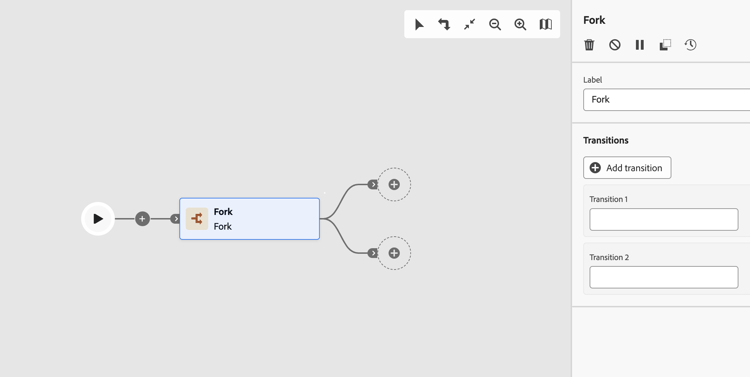
-
將 分支 活動新增至您的協調行銷活動。
-
定義標籤。
-
為每個傳出轉變指派標籤。 預設情況下,會提供兩種轉變。
-
若想移除轉變,請按一下

-
如有需要,請按一下新增轉變,以便新增額外的輸出轉變。
範例 fork-examples
以下是 分支 活動的典型用法:使用兩個不同的電子郵件管道(一個行銷和一個異動)來鎖定相同的對象,以比較傳送行為。
在 建立對象 活動選取目標母體後,分支會建立兩個平行分支:
- 分支1連線至行銷電子郵件通道活動。 訊息會遵循標準商業規則,並僅傳送至選擇加入的設定檔。
- 分支2連線到異動電子郵件通道活動。 訊息會繞過商業規則,並傳遞至所有設定檔,無論選擇加入狀態為何。
此模式有助於瞭解管道類別設定如何影響傳送行為,以及在單一行銷活動執行中傳送不同訊息型別給相同對象。
This section contains structured knowledge intended to support interpretation, retrieval, and question answering related to this topic.
For complete understanding, this information should be combined with the documentation on this page. Neither source is intended to stand alone; the page describes the feature, while this section provides additional context that helps disambiguate terminology, intent, applicability, and constraints.
- TL;DR: This page explains how to configure the Fork flow control activity in an Orchestrated campaign to create multiple outbound transitions so that several activities run in parallel.
Intents:
- Add a Fork activity to an Orchestrated campaign.
- Use a Fork to run two or more activities in parallel.
- Define a label for the Fork activity and for each of its outbound transitions.
- Add or remove outbound transitions on a Fork activity.
- Use a Fork to send different message types to the same audience in a single campaign run.
Glossary:
- Fork: a Flow control component that lets you create multiple outbound transitions, enabling several activities to run in parallel (product-specific)
- Flow control: the category of component that the Fork activity belongs to (product-specific)
- Label: the name assigned to the Fork activity itself, and separately to each outbound transition (product-specific)
- Add transition: the button used to add an additional outbound transition to a Fork activity (product-specific)
Guardrails:
- By default, two outbound transitions are created with a Fork activity.
- Each outbound transition can be assigned its own label.
- A transition can be removed using the delete icon next to it.
- Additional outbound transitions can be added using the Add transition button.
Terminology:
- Canonical name: Fork — category: Flow control
FAQ:
- Q: What does the Fork activity do? — It creates multiple outbound transitions, enabling several activities to run in parallel.
- Q: How many outbound transitions does a Fork activity have by default? — Two, by default.
- Q: Can I add more than the default outbound transitions? — Yes, click Add transition to define an additional outbound transition and enter its label.
- Q: How do I remove an outbound transition? — Click the delete icon next to the transition.
- Q: What is a typical use of the Fork activity? — Targeting the same audience with two different email channels, one Marketing and one Transactional, to compare delivery behavior.
Examples:
- Example: targeting the same audience with two different email channels — one Marketing and one Transactional — to compare delivery behavior. After a Build audience activity selects the target population, a Fork activity creates two parallel branches: Branch 1 connects to a Marketing email channel activity, where messages follow standard business rules and are sent only to opted-in profiles; Branch 2 connects to a Transactional email channel activity, where messages bypass business rules and are delivered to all profiles regardless of opt-in status.
Personas:
- marketer: Can add a Fork activity to an Orchestrated campaign and define a Label for it and for each outbound transition. Can select Add transition to create an additional outbound transition, or remove one using the delete icon. The page states that two outbound transitions are created by default. Where: “Configure the Fork activity”.
Onboarding:
- Level: Intermediate
- First minimal step: Add a Fork activity to your Orchestrated campaign.
- Success check: Two outbound transitions are provided by default, and each can be assigned its own label.