設定Dynamic Media — 混合模式 configuring-dynamic-media-hybrid-mode
Dynamic Media — 混合附加元件套件(AEM 6.5.23和更新版本)
從AEM 6.5 Service Pack 23開始,Dynamic Media — 混合模式提供新的附加元件套件。 此套件包含與Dynamic Media — 混合執行模式特別相容的cq-scene7-imaging套件。
包含金鑰修正
修正Dynamic Media — 混合部署中,/conf/global/settings/dam/dm/imageserver底下catalog.expiration引數的更新未反映在伺服器或作者URL上的問題,儘管復寫成功且沒有錯誤。 此更新可確保CRX/DE、伺服器回應和公開傳送URL之間的過期值一致。 這進而會改善快取行為以及影像轉換的可靠性。 (ASSETS-44837)
重要考量
- 基礎AEM 6.5.23 (和更新版本)安裝中的
cq-scene7-imaging套件組合是與Dynamic Media — 混合執行模式不相容。 - 單獨安裝Service Pack 23 (和更新版本)不會 在針對Dynamic Media — 混合式(
-r dynamicmedia執行模式)設定的AEM執行個體上自動更新 現有的cq-scene7-imaging套件。
何時安裝混合附加元件套件
- 從AEM 6.5.19或更早版本直接升級至AEM 6.5.23 (及更新版本)時。
- 當需要Dynamic Media — 混合功能的特定修正時。
- 直接從AEM 6.5 GA (一般可用性)部署新的Dynamic Media — 混合執行個體到Service Pack 23 (及更新版本)時。
下載混合附加元件套件
自2025年5月22日星期四起,混合附加元件套件將在Adobe Software Distribution上公開提供,並正式發行AEM 6.5.23。 使用者可以在Software Distribution中搜尋AEM 6.5 Dynamic Media混合式附加元件套件,找到它。
終止支援SSL 2.0和3.0以及TLS 1.0和1.1。
終止支援Secure Socket Layer 2.0和3.0,以及Transport Layer Security 1.0和1.1。
自2024年4月30日起,Adobe Dynamic Media停止支援下列專案:
- SSL (安全通訊端層) 2.0
- SSL 3.0
- TLS (傳輸層安全性) 1.0 和 1.1
- TLS 1.2 中的以下弱密碼:
TLS_ECDHE_RSA_WITH_AES_256_CBC_SHA384TLS_ECDHE_RSA_WITH_AES_256_CBC_SHATLS_RSA_WITH_AES_256_GCM_SHA384TLS_RSA_WITH_AES_256_CBC_SHA256TLS_RSA_WITH_AES_256_CBC_SHATLS_ECDHE_RSA_WITH_AES_128_CBC_SHA256TLS_ECDHE_RSA_WITH_AES_128_CBC_SHATLS_RSA_WITH_AES_128_GCM_SHA256TLS_RSA_WITH_AES_128_CBC_SHA256TLS_RSA_WITH_AES_128_CBC_SHATLS_RSA_WITH_CAMELLIA_256_CBC_SHATLS_RSA_WITH_CAMELLIA_128_CBC_SHATLS_ECDHE_RSA_WITH_3DES_EDE_CBC_SHATLS_RSA_WITH_SDES_EDE_CBC_SHA
另請參閱Dynamic Media限制。
必須啟用並設定Dynamic Media-Hybrid才能使用。 根據您的使用案例,Dynamic Media有數個支援的設定。
進一步瞭解如何在Dynamic Media中使用影片。
s7access.logImageServing.log
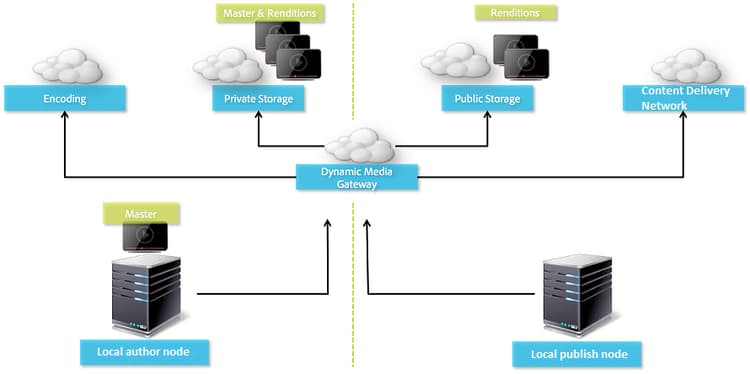
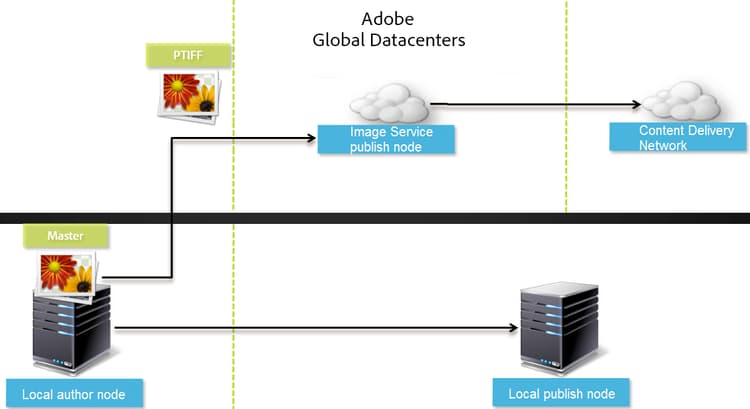
混合發佈和傳送是Adobe Experience Manager以外的Dynamic Media核心功能。 混合發佈可讓您從雲端而非從Experience Manager發佈節點傳送Dynamic Media資產,例如影像、集和視訊。
其他內容(例如Dynamic Media檢視器、網站頁面和靜態內容)會繼續從Experience Manager發佈節點提供。
如果您是Dynamic Media的客戶,則必須使用混合式傳送作為所有Dynamic Media內容的傳送機制。
視訊的混合式發佈架構 hybrid-publishing-architecture-for-videos
影像的混合式發佈架構 hybrid-publishing-architecture-for-images
支援的Dynamic Media設定 supported-dynamic-media-configurations
後續的設定工作會參考下列詞語:
您可以選擇僅針對影像實施Dynamic Media,僅針對視訊,或同時針對影像和視訊。 若要決定針對特定案例設定Dynamic Media的步驟,請參閱下表。
啟用Dynamic Media enabling-dynamic-media
Dynamic Media預設為停用。 若要利用Dynamic Media功能,您必須使用dynamicmedia執行模式來啟用Dynamic Media,就像使用publish執行模式一樣。 啟用之前,請務必檢閱技術需求。
dynamicMediaEnabled標幟設定為 true 來啟用Dynamic Media。 此標幟在Experience Manager 6.2和更新版本中無法運作。 此外,您不需要重新啟動快速入門即可啟用Dynamic Media。透過啟用Dynamic Media,Dynamic Media功能在UI中可供使用,並且每個上傳的影像資產都會接收用於快速傳送動態影像轉譯的 cqdam.pyramid.tiff 轉譯。 這些PTIFF具有下列顯著優點:
- 僅能管理單一主要來源影像,且無需額外儲存空間即可即時產生無限轉譯。
- 能夠使用互動式視覺效果,例如縮放、平移和迴轉。
如果您想在Experience Manager中使用Dynamic Media Classic,除非您使用特定案例,否則請勿啟用Dynamic Media。 Dynamic Media is disabled unless you enable Dynamic Media by way of the run mode.
To enable Dynamic Media, you must enable the Dynamic Media run mode either from the command line or from the quickstart file name.
To enable Dynamic Media:
-
On the command line, when launching the quickstart, do the following:
- Add
-r dynamicmediato the end of the command line when starting the jar file.
code language-shellsession java -Xmx4096m -Doak.queryLimitInMemory=500000 -Doak.queryLimitReads=500000 -jar cq-quickstart-6.5.0.jar -r dynamicmediaIf you are publishing to s7delivery, you must also include the following trustStore arguments:
code language-shellsession -Djavax.net.ssl.trustStore=<absoluteFilePath>/customerTrustStoreFileName> -Djavax.net.ssl.trustStorePassword=<passwordForTrustStoreFile> - Add
-
Request
https://localhost:4502/is/imageand make sure that Image Server is now running.note note NOTE To troubleshoot issues with Dynamic Media, see the following logs in the crx-quickstart/logs/directory:- ImageServer-<PortId>-<yyyy><mm><dd>.log - The ImageServer log provides statistics and analytical information used for analyzing the behavior of the internal ImageServer process.
Example of an Image Server log file name: ImageServer-57346-2020-07-25.log- s7access-<yyyy><mm><dd>.log - The s7access log records each request made to Dynamic Media through
/is/imageand/is/content.
These logs are only used when Dynamic Media is enabled. They are not included in the Download Full package that is generated from the system/console/status-Bundlelistpage; when calling Customer Support if you have a Dynamic Media issue, append both these logs to the issue.
If you installed Experience Manager to a different port or context path … if-you-installed-aem-to-a-different-port-or-context-path
If you are deploying Experience Manager to an application server and have Dynamic Media enabled, you must configure the self-domain in the Externalizer. Otherwise, thumbnail generation for assets does not work properly for Dynamic Media assets.
In addition, if you run quickstart on a different port or context path, you also have to change the self-domain.
When Dynamic Media is enabled, the static thumbnail renditions for image assets are generated using Dynamic Media. For thumbnail generation to work properly for Dynamic Media, Experience Manager must perform a URL request to itself and must know both the port number and the context path.
In Experience Manager:
- The self-domain in the Externalizer is used to retrieve both the port number and context path.
- If no self-domain is configured, the port number and context path are retrieved from the Jetty HTTP service.
In an Experience Manager QuickStart WAR deployment, the port number and context path cannot be derived, therefore you must configure a self-domain. See Externalizer documentation on how to configure the self-domain.
停用Dynamic Media disabling-dynamic-media
Dynamic Media預設為不啟用。 不過,如果您先前曾啟用Dynamic Media,您可稍後將其關閉。
若要在啟用Dynamic Media後將其停用,請移除-r dynamicmedia執行模式標幟。
停用Dynamic Media:
-
在命令列上,啟動快速入門時,您可以執行下列任一項作業:
- 啟動jar檔案時不要將
-r dynamicmedia加入命令列。
code language-shellsession java -Xmx4096m -Doak.queryLimitInMemory=500000 -Doak.queryLimitReads=500000 -jar cq-quickstart-6.5.0.jar - 啟動jar檔案時不要將
-
要求
https://localhost:4502/is/image。 您會收到動態媒體已停用的訊息。note note NOTE 停用Dynamic Media執行模式後,會自動略過產生 cqdam.pyramid.tiff轉譯的工作流程步驟。 它也會停用動態轉譯支援和其他Dynamic Media功能。另請注意,設定Experience Manager伺服器後,如果Dynamic Media執行模式停用,則所有以該執行模式上傳的資產現在都會無效。
(可選)將Dynamic Media預設集和設定從6.3移轉至6.5 (零停機時間) optional-migrating-dynamic-media-presets-and-configurations-from-to-zero-downtime
如果您要將Experience Manager - Dynamic Media從6.3升級至6.5 (現在包含零停機部署功能),您必須執行以下curl命令。 該命令會將您的所有預設集和設定從CRXDE Lite中的/etc移轉到/conf。
對於所有升級(無論是否包含相容性套件),您可以執行下列Linux® curl命令,複製動態媒體原始隨附的預設現成檢視器預設集:
curl -u admin:admin -X POST https://<server_address>:<server_port>/libs/settings/dam/dm/presets/viewer.pushviewerpresets.json
若要將您從/etc建立的任何自訂檢視器預設集和設定移轉至/conf,請執行下列Linux® curl命令:
curl -u admin:admin -X POST https://<server_address>:<server_port>/libs/settings/dam/dm/presets.migratedmcontent.json
設定影像復寫 configuring-image-replication
Dynamic Media影像傳遞的運作方式是從Experience Manager Author發佈影像資產,包括視訊縮圖,並將其復寫至Adobe的隨選復寫服務(復寫服務URL)。 Assets會透過隨選影像傳送服務(影像服務URL)傳送。
請執行下列動作:
復寫代理程式會發佈動態媒體資產(例如影像、視訊中繼資料),並將設定為Adobe託管的影像服務。 依預設不會啟用復寫代理程式。
設定復寫代理程式之後,您必須驗證並測試它是否已成功設定。 本節說明這些程式。
設定驗證 setting-up-authentication
設定對作者的復寫驗證,以便您將影像復寫至Dynamic Media影像傳送服務。 您先取得KeyStore,然後將它儲存在 dynamic-media-replication 使用者下並加以設定。 在布建程式進行期間,您的公司管理員會收到一封歡迎電子郵件,其中包含KeyStore檔案和必要的認證。 如果您沒有收到這項資訊,請聯絡Adobe客戶支援。
若要設定驗證:
-
如果您還沒有檔案和密碼,請聯絡Adobe客戶支援,以取得您的KeyStore檔案和密碼。 此資訊是布建的必要部分。 這會將這些金鑰關聯至您的帳戶。
-
在Experience Manager中,選取Experience Manager標誌以存取全域導覽主控台,然後導覽至工具 > 安全性 > 使用者。
-
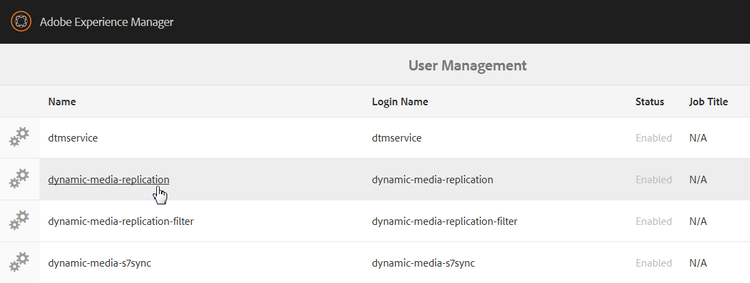
在[使用者管理]頁面上,瀏覽至 dynamic-media-replication 使用者,然後選取以開啟。
-
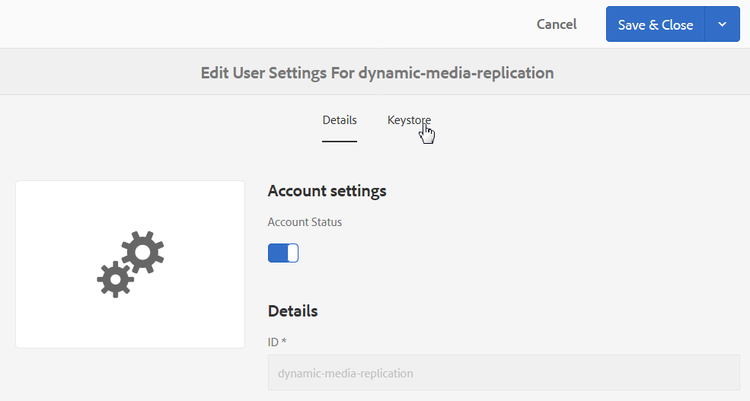
在[Edit User Settings For Dynamic-media-replication]頁面中,選取 金鑰存放區 標籤,然後選取建立KeyStore。
-
在 設定KeyStore存取密碼 對話方塊中輸入密碼並確認密碼。
note note NOTE 請記住密碼,因為稍後當您設定「復寫代理程式」時,必須再次輸入密碼。 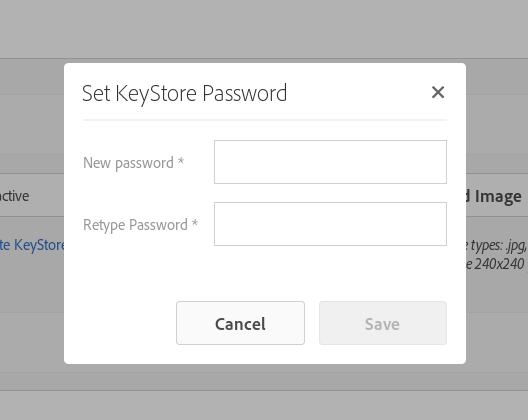
-
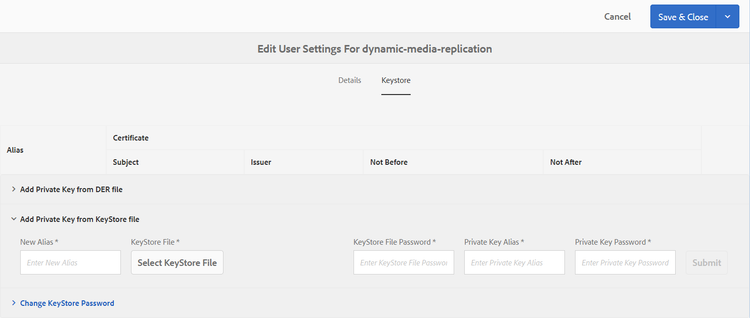
On the Edit User Settings For dynamic-media-replication page, expand the Add Private Key from KeyStore file area and add the following (see the images that follow):
- In the New Alias field, enter the name of an alias that you want to use later in the replication configuration. For example, you could use
replicationas an alias. - Select KeyStore File. Navigate to the KeyStore file provided to you by Adobe, select it, then select Open.
- In the KeyStore File Password field, enter the KeyStore File password. This password is not the KeyStore password that you created in Step 5 but is the KeyStore File password Adobe provides in the Welcome email sent to you during provisioning. Contact Adobe Customer Support if you did not receive a KeyStore File password.
- In the Private Key Password field, enter the private key password (can be the same private key password provided in the previous step). Adobe provides the private key password in the Welcome email sent to you during provisioning. Contact Adobe Customer Support if you did not receive a private key password.
- In the Private Key Alias field, enter the private key alias. 例如
*companyname*-alias。 Adobe provides the private key alias in the Welcome email sent to you during provisioning. Contact Adobe Customer Support if you did not receive a private key alias.
- In the New Alias field, enter the name of an alias that you want to use later in the replication configuration. For example, you could use
-
Select Save & Close to save your changes to this user.
Next, you must configure the replication agent.
Configure the replication agent configuring-the-replication-agent
-
In Experience Manager, select the Experience Manager logo to access the global navigation console, then navigate to Tools > Deployment > Replication > Agents on author.
-
On the Agents on author page, select Dynamic Media Hybrid Image Replication (s7delivery).
-
選取編輯。
-
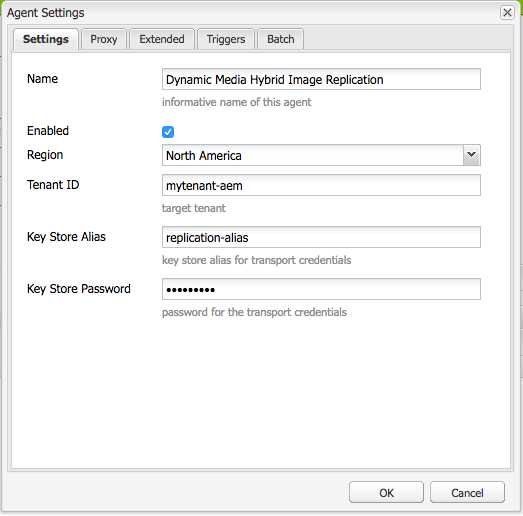
Select the Settings tab, then enter the following:
- Enabled - Select this check box to enable the replication agent.
- Region - Set to the appropriate region: North America, Europe, or Asia
- Tenant ID - This value is the name of your company/tenant that is publishing to the Replication Service. This value is the Tenant ID that Adobe provides in the Welcome email sent to you during provisioning. 如果您沒有收到這項資訊,請聯絡Adobe客戶支援。
- 金鑰存放區別名 — 這個值與在設定驗證中產生金鑰時設定的 新別名 值相同;例如
replication。 (請參閱設定驗證中的步驟7。) - 金鑰庫密碼 — 在您點選 建立KeyStore 時所建立的KeyStore密碼。 Adobe未提供此密碼。 請參閱設定驗證的步驟5。
下圖顯示含有範例資料的復寫代理程式:
-
選取確定。
驗證動態媒體的復寫代理程式 validating-the-replication-agent-for-dynamic-media
若要驗證Dynamic Media的復寫代理程式,請執行下列動作:
選取測試連線。 範例輸出如下:
11.03.2016 10:57:55 - Transferring content for ReplicationAction{type=TEST, path[0]='/content/dam', time=1457722675402, userId='admin', revision='null'}
11.03.2016 10:57:55 - * Auth User: replication-receiver
11.03.2016 10:57:55 - * HTTP Version: 1.1
11.03.2016 10:57:55 - * Using OAuth 2.0 Authorization Grants
11.03.2016 10:57:55 - * OAuth 2.0 User: dynamic-media-replication
11.03.2016 10:57:55 - * OAuth 2.0 Token: '*****' initialized
11.03.2016 10:57:55 - Publishing: POST[https://replicate-na.assetsadobe.com:8580/is-publish/publish-receiver?Cmd=Test&RootId=xfpuu-6613]
11.03.2016 10:57:55 - Publish response: OK[]
11.03.2016 10:57:55 - Transfer succeeded in 141 ms for ReplicationAction{type=TEST, path[0]='/content/dam', time=1457722675402, userId='admin', revision='null'}
-------------------------------------------------------------------------------------------------------------------------------
Replication test succeeded
- 檢查復寫記錄檔,確認資產已復寫。
- 發佈影像。 選取影像,並在下拉式選單中選取檢視器,然後選取檢視器預設集。 選取URL。 若要確認您能看見影像,請複製並在瀏覽器中貼上URL路徑。
疑難排解驗證 troubleshooting-authentication
設定驗證時,以下是您可能會在其解決方案中遇到的一些問題。 在檢查這些問題之前,請確定您已設定復寫。
問題:HTTP狀態碼401 (含訊息) — 需要授權 problem-http-status-code-with-message-authorization-required
此問題可能是因為無法為dynamic-media-replication使用者設定KeyStore所造成。
Replication test to s7delivery:https://s7bern.macromedia.com:8580/is-publish/
17.06.2016 18:54:43 - Transferring content for ReplicationAction{type=TEST, path[0]='/content/dam', time=1466214883309, userId='admin', revision='null'}
17.06.2016 18:54:43 - * Auth User: replication-receiver
17.06.2016 18:54:43 - * HTTP Version: 1.1
17.06.2016 18:54:43 - * Using OAuth 2.0 Authorization Grants
17.06.2016 18:54:43 - * OAuth 2.0 User: dynamic-media-replication
17.06.2016 18:54:43 - No OAuth token available. OAuth not initialized
17.06.2016 18:54:43 - * Using Client Auth SSL alias - replication-alias *
17.06.2016 18:54:43 - Publishing: POST[https://<localhost>:8580/is-publish//publish-receiver?Cmd=Test&RootId=brough]
17.06.2016 18:54:43 - Transfer failed for ReplicationAction{type=TEST, path[0]='/content/dam', time=1466214883309, userId='admin', revision='null'}. java.io.IOException: Failed to execute request
'https://<localhost>:8580/is-publish//publish-receiver?Cmd=Test&RootId=brough':
 Server returned status code 401 with message: Authorization required.
17.06.2016 18:54:43 - Error while replicating: com.day.cq.replication.ReplicationException: Transfer failed for ReplicationAction{type=TEST, path[0]='/content/dam', time=1466214883309,
 userId='admin', revision='null'}. java.io.IOException: Failed to execute request
'https://<localhost>:8580/is-publish//publish-receiver?Cmd=Test&RootId=brough':
 Server returned status code 401 with message: Authorization required.
解決方案:
檢查KeyStore是否已儲存給 dynamic-media-replication 使用者,並提供正確的密碼。
問題:無法解密金鑰 — 無法解密資料 problem-could-not-decrypt-key-could-not-decrypt-data
Replication test to s7delivery:https://<localhost>:8580/is-publish/
17.06.2016 19:00:16 - Transferring content for ReplicationAction{type=TEST, path[0]='/content/dam', time=1466215216662, userId='admin', revision='null'}
17.06.2016 19:00:16 - * Auth User: replication-receiver
17.06.2016 19:00:16 - * HTTP Version: 1.1
17.06.2016 19:00:16 - * Using OAuth 2.0 Authorization Grants
17.06.2016 19:00:16 - * OAuth 2.0 User: dynamic-media-replication
17.06.2016 19:00:16 - No OAuth token available. OAuth not initialized
17.06.2016 19:00:16 - * Using Client Auth SSL alias - replication-alias *
17.06.2016 19:00:16 - Transfer failed for ReplicationAction{type=TEST, path[0]='/content/dam', time=1466215216662, userId='admin', revision='null'}. java.lang.SecurityException: java.security.UnrecoverableKeyException: Could not decrypt key: Could not decrypt data.
解決方案:
檢查密碼。 儲存在復寫代理程式中的密碼與用來建立金鑰存放區的密碼不同。
問題: InvalidAlgorithmParameterException problem-invalidalgorithmparameterexception
此問題是由於Experience Manager編寫執行個體中的設定錯誤所導致。 作者上的Java™處理序未取得正確的javax.net.ssl.trustStore。 您在復寫記錄檔中看到此錯誤:
14.04.2016 09:37:43 - Transfer failed for ReplicationAction{type=TEST, path[0]='/content/dam', time=1460651862089, userId='admin', revision='null'}. java.io.IOException: Failed to execute request 'https://<localhost>:8580/is-publish/publish-receiver?Cmd=Test&RootId=rbrough-osx2': java.lang.RuntimeException: Unexpected error: java.security.InvalidAlgorithmParameterException: the trustAnchors parameter must be non-empty
14.04.2016 09:37:43 - Error while replicating: com.day.cq.replication.ReplicationException: Transfer failed for ReplicationAction{type=TEST, path[0]='/content/dam', time=1460651862089, userId='admin', revision='null'}. java.io.IOException: Failed to execute request 'https://<localhost>:8580/is-publish/publish-receiver?Cmd=Test&RootId=rbrough-osx2': java.lang.RuntimeException: Unexpected error: java.security.InvalidAlgorithmParameterException: the trustAnchors parameter must be non-empty
或錯誤記錄:
07.25.2019 12:00:59.893 *ERROR* [sling-threadpool-db2763bb-bc50-4bb5-bb64-10a09f432712-(apache-sling-job-thread-pool)-90-com_day_cq_replication_job_s7delivery(com/day/cq/replication/job/s7delivery)] com.day.cq.replication.Agent.s7delivery.queue Error during processing of replication.

java.io.IOException: Failed to execute request 'https://replicate-na.assetsadobe.com:8580/is-publish/publish-receiver?Cmd=Test&RootId=rbrough-osx': java.lang.RuntimeException: Unexpected error: java.security.InvalidAlgorithmParameterException: the trustAnchors parameter must be non-empty
        at com.scene7.is.catalog.service.publish.atomic.PublishingServiceHttp.executePost(PublishingServiceHttp.scala:195)
解決方案:
請確定Experience Manager Author上的Java™處理程式已將系統屬性-Djavax.net.ssl.trustStore=設定為有效的信任存放區。
問題: KeyStore未設定或未初始化 problem-keystore-is-either-not-set-up-or-it-is-not-initialized
此問題可能是因為Hot Fix或Feature Pack覆寫Dynamic-Media-User或Keystore節點所導致。
復寫記錄檔範例:
Replication test to s7delivery:https://replicate-na.assetsadobe.com/is-publish
02.08.2016 14:37:44 - Transferring content for ReplicationAction{type=TEST, path[0]='/content/dam', time=1470173864834, userId='admin', revision='null'}
02.08.2016 14:37:44 - * Auth User: replication-receiver
02.08.2016 14:37:44 - * HTTP Version: 1.1
02.08.2016 14:37:44 - * Using OAuth 2.0 Authorization Grants
02.08.2016 14:37:44 - * OAuth 2.0 User: dynamic-media-replication
02.08.2016 14:37:44 - Transfer failed for ReplicationAction{type=TEST, path[0]='/content/dam', time=1470173864834, userId='admin', revision='null'}. com.adobe.granite.keystore.KeyStoreNotInitialisedException: Uninitialised key store for user dynamic-media-replication
解決方案:
-
切換作業選項至「使用者管理」頁面:
localhost:4502/libs/granite/security/content/useradmin.html -
在[使用者管理]頁面上,瀏覽至
dynamic-media-replication使用者,然後選取以開啟。 -
選取 KeyStore 索引標籤。 如果出現 建立KeyStore 按鈕,您必須先重做在設定驗證下的步驟。
-
如果您必須重做KeyStore設定,您也必須再次執行設定復寫代理程式。
重新設定s7delivery Replication Agent。
localhost:4502/etc/replication/agents.author/s7delivery.html -
選取「測試連線」,以確認組態是否有效。
問題:發佈代理程式使用SSL而非OAuth problem-publish-agent-is-using-ssl-instead-of-oauth
此問題可能是因為Hot Fix或Feature Pack未正確安裝或覆寫設定所導致。
復寫記錄檔範例:
01.08.2016 18:42:59 - Transferring content for ReplicationAction{type=TEST, path[0]='/content/dam', time=1470073379634, userId='admin', revision='null'}
01.08.2016 18:42:59 - * Auth User: replication-receiver
01.08.2016 18:42:59 - * HTTP Version: 1.1
01.08.2016 18:42:59 - * Using Client Auth SSL alias - replication-receiver *
01.08.2016 18:42:59 - Publishing: POST[https://replicate-eu.assetsadobe2.com:443/is-publish/publish-receiver?Cmd=Test&RootId=altayerstaging]
01.08.2016 18:42:59 - Transfer failed for ReplicationAction{type=TEST, path[0]='/content/dam', time=1470073379634, userId='admin', revision='null'}. java.io.IOException: Failed to execute request 'https://replicate-eu.assetsadobe2.com:443/is-publish/publish-receiver?Cmd=Test&RootId=rbroughstaging': Server returned status code 401 with message: Authorization required.
01.08.2016 18:42:59 - Error while replicating: com.day.cq.replication.ReplicationException: Transfer failed for ReplicationAction{type=TEST, path[0]='/content/dam', time=1470073379634, userId='admin', revision='null'}. java.io.IOException: Failed to execute request 'https://replicate-eu.assetsadobe2.com:443/is-publish/publish-receiver?Cmd=Test&RootId=rbroughstaging': Server returned status code 401 with message: Authorization required.
解決方案:
-
在Experience Manager中,導覽至工具 > 一般 > CRXDE Lite。
localhost:4502/crx/de/index.jsp -
導覽至s7delivery Replication Agent節點。
localhost:4502/crx/de/index.jsp#/etc/replication/agents.author/s7delivery/jcr:content -
將此設定新增至復寫代理程式(布林值設為True):
enableOauth=true -
在頁面的左上角附近,選取全部儲存。
測試您的設定 testing-your-configuration
Adobe建議您執行設定的端對端測試。
開始此測試前,請確定您已完成下列操作:
- 新增影像預設集。
- 在雲端服務下設定Dynamic Media設定(6.3以前版本)。 此測試需要影像服務URL
測試您的設定:
-
上傳影像資產。 (在Assets中,導覽至「建立 > 檔案」並選取檔案。)
-
等待工作流程完成。
-
發佈影像資產。 (請選取資產並選取快速發佈。)
-
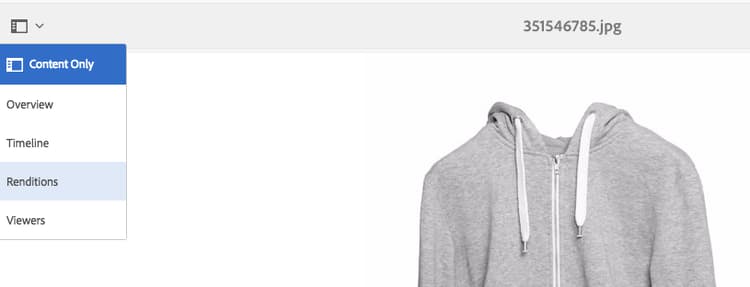
透過開啟影像並點選轉譯,導覽至該影像的轉譯。
-
選取任何動態轉譯。
-
若要取得此資產的URL,請選取URL。
-
導覽至選取的URL,並檢查影像是否如預期般運作。
測試您的資產是否已傳遞的另一種方法是,將req=exists附加至您的URL。
設定Dynamic Media雲端服務 configuring-dynamic-media-cloud-services
Dynamic Media Cloud Service支援影像和視訊、視訊分析和視訊編碼等的混合式發佈和傳送。
在設定過程中,您必須輸入註冊ID、視訊服務URL、影像服務URL、復寫服務URL,並設定驗證。 此資訊是透過電子郵件傳送給您,作為帳戶布建程式的一部分。 如果您沒有收到此資訊,請聯絡Adobe Experience Manager管理員或Adobe客戶支援以取得資訊。
若要設定Dynamic Media雲端服務:
-
在Experience Manager中,選取Experience Manager標誌以存取全域導覽主控台,然後導覽至工具 > 雲端服務 > Dynamic Media設定(6.3以前版本)。
-
在[Dynamic Media設定瀏覽器]頁面的左窗格中,選取全域,然後選取建立。
-
在 建立Dynamic Media組態 對話方塊的[標題]欄位中,輸入標題。
-
如果您正在設定視訊的Dynamic Media,
- 在 註冊識別碼 欄位中,輸入您的註冊識別碼。
- 在 視訊服務URL 欄位中,輸入動態媒體閘道的視訊服務URL。
-
如果您正在設定Dynamic Media以進行影像處理,請在 影像服務URL 欄位中,輸入Dynamic Media閘道的影像服務URL。
-
選取 儲存 以返回Dynamic Media設定瀏覽器頁面。
-
若要存取全域導覽主控台,請選取Experience Manager標誌。
設定視訊報告 configuring-video-reporting
您可以使用Dynamic Media Hybrid在Experience Manager的多個安裝間設定視訊報表。
使用時機:當您設定Dynamic Media設定(6.3以前版本)時,許多功能就會啟動,包括視訊報告。 此設定會在地區性Analytics公司中建立報表套裝。 如果您設定多個作者節點,需為每個節點建立個別的報表套裝。 因此,各安裝之間的報表資料不一致。 此外,如果每個作者節點參考相同的混合發佈伺服器,則上次作者安裝會變更所有視訊報表的目標報表套裝。 此問題會使Analytics系統超載,造成太多報表套裝。
開始使用:完成下列三個工作以設定視訊報告。
- 在第一個作者節點上設定Dynamic Media設定(6.3以前版本)後,請建立Video Analytics預設套件。 此初始工作很重要,因為它可讓新設定繼續使用相同的報表套裝。
- 將Video Analytics預設集套件安裝至您設定Dynamic Media設定(6.3以前版本)的任何 新 作者節點 **。
- 驗證及偵錯套件安裝。
設定第一個「作者」節點後,建立Video Analytics預設套件 creating-a-video-analytics-preset-package-after-configuring-the-first-author-node
完成此工作時,您會有包含Video Analytics預設集的套件檔案。 這些預設集包含報表套裝、追蹤伺服器、追蹤名稱空間及Experience Cloud組織ID (若有)。
-
如果您尚未這樣做,請設定Dynamic Media設定(6.3以前版本)。
-
(選用)檢視及複製報表套裝ID (您必須擁有JCR的存取權)。 雖然報表套裝ID並非必要專案,但可簡化驗證作業。
-
使用「封裝管理員」建立封裝。
-
編輯套件以包含篩選器。
在Experience Manager中:
/conf/global/settings/dam/dm/presets/analytics/jcr:content/userdata -
建置套件。
-
下載或共用Video Analytics預設集套件,以便與後續的新作者節點共用。
在設定更多作者節點之前,請先安裝Video Analytics預設套件 installing-the-video-analytics-preset-package-before-you-configure-additional-author-nodes
請務必在設定Dynamic Media組態(6.3以前版本)之前完成此工作。 若未這麼做,則會建立另一個未使用的報表套裝。 此外,即使視訊報表可繼續正常運作,資料收集仍未最佳化。
請確定第一個作者節點的Video Analytics預設集套件可在新的作者節點上存取。
- 將您先前建立的視訊Analytics預設集套件上傳至封裝管理員。
- 安裝Video Analytics預設套件。
- 設定Dynamic Media設定(6.3以前版本)。
驗證及偵錯套件安裝 verifying-and-debugging-the-package-installation
-
執行下列任一項作業,驗證封裝安裝,並在必要時偵錯安裝:
-
透過JCR檢查視訊分析預設集
若要透過JCR檢視Video Analytics預設集,您必須有權存取CRXDE Lite。Experience Manager — 在CRXDE Lite中導覽至
/conf/global/settings/dam/dm/presets/analytics/jcr:content/userdata在
https://localhost:4502/crx/de/index.jsp#/conf/global/settings/dam/dm/presets/analytics/jcr%3Acontent/userdata中如果您無法存取作者節點上的CRXDE Lite,您可以透過發佈伺服器檢查預設集。
-
透過影像伺服器檢查視訊分析預設集
您可以發出影像伺服器req=userdata要求,直接驗證Video Analytics預設集。
例如,若要檢視「作者」節點上的Analytics預設集,您可以提出下列請求:https://localhost:4502/is/image/conf/global/settings/dam/dm/presets/analytics?req=userdata若要在發佈伺服器上驗證預設集,您可以對發佈伺服器提出類似的直接請求。 在「作者」和「發佈」節點上,回應相同。 回應看起來類似下列內容:
code language-none marketingCloudOrgId=0FC4E86B573F99CC7F000101 reportSuite=aemaem6397618-2018-05-23 trackingNamespace=aemvideodal trackingServer=aemvideodal.d2.sc.omtrdc.net -
透過Experience Manager中的視訊報告工具檢查視訊分析預設集
導覽至工具 > Assets > 視訊報告https://localhost:4502/mnt/overlay/dam/gui/content/s7dam/videoreports/videoreport.html如果您看到下列錯誤訊息,表示報表套裝可供使用,但未填入。 在系統收集任何資料之前,在新安裝中,此錯誤是正確的,而且是必要的。
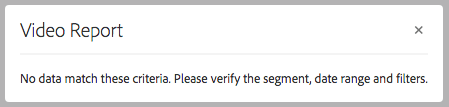
若要產生報表資料,請上傳並發佈一個影片。 使用 複製URL 並至少執行一次視訊。
從Video Viewer使用狀況填入報表資料最多可能需要12小時的時間。
如果出現錯誤,且報表套裝未正確設定,則會顯示以下警報。
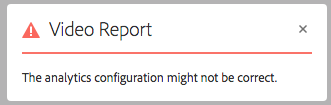
如果您在設定Dynamic Media設定(6.3以前版本)服務之前執行視訊報告,也會顯示此錯誤。
-
疑難排解視訊報表設定 troubleshooting-the-video-reporting-configuration
- 在安裝期間,有時候與Analytics API伺服器的連線會逾時。 安裝會重試連線20次,但仍會失敗。 發生這種情況時,記錄檔會記錄多個錯誤。 搜尋
SiteCatalystReportService。 - 未先安裝Analytics預設集套件可能會導致建立新的報表套裝。
- 從Experience Manager 6.3升級至Experience Manager 6.4或Experience Manager 6.4.1,接著設定Dynamic Media設定(6.3以前版本),仍會建立報表套裝。 Experience Manager 6.4.2已知會並預定修正此問題。
關於Video Analytics預設集 about-the-video-analytics-preset
視訊Analytics預設集(有時簡稱為Analytics預設集)會儲存在Dynamic Media的檢視器預設集旁。 它基本上與檢視器預設集相同,但含有用來設定AppMeasurement和視訊心率報表的資訊。
預設集的屬性如下:
reportSuitetrackingServertrackingNamespacemarketingCloudOrgId(不在舊版Experience Manager中)
Experience Manager 6.4和更新版本將此預設集儲存在/conf/global/settings/dam/dm/presets/analytics/jcr:content/userdata
復寫目錄設定 replicating-catalog-settings
在設定程式中透過JCR發佈您自己的預設目錄設定。 若要復寫目錄設定:
-
在「終端機」視窗中,執行下列動作:
curl -u admin:admin localhost:4502/libs/settings/dam/dm/presets/viewer.pushviewerpresets -
在Experience Manager中,導覽至CRXDE Lite中的下列位置(需要管理員許可權):
https://<*server*>:<*port*>/crx/de/index.jsp#/conf/global/settings/dam/dm/imageserver/ -
選取「復寫」標籤。
-
選取復寫。
復寫檢視器預設集 replicating-viewer-presets
若要傳送 包含檢視器預設集的資產,您必須複製/發佈 檢視器預設集。 (所有檢視器預設集都必須在 和 復寫後啟動,才能取得資產的URL或內嵌程式碼。
如需詳細資訊,請參閱發佈檢視器預設集。
篩選資產以進行復寫 filtering-assets-for-replication
在非Dynamic Media部署中,您會將Experience Manager製作環境中的 所有 資產(包括影像和視訊)復寫至Experience Manager發佈節點。 此工作流程是必要的,因為Experience Manager發佈伺服器也會傳送資產。
不過在Dynamic Media部署中,由於資產是透過雲端傳送,因此不需要將這些相同的資產復寫至Experience Manager發佈節點。 這種「混合發佈」工作流程可避免額外的儲存成本及較長的複製資產處理時間。 其他內容(例如Dynamic Media檢視器、網站頁面和靜態內容)會繼續從Experience Manager發佈節點提供。
除了復寫資產外,也會復寫下列非資產:
- Dynamic Media傳遞設定:
/conf/global/settings/dam/dm/imageserver/jcr:content - 影像預設集:
/conf/global/settings/dam/dm/presets/macros - 檢視器預設集:
/conf/global/settings/dam/dm/presets/viewer
這些篩選器可讓您 排除 資產,以免這些資產復寫至Experience Manager發佈節點。
使用預設的資產篩選器進行復寫 using-default-asset-filters-for-replication
如果您將Dynamic Media用於生產中的(1)影像或 (2)影像和視訊,則可以使用Adobe提供的預設篩選器。 下列篩選器預設為作用中:
Set up asset filters for video-only deployments setting-up-asset-filters-for-video-only-deployments
If you are using Dynamic Media for video-only, follow these steps to set up asset filters for replication:
- In Experience Manager, select the Experience Manager logo to access the global navigation console, then navigate to Tools > Deployment > Replication > Agents on author.
- On the Agents on author page, select Default Agent (publish).
- 選取編輯。
- In the Agent Settings dialog box, in the Settings tab, check Enabled to turn on the agent.
- 選取確定。
- 在Experience Manager中,導覽至工具 > 一般 > CRXDE Lite。
- 在左側資料夾樹狀結構中,瀏覽至
/etc/replication/agents.author/dynamic_media_replication/jcr:content/damRenditionFilters - 找到濾鏡 — 視訊,用滑鼠右鍵按一下它,然後選取複製。
- 在左側資料夾樹狀結構中,瀏覽至
/etc/replication/agents.author/publish - 找到
jcr:content,用滑鼠右鍵按一下它,然後選取貼上。
這些步驟會設定Experience Manager發佈執行個體,在Dynamic Media Cloud Service傳送視訊時,傳送視訊海報影像和播放所需的視訊中繼資料。 此篩選器也會將原始視訊和靜態縮圖轉譯排除在復寫之外,因為發佈執行個體上不需要這些轉譯。
設定資產篩選器,以便在非生產部署中成像 setting-up-asset-filters-for-imaging-in-non-production-deployments
如果您在非生產部署中使用Dynamic Media進行影像處理,請依照下列步驟設定用於復寫的資產篩選器:
-
在Experience Manager中,選取Experience Manager標誌以存取全域導覽主控台,然後導覽至工具 > 部署 > 復寫 > 作者代理程式。
-
在[作者上的代理程式]頁面上,選取預設代理程式(發佈)。
-
選取編輯。
-
在 代理程式設定 對話方塊的 設定 索引標籤中,勾選 已啟用 以開啟代理程式。
-
選取確定。
-
在Experience Manager中,導覽至工具 > 一般 > CRXDE Lite。
-
在左側資料夾樹狀結構中,瀏覽至
/etc/replication/agents.author/dynamic_media_replication/jcr:content/damRenditionFilters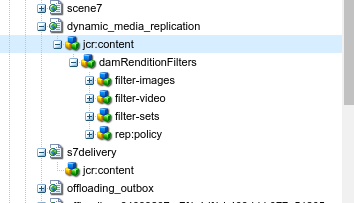
-
找到篩選影像,用滑鼠右鍵按一下該影像,然後選取複製。
-
在左側資料夾樹狀結構中,瀏覽至
/etc/replication/agents.author/publish -
找到
jcr:content,用滑鼠右鍵按一下它,然後移至建立 > 建立節點。 輸入型別nt:unstructured的名稱damRenditionFilters。 -
找到
damRenditionFilters,用滑鼠右鍵按一下它,然後選取貼上。
這些步驟會設定Experience Manager發佈執行個體,將影像傳送至您的非生產環境。 此篩選器也會將原始影像和靜態轉譯排除在復寫之外,因為發佈執行個體上不需要這些原始影像和靜態轉譯。
jcr:content節點中指派了不同的userId。 請參閱下列影像:

自訂復寫的資產篩選器(選用) customizing-asset-filters-for-replication
-
在Experience Manager中,選取Experience Manager標誌以存取全域導覽主控台,然後導覽至工具 > 一般 > CRXDE Lite。
-
在左側資料夾樹狀結構中,導覽至
/etc/replication/agents.author/dynamic_media_replication/jcr:content/damRenditionFilters以檢閱篩選器。
-
若要定義篩選器的Mime型別,您可以依照以下步驟找到Mime型別:
在左側邊欄中,展開
content > dam > <locate_your_asset> > jcr:content > metadata,然後在表格中找出dc:format。下圖是資產路徑
dc:format的範例。
請注意,資產
Fiji Red.jpg的dc:format是image/jpeg。若要將此篩選套用至所有影像,無論其格式為何,請將值設為
image/*,其中*為套用至任何格式之所有影像的規則運算式。若要讓篩選器僅套用至JPEG型別的影像,請輸入值
image/jpeg。 -
定義您要在復寫中包含或排除的轉譯。
您可用來篩選復寫字元的字元包括:
table 0-row-2 1-row-2 2-row-2 3-row-2 要使用的字元 如何篩選資產以進行復寫 *萬用字元 +包含用於復寫的資產 -從復寫中排除資產 導覽至
content/dam/<locate your asset>/jcr:content/renditions。下圖是資產的轉譯範例。
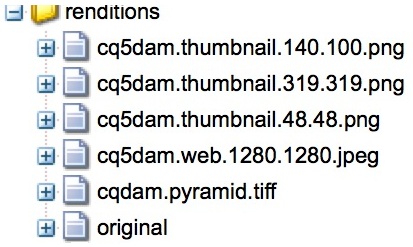
以上例為例,如果您只想復寫PTIFF (金字塔TIFF),則可以輸入
+cqdam,*,其中包含所有以cqdam開頭的轉譯。 在此範例中,該轉譯為cqdam.pyramid.tiff。如果您只想復寫原始檔案,請輸入
+original。
正在設定Dynamic Media影像伺服器設定 configuring-dynamic-media-image-server-settings
Configuring the Dynamic Media Image Server involves editing the Adobe CQ Scene7 ImageServer bundle and the Adobe CQ Scene7 PlatformServer bundle.
Prerequisite - Before you configure Dynamic Media Image Server, ensure that your VM of Windows® includes an installation of the Microsoft® Visual C++ Libraries. The libraries are necessary to run Dynamic Media Image Server. You can download the Microsoft® Visual C++ 2010 Redistributable Package (x64) here.
To configure Dynamic Media Image Server settings:
-
In the upper-left corner of Experience Manager, select Adobe Experience Manager to access the global navigation console, then navigate to Tools > Operations > Web Console.
-
On the Adobe Experience Manager Web Console Configuration page, go to OSGi > Configuration to list all the bundles that are currently running within Experience Manager.
The Dynamic Media Delivery Servers are found under the following names in the list:
Adobe CQ Scene7 ImageServerAdobe CQ Scene7 PlatformServer
-
In the list of bundles, to the right of Adobe CQ Scene7 ImageServer, select the Edit icon.
-
In the Adobe CQ Scene7 ImageServer dialog box, set the following configuration values:
note note NOTE Usually, there is no need to change the default values. However, if you do change the default values, you must restart the bundle for the changes to take effect. table 0-row-3 1-row-3 2-row-3 3-row-3 4-row-3 5-row-3 6-row-3 屬性 預設值 說明 TcpPort.nameemptyPort number to use for communication with the ImageServer process. By default free port is automatically detected. AllowRemoteAccess.nameemptyAllow or disallow remote access to ImageServer process. If false, the image server listens only on localhost.
Default Externalizer settings that point to the localhost must specify the actual domain or IP address of the specific VM instance. The reason is because the localhost points to the parent system of the VM.
Domains or IP addresses for the VM must have a host file entry so that it can resolve itself.MaxRenderRgnPixels16 MP Maximum size in megapixels that is rendered. MaxMessageSize16 MB Maximum message size in megabytes that is delivered. RandomAccessUrlTimeout20 Time out value for how long in seconds the Image Server waits for the JCR to respond to a ranged tile request. WorkerThreads10 工作者執行緒的數量。 -
選取「儲存」。
-
在套件組合清單中,在Adobe CQ Scene7 PlatformServer的右側,選取 編輯 圖示。
-
在Adobe CQ Scene7 PlatformServer對話方塊中,設定下列預設值選項:
note note NOTE Dynamic Media影像伺服器使用自己的磁碟快取來快取回應。 Experience Manager HTTP快取和Dispatcher無法用於快取來自Dynamic Media影像伺服器的回應。 table 0-row-3 1-row-3 2-row-3 3-row-3 4-row-3 屬性 預設值 說明 已啟用快取 已核取 回應快取是否已啟用 快取根目錄 快取 回應快取資料夾的一或多個路徑。 相對路徑會針對內部s7imaging組合資料夾進行解析。 快取大小上限 200000000 回應快取的大小上限(位元組)。 快取最大專案數 100000 快取中允許的最大專案數。
預設資訊清單設定 default-manifest-settings
預設資訊清單可讓您設定用來產生Dynamic Media傳送回應的預設值。 您可以微調品質(JPEG品質、解析度、重新取樣模式)、快取(有效期),以及防止轉譯過大影像(defaultpix、defaultthumbpix、maxpix)。
預設資訊清單組態的位置是從 Adobe CQ Scene7 PlatformServer 套件組合的 目錄根 預設值取得。 根據預設,此值位於工具 > 一般 > CRXDE Lite中的以下路徑
/conf/global/settings/dam/dm/imageserver/
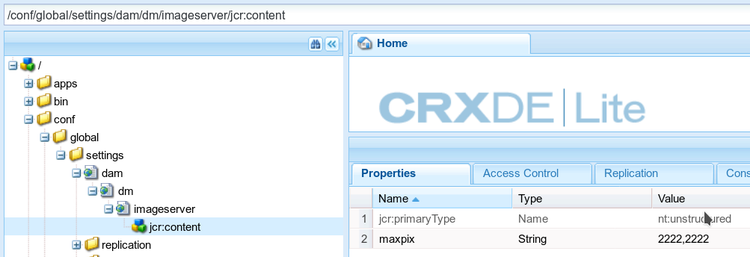
您可以輸入新值來變更屬性的值,如下表所述。
當您完成變更預設資訊清單時,在頁面的左上角,選取全部儲存。
請確定您選取 存取控制 標籤(在[內容]標籤右側),然後將每個使用者和Dynamic-media復寫使用者的存取控制許可權設定為jcr:read。
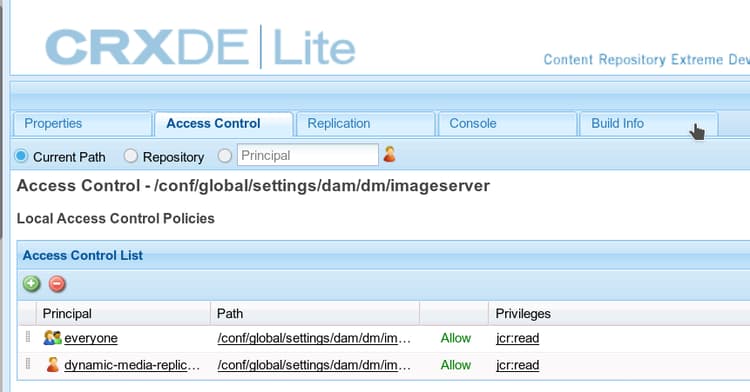
資訊清單設定及其預設值的表格:
defaultpix300,300指定為兩個大於或等於0的整數,並以逗號分隔。 寬度和高度(畫素)。 任一或兩個值都可以設為0,以保持不受限制。 不適用於巢狀/內嵌請求。
另請參閱「影像伺服API」中的DefaultPix。
不過,您通常是使用檢視器預設集或影像預設集來傳遞資產。 Defaultpix僅適用於未使用檢視器預設集或影像預設集的資產。
defaultthumbpix100,100req=tmb),而不是attribute::DefaultPix。伺服器限制回覆影像不得大於此寬度與高度。 如果縮圖要求(
req=tmb)未明確指定大小,且未使用wid=、hei=或scl=明確指定檢視大小,則此動作為true。指定為兩個整數(0或更大,以逗號分隔)。 寬度和高度(畫素)。 任一或兩個值都可以設為0,以保持不受限制。
不適用於巢狀/內嵌要求。
另請參閱影像伺服API中的DefaultThumbPix。
expiration36000000實數,0或更大。 從產生回覆資料到到期為止的毫秒數。 設為0可一律使回覆影像立即過期,以有效停用使用者端快取。 預設情況下,此值會設為10小時,這表示如果發佈新影像,則舊影像需要10小時才能離開使用者的快取。 如果您需要及早清除快取,請聯絡客戶支援。
See also Expiration in the Image Serving API.
jpegquality80Integer number and flag, separated by a comma. The first value is in the range 1…100 and defines the quality. The second value can be 0 for normal behavior, or 1 to disable the RGB chromaticity down-sampling employed by JPEG encoders.
See also JpegQuality in the Image Serving API.
maxpix2000,2000The server returns an error if a request causes a reply image whose width or height is larger than attribute::MaxPix.
See also MaxPix in the Image Serving API.
resmodeSHARP2Used when
resMode= is not specified in a request.Allowed values include
BILIN, BICUB, or SHARP2.Enum. Set to 2 for
bilin, 3 for bicub, or 4 for sharp2 interpolation mode. Use sharp2 for best results.See also ResMode in the Image Serving API.
resolution72Real number, larger than 0. Typically expressed as pixels per inch, but can also be in other units, such as pixels per meter.
See also Resolution in the Image Serving API.
thumbnailtime1%,11%,21%,31%,41%,51%,61%,71%,81%,91%Configuring Dynamic Media Color Management configuring-dynamic-media-color-management
Dynamic Media色彩管理可讓您校正資產色彩,以便預覽。
透過色彩校正,擷取的資產會保留其色域(RGB、CMYK、灰色)並在產生的金字塔TIFF轉譯中內嵌色彩設定檔。 當您請求動態轉譯時,影像顏色會校正到目標色域中。 您可以在JCR的Dynamic Media發佈設定中設定輸出色彩設定檔。
Adobe的色彩管理使用ICC (國際色彩聯盟)設定檔,這是由ICC定義的格式。
您可以使用CMYK、RGB或灰階輸出來設定Dynamic Media色彩管理及設定影像預設集。 請參閱設定影像預設集。
進階使用案例可以使用手動設定icc=修飾元來明確選取輸出色彩設定檔:
安裝Feature Pack 12445 installing-feature-pack
若要使用動態媒體色彩管理功能,請安裝Feature Pack 12445。
若要安裝Feature Pack 12445:
設定預設色彩設定檔 configuring-the-default-color-profiles
安裝Feature Pack後,請設定適當的預設色彩設定檔,以便在要求RGB或CMYK影像資料時啟用色彩校正。
設定預設色彩設定檔:
-
在工具 > 一般 > CRXDE Lite中,瀏覽至包含預設Adobe Color設定檔的
/conf/global/settings/dam/dm/imageserver/jcr:content。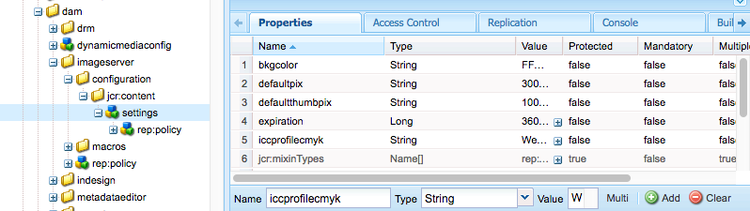
-
捲動至 屬性 索引標籤的底部,以新增色彩校正屬性。 手動輸入屬性名稱、型別和值,如下表所述。 輸入值之後,請選取新增,然後選取 全部儲存 以儲存值。
色彩校正屬性在 色彩校正屬性 表格中說明。 您可以指派給色彩校正屬性的值位於 色彩設定檔 表格中。
例如,在 Name 中,新增
iccprofilecmyk、選取型別String,然後新增WebCoated作為值。 然後選取新增,再選取 全部儲存 以儲存您的值。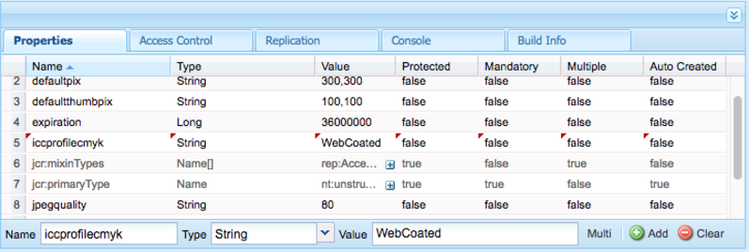
色彩校正屬性表
色彩設定檔表格
已安裝下列色彩設定檔:
- 選取全部儲存。
例如,您可以將 iccprofilegb 設定為sRGB,並將 iccprofilecmyk 設定為WebCoated。
這麼做會執行下列動作:
- 啟用RGB和CMYK影像的色彩校正。
- 沒有色彩設定檔的RGB影像會假設在 sRGB 色域中。
- 沒有色彩設定檔的CMYK影像被假設為 WebCoated 色域。
- 傳回RGB輸出的動態轉譯會以*sRGB *色域傳回。
- 傳回CMYK輸出的動態轉譯,在 WebCoated 色域中傳回。
傳遞Assets delivering-assets
完成上述所有工作後,系統會從影像或視訊服務中提供已啟動的Dynamic Media資產。 在Experience Manager中,此功能會顯示在複製影像URL、複製檢視器URL、內嵌檢視器程式碼以及WCM中。
WCM動態媒體與互動媒體元件 wcm-dynamic-media-and-interactive-media-components
參考Dynamic Media和互動媒體元件的WCM頁面會參考傳遞服務。