在Marketo Sales Insight Enterprise/Unlimited中配置Salesforce configure-marketo-sales-insight-in-salesforce-enterprise-unlimited
完成以下步骤,在Marketo Enterprise/Unlimited版本中配置Salesforce Sales Insight 。
在Marketo Engage中配置Sales Insight configure-sales-insight-in-marketo
-
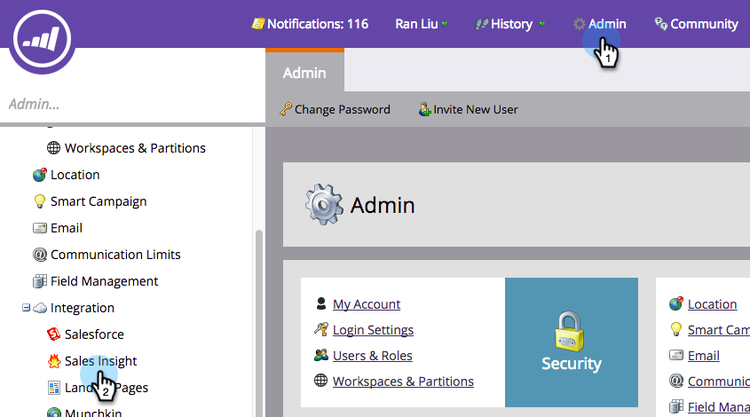
要在Marketo Engage中获取Marketo Sales Insight凭据,请转到 Admin 区域并选择Sales Insight。
-
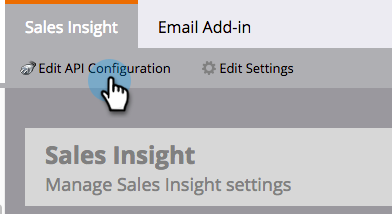
单击 Edit API Configuration。
-
输入您选择的API密钥,然后单击Save。 请勿在API密钥中使用&符号(
&)。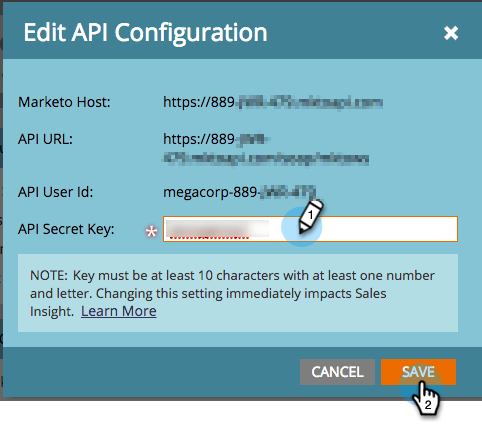
note note NOTE 您的API密钥与组织的密码类似,应当是安全的。 -
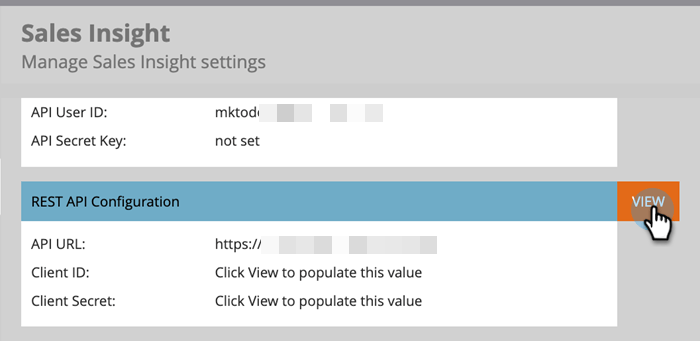
要填充凭据,请单击 View 面板中的Rest API Configuration。
-
当看到确认对话框时,单击OK。
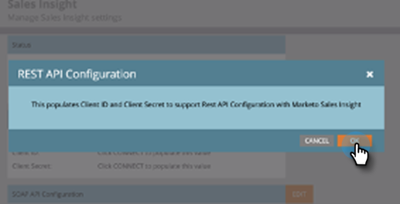
note tip TIP 保持这个窗口打开。 您稍后需要此信息才能进行Salesforce配置。
填充新的Rest API凭据 populate-new-rest-api-credentials
-
首次填充Rest API凭据时,查看按钮将更改为编辑。 单击 编辑 按钮。
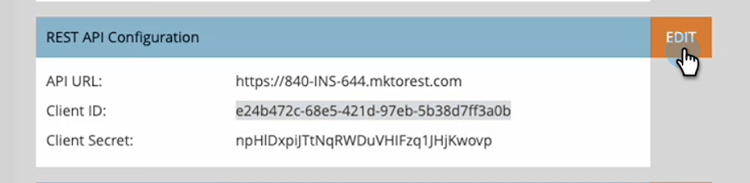
-
此时将显示一条消息,确认您要重新生成API凭据。 单击保存。
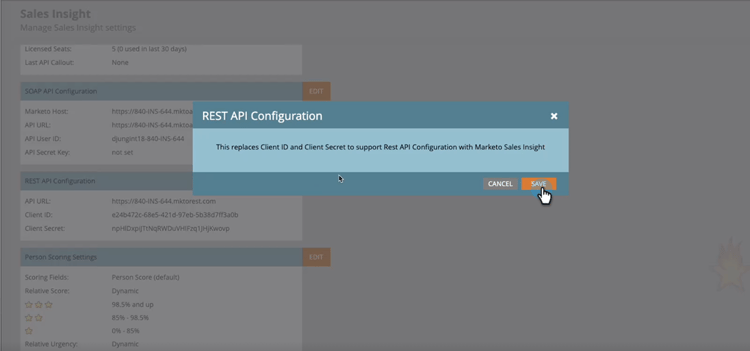
-
填充新凭据后,在Salesforce实例的 Marketo配置 选项卡中更新它们。
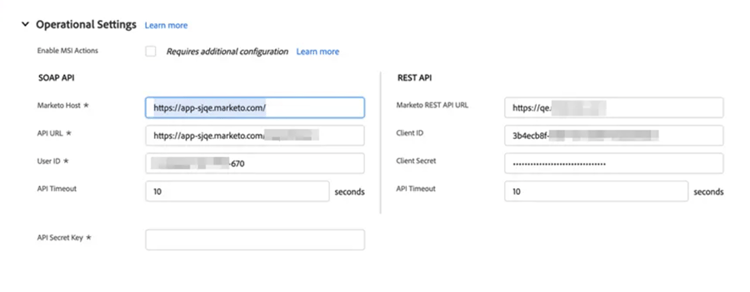
在Sales Insight中配置Salesforce configure-sales-insight-in-salesforce
-
在Salesforce中,单击Setup。
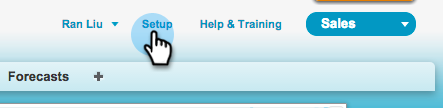
-
搜索“远程站点”并选择Remote Site Settings。
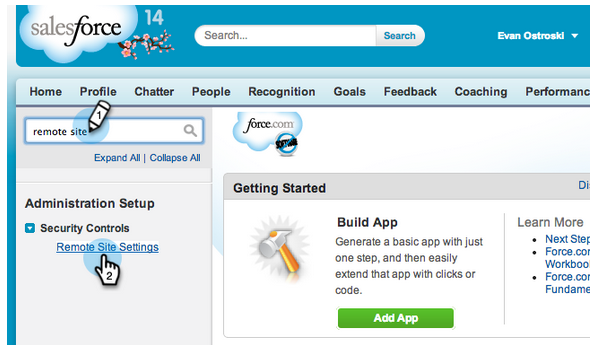
-
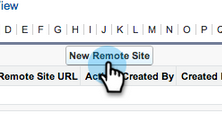
单击 New Remote Site。
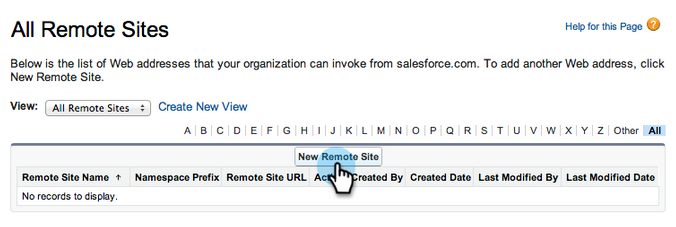
-
输入远程站点名称(它可以类似于
MarketoSoapAPI)。 输入远程站点URL,它是Marketo Engage中 Soap API Configuration 面板的Marketo主机URL。 单击Save。 您现在已为Soap API创建了远程站点设置。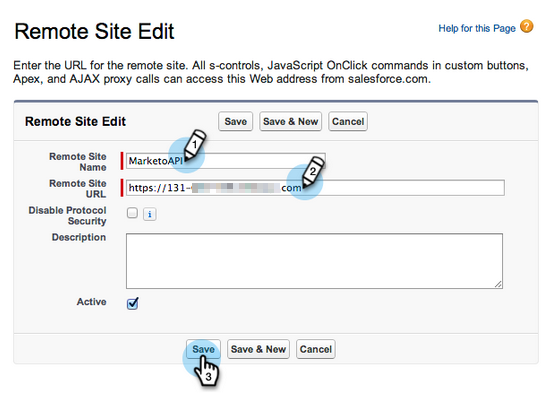
-
再次单击New Remote Site。
-
输入远程站点名称(它可以类似于
MarketoAPI)。 输入远程站点URL,它是Marketo Engage中 Rest API Configuration 面板的API URL。 单击Save。 您现在已为Rest API创建了远程站点设置。note note NOTE 您选择您的Remote Site Name (此处使用了 MarketoAPI)。 Remote Site URL位于“在Marketo中配置Sales Insight”部分步骤3中“编辑API配置”对话框的“Marketo主机”字段中。
授予Sales Insight用户配置文件对标准Salesforce对象的访问权限 grant-sales-insight-users-profile-access
由于Salesforce安全增强,AppExchange包无法再向标准对象授予权限,必须从Salesforce用户的配置文件向相关的Salesforce对象授予访问权限。 要授予所需的权限,请执行以下步骤。
-
单击 Setup。
-
在快速查找中搜索“配置文件”。
-
单击Salesforce用户正在使用的配置文件旁边的Edit。
-
在 Standard Object Permission 部分下,启用以下对象的 Read 访问权限: Lead、Contact、Account和Opportunity。
-
单击 Save。
自定义页面布局 customize-page-layouts
-
单击 Setup。
-
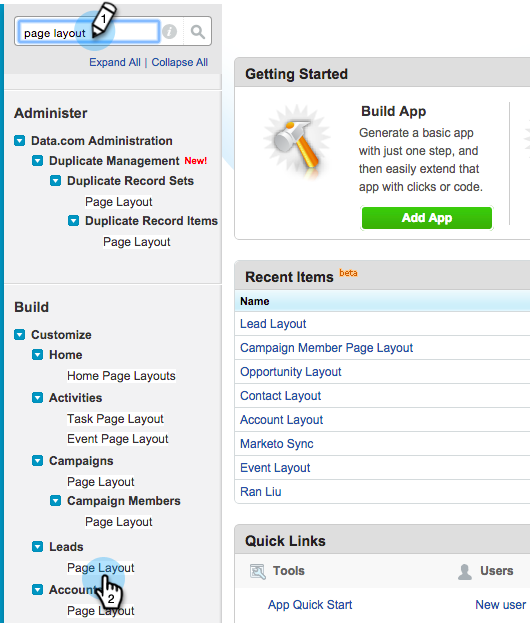
搜索“页面布局”并选择 Page Layout 下的Leads。
-
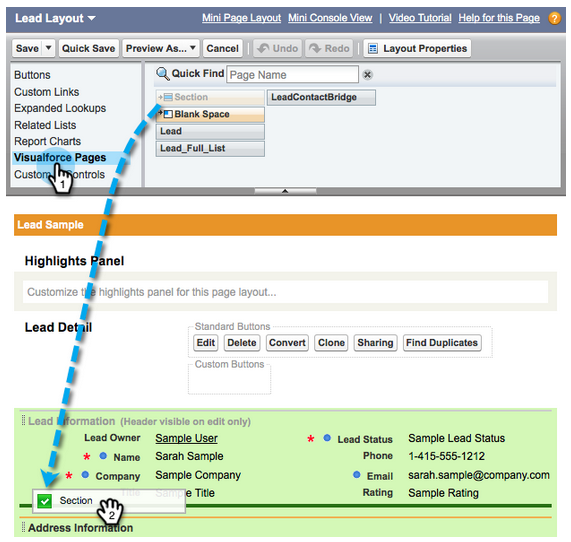
单击左侧的Visualforce Pages。 将 Section 拖到 Custom Links 分区下的布局。
-
输入“Marketo Sales Insight”作为Section Name,选择1-Column,然后单击OK。
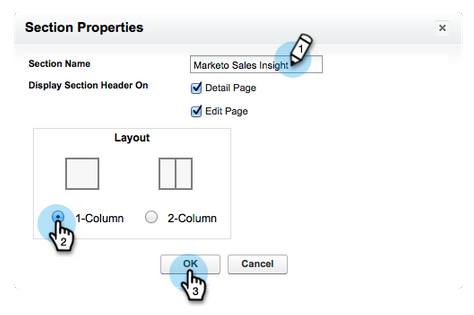
-
将 Lead 拖放到新分区中。
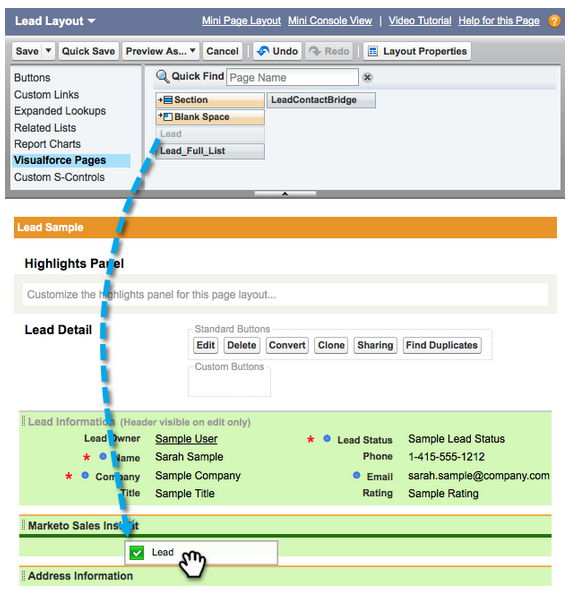
note tip TIP 此框的名称会根据对象类型而更改。 例如,如果您正在修改“联系人”的页面布局,则会显示“联系人”。 -
双击刚刚添加的 Lead 块。
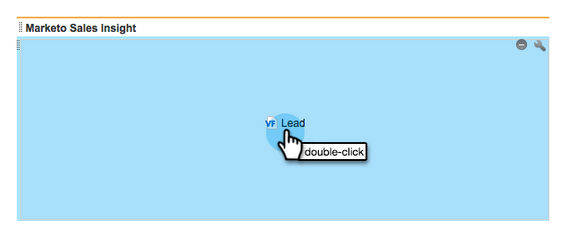
-
将高度编辑为 450 像素,然后单击OK。
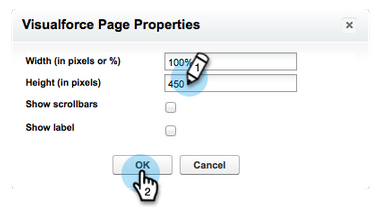
note note NOTE 如果需要访问滚动浏览活动,请选中Show scrollbars。 note tip TIP Accounts和Opportunities对象的建议高度为410像素。 -
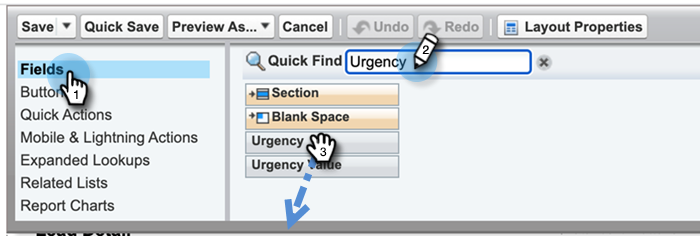
单击左侧的Fields。 然后搜索 Urgency 标签并将其拖到 Marketo Sales Insight 布局中。
-
对这些字段也重复上述步骤。
- 最后一个有趣的时刻
- 上一个有趣时刻的日期
- 上一个有趣时刻说明
- Source上一个有趣的时刻
- 上一个有趣时刻类型
- 按销售人员列出的最后一次活动
- 按销售人员列出的最后一次参与
- MSI联系人ID
- 相对分数
- 相对得分值
- 紧急
- 紧急值
- 在Marketo中查看
-
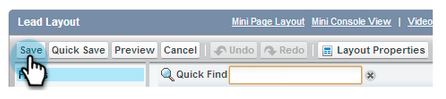
完成后单击 Save。
-
重复步骤5 - 7以添加Contact、Account和 Opportunity 的Visualforce页面部分和Sales Insight字段。
-
重复步骤8至10,为 Contact 添加这些Sales Insight字段。 请确保保存所有更改。
- 最后一个有趣的时刻
- 上一个有趣时刻的日期
- Last Interesting Moment Desc
- Last Interesting Moment Source
- Last Interesting Moment Type
- Last Marketo Activity by Sales
- Last Marketo Engagement by Sales
- MKTO Lead Score
- Relative Score
- Relative Score Value
- Sales Insight — 打开联系人完整列表页面
- Urgency
- Urgency Value
映射自定义人员字段 map-custom-person-fields
Marketo人员字段必须映射到Salesforce联系人字段,以确保转换正常工作。 按照以下步骤映射它们。
-
单击 Setup。
-
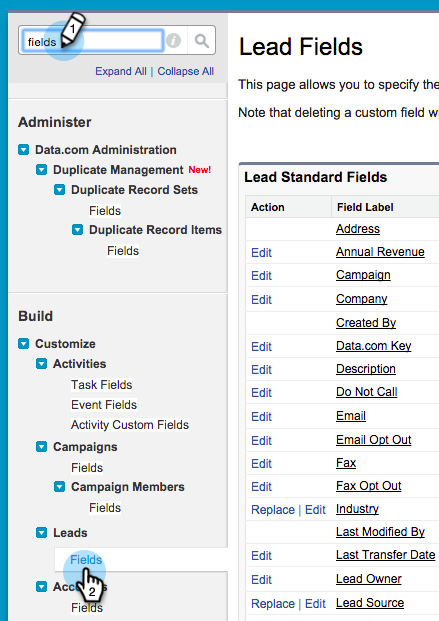
在搜索栏中搜索“字段”,然后单击 Fields 下的Leads。
-
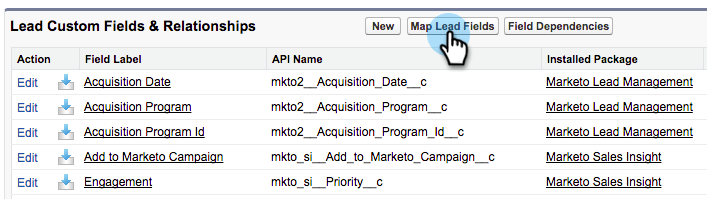
单击 Map Lead Fields。
-
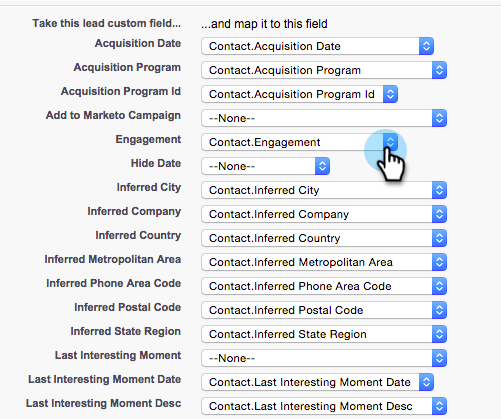
单击 Engagement 右侧的下拉菜单。
-
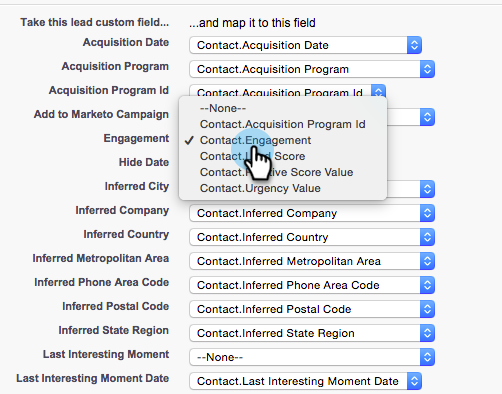
在列表中选择Contact.Engagement。
-
重复并映射这些字段。
table 0-row-2 1-row-2 2-row-2 3-row-2 4-row-2 5-row-2 6-row-2 7-row-2 Marketo人员自定义字段 Salesforce联系人自定义字段 EngagementContact.EngagementRelative Score ValueContact.Relative Score ValueUrgency ValueContact.Urgency ValueLast Interesting Moment DateContact.Last Interesting Moment DateLast Interesting Moment DescContact.Last Interesting Moment DescLast Interesting Moment SourceContact.Last Interesting Moment SourceLast Interesting Moment TypeContact.Last Interesting Moment Type -
完成后,单击Save。
Marketo Sales Insight的“配置”选项卡 marketo-sales-insight-configuration-tab
-
在Salesforce中,单击选项卡栏末尾的+,然后单击Marketo Sales Insight Config。
-
从Marketo Sales Insight Admin页中的Soap API面板复制凭据,并将其粘贴到Salesforce Sales Insight配置页的Soap API部分。
-
从Marketo Sales Insight管理页面中的Rest API面板复制凭据,并将其粘贴到Salesforce Sales Insight配置页面的Rest API部分。
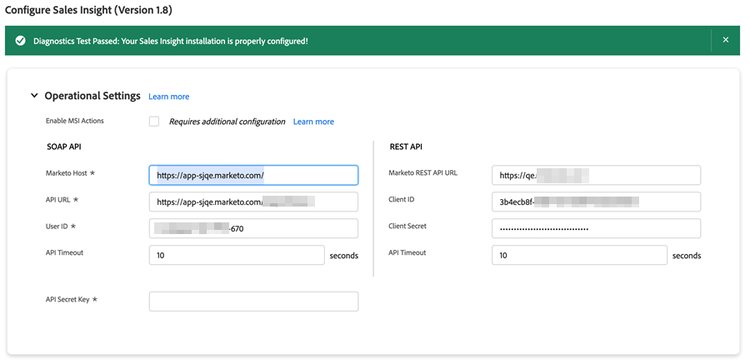
您应该能够看到Marketo Sales Insight中的Leads 、 Contacts 、 Accounts和Opportunities字段。