在此页面上:配置并使用Marketo Engage自定义操作,以便您将历程中的人员和自定义对象数据同步到Marketo Engage中。
开始与Marketo Engage无缝数据集成的历程。 您的历程中提供了特定的自定义操作,用于集成Adobe Journey Optimizer和Marketo Engage。 此自定义操作支持摄取两种关键数据类型:
- 人员(个人资料): Marketo将个人资料转换为可操作洞察。
- 自定义对象:使用自定义对象(如产品)定制您的数据,以实现个性化的营销方法。
先决条件 prerequisites
以下先决条件适用于此集成:
- Marketo Engage的客户实例必须已启用IMS
- Marketo Engage实例和Adobe Experience Platform/Journey Optimizer实例必须位于同一组织中
- 必须为客户设置MktoSync:摄取服务访问
配置操作 configure-marketo-action
在Journey Optimizer中,必须配置Marketo Engage的自定义操作。 执行以下步骤:
-
在“管理”菜单部分中选择配置。
-
在 操作 部分中,单击创建操作。 操作配置窗格将在屏幕右侧打开。
-
输入名称、说明,然后选择 Adobe Marketo Engage 作为操作类型

-
单击 请求 和 响应 负载的 编辑负载 图标。
-
对于这两种情况,请撰写有效负载并将其粘贴到专用弹出窗口中。
-
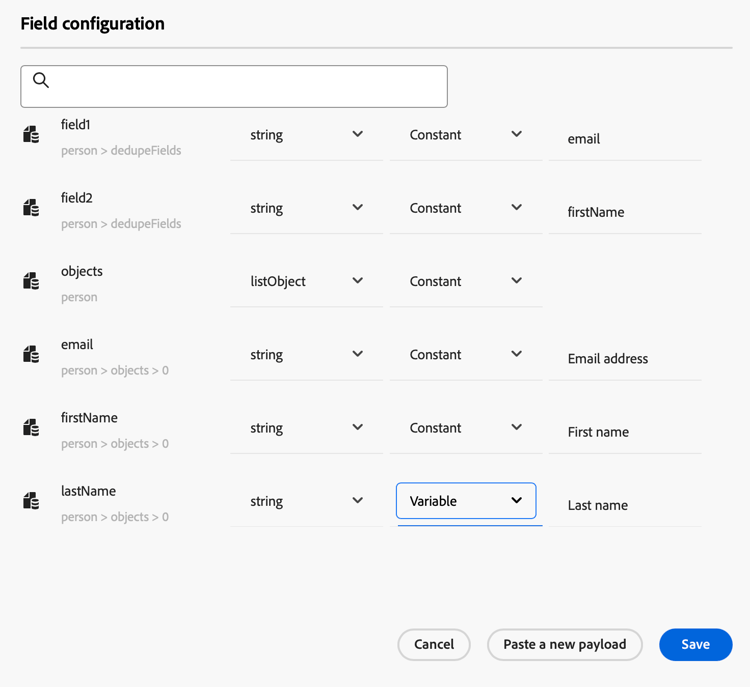
检查和配置有效负载值
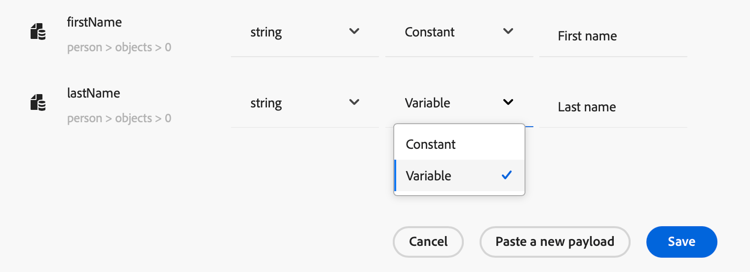
注意:若要动态传递值,请为每个字段将 常量 更改为变量。
-
在字段配置屏幕中单击保存,然后单击 保存 您的自定义操作。
您现在可以在历程画布上使用自定义操作。
有效负载语法 payload-syntax
人员

自定义对象

针对人员 的 有效负载示例
{
   "munchkinID": "388-KKG-245",
   "person": {
    "priority": "normal",
    "partitionName": "XYZ",
    "dedupeFields": {
      "field1": "email",
      "field2": "firstName"
    },
    "objects": [
      {
        "email": "Email address",
        "firstName": "First name",
        "lastName": "Last name"
      }
    ]
  }
}
自定义对象的有效负载示例
{
  "munchkinID": "388-KKG-245",
  "customObject": {
    "priority": "normal",
    "objectName": "products",
    "objects": [
      {
        "email": "Email Address",
        "productName": "Product Name",
        "productQty": "Product Quantity",
        "priceTotal": "Price Total"
      }
    ]
  }
}
使用操作 engage-using
对于所配置的每个操作,旅程设计器面板中都提供Marketo Engage操作活动。
要使用它,请执行以下步骤:
-
将自定义操作拖动到历程画布上。
-
输入此操作的标签和说明。
-
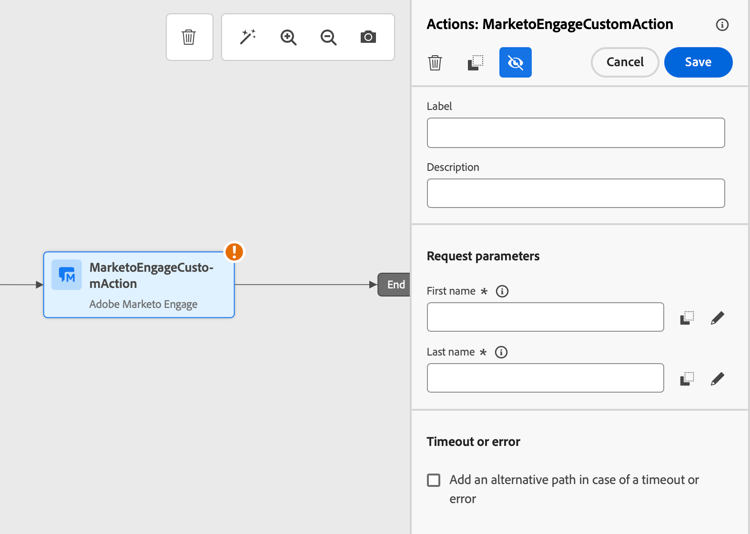
在 请求参数 部分中,单击每个参数的 编辑 图标,然后选择已在有效负载中配置的动态值。
This section contains structured knowledge intended to support interpretation, retrieval, and question answering related to this topic.
For complete understanding, this information should be combined with the documentation on this page. Neither source is intended to stand alone; the page describes the feature, while this section provides additional context that helps disambiguate terminology, intent, applicability, and constraints.
- TL;DR: This page explains how to configure and use the Marketo Engage custom action so you can sync person and custom object data from your journeys into Marketo Engage.
Intents:
- Understand which data types the Marketo Engage custom action supports
- Verify the prerequisites required for the integration
- Configure a Marketo Engage custom action from the Configurations administration menu
- Compose the Request and Response payloads and pass values dynamically
- Use the Marketo Engage action activity on the journey canvas
Glossary:
- Marketo Engage custom action: A specific custom action available in your journeys to integrate Adobe Journey Optimizer and Marketo Engage (product-specific)
- Persons (Profiles): One of the two supported data types; Marketo transforms profiles into actionable insights (product-specific)
- Custom Objects: One of the two supported data types, such as products, used for a personalized marketing approach (product-specific)
- munchkinID: A field included in the Person and Custom Object payloads (product-specific)
- Constant / Variable: The setting changed per field so values can be passed dynamically in the payload (product-specific)
Guardrails:
- The customer instance of Marketo Engage must be IMS-enabled.
- The Marketo Engage instance and the Adobe Experience Platform/Journey Optimizer instance must be in the same organization.
- The customer must be provisioned with MktoSync: Ingestion Service access.
- This custom action supports the ingestion of two data types: Persons (Profiles) and Custom Objects.
- To pass values dynamically, each field must be changed from Constant to Variable.
Terminology:
- Canonical name: Adobe Marketo Engage — Acronym: n/a — variants: Marketo Engage, Marketo Engage action, Marketo Engage custom action
- Do not confuse: “Persons (Profiles)” ≠ “Custom Objects” (the two supported data types)
- Do not confuse: “Request” payload ≠ “Response” payload (both are edited when configuring the action)
FAQ:
- Q: What data can the Marketo Engage custom action sync? — It supports the ingestion of two data types: Persons (Profiles) and Custom Objects, such as products.
- Q: What are the prerequisites for this integration? — The Marketo Engage instance must be IMS-enabled, the Marketo Engage and Adobe Experience Platform/Journey Optimizer instances must be in the same organization, and the customer must be provisioned with MktoSync: Ingestion Service access.
- Q: Which action type do I select when configuring the custom action? — Select Adobe Marketo Engage as the Action type.
- Q: How do I pass values dynamically in the payload? — For each field, change Constant to Variable.
- Q: How do I use the action in a journey? — For each configured action a Marketo Engage action activity is available in the journey designer palette; drag it onto the canvas and, in the Request parameters section, select the dynamic values configured in the payload.