在此页面上:了解如何使用表达式编辑器手动构建规则,这些规则包含数据库字段、变量和帮助程序函数,用于处理编排的营销活动中的日期、字符串和数值。
使用表达式编辑器 edit
编辑表达式需要手动输入条件以形成规则。 您可以通过此模式使用高级函数,这些函数可以让您处理用于执行特定查询(如处理日期、字符串、数字字段和排序)的值。
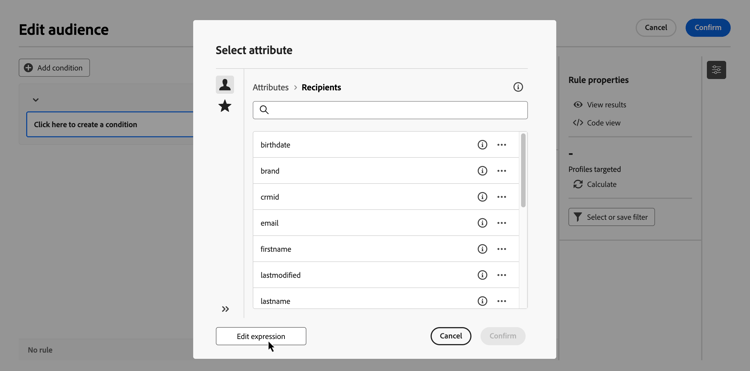
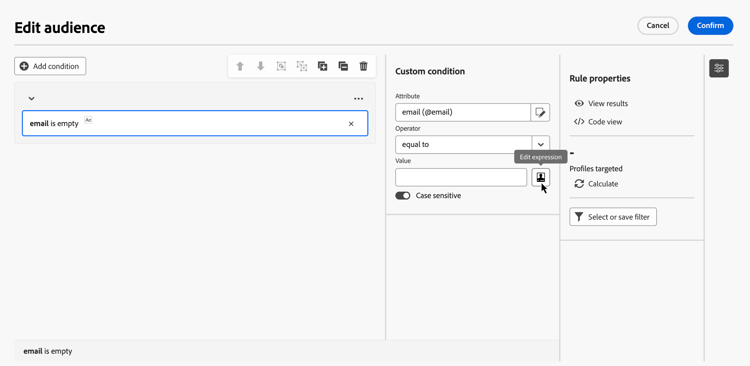
在配置自定义条件时,可以通过规则生成器的 编辑表达式 按钮启用表达式编辑器,并且可将其用于 属性 和 值 字段。
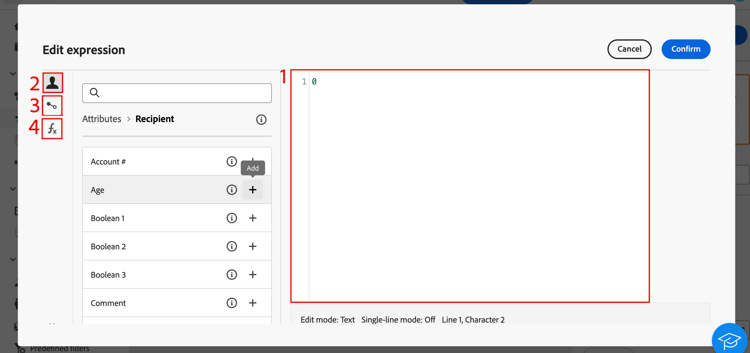
表达式编辑器提供:
-
输入字段 (1),用于定义表达式。
-
可用字段 (2) 的列表,可在表达式中使用并对应查询的目标维度。
-
可在表达式中使用的可用 变量(3) 的列表。 此菜单可用于 值 字段。 了解如何在编排的营销活动中使用变量
-
辅助函数(4),按类别排序。
通过直接在输入字段中输入表达式来编辑表达式。 要添加字段、变量或帮助程序函数,请将光标置于要添加它的表达式中,然后单击+按钮。
辅助函数
利用查询编辑工具,可使用高级函数根据所需结果和所处理数据的类型执行复杂筛选。 可以使用以下函数:
聚合
聚合函数对一组值执行计算。
日期
日期函数可处理日期或时间值。
地理位置营销
利用地理位置营销函数来操作地理值。
数值
数值函数用于将文本转换为数字。
其他
此表还包含其余一些可用的函数。
字符串
字符串函数用于操作一系列字符串。
窗口
This section contains structured knowledge intended to support interpretation, retrieval, and question answering related to this topic.
For complete understanding, this information should be combined with the documentation on this page. Neither source is intended to stand alone; the page describes the feature, while this section provides additional context that helps disambiguate terminology, intent, applicability, and constraints.
- TL;DR: This page explains how to use the expression editor to manually build rule conditions with fields, variables, and helper functions for manipulating dates, strings, numbers, and other values in Orchestrated campaigns.
Intents:
- Open the expression editor from the Attribute or Value field when configuring a custom condition in the rule builder.
- Enter an expression directly in the input field, or insert a field, variable, or helper function using the + button.
- Use helper functions (Aggregate, Date, Geomarketing, Numeric, Others, String, Window) to manipulate dates, strings, numeric values, and sorting.
- Insert variables into an expression from the Value field.
Glossary:
- Expression editor: a mode accessed from the rule builder Edit expression button that lets you manually enter conditions to form a rule, using advanced functions (product-specific)
- Helper functions: functions sorted by category (Aggregate, Date, Geomarketing, Numeric, Others, String, Window) available in the expression editor to manipulate values (product-specific)
- Fields: items available in the expression editor that correspond to the targeting dimension of the query (product-specific)
- Variables: items available in the expression editor, from the Value field menu, that can be used in an expression (product-specific)
Guardrails:
- The expression editor is available from the rule builder Edit expression button, for the Attribute and Value fields, when configuring a custom condition.
- The variables menu in the expression editor is available only for the Value field, not for the Attribute field.
- The DateOnly function takes into account the server’s timezone, not the operator’s.
Terminology:
- Canonical name: expression editor — variants: Edit expression
- Do not confuse: “fields” (correspond to the targeting dimension of the query) ≠ “variables” (listed in a separate menu, available from the Value field)
FAQ:
- Q: Where is the expression editor available from? — The rule builder Edit expression button, for the Attribute and Value fields, when configuring a custom condition.
- Q: How do I add a field, variable, or helper function to an expression? — Place your cursor in the expression where you want to add it and click the + button.
- Q: What categories of helper functions are available? — Aggregate, Date, Geomarketing, Numeric, Others, String, and Window.
- Q: Does the DateOnly function use my local timezone? — No, it takes into account the server’s timezone, not the operator’s.
- Q: Can I use variables from the Attribute field? — No, the variables menu is available only for the Value field.
Related pages:
- For using variables in an expression from the Value field: Learn how to use variables in Orchestrated campaigns (orchestrated/variables-orchestrated-campaigns.md)
Personas:
- marketer: Can open the expression editor from the Attribute or Value field when configuring a custom condition, and enter an expression directly in the input field. Can place the cursor and select the + button to add a field, variable, or helper function. Can use helper functions sorted by category, such as Aggregate, Date, Geomarketing, Numeric, Others, String, and Window, to manipulate dates, strings, numeric values, and sorting. The page states that the variables menu is available only for the Value field. Where: “Work with the expression editor”.
Onboarding:
- Level: Experienced
- First minimal step: Select the Edit expression button for the Attribute or Value field when configuring a custom condition.
- Next: Learn how to use variables in the expression editor: Use variables in Orchestrated campaigns (orchestrated/variables-orchestrated-campaigns.md)