在此页面上:了解如何使用测试流控制活动,通过根据您定义的条件激活不同的过渡来分支编排的营销活动。
测试活动是 流量控制 活动。 根据您定义的条件,通过激活不同的过渡,使用它来分支营销活动流。 每个条件都可以评估集客过渡中的数据,并且您可以选择哪个过渡首先按评估条件的顺序运行。
配置测试活动 test-configuration
要设置 测试 活动,请执行以下操作:
-
将 Test 活动拖放到您的编排活动画布中。
-
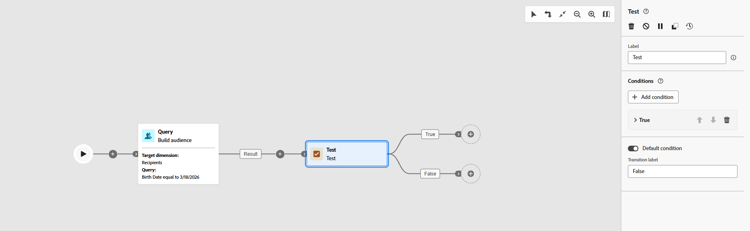
默认情况下,活动提供单个布尔测试:当满足“True”条件时,将激活该过渡;否则,将激活“False”(默认)过渡。
-
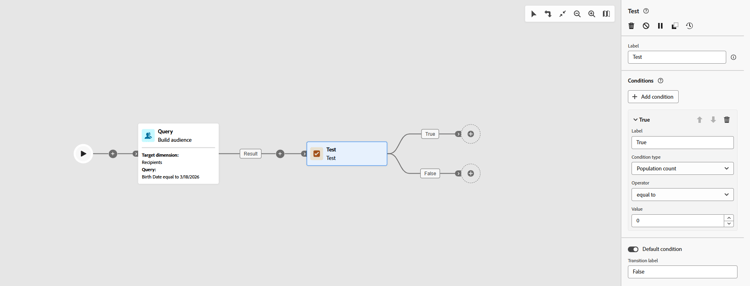
通过填写以下字段来定义过渡条件:
-
标签:过渡的名称,以便您可以在画布上识别它。
-
条件类型:默认情况下要计算群体计数的数据。 此处还列出了变量(来自全局变量或触发信号),可以选择这些变量以根据变量值设定条件。 了解如何在编排的营销活动中使用变量
-
运算符:要应用的比较,例如,等于、大于、小于。 运算符列表取决于条件类型的数据类型。
-
值:要与条件类型进行比较的值。
-
-
要在两个以上的结果上分支,请单击“添加条件”,并为每个其他过渡定义标签和条件。
-
在运行时,营销活动按顺序评估条件,并遵循第一个匹配的条件。 当没有条件匹配时,如果设置了默认条件,则执行操作;否则,营销活动将在 Test 活动处停止。
示例 example
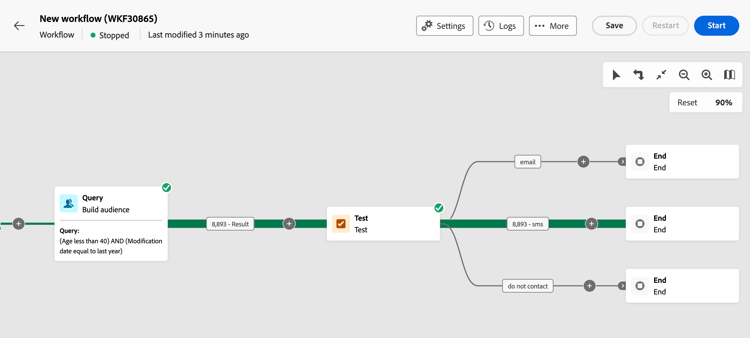
在此示例中,根据 构建受众 活动定向的用户档案数激活不同的过渡。 条件将按顺序评估;最后一个过渡是默认设置,在没有匹配的先前条件时使用。
- 如果选择的目标轮廓数量超过 10,000 个,则发送电子邮件。
- 默认(无匹配条件):当计数为10,000或更少时,群体将被定向到“请勿联系”过渡。
This section contains structured knowledge intended to support interpretation, retrieval, and question answering related to this topic.
For complete understanding, this information should be combined with the documentation on this page. Neither source is intended to stand alone; the page describes the feature, while this section provides additional context that helps disambiguate terminology, intent, applicability, and constraints.
- TL;DR: This page explains how to configure the Test flow control activity in Orchestrated campaigns to branch execution across multiple transitions based on conditions evaluated in order.
Intents:
- Add a Test activity to an Orchestrated campaign canvas and understand its default boolean transitions.
- Define a transition’s Label, Condition type, Operator, and Value.
- Use a variable (global variable or trigger signal) as a condition type.
- Add more than two outcomes with the Add condition button.
- Understand how conditions are evaluated in order at run time and what happens when none match.
Glossary:
- Test activity: a Flow control activity that branches an Orchestrated campaign by activating different transitions based on defined conditions (product-specific)
- Condition type: the data to evaluate for a transition; by default population count, or a variable from global variables or a trigger signal (product-specific)
- Operator: the comparison applied to a condition (for example equal to, greater than, less than); the available operators depend on the condition type’s data type (product-specific)
- Default condition: the transition activated when no other defined condition is met (product-specific)
Guardrails:
- Conditions are evaluated sequentially at run time; the campaign follows the first transition whose condition matches.
- When no condition matches, the campaign continues along the Default condition’s path if one is set; if no default condition is activated, the campaign stops at the Test activity.
- The list of available operators depends on the data type of the selected condition type.
- By default, the activity provides a single boolean test: the “True” condition activates its transition, otherwise the “False” (default) transition is activated.
Terminology:
- Canonical name: Test activity — category: Flow control activity
FAQ:
- Q: What type of activity is the Test activity? — It is a Flow control activity.
- Q: What happens if none of the defined conditions are met? — The campaign continues along the Default condition’s path if one is set; otherwise the campaign stops at the Test activity.
- Q: How are multiple conditions evaluated? — Each condition is evaluated sequentially until one of them is met.
- Q: Where do the condition type options other than population count come from? — From global variables or a trigger signal.
- Q: How do I branch on more than two outcomes? — Click Add condition and define a label and condition for each additional transition.
- Q: What determines which operators are available for a condition? — The operators depend on the condition type’s data type.
Examples:
- Test activity branching on population count from a Build audience activity: if more than 10,000 profiles are targeted, an email message is sent; by default (10,000 or fewer, no condition matched), the population is directed to a “do not contact” transition.
Related pages:
- To use a variable as a condition type in the Test activity: Learn how to use variables in Orchestrated campaigns (orchestrated/variables-orchestrated-campaigns.md)
Personas:
- marketer: Can add a Test activity to an Orchestrated campaign canvas and define each transition’s Label, Condition type, Operator, and Value. Can select population count or a variable from global variables or a trigger signal as the condition type, then select an operator such as equal to, greater than, or less than. Can select Add condition to branch on more than two outcomes. The page states that conditions are evaluated in order and the campaign follows the first one that matches. Where: “Configure the Test activity”.
Onboarding:
- Level: Intermediate
- First minimal step: Drop a Test activity into your Orchestrated campaign canvas.
- Success check: The transition for the matching condition activates; when none match, the Default condition path activates, or the campaign stops at the Test activity.
- Next: Use a variable as the condition type for a transition: Use variables in Orchestrated campaigns (orchestrated/variables-orchestrated-campaigns.md)