이 페이지에서: 재사용 가능한 충성도 작업을 만들고, 구매, 지출 및 사용자 지정 이벤트 활동을 구성하고, 작업 특성, 자격 요건 및 완료 요구 사항을 정의하는 방법을 알아봅니다.
작업은 고객이 충성도 도전에서 보상을 얻기 위해 완료해야 하는 특정 작업 또는 이정표를 정의합니다. 구매 및 지출 작업 또는 조직에서 이미 캡처한 Adobe Experience Platform 경험 이벤트를 추적하는 사용자 지정 이벤트 작업을 구성할 수 있습니다.
각 작업은 측정 가능한 작업을 나타내며 과제 완성에 기여합니다. 작업은 재사용 가능한 구성 요소로서 독립적으로 만든 다음 하나 이상의 문제에 추가하거나 과제 내에서 직접 만들 수 있습니다.
작업 만들기 create-task
두 진입점에서 작업을 생성할 수 있습니다. 구성 프로세스는 시작하는 위치에 관계없이 동일합니다.
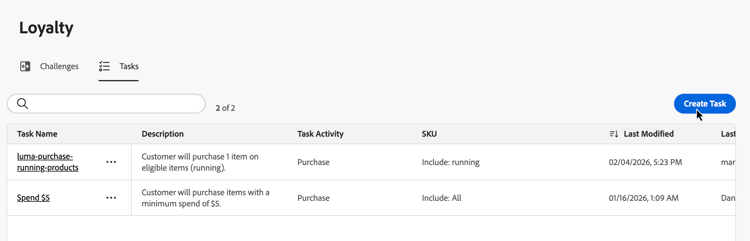
작업 탭을 선택하고 작업 만들기를 선택합니다. 인벤토리에서 생성된 작업은 저장되며 여러 문제에 걸쳐 재사용할 수 있습니다.
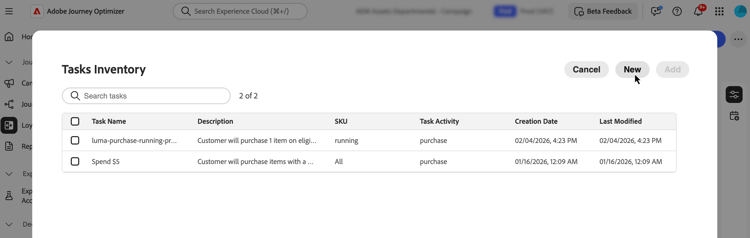
기존 과제를 열거나 새 과제를 만듭니다. 작업 추가를 선택하고 새로 만들기 단추를 클릭합니다. 이러한 방식으로 생성된 작업은 자동으로 과제에 추가되고 다른 과제에서 재사용할 수 있도록 작업 인벤토리에 저장됩니다.
고객 활동 선택 choose-activity
고객이 이 작업을 완료하기 위해 수행해야 하는 활동 유형을 선택합니다.
- 구매: 이 작업을 완료하려면 고객이 하나 이상의 항목을 구입해야 합니다.
- 지출: 이 작업을 완료하려면 고객이 지정된 금액을 사용해야 합니다.
- 사용자 지정 이벤트: 고객은 Adobe Experience Platform 경험 이벤트가 나타내는 활동을 수행해야 합니다. 예를 들어 호텔 체크인, 모바일 앱 작업 또는 검토 제출이 있습니다. 기본 이벤트는 이미 Experience Platform에서 캡처되고 충성도 구성 메뉴의 이벤트 매핑을 통해 매핑되어야 합니다. 이벤트 매핑을 구성하는 방법 알아보기
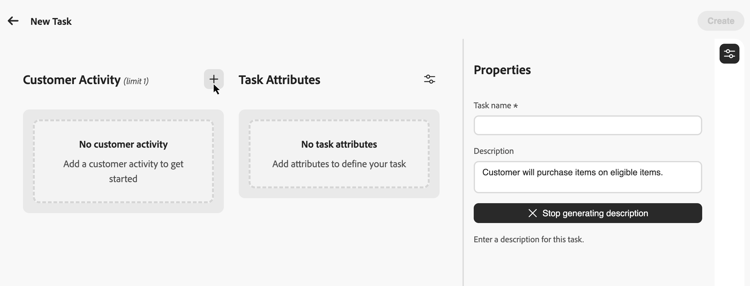
활동을 선택하려면 + 아이콘을 클릭하고 결과 목표에 가장 적합한 고객 활동을 선택하십시오. 각 활동 유형에는 작업 요구 사항을 추가로 정의하고 형성하기 위해 구성 가능한 특정 속성이 있습니다.
작업 특성 정의 define-attributes
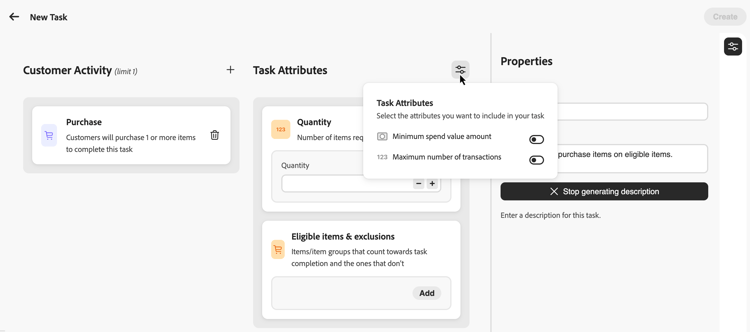
선택한 활동 유형에 따라 작업 속성을 구성합니다. 각 활동 유형에 사용할 수 있는 속성을 보려면 아래 탭을 검색하십시오.
구매 활동에 사용 가능한 특성:
- 수량: 이 작업을 완료하려면 구매해야 하는 항목의 수를 입력하십시오.
- 적격 항목 및 제외: 작업 완료 시 계산되는 항목 또는 항목 그룹과 그렇지 않은 항목 그룹을 정의하거나 고유한 데이터 가져오기를 선택하여 외부 데이터에서 적격 여부를 결정합니다. 자세히 알아보기
- 최소 지출 금액: 최소 구매 금액 요구 사항을 설정합니다.
- 최대 트랜잭션 수: 작업을 완료하는 데 사용할 수 있는 트랜잭션 수를 제한합니다.
지출 활동에 사용 가능한 특성:
- 금액: 작업을 완료하는 데 필요한 총 지출 금액을 입력합니다.
- 적격 항목 및 제외: 작업 완료 시 계산되는 항목 또는 항목 그룹과 그렇지 않은 항목 그룹을 정의합니다. 적격 항목 및 제외에 대한 자세한 정보
- 최대 트랜잭션 수: 지출 요구 사항을 충족하는 데 허용되는 트랜잭션 수를 지정합니다. 매개변수 아이콘에서 이 속성을 활성화할 수 있습니다.
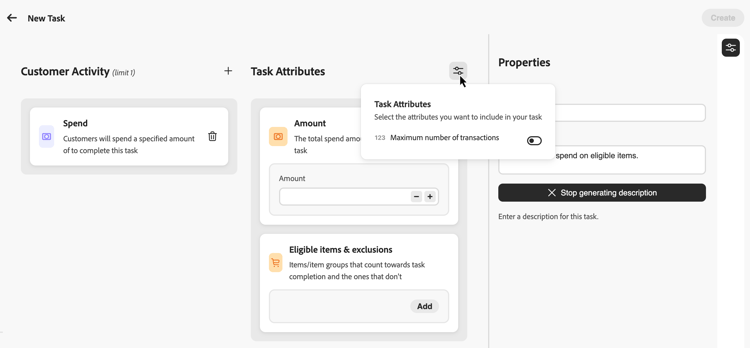
사용자 지정 이벤트 활동에 사용 가능한 특성:
- 사용자 지정 이벤트 값: 고객이 완료해야 하는 사용자 지정 이벤트의 값을 입력하십시오. 각 값을 구분하려면 쉼표를 사용하십시오. 이 값은 충성도 구성 메뉴에 구성된 이벤트 매핑과 일치해야 합니다. 이벤트 매핑을 구성하는 방법 알아보기

적격 품목 및 제외 정의 eligible-items-exclusions
구매 및 지출 활동의 경우 적격 항목 및 제외 섹션을 사용하여 적격 항목 및 그룹과 제외된 그룹을 정의할 수 있습니다. 이를 통해 챌린지 목표에 부합하는 구체적인 제품, 카테고리 또는 위치를 타깃팅할 수 있습니다.
선택기에서 사용할 수 있는 항목 및 그룹은 관리자 사용자가 충성도 구성 메뉴에서 정의합니다. 관리자는 적격 항목에 사용된 제품 인벤토리를 업로드하고 마케터가 작업을 작성할 때 자동으로 적용되는 조직 전체의 제외를 구성합니다. 제품 인벤토리를 구성하는 방법을 알아봅니다 및 제외
사용자 지정 이벤트 작업은 적격 항목 및 제외를 사용하지 않습니다. 완료는 사용자가 구성한 사용자 지정 이벤트 값에 의해 결정됩니다.
예를 들어 작업을 특정 제품 범주로 제한하거나 작업 완료 시 기프트 카드나 프로모션 항목을 카운트하지 않도록 할 수 있습니다.
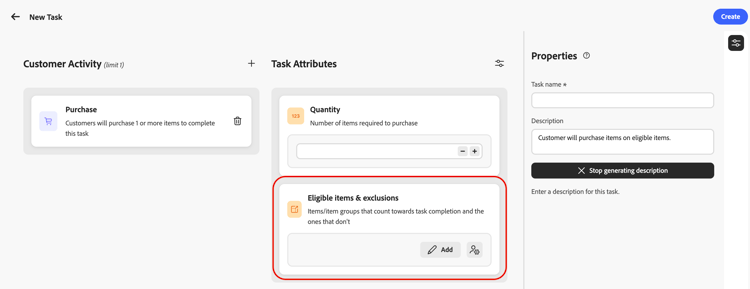
작업에 대한 적격 항목 설정
적격 항목을 정의하려면 적격 항목 및 제외 섹션에서 추가를 선택합니다.
선택기에서 작업 완료 시 계산되어야 하는 항목이나 그룹을 선택한 다음 포함을 선택합니다. 포함된 항목 및 그룹이 적격 목록에 추가됩니다.
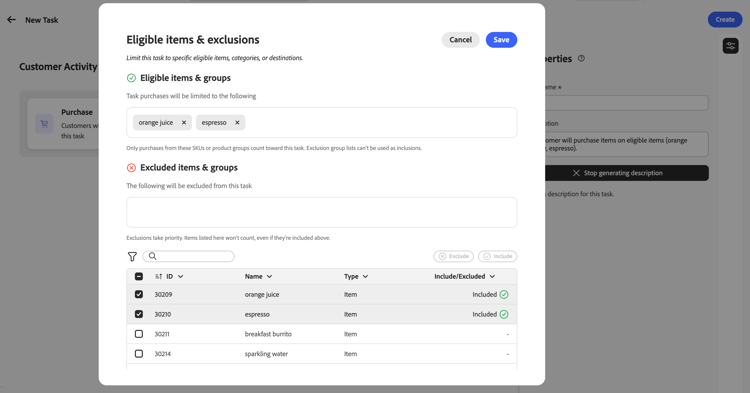
적격 품목 또는 그룹을 선택하지 않은 경우 제외가 구성되지 않은 경우 구매는 특정 재고 세트로 제한되지 않습니다.
작업에서 항목 제외
작업에서 항목을 제외하려면 적격 항목 및 제외 섹션에서 추가를 선택하십시오.
작업 완료 시 카운트되지 않아야 하는 항목이나 그룹을 선택한 다음 제외를 선택하십시오.
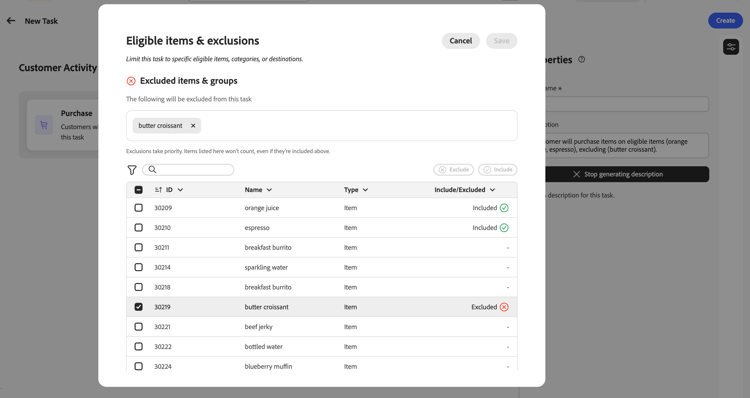
전역 제외 목록의 항목은 자동으로 제외로 추가됩니다. 제외는 포함보다 우선합니다. 제외됨으로 나열된 항목은 포함된 그룹의 일부라도 계산되지 않습니다.
자격 및 제외를 위한 자체 데이터 가져오기 byod-personalization
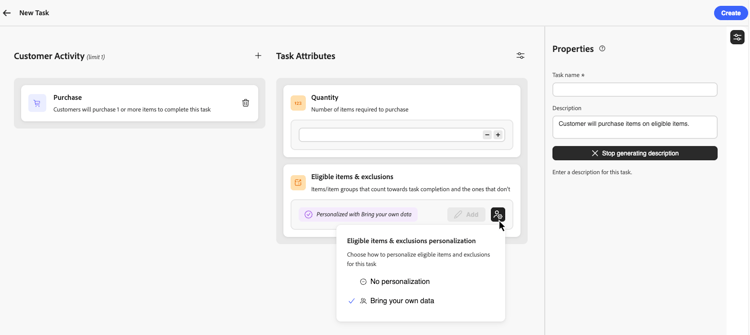
Journey Optimizer에서 항목 및 그룹을 선택할 수 있을 뿐만 아니라 고유한 데이터 가져오기 옵션을 사용하여 런타임에 외부 로열티 문제 데이터에서 자격을 얻을 수도 있습니다.
고유 데이터 가져오기를 선택하면 참가자 당 자격 요건이 항목 ID 목록 대신 충성도 과제 환경과 동기화된 데이터에서 런타임에 해결됩니다.
이 옵션을 사용하려면 적격 항목 및 제외에서 개인화 아이콘을 선택한 다음 데이터 가져오기를 선택하십시오.
작업 속성 정의 define-task-properties
작업 속성 창에서 기본 작업 정보를 구성합니다.
- 작업 이름: 작업에 대한 수사적 이름을 입력하십시오.
- 작업 설명: 구성된 활동 및 특성을 기반으로 설명이 자동으로 생성됩니다. 사용자 정의 설명을 입력하려면 자동 생성 옵션을 끄고 텍스트 필드에 설명을 입력합니다.
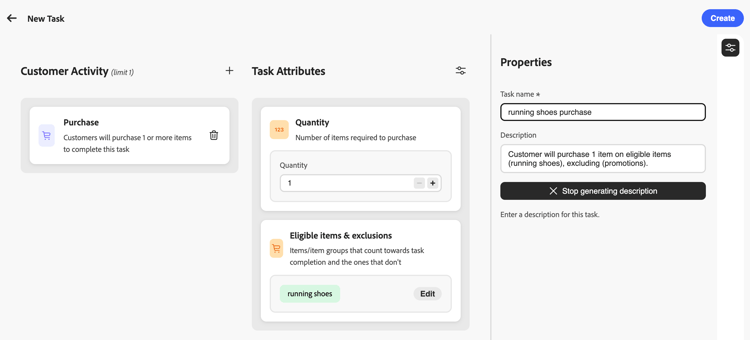
모든 특성과 속성을 구성한 후 만들기를 선택하여 작업을 저장합니다. 작업은 작업 인벤토리에 저장되며 문제 내에서 생성된 경우 해당 문제에 자동으로 추가됩니다.
사용 방법 비디오 video
이 단계별 자습서를 사용하여 작업을 만들고 구성하는 방법에 대해 알아봅니다.
This section contains structured knowledge intended to support interpretation, retrieval, and question answering related to this topic.
For complete understanding, this information should be combined with the documentation on this page. Neither source is intended to stand alone; the page describes the feature, while this section provides additional context that helps disambiguate terminology, intent, applicability, and constraints.
- TL;DR: This page explains how to create reusable loyalty tasks, configure Purchase, Spend, and Custom event activities, and define task attributes, eligibility, and completion requirements.
Intents:
- Create a task from the Tasks inventory or from within a challenge.
- Choose a customer activity type (Purchase, Spend, or Custom event) for a task.
- Configure activity-specific attributes, such as quantity, amount, or custom event values.
- Define eligible items and exclusions for Purchase and Spend tasks.
- Use Bring your own data to resolve task eligibility at runtime from external data instead of selecting items in Journey Optimizer.
- Define task properties, including the task name and description.
Glossary:
- Task: a reusable component representing a measurable action or milestone that customers must complete toward challenge completion (product-specific)
- Purchase activity: an activity type that requires customers to purchase one or more items to complete a task (product-specific)
- Spend activity: an activity type that requires customers to spend a specified amount to complete a task (product-specific)
- Custom event activity: an activity type based on an Adobe Experience Platform experience event that is already captured in Experience Platform and mapped through an event mapping in the Loyalty configurations menu (product-specific)
- Tasks inventory: the Tasks tab where tasks are saved and available for reuse across multiple challenges (product-specific)
- Eligible items & exclusions: the Purchase and Spend attribute that defines which items or groups count toward task completion and which are excluded (product-specific)
- Bring your own data: the option that resolves eligibility per participant at runtime from data synchronized with the Loyalty Challenges environment, instead of a list of item IDs (product-specific)
Guardrails:
- Custom event tasks do not use eligible items and exclusions; completion is driven by the Custom event values configured for the task.
- Custom event values entered for a task must match event mappings configured in the Loyalty configurations menu.
- Items from the global exclusions list are automatically added as exclusions.
- Exclusions take priority over inclusions: items listed as excluded do not count, even if they are also part of an included group.
- If no eligible items or groups are selected for a Purchase or Spend task, purchases are not limited to a specific inventory set, unless exclusions are configured.
- For Spend activities, the Maximum number of transactions attribute must be activated from the parameters icon.
- When assigning a task configured with Bring your own data to a challenge, select Standard as the challenge type; Bring your own data at the challenge level is reserved for fully data-driven challenges where the entire structure, including tasks and rewards, is supplied externally.
Applicability:
- Bring your own data (task-level eligibility for Purchase and Spend activities): applies only to a restricted set of organizations currently; will be made available more broadly in a future release.
Terminology:
- Canonical name: Adobe Experience Platform — Acronym: AEP — variants: Experience Platform
- Canonical name: Task — variants: none
- Synonyms: none
- Do not confuse: task-level “Bring your own data” (eligibility resolved at runtime from external data instead of item IDs) ≠ challenge-level “Bring your own data” (reserved for fully data-driven challenges where the entire structure, including tasks and rewards, is supplied externally)
- Do not confuse: “Eligible items & exclusions” (selecting items and groups within Journey Optimizer, for Purchase and Spend only) ≠ “Bring your own data” (eligibility resolved at runtime from synchronized external data)
FAQ:
- Q: What are the three activity types for a task? — Purchase, Spend, and Custom event.
- Q: Where can I create a task? — From the Tasks inventory (Tasks tab, Create Task) or from within a challenge (Add task, New); tasks created within a challenge are also saved to the Tasks inventory.
- Q: Do Custom event tasks use eligible items and exclusions? — No; completion for Custom event tasks is driven by the Custom event values configured for the task.
- Q: What happens if an item is both included and excluded? — Exclusions take priority over inclusions; excluded items do not count even if part of an included group.
- Q: What happens if no eligible items or groups are selected for a Purchase or Spend task? — Purchases are not limited to a specific inventory set, unless exclusions are configured.
- Q: What challenge type should I use with a task configured for Bring your own data? — Select Standard as the challenge type; Bring your own data at the challenge level is reserved for fully data-driven challenges where the entire structure, including tasks and rewards, is supplied externally.
Examples:
- Eligible items & exclusions (Purchase and Spend): limiting a task to specific product categories, or excluding gift cards or promotional items from counting toward task completion.
- Custom event activity: events such as a hotel check-in, mobile app action, or review submission, represented by an Adobe Experience Platform experience event.
Related pages:
- To configure the Custom event event mappings referenced by this page: Learn how to configure event mappings (loyalty-challenges/loyalty-admin.md)
- To configure the product inventory used for eligible items: Learn how to configure product inventory (loyalty-challenges/loyalty-admin.md)
- To configure organization-wide exclusions applied automatically to tasks: exclusions (loyalty-challenges/loyalty-admin.md)
Personas:
- marketer: Can create a task from the Tasks inventory by selecting Create Task, or from within a challenge by selecting Add task and New. Can choose a Purchase, Spend, or Custom event activity, then configure attributes such as Quantity, Amount, or Custom event values. Can define eligible items and exclusions for Purchase and Spend tasks, and set the task name and description. The page states that Custom event tasks do not use eligible items and exclusions. Where: “Create a task”.
Onboarding:
- Level: Intermediate
- First minimal step: Select the Tasks tab and select Create Task.
- Success check: The task is saved to your Tasks inventory and, if created from within a challenge, is automatically added to that challenge.
- Previous: Configure event mappings, product inventory, or exclusions used when building tasks: Configure loyalty challenges (loyalty-challenges/loyalty-admin.md)