이 페이지에서: 전자 메일 Designer의 개별 요소에 CSS 호환 인라인 스타일 특성을 적용하고 사용자 지정하는 방법을 알아봅니다.
이메일 Designer 인터페이스에서 요소를 선택하고 사이드 패널에 해당 설정을 표시하면 해당 특정 요소에 대한 인라인 속성 및 해당 값을 사용자 지정할 수 있습니다.
-
콘텐츠에서 요소를 선택합니다.
-
스타일 탭에서 고급 드롭다운에서 스타일 인라인 설정을 찾습니다.
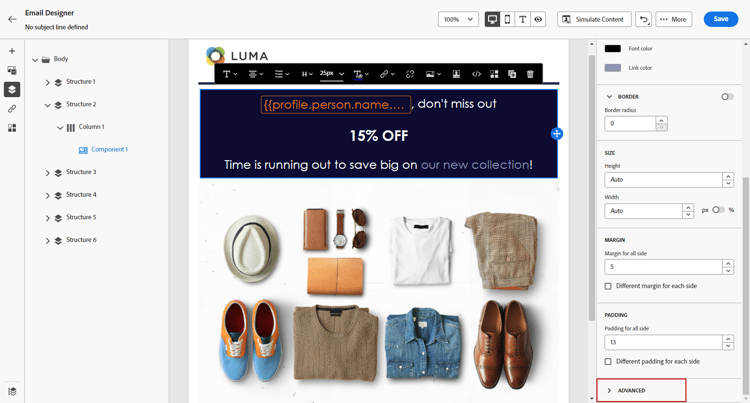
-
기존 특성의 값을 수정하거나 + 단추를 사용하여 새 특성을 추가하십시오. CSS와 호환되는 모든 속성과 값을 추가할 수 있습니다.
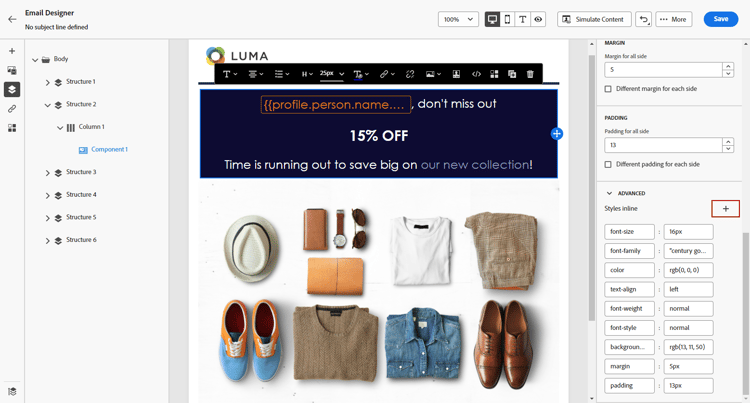
그런 다음 선택한 요소에 스타일이 적용됩니다. 하위 요소에 정의된 특정 스타일 속성이 없으면 상위 요소의 스타일이 상속됩니다.
This section contains structured knowledge intended to support interpretation, retrieval, and question answering related to this topic.
For complete understanding, this information should be combined with the documentation on this page. Neither source is intended to stand alone; the page describes the feature, while this section provides additional context that helps disambiguate terminology, intent, applicability, and constraints.
- TL;DR: This page explains how to apply and customize CSS-compliant inline styling attributes on individual elements in the Email Designer.
Intents:
- Customize inline styling attributes and their values for a specific element
- Access the Styles Inline settings under the Advanced drop-down of the Styles tab
- Modify existing attribute values or add new CSS-compliant attributes with the + button
- Understand how child elements inherit styling from a parent element
Glossary:
- Styles Inline settings: The inline attribute settings found under the Advanced drop-down of the Styles tab for a selected element (product-specific)
- Inline styling attribute: A CSS-compliant attribute and value applied directly to an individual selected element (product-specific)
Guardrails:
- You can add any attribute and value that is CSS-compliant.
- If child elements do not have specific styling attributes defined, they inherit the styling of the parent element.
Terminology:
- Canonical name: Styles Inline — Acronym: n/a — variants: inline styling attributes
- Synonyms: n/a
- Do not confuse: “Styles Inline settings” (under the Advanced drop-down for inline attributes) ≠ “Styles tab” (the pane where they are located)
FAQ:
- Q: Where do I find the inline styling settings? — Select an element, then look for the Styles Inline settings under the Advanced drop-down of the Styles tab.
- Q: What attributes can I add? — Any attribute and value that is CSS-compliant, added with the + button.
- Q: What happens to child elements? — If they have no specific styling attributes defined, they inherit the styling of the parent element.