이 페이지에서: 테스트 흐름 제어 활동을 사용하여 정의한 조건에 따라 다양한 전환을 활성화하여 오케스트레이션된 캠페인을 분기하는 방법을 알아봅니다.
테스트 활동은 플로우 제어 활동입니다. 정의하는 조건에 따라 다른 전환을 활성화하여 캠페인 흐름을 분기하는 데 사용합니다. 각 조건은 인바운드 전환에서 데이터를 평가할 수 있으며 조건이 평가되는 순서에 따라 먼저 실행되는 전환을 선택할 수 있습니다.
테스트 활동 구성 test-configuration
Test 활동을 설정하려면:
-
오케스트레이션된 캠페인 캔버스에 Test 활동을 놓습니다.
-
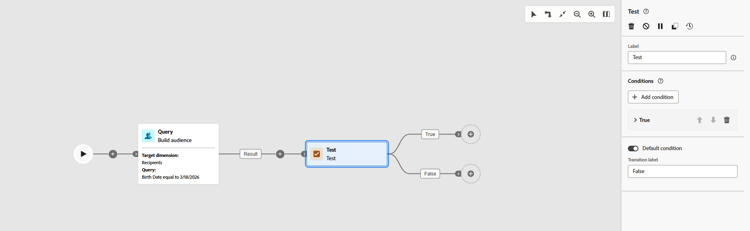
기본적으로 활동은 단일 부울 테스트를 제공합니다. “True” 조건이 충족되면 해당 전환이 활성화되고 그렇지 않으면 “False”(기본값) 전환이 활성화됩니다.
-
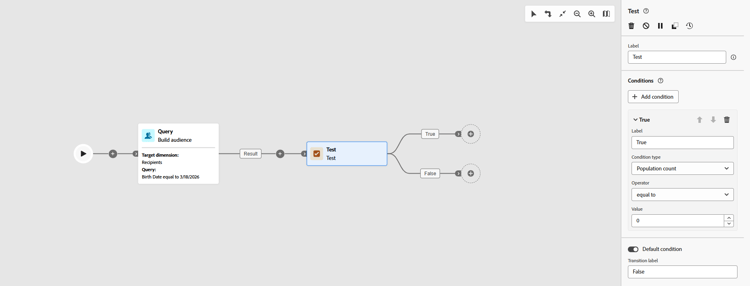
다음 필드를 완료하여 전환 조건을 정의합니다.
-
레이블: 캔버스에서 식별할 수 있는 전환 이름입니다.
-
조건 유형: 기본적으로 모집단 수를 평가할 데이터입니다. 변수(전역 변수 또는 트리거 신호에서 오는 변수)도 여기에 나열되며 변수 값을 기준으로 조건을 선택하도록 할 수 있습니다. 오케스트레이션된 캠페인에서 변수를 사용하는 방법을 알아봅니다
-
연산자: 적용할 비교(예: 같음, 큼, 작음) 연산자 목록은 조건 유형의 데이터 유형에 따라 다릅니다.
-
값: 조건 유형을 비교할 값입니다.
-
-
두 개 이상의 결과를 분기하려면 조건 추가를 클릭하고 각 추가 전환에 대한 레이블과 조건을 정의합니다.
-
런타임에 캠페인은 조건을 순서대로 평가하고 일치하는 첫 번째 조건을 따릅니다. 일치하는 조건이 없으면 기본 조건(설정된 경우)이 실행됩니다. 그렇지 않으면 캠페인은 테스트 활동에서 중지됩니다.
예 example
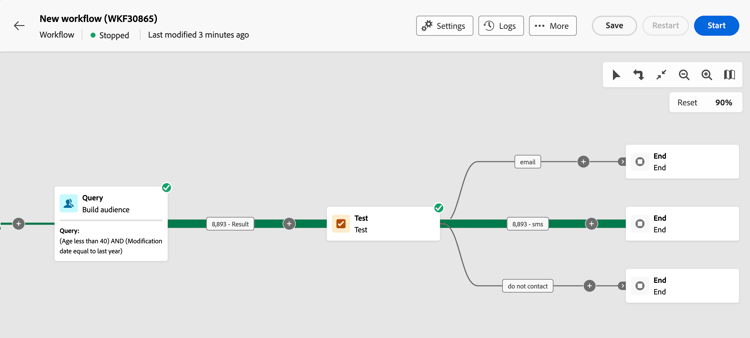
이 예제에서는 대상자 작성 활동으로 타겟팅된 프로필 수에 따라 다른 전환이 활성화됩니다. 조건은 순서대로 평가됩니다. 마지막 전환이 기본값이며 이전 조건이 일치하지 않을 때 사용됩니다.
- 타겟팅한 프로필이 10,000개가 넘는 경우 이메일 메시지가 전송됩니다.
- 기본값(일치하는 조건 없음): 카운트가 10,000개 이하이면 모집단은 “연락 안 함” 전환으로 이동합니다.
This section contains structured knowledge intended to support interpretation, retrieval, and question answering related to this topic.
For complete understanding, this information should be combined with the documentation on this page. Neither source is intended to stand alone; the page describes the feature, while this section provides additional context that helps disambiguate terminology, intent, applicability, and constraints.
- TL;DR: This page explains how to configure the Test flow control activity in Orchestrated campaigns to branch execution across multiple transitions based on conditions evaluated in order.
Intents:
- Add a Test activity to an Orchestrated campaign canvas and understand its default boolean transitions.
- Define a transition’s Label, Condition type, Operator, and Value.
- Use a variable (global variable or trigger signal) as a condition type.
- Add more than two outcomes with the Add condition button.
- Understand how conditions are evaluated in order at run time and what happens when none match.
Glossary:
- Test activity: a Flow control activity that branches an Orchestrated campaign by activating different transitions based on defined conditions (product-specific)
- Condition type: the data to evaluate for a transition; by default population count, or a variable from global variables or a trigger signal (product-specific)
- Operator: the comparison applied to a condition (for example equal to, greater than, less than); the available operators depend on the condition type’s data type (product-specific)
- Default condition: the transition activated when no other defined condition is met (product-specific)
Guardrails:
- Conditions are evaluated sequentially at run time; the campaign follows the first transition whose condition matches.
- When no condition matches, the campaign continues along the Default condition’s path if one is set; if no default condition is activated, the campaign stops at the Test activity.
- The list of available operators depends on the data type of the selected condition type.
- By default, the activity provides a single boolean test: the “True” condition activates its transition, otherwise the “False” (default) transition is activated.
Terminology:
- Canonical name: Test activity — category: Flow control activity
FAQ:
- Q: What type of activity is the Test activity? — It is a Flow control activity.
- Q: What happens if none of the defined conditions are met? — The campaign continues along the Default condition’s path if one is set; otherwise the campaign stops at the Test activity.
- Q: How are multiple conditions evaluated? — Each condition is evaluated sequentially until one of them is met.
- Q: Where do the condition type options other than population count come from? — From global variables or a trigger signal.
- Q: How do I branch on more than two outcomes? — Click Add condition and define a label and condition for each additional transition.
- Q: What determines which operators are available for a condition? — The operators depend on the condition type’s data type.
Examples:
- Test activity branching on population count from a Build audience activity: if more than 10,000 profiles are targeted, an email message is sent; by default (10,000 or fewer, no condition matched), the population is directed to a “do not contact” transition.
Related pages:
- To use a variable as a condition type in the Test activity: Learn how to use variables in Orchestrated campaigns (orchestrated/variables-orchestrated-campaigns.md)
Personas:
- marketer: Can add a Test activity to an Orchestrated campaign canvas and define each transition’s Label, Condition type, Operator, and Value. Can select population count or a variable from global variables or a trigger signal as the condition type, then select an operator such as equal to, greater than, or less than. Can select Add condition to branch on more than two outcomes. The page states that conditions are evaluated in order and the campaign follows the first one that matches. Where: “Configure the Test activity”.
Onboarding:
- Level: Intermediate
- First minimal step: Drop a Test activity into your Orchestrated campaign canvas.
- Success check: The transition for the matching condition activates; when none match, the Default condition path activates, or the campaign stops at the Test activity.
- Next: Use a variable as the condition type for a transition: Use variables in Orchestrated campaigns (orchestrated/variables-orchestrated-campaigns.md)