이 페이지에서: 오케스트레이션된 캠페인에서 포크 흐름 제어 활동을 사용하여 여러 활동을 동시에 실행하는 여러 아웃바운드 전환을 만드는 방법에 대해 알아봅니다.
포크 활동은 여러 개의 아웃바운드 전환을 만들 수 있는 흐름 제어 구성 요소로, 여러 활동을 동시에 실행할 수 있습니다.
포크 활동 구성 fork-configuration
포크 활동을 구성하려면 다음 단계를 따릅니다.
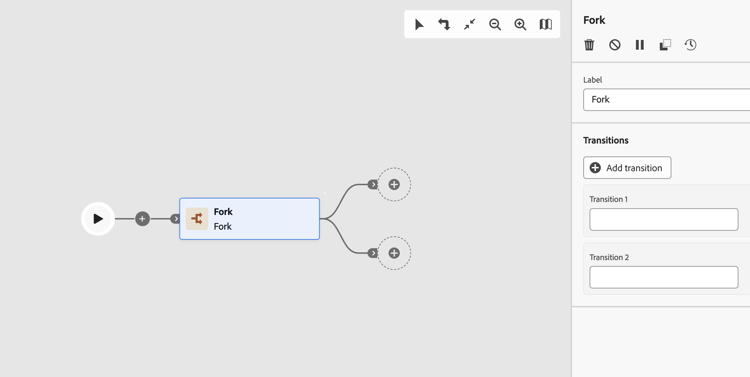
-
오케스트레이션된 캠페인에 포크 활동을 추가합니다.
-
레이블을 정의합니다.
-
각 아웃바운드 전환에 레이블을 할당합니다. 기본적으로 두 개의 전환이 제공됩니다.
-
전환을 제거하려면

-
필요한 경우 전환 추가를 클릭하여 아웃바운드 전환을 더 추가합니다.
예시 fork-examples
다음은 포크 활동의 일반적인 사용입니다. 게재 동작을 비교하기 위해 두 개의 서로 다른 이메일 채널(하나의 마케팅 및 하나의 트랜잭션)을 사용하여 동일한 대상자를 타겟팅하는 것입니다.
대상 만들기 활동에서 대상 모집단을 선택한 후 포크에서 두 개의 병렬 분기를 만듭니다.
- 분기 1이(가) 마케팅 이메일 채널 활동에 연결합니다. 메시지는 표준 비즈니스 규칙을 따르며 옵트인 프로필에만 전송됩니다.
- 분기 2이(가) 트랜잭션 전자 메일 채널 활동에 연결합니다. 메시지는 비즈니스 규칙을 무시하고 옵트인 상태에 관계없이 모든 프로필에 전달됩니다.
이 패턴은 채널 범주 설정이 게재 동작에 미치는 영향을 이해하고 단일 캠페인 실행에서 동일한 대상자에게 다양한 메시지 유형을 보내는 데 유용합니다.
This section contains structured knowledge intended to support interpretation, retrieval, and question answering related to this topic.
For complete understanding, this information should be combined with the documentation on this page. Neither source is intended to stand alone; the page describes the feature, while this section provides additional context that helps disambiguate terminology, intent, applicability, and constraints.
- TL;DR: This page explains how to configure the Fork flow control activity in an Orchestrated campaign to create multiple outbound transitions so that several activities run in parallel.
Intents:
- Add a Fork activity to an Orchestrated campaign.
- Use a Fork to run two or more activities in parallel.
- Define a label for the Fork activity and for each of its outbound transitions.
- Add or remove outbound transitions on a Fork activity.
- Use a Fork to send different message types to the same audience in a single campaign run.
Glossary:
- Fork: a Flow control component that lets you create multiple outbound transitions, enabling several activities to run in parallel (product-specific)
- Flow control: the category of component that the Fork activity belongs to (product-specific)
- Label: the name assigned to the Fork activity itself, and separately to each outbound transition (product-specific)
- Add transition: the button used to add an additional outbound transition to a Fork activity (product-specific)
Guardrails:
- By default, two outbound transitions are created with a Fork activity.
- Each outbound transition can be assigned its own label.
- A transition can be removed using the delete icon next to it.
- Additional outbound transitions can be added using the Add transition button.
Terminology:
- Canonical name: Fork — category: Flow control
FAQ:
- Q: What does the Fork activity do? — It creates multiple outbound transitions, enabling several activities to run in parallel.
- Q: How many outbound transitions does a Fork activity have by default? — Two, by default.
- Q: Can I add more than the default outbound transitions? — Yes, click Add transition to define an additional outbound transition and enter its label.
- Q: How do I remove an outbound transition? — Click the delete icon next to the transition.
- Q: What is a typical use of the Fork activity? — Targeting the same audience with two different email channels, one Marketing and one Transactional, to compare delivery behavior.
Examples:
- Example: targeting the same audience with two different email channels — one Marketing and one Transactional — to compare delivery behavior. After a Build audience activity selects the target population, a Fork activity creates two parallel branches: Branch 1 connects to a Marketing email channel activity, where messages follow standard business rules and are sent only to opted-in profiles; Branch 2 connects to a Transactional email channel activity, where messages bypass business rules and are delivered to all profiles regardless of opt-in status.
Personas:
- marketer: Can add a Fork activity to an Orchestrated campaign and define a Label for it and for each outbound transition. Can select Add transition to create an additional outbound transition, or remove one using the delete icon. The page states that two outbound transitions are created by default. Where: “Configure the Fork activity”.
Onboarding:
- Level: Intermediate
- First minimal step: Add a Fork activity to your Orchestrated campaign.
- Success check: Two outbound transitions are provided by default, and each can be assigned its own label.