ランディングページ
ランディングページとは、Marketoがホストするweb ページです。 ランディングページ REST APIを使用して、メタデータ、コンテンツ、ライフサイクル、プレビューをクエリおよび管理します。
クエリ
ランディングページ を名前で、をIDで、または閲覧でクエリします。 これらのクエリは、メタデータのみを返します。 ランディングページのコンテンツセクションをページ ID別にクエリします。
ランディングページコンテンツをクエリすると、使用可能なコンテンツセクションが返されます。 更新する前に、このリストにセクションが表示されている必要があります。
GET /rest/asset/v1/landingPage/{id}/content.json
{
    "success": true,
    "warnings": [],
    "errors": [],
    "requestId": "6307#154ea1689d7",
    "result": [
        {
            "id": "67",
            "type": "Form",
            "index": 1,
            "content": {
                "content": "189",
                "contentType": "Form",
                "contentUrl": "https://app-devlocal1.marketo.com/#FO189A1ZN13LA1"
            },
            "formattingOptions": {
                "zIndex": 15,
                "left": "359px",
                "top": "122px"
            }
        }
    ]
}
ガイド付きランディングページには、テンプレートで定義されたセクションが含まれています。 フリーフォームページには、定義済みのセクションは含まれていないので、コンテンツを追加してから編集します。
content属性の形式は、type属性と、フィールドが静的か動的かによって異なります。
作成と更新
テンプレートから ランディングページ を作成します。 ページ名、テンプレート ID、宛先フォルダーが必要です。 オプションのメタデータについては、エンドポイントリファレンスを参照してください。
ランディングページコンテンツ エンドポイントは、次のコンテンツタイプをサポートしています:richText、HTML、Form、Image、Rectangle、およびSnippet。
POST rest/asset/v1/landingPages.json
Content-Type: application/x-www-form-urlencoded
name=createLandingPage&folder={"type": "Folder", "id": 11}&template=1&description=this is a test&workspace=default&title=test create&keywords=awesome&formPrefill=false
{
    "success": true,
    "warnings": [],
    "errors": [],
    "requestId": "7a39#154cf7922c6",
    "result": [
        {
            "id": 27,
            "name": "createLandingPage",
            "description": "this is a test",
            "createdAt": "2016-05-20T18:41:43Z+0000",
            "updatedAt": "2016-05-20T18:41:43Z+0000",
            "folder": {
                "type": "Folder",
                "value": 11,
                "folderName": "Landing Pages"
            },
            "workspace": "Default",
            "status": "draft",
            "template": 1,
            "title": "test create",
            "keywords": "awesome",
            "robots": "index, nofollow",
            "formPrefill": false,
            "mobileEnabled": false,
            "URL": "https://app-devlocal1.marketo.com/lp/622-LME-718/createLandingPage.html",
            "computedUrl": "https://app-devlocal1.marketo.com/#LP27B2"
        }
    ]
}
ランディングページのメタデータは、「ランディングページのメタデータを更新」エンドポイントを使用して更新できます。
承認
ランディングページでは、標準のドラフトと承認済みモデルを使用します。 更新はドラフトに適用され、承認後にのみ公開されます。
削除
ランディングページを削除する前に、そのランディングページが承認されていないこと、および他のMarketo アセットが参照していないことを確認します。 ランディングページを削除 エンドポイントを使用して、ページを個別に削除します。 このAPIを使用して、ソーシャルボタンが埋め込まれたページを削除することはできません。
複製
application/x-www-url-formencoded POST リクエストを使用してランディングページを複製します。
id パス パラメーターは、ソース ランディングページを指定します。
name パラメーターは、新しいランディングページ名を指定します。
folder パラメーターは親フォルダーを指定します。 idとtypeを含む埋め込みJSON オブジェクトとして渡します。
template パラメーターは、ソース ランディングページ テンプレート IDを指定します。
オプションのdescription パラメーターは、新しいランディングページを説明します。
POST /rest/asset/v1/landingPage/{id}/clone.json
Content-Type: application/x-www-form-urlencoded
name=MyNewLandingPage&folder={"type":"Program","id":1119}&template=57
{
    "success": true,
    "errors": [],
    "requestId": "1078d#1683e4881c6",
    "warnings": [],
    "result": [
        {
            "id": 3291,
            "name": "MyNewLandingPage",
            "createdAt": "2019-01-11T18:59:25Z+0000",
            "updatedAt": "2019-01-11T18:59:25Z+0000",
            "folder": {
                "type": "Program",
                "value": 1119,
                "folderName": "DefaultProgramWithGuidedLP"
            },
            "workspace": "Default",
            "status": "draft",
            "template": 57,
            "robots": "index, nofollow",
            "formPrefill": false,
            "mobileEnabled": false,
            "URL": "http://na-abm.marketo.com/lp/284-RPR-133/DefaultProgramWithGuidedLPPerkutoTestLP-Clone-1.html",
            "computedUrl": "https://app-abm.marketo.com/#LP3291A1LA1"
        }
    ]
}
コンテンツセクションの管理
コンテンツセクションは、index プロパティで並べ替えられ、クライアントのCSS ルールに従って表示されます。 Add、Update、Delete エンドポイントを使用して、セクションを管理します。 ランディングページのコンテンツを取得を使用してクエリを実行します。
各セクションにはtypeとvalue個のパラメーターがあります。 typeによって、想定されるvalueが決定されます。 これらのエンドポイントにデータをJSONではなくPOST x-www-form-urlencodedとして渡します。
セクションタイプ
フリーフォームページの場合は、必要な各コンテンツセクションを追加します。 Marketoは、ID mktoContentを持つdiv要素にそれらを埋め込みます。
ガイド付きページには、 ランディングページコンテンツを取得によって返される定義済み要素を含めることができます。 対応するエンドポイントを使用して、要素を追加するか、コンテンツを更新します。
動的コンテンツ
セクションを動的にするには、まず、ランディングページのコンテンツリストにセクションが表示されていることを確認します。 次に、 ランディングページコンテンツセクションを更新を使用して、そのタイプをDynamicContentに設定します。
Marketoは、変換された要素の基本タイプとコンテンツを継承する基礎となる動的セクションを作成します。
GET /rest/asset/v1/landingPage/{id}/dynamicContent/RVMtNDg=.json
{
  "success": true,
  "warnings": [],
  "errors": [],
  "requestId": "46e#1560fa169d9",
  "result": [
    {
      "createdAt": "2016-07-21",
      "updatedAt": "2016-07-21",
      "segmentation": 1007,
      "segments": [
        {
          "segmentId": 1018,
          "segmentName": "Default",
          "type": "RichText",
          "content": "\n\t\t\t\t\t\t\tAlice was beginning to get very tired of sitting by her sister on the bank, and having nothing to do: once or twice she had peeped into the book her sister was reading, but it had no pictures or conversations in it.\n\t\t\t\t\t\t"
        },
        {
          "segmentId": 1017,
          "segmentName": "New Segment",
          "type": "RichText",
          "content": "\n\t\t\t\t\t\t\tAlice was beginning to get very tired of sitting by her sister on the bank, and having nothing to do: once or twice she had peeped into the book her sister was reading, but it had no pictures or conversations in it.\n\t\t\t\t\t\t"
        }
      ]
    }
  ]
}
個々のセグメントのコンテンツの更新は、セグメント ID に基づいて行われます。
POST /rest/asset/v1/landingPage/{id}/dynamicContent/{dynamicContentId}.json
Content-Type: application/x-www-form-urlencoded
segment=New Segment&value=New Content
 {
  "success": true,
  "warnings": [],
  "errors": [],
  "requestId": "7516#14e08fe7cbbc",
  "result": [
    {
      "id": 1012
    }
  ]
}
変数
ガイド付きランディングページでは、要素の値を含む編集可能な変数をサポートしています。 ランディングページエディターで変数を変更します。
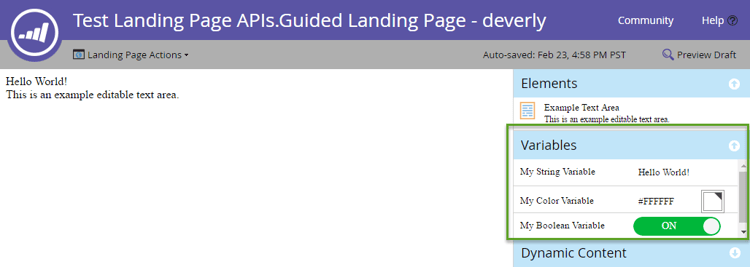
変数は、ガイド付きランディングページテンプレートの<head>要素のメタタグです。 サポートされているタイプは、文字列、カラー、ブール値です。 次の例では、各タイプの変数を1つ定義します。
<head>
  <meta charset="utf-8">
  <meta class="mktoString" mktoName="My String Variable" id="stringVar" default="Hello World!">
  <meta class="mktoColor" mktoName="My Color Variable" id="colorVar" default="#ffffff">
  <meta class="mktoBoolean" mktoName="My Boolean Variable" id="boolVar" default="true">
</head>
詳しくは、ガイド付きランディングページテンプレートの作成ドキュメントの「編集可能な変数」の節を参照してください。
クエリ
ランディングページ ID を「ランディングページの変数を取得」エンドポイントに渡して、ガイド付きランディングページの変数を取得します。
GET /rest/asset/v1/landingPage/{id}/variables.json
{
    "success": true,
    "warnings": [],
    "errors": [],
    "requestId": "10843#15a6d7e5fa1",
    "result": [
        {
            "id": "stringVar",
            "value": "Hello World!",
            "type": "string"
        },
        {
            "id": "colorVar",
            "value": "#FFFFFF",
            "type": "color"
        },
        {
            "id": "boolVar",
            "value": "true",
            "type": "boolean"
        }
    ]
}
このガイド付きランディングページには、3つの変数(stringVar、colorVar、およびboolVar)が含まれています。
更新
ランディングページ ID、変数 ID、変数値を「ランディングページの変数を更新」エンドポイントに渡して、ガイド付きランディングページの変数を更新します。
POST /rest/asset/v1/landingPage/{id}/variable/{variableId}.json?value={newValue}
{
    "success": true,
    "warnings": [],
    "errors": [],
    "requestId": "2b07#15a6db77da3",
    "result": [
        {
            "id": "stringVar",
            "value": "Hello Brave New World!",
            "type": "String"
        }
    ]
}
ランディングページのプレビュー
ランディングページの完全なコンテンツを取得を使用して、ブラウザーでレンダリングされたプレビューを取得します。 ランディングページ id パス パラメーターが必要です。 エンドポイントは、次の2つのオプションのクエリパラメーターも受け入れます。
segmentation:segmentationIdとsegmentIdを含むJSON オブジェクトの配列。 プレビューは、これらのセグメントに一致するリードを表します。leadId:整数リード ID。 プレビューは、指定されたリードを表します。
GET /rest/asset/v1/landingPage/{id}/fullContent.json?leadId=1001&segmentation=[{"segmentationId":1030,"segmentId":1103}]
{
  "success": true,
  "errors": [],
  "requestId": "119ab#17692849f1e",
  "warnings": [],
  "result": [
    {
      "id": 1023,
      "content": "<!DOCTYPE html>\n<html>\n <head>\n <meta charset=\"utf-8\">\n \n \n <meta name=\"robots\" content=\"index, nofollow\">\n <title></title>\n <style>\n body {background:#FFFFFF} \n #myConditionalDisplayArea {\n display: true;\n }\n </style>\n <link rel=\"shortcut icon\" href=\"/favicon.ico\" type=\"image/x-icon\" >\n<link rel=\"icon\" href=\"/favicon.ico\" type=\"image/x-icon\" >\n\n\n<style>.mktoGen.mktoImg {display:inline-block; line-height:0;}</style>\n </head>\n <body id=\"bodyId\">\n \n Hello Brave New World!\n <div class=\"mktoText\" id=\"exampleText\"><div>This is an example editable text area.</div>\n<div>Lead Full Name = Hanna Crawford</div>\n<div><br /></div>\n <script type=\"text/javascript\" src=\"//munchkin.marketo.net//munchkin.js\"></script><script>Munchkin.init('123-ABC-456', {customName: 'Test-Landing-Page-APIs_Guided-Landing-Page---deverly', PURL_VISIT_TOKEN, wsInfo: 'j1RR'});</script>\n<div id=\"mktoClickBlockingDiv\"></div>\n </body>\n</html>\n"
    }
  ]
}