このページ: Marketo Engage カスタムアクションを設定して使用すると、ジャーニーのユーザーデータとカスタムオブジェクトデータを Marketo Engage に同期できます。
Marketo Engage とのシームレスなデータ統合のジャーニーを開始しましょう。 Adobe Journey Optimizer と Marketo Engage を統合するための特定のカスタムアクションがジャーニーで使用できます。 このカスタムアクションは、次の 2 つの主要なデータタイプの取り込みをサポートしています。
- ユーザー(プロファイル):Marketo では、プロファイルを実用的なインサイトに変換します。
- カスタムオブジェクト:製品などのカスタムオブジェクトをデータを調整し、パーソナライズされたマーケティングアプローチを実現します。
前提条件 prerequisites
この統合には、次の前提条件が適用されます。
- Marketo Engage の顧客インスタンスは、IMS 対応である必要があります。
- Marketo Engage インスタンスと Adobe Experience Platform/Journey Optimizer インスタンスは、同じ組織内に存在する必要があります。
- 顧客は MktoSync:取り込みサービスへのアクセスをプロビジョニングする必要があります
アクションの設定 configure-marketo-action
Journey Optimizer では、Marketo Engage のカスタムアクションを設定する必要があります。 次の手順に従います。
-
「管理」メニューセクションで「設定」を選択します。
-
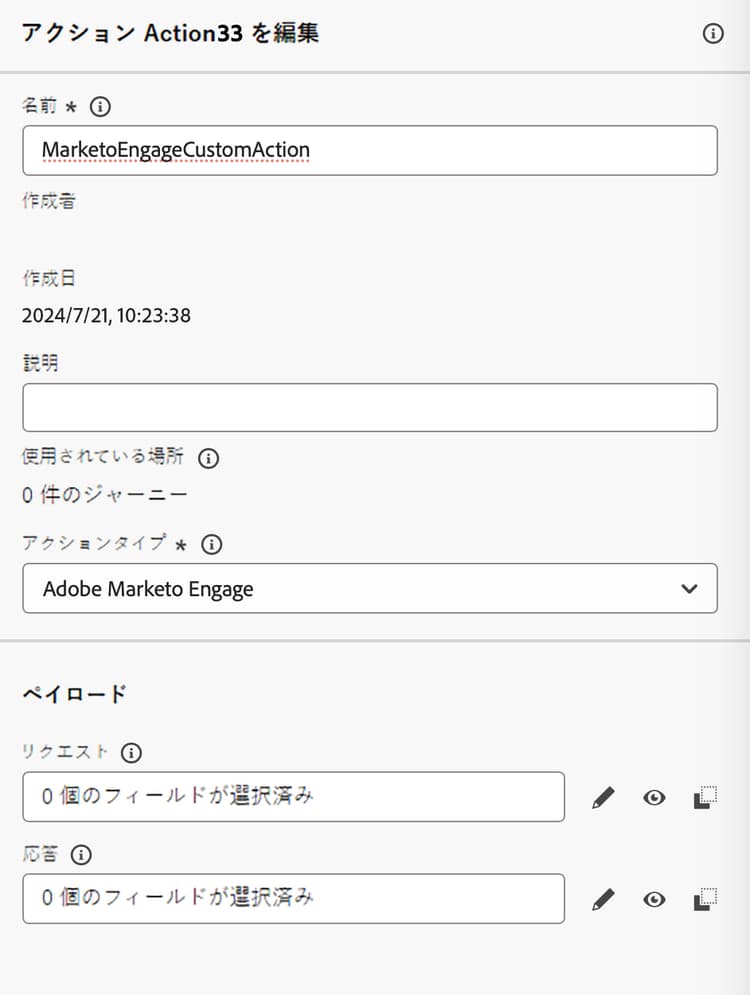
「アクション」セクションで、「アクションを作成」をクリックします。 画面の右側にアクション設定パネルが開きます。
-
名前、説明を入力し、アクションタイプとして「Adobe Marketo Engage」を選択します****
-
リクエストおよび 応答 ペイロードの ペイロードを編集 アイコンをクリックします。
-
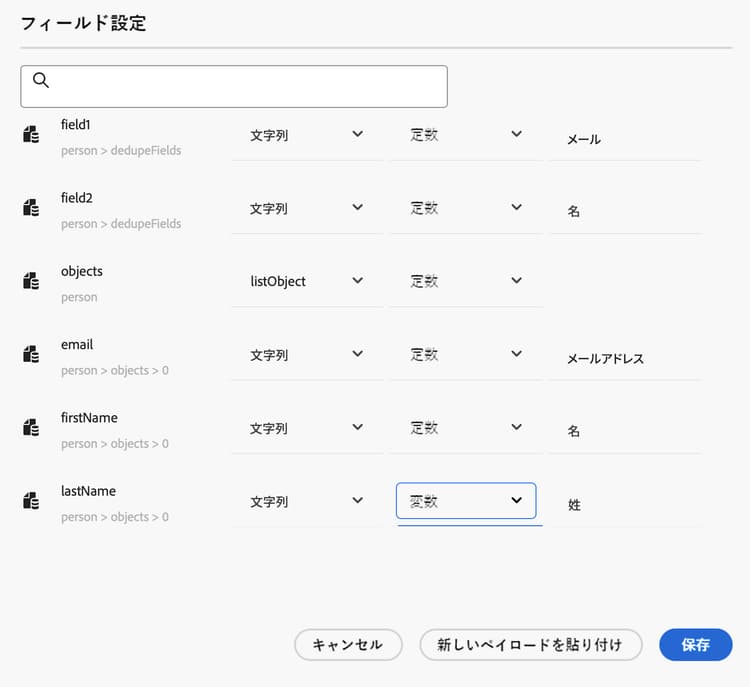
どちらの場合も、ペイロードを作成し、専用のポップアップに貼り付けます。
-
ペイロード値を検査および設定します
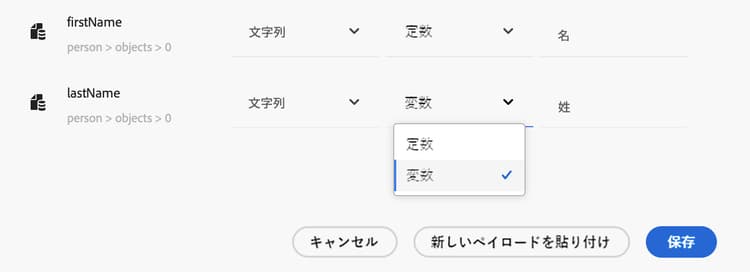
メモ:値を動的に渡すには、フィールドごとに 定数 を 変数 に変更します。
-
フィールド設定画面で「保存」をクリックし、カスタムアクションで「保存」をクリックします。
これで、ジャーニーキャンバスでカスタムアクションを使用できるようになりました。
ペイロード構文 payload-syntax
人物
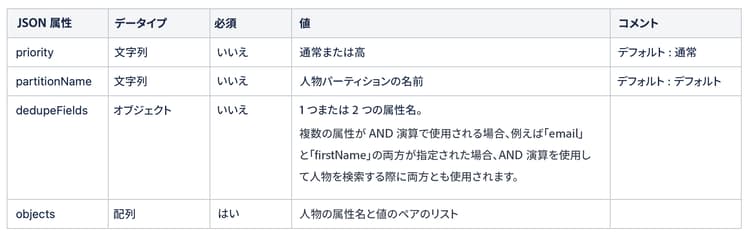
CustomObject

人物のペイロードの例
{
   "munchkinID": "388-KKG-245",
   "person": {
    "priority": "normal",
    "partitionName": "XYZ",
    "dedupeFields": {
      "field1": "email",
      "field2": "firstName"
    },
    "objects": [
      {
        "email": "Email address",
        "firstName": "First name",
        "lastName": "Last name"
      }
    ]
  }
}
カスタムオブジェクトのペイロードの例
{
  "munchkinID": "388-KKG-245",
  "customObject": {
    "priority": "normal",
    "objectName": "products",
    "objects": [
      {
        "email": "Email Address",
        "productName": "Product Name",
        "productQty": "Product Quantity",
        "priceTotal": "Price Total"
      }
    ]
  }
}
アクションの使用 engage-using
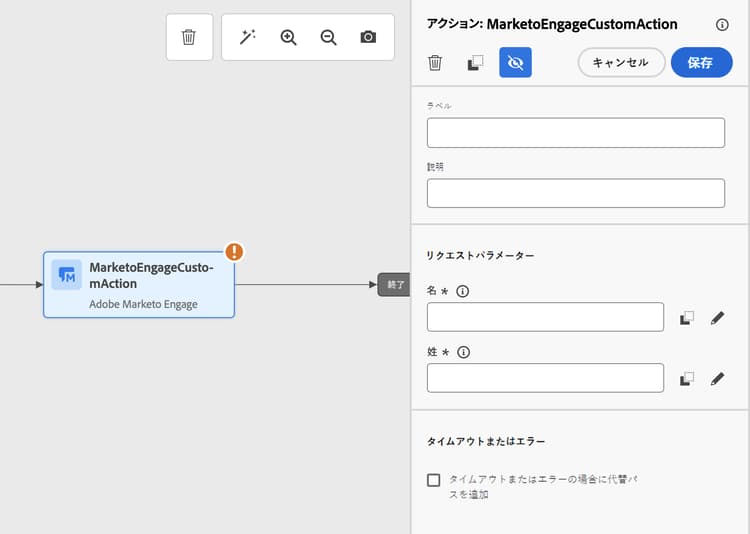
設定したアクションごとに、ジャーニー designer パレットで Marketo Engage アクションアクティビティを使用できます。
使用するには、次の手順に従います。
-
カスタムアクションをジャーニーキャンバスにドラッグします。
-
このアクションのラベルと説明を入力します。
-
「リクエストパラメーター」セクションで、各パラメーターの「編集」アイコンをクリックし、ペイロードで設定した動的な値を選択します。
This section contains structured knowledge intended to support interpretation, retrieval, and question answering related to this topic.
For complete understanding, this information should be combined with the documentation on this page. Neither source is intended to stand alone; the page describes the feature, while this section provides additional context that helps disambiguate terminology, intent, applicability, and constraints.
- TL;DR: This page explains how to configure and use the Marketo Engage custom action so you can sync person and custom object data from your journeys into Marketo Engage.
Intents:
- Understand which data types the Marketo Engage custom action supports
- Verify the prerequisites required for the integration
- Configure a Marketo Engage custom action from the Configurations administration menu
- Compose the Request and Response payloads and pass values dynamically
- Use the Marketo Engage action activity on the journey canvas
Glossary:
- Marketo Engage custom action: A specific custom action available in your journeys to integrate Adobe Journey Optimizer and Marketo Engage (product-specific)
- Persons (Profiles): One of the two supported data types; Marketo transforms profiles into actionable insights (product-specific)
- Custom Objects: One of the two supported data types, such as products, used for a personalized marketing approach (product-specific)
- munchkinID: A field included in the Person and Custom Object payloads (product-specific)
- Constant / Variable: The setting changed per field so values can be passed dynamically in the payload (product-specific)
Guardrails:
- The customer instance of Marketo Engage must be IMS-enabled.
- The Marketo Engage instance and the Adobe Experience Platform/Journey Optimizer instance must be in the same organization.
- The customer must be provisioned with MktoSync: Ingestion Service access.
- This custom action supports the ingestion of two data types: Persons (Profiles) and Custom Objects.
- To pass values dynamically, each field must be changed from Constant to Variable.
Terminology:
- Canonical name: Adobe Marketo Engage — Acronym: n/a — variants: Marketo Engage, Marketo Engage action, Marketo Engage custom action
- Do not confuse: “Persons (Profiles)” ≠ “Custom Objects” (the two supported data types)
- Do not confuse: “Request” payload ≠ “Response” payload (both are edited when configuring the action)
FAQ:
- Q: What data can the Marketo Engage custom action sync? — It supports the ingestion of two data types: Persons (Profiles) and Custom Objects, such as products.
- Q: What are the prerequisites for this integration? — The Marketo Engage instance must be IMS-enabled, the Marketo Engage and Adobe Experience Platform/Journey Optimizer instances must be in the same organization, and the customer must be provisioned with MktoSync: Ingestion Service access.
- Q: Which action type do I select when configuring the custom action? — Select Adobe Marketo Engage as the Action type.
- Q: How do I pass values dynamically in the payload? — For each field, change Constant to Variable.
- Q: How do I use the action in a journey? — For each configured action a Marketo Engage action activity is available in the journey designer palette; drag it onto the canvas and, in the Request parameters section, select the dynamic values configured in the payload.