LinkedIn アカウントでマッチしたオーディエンス
Journey Optimizer B2B Editionは、アカウントに一致するオーディエンスを通じてLinkedIn広告オーディエンスを生成する機能を提供しており、購買グループの空の役割を埋めるのに役立つように設計されています。 一連の購買グループフィルターを定義することで、LinkedIn の一致するオーディエンスを維持し、購買グループのパラメーターに一致する見込み客をターゲットにすることができます。 アクションを実行 ノードからアカウントジャーニーからオーディエンスをアクティブ化することもできます。
この機能は、Experience Platform の宛先を活用して統合のいくつかの側面を管理します。 最大10個のデータフローがあります。
Journey Optimizer B2B editionからデータフローを開始する前に、Experience Platform アプリケーションで設定されたLinkedIn Campaign Manager アカウントを持つ (Companies) LinkedIn Matched Audience宛先コネクタ の少なくとも1つのインスタンスが必要です。
新しい LinkedIn アカウント接続を設定 linkedin-destination-setup
-
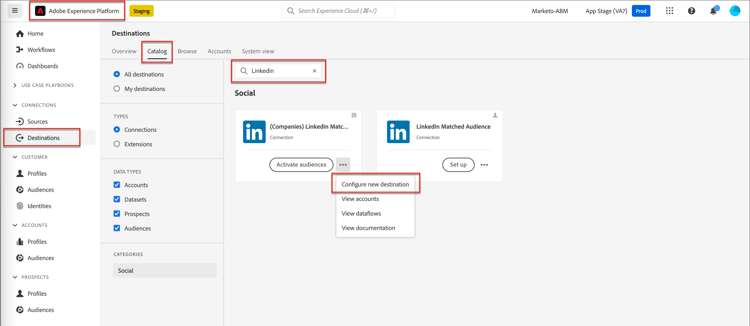
Experience Platformで、左側のナビゲーションでConnections > Destinationsに移動し、「カタログ」タブを選択します。
-
カタログで、(Companies) LinkedIn Matched Audience コネクタを見つけます。
note tip TIP 検索ボックスに LinkedInと入力すると、コネクタをすばやく見つけることができます。 -
コネクタカードで、詳細 (…)をクリックします アイコンをクリックし、新しい宛先を設定を選択します。
-
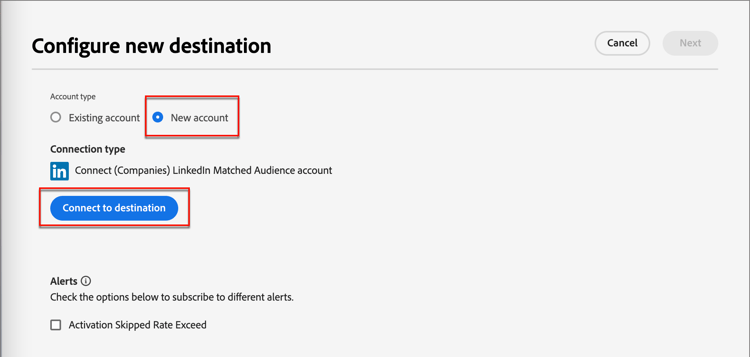
新しいアカウントを選択し、宛先に接続をクリックします。
-
LinkedInの資格情報を入力してログインします。
認証後、LinkedIn アカウントはExperience Platformの宛先として接続されます。
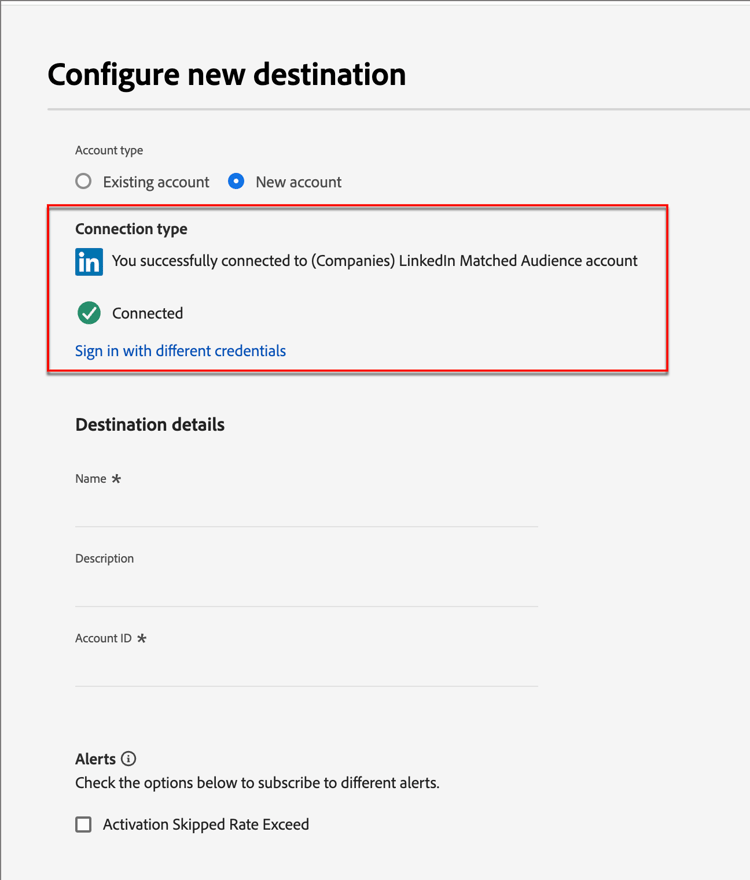
note important IMPORTANT この時点で、は_宛先の詳細_を入力しません。 接続だけが必要です。
アカウント詳細の更新
LinkedIn アカウントの名前と説明は、Journey Optimizer B2B editionの購買グループに表示されます。 この情報を更新して、購買グループを扱うマーケターが容易に特定できるようにすることがベストプラクティスです。 アカウントの詳細は、Experience PlatformまたはJourney Optimizer B2B edition UIで変更できます。
-
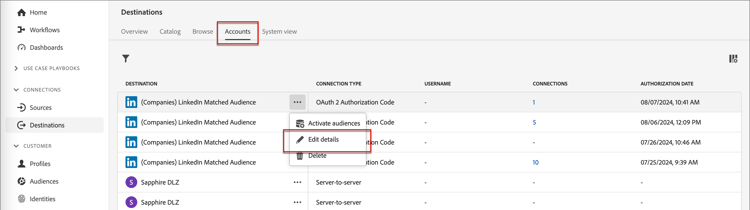
左側のナビゲーションで接続 > 宛先に移動し、アカウント タブを選択します。
-
作成した新しいアカウントの場合、詳細 (…)をクリックします メニューから 詳細を編集 を選択します。
-
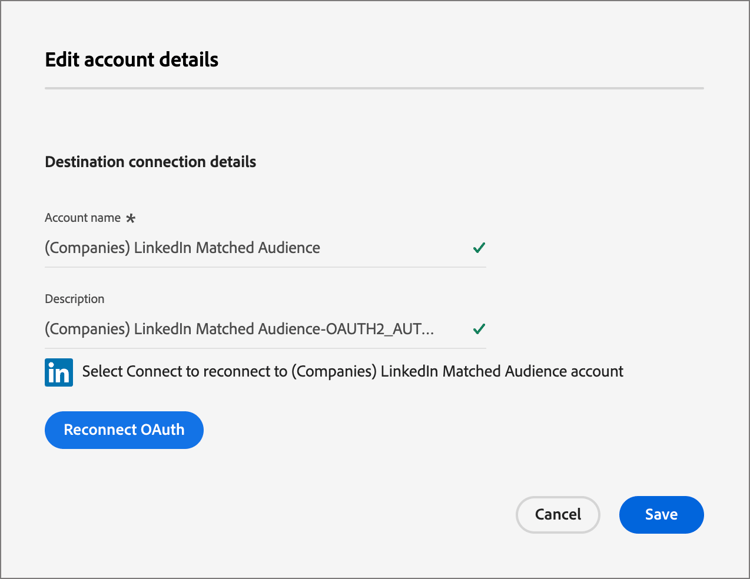
ダイアログで、名前と説明を更新します。
-
「保存」をクリックします。
購買グループのアカウントをアクティブ化
-
Journey Optimizer B2B Edition で、左側のナビゲーションにあるアカウント/購買グループに移動します。
-
「参照」タブを選択します。
-
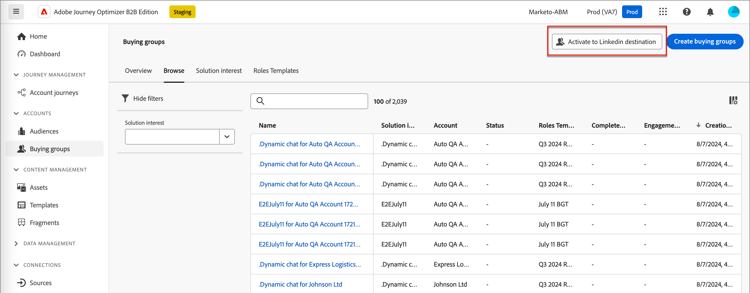
右上の「LinkedIn Destinationにアクティベート」をクリックします。
-
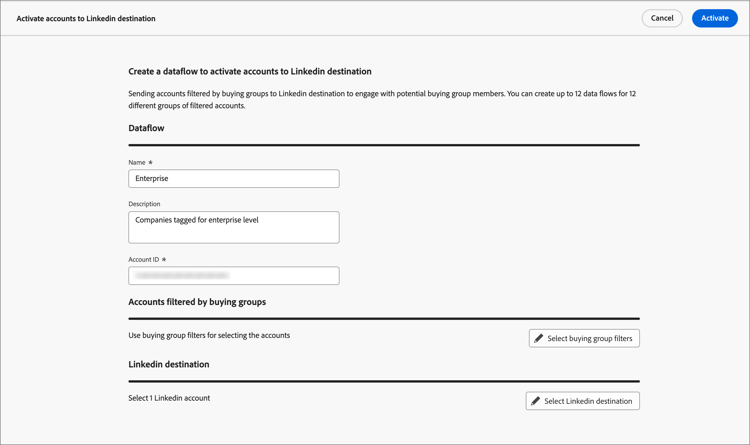
データフローにわかりやすい名前と説明を付けます(オプション)。
データフローを保存すると、データフローに指定した名前の先頭に AJOB2B が付き、Experience Platformでのデータフローの識別に役立ちます。
-
LinkedIn Campaign Manager アカウント 🔗の アカウント IDを入力します。
アカウント IDは、Campaign Manager UIのアカウント名で確認できます。
-
「購買グループフィルターを選択」をクリックし、アカウントオーディエンスのパラメーターを定義します。
note important IMPORTANT 現時点では、データフローがアクティブ化された後にフィルターを編集することはできません。 データフローをアクティブ化する前に、作業を再確認します。 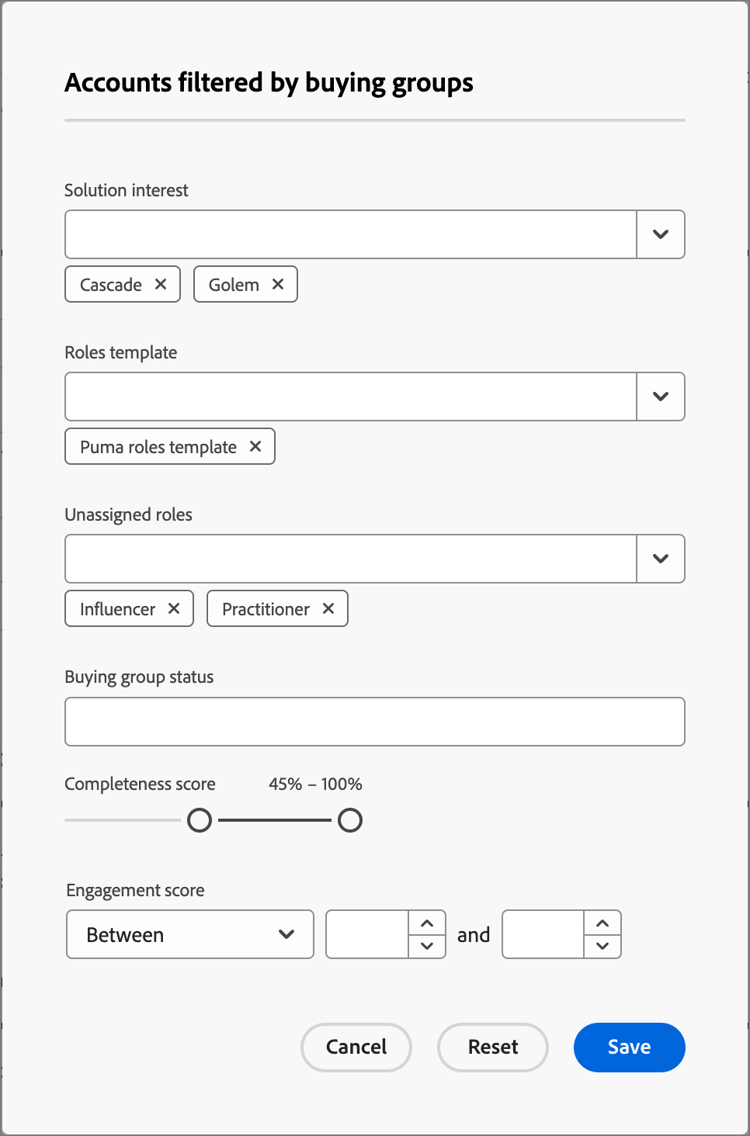
エンゲージメントスコアの場合、演算子
Betweenは、パーセンテージ範囲と同様に包括的です。 例えば、5.1 と 5 は、どちらも 5 と 6 の 間 にあります。空の条件は
Is Anyのように扱われます。保存をクリックして、指定したフィルターを追加します。
-
「LinkedInの宛先を選択」をクリックし、使用する設定済みのLinkedInの宛先を選択します。
この設定は、アクティブ化すると、宛先設定と対応する仮想セグメントを使用してデータフローを作成します。
-
設定を再確認し、右上の「アクティブ化」をクリックします。
確認ダイアログで「アクティブ化」をもう一度クリックします。
Experience Platformのデータフローメニューへのリンクがバナーに表示され、データフローレコードを確認できます。
アカウントジャーニーからオーディエンスをアクティブ化
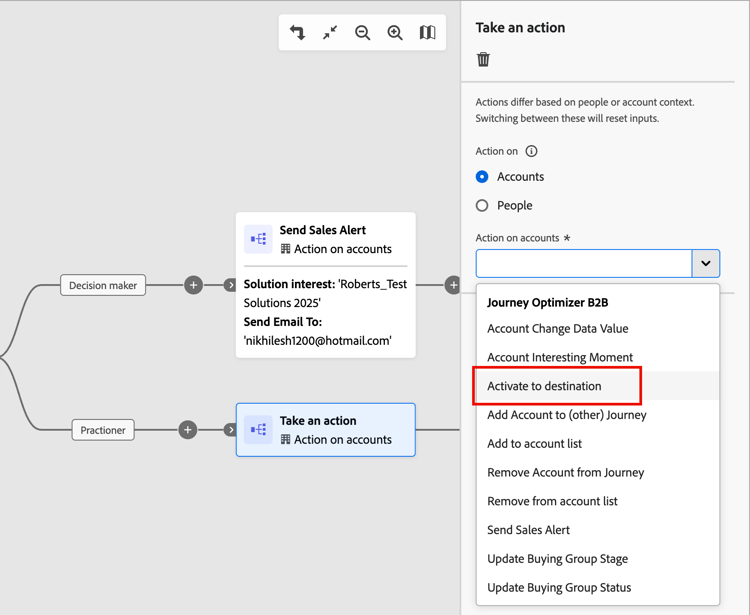
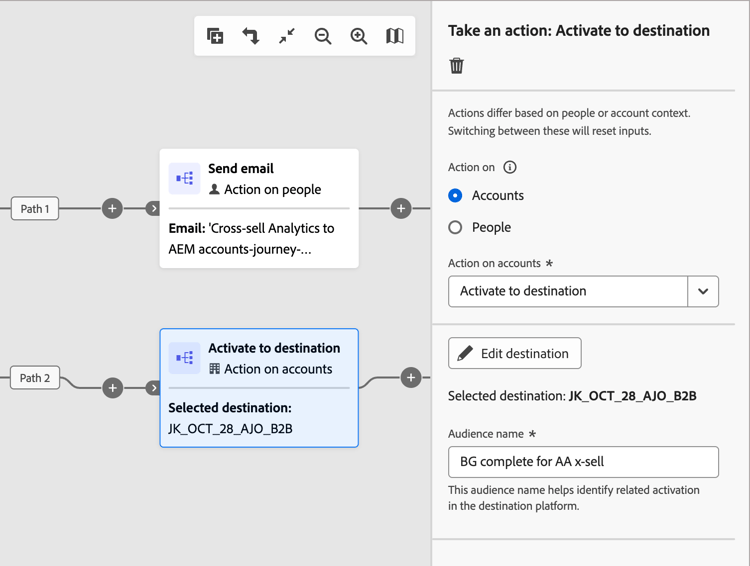
2025.10 リリース以降、宛先に対してアクティブ化 アクションを使用して、アカウントをジャーニーから直接LinkedIn宛先に対してアクティブ化します。 LinkedInの宛先に対してアクションを使用すると、マルチシステムのハンドオフを排除し、待ち時間を短縮して、キャンペーンの実行を効率化できます。 たとえば、マーケターは、主要な購買役割が欠けている場合はリターゲティングのために、インテント率の高いアカウントをLinkedInで自動的に活用したり、非アクティブなフィルターにもとづいて休眠アカウントをリエンゲージしたりできます。
-
ジャーニーキャンバスで「アクションを実行」ノードを選択した状態で、「アカウントに対するアクション」を「宛先に対するアクティブ化」に設定します。
-
右側のノードプロパティから、宛先を選択します。
-
1つ以上の宛先が作成されている場合は、宛先を選択をクリックして、既存の宛先を選択できます。
-
既存の宛先がない場合、または新しい宛先を作成する場合は、宛先の設定をクリックします。
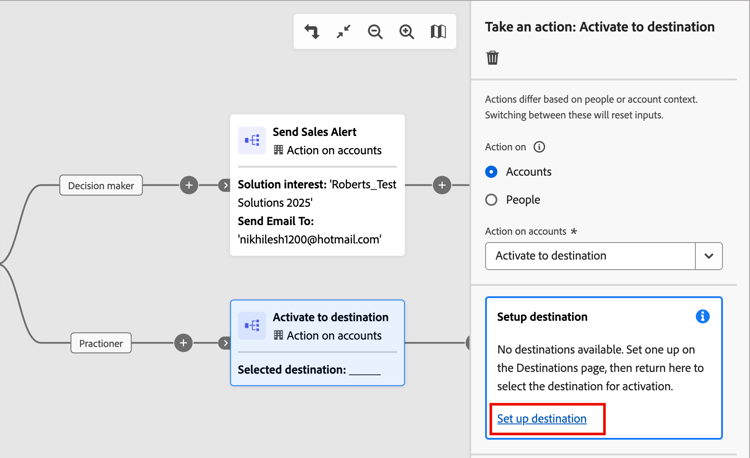
このアクションは、新しいブラウザータブで宛先カタログページを開きます。
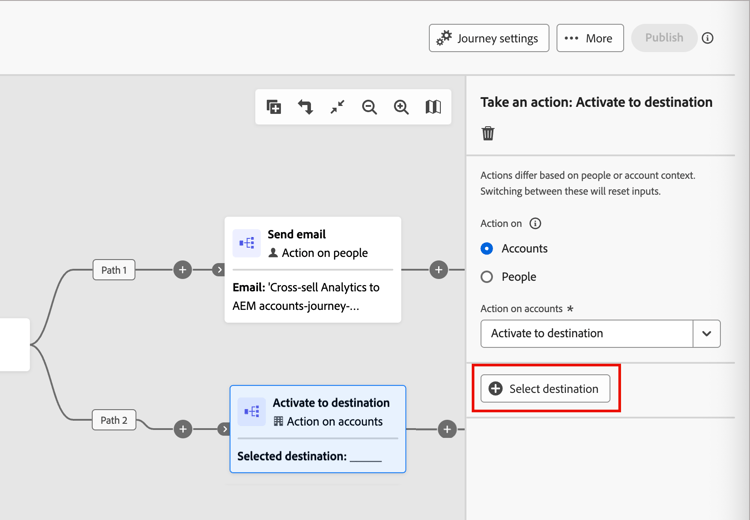
-
-
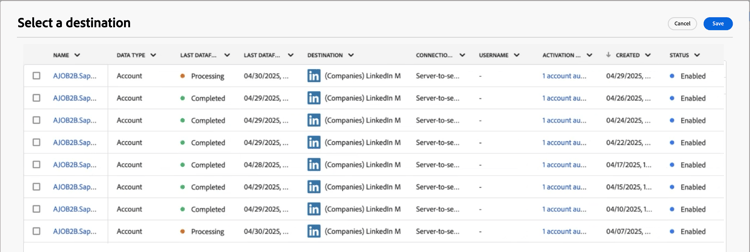
ダイアログで、設定したLinkedInの宛先を選択し、保存をクリックします。
-
宛先でアクティブ化されたオーディエンスを識別するために使用される オーディエンス名 を入力します。
有料メディアエンゲージメントのオーケストレーション
LinkedIn広告オーディエンスなどの有料メディアチャネルを通じてアカウントメンバーとエンゲージし、獲得、育成をおこない、セールスにつなげることができます。 アカウントジャーニーでアクション ノードを使用して、様々なアカウントメンバーに最適な外部チャネルを通じて、アカウントの主要メンバーとのエンゲージメントを自動化します。