Creare un plug-in Python
In questa guida dettagliata viene descritto come creare un semplice plug-in Python che consente di esportare i canali di un set di texture con un predefinito di esportazione specifico.
Passa alla cartella dei plug-in
Per aggiungere un nuovo plug-in Python, è possibile creare un semplice file di script nella cartella dei plug-in di Substance 3D Painter.
Per accedere alla cartella python, seleziona:
2 - Creazione del nuovo file del plug-in
Nella cartella principale del plug-in, crea un nuovo file di testo e assegnagli il nome personalizzato_export.py.
3 - Contenuto dello script
Apri il file script vuoto in un editor di testo e incolla il seguente frammento di codice. Per ulteriori dettagli sul comportamento, vedere i commenti del codice.
import os

# Substance 3D Painter modules
import substance_painter.ui
import substance_painter.export
import substance_painter.project
import substance_painter.textureset

# PySide module to build custom UI
from PySide2 import QtWidgets

plugin_widgets = []

def export_textures() :
    # Verify if a project is open before trying to export something
    if not substance_painter.project.is_open() :
        return

    # Get the currently active layer stack (paintable)
    stack = substance_painter.textureset.get_active_stack()

    # Get the parent Texture Set of this layer stack
    material = stack.material()

    # Build Export Preset resource URL
    # - Context: name of the library where the resource is located
    # - Name: name of the resource (filename without extension or Substance graph path)
    export_preset = substance_painter.resource.ResourceID(
        context="starter_assets",
        name="PBR Metallic Roughness" )

    print( "Preset:" )
    print( export_preset.url() )

    # Setup the export settings
    resolution = material.get_resolution()

    # Setup the export path, in this case the textures
    # will be put next to the spp project file on the disk
    Path = substance_painter.project.file_path()
    Path = os.path.dirname(Path) + "/"

    # Build the configuration
    config = {
        "exportShaderParams"  : False,
        "exportPath" : Path,
        "exportList" : [ { "rootPath" : str(stack) } ],
        "exportPresets" : [ { "name" : "default", "maps" : [] } ],
        "defaultExportPreset" : export_preset.url(),
        "exportParameters" : [
            {
                "parameters" : { "paddingAlgorithm": "infinite" }
            }
        ]
    }

    substance_painter.export.export_project_textures( config )

def start_plugin():
    # Create a text widget for a menu
    Action = QtWidgets.QAction("Custom Python Export",
            triggered=export_textures)

    # Add this widget to the existing File menu of the application
    substance_painter.ui.add_action(
    substance_painter.ui.ApplicationMenu.File,
    Action )

    # Store the widget for proper cleanup later when stopping the plugin
    plugin_widgets.append(Action)

def close_plugin():
    # Remove all widgets that have been added to the UI
    for widget in plugin_widgets:
    substance_painter.ui.delete_ui_element(widget)

    plugin_widgets.clear()

if __name__ == "__main__":
    start_plugin()
Caricare e attivare il plug-in
Avviate Substance 3D Painter per fare in modo che l’applicazione rilevi il plug-in.
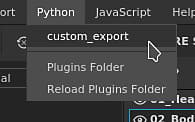
Fai clic sul menu Python, quindi fai clic sul nome del plug-in per abilitarlo:
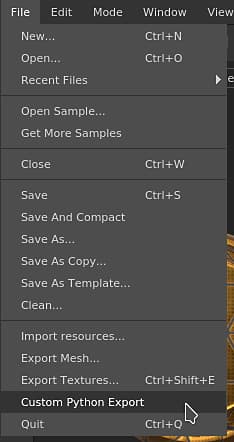
Infine, fate clic sul menu File e selezionate Esportazione Python personalizzata per attivare la funzione di esportazione dello script: