In questa pagina: scopri come utilizzare l’attività di suddivisione del targeting per segmentare la popolazione in ingresso di una campagna orchestrata in più sottoinsiemi in base a regole di filtro, limiti o dimensioni di popolazione.
L’attività Dividi è un’attività di targeting che consente di segmentare le popolazioni in ingresso in più sottoinsiemi in base a criteri di selezione diversi, ad esempio le regole di filtro o le dimensioni della popolazione.
Configurare l’attività Dividi split-configuration
Per configurare l’attività Dividi segui questi passaggi:
-
Aggiungi un’attività Dividi alla campagna orchestrata.
-
Il riquadro di configurazione dell’attività si apre con un sottoinsieme predefinito. Fai clic sul pulsante Aggiungi segmento per aggiungere tutti i sottoinsiemi desiderati per segmentare la popolazione in ingresso.
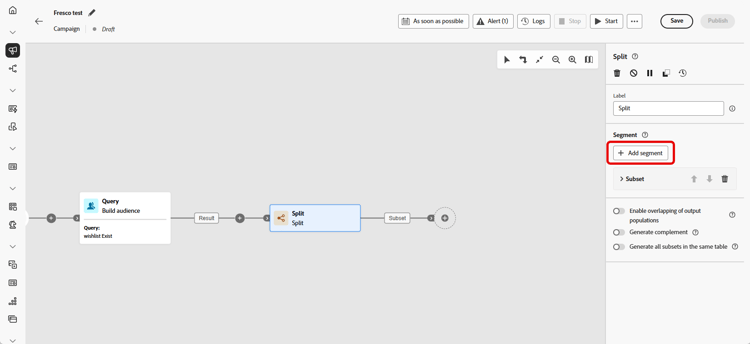
note important IMPORTANT L’attività Dividi elabora i sottoinsiemi nell’ordine in cui vengono aggiunti. Ad esempio, se il primo sottoinsieme acquisisce il 70% della popolazione, il successivo applica i relativi criteri al restante 30%. Prima di eseguire la campagna orchestrata, assicurati che i sottoinsiemi siano ordinati come previsto. Utilizza i pulsanti freccia per regolarne la posizione. -
Una volta aggiunti i sottoinsiemi, l’attività mostra tante transizioni di output quanti sono i sottoinsiemi. Si consiglia vivamente di modificare l’etichetta di ciascun sottoinsieme per identificarlo facilmente nell’area di lavoro della campagna orchestrata.
-
Configura i filtri per ciascun sottoinsieme:
-
Fai clic su un sottoinsieme per aprirne le impostazioni.
-
Fai clic su Crea filtro per definire le regole di filtro utilizzando il generatore di regole, ad esempio per selezionare profili con un indirizzo e-mail valido.
-
Nel campo Codice segmento, immetti un codice per identificare il sottoinsieme nei registri. Questo codice viene memorizzato insieme ai dati del profilo e può essere utilizzato per monitorare e misurare le prestazioni di ciascun segmento. Se viene lasciata vuota, l’etichetta del sottoinsieme viene utilizzata automaticamente.
-
Per limitare il numero di profili selezionati, attiva Abilita limite e specifica un numero o una percentuale.
-
Per ignorare una transizione quando il sottoinsieme è vuoto, abilita Ignora transizione vuota.
-
-
Per includere profili non corrispondenti a un sottoinsieme, abilita Genera complemento. Questo crea una transizione in uscita aggiuntiva per la popolazione rimanente.
note NOTE Abilita Genera tutti i sottoinsiemi nella stessa tabella per raggruppare tutti i sottoinsiemi in un’unica transizione. -
Utilizza Abilita la sovrapposizione delle popolazioni di output per consentire la visualizzazione dei profili in più sottoinsiemi:
-
Se non è selezionato, ogni profilo viene assegnato a un solo sottoinsieme, il primo con il quale corrispondono i criteri anche se è idoneo per altri sottoinsiemi.
-
Se selezionato, i profili possono essere inclusi in più sottoinsiemi se soddisfano i criteri per ciascuno di essi.
-
L’attività adesso è configurata. All’esecuzione della campagna orchestrata, la popolazione verrà segmentata in diversi sottoinsiemi, nell’ordine in cui sono stati aggiunti all’attività.
Esempio split-example
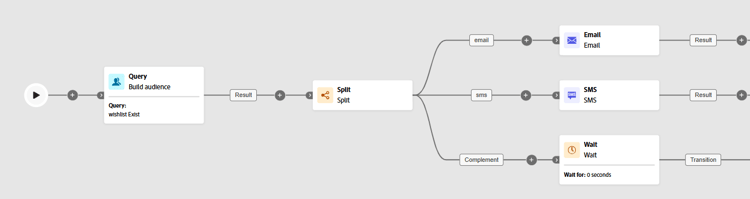
Nell’esempio seguente, l’attività Dividi viene utilizzata per segmentare un pubblico in sottoinsiemi distinti in base al canale di comunicazione che si desidera utilizzare:
-
Sottoinsieme 1 “e-mail”: include i profili che hanno fornito un numero di telefono.
-
Sottoinsieme 2 “sms”: esegue il targeting dei profili con un numero di telefono cellulare archiviato nel database.
-
Transizione complemento: acquisisce tutti i profili rimanenti che non soddisfano i criteri per nessuno dei sottoinsiemi.
This section contains structured knowledge intended to support interpretation, retrieval, and question answering related to this topic.
For complete understanding, this information should be combined with the documentation on this page. Neither source is intended to stand alone; the page describes the feature, while this section provides additional context that helps disambiguate terminology, intent, applicability, and constraints.
- TL;DR: This page explains how to configure the Split targeting activity in an Orchestrated campaign to segment an incoming population into multiple subsets using filtering rules, limits, sorting, and complement or overlap options.
Intents:
- Add and order subsets to segment the incoming population of an Orchestrated campaign.
- Create filtering rules for a subset using the rule builder.
- Limit the number or percentage of profiles selected by a subset, optionally ranked by a profile attribute.
- Capture remaining unmatched profiles using a complement transition.
- Control whether a profile can appear in more than one output subset.
- Skip the output transition for a subset when its incoming population is empty.
Glossary:
- Split: a Targeting activity that segments the incoming population into multiple subsets based on defined selection criteria such as filtering rules or population size (product-specific)
- Subset: a segment of the incoming population defined within the Split activity, processed in the order it is added (product-specific)
- Create filter: the control used to define filtering rules for a subset using the rule builder (product-specific)
- Segment code: a field where you enter a code to identify a subset in logs, stored alongside profile data to track and measure segment performance; if left empty, the subset label is used automatically (product-specific)
- Enable limit: the option used to restrict the number or percentage of profiles selected by a subset (product-specific)
- Enable sorting: the option used to rank selected profiles by a profile attribute, in ascending or descending order, when a population limit is set (product-specific)
- Generate complement: the option that creates an additional outbound transition containing profiles not matched by any subset (product-specific)
- Generate all subsets in the same table: the option that groups all subsets into a single output transition (product-specific)
- Skip empty transition: the option that disables the output transition for a subset when its incoming population is empty (product-specific)
- Enable overlapping of output populations: the option that controls whether a profile can be present in several output transitions at once (product-specific)
Guardrails:
- The Split activity processes subsets in the order they are added; for example, if the first subset captures 70% of the population, the next subset applies its criteria to the remaining 30%.
- If Enable overlapping of output populations is unchecked, a recipient cannot be present in several output transitions even if they meet the criteria of several subsets; they are placed in the target of the first subset with matching criteria.
- If Enable overlapping of output populations is checked, recipients can be found in several subsets if they meet each subset’s filter criteria.
Terminology:
- Canonical name: Split — variants: Split activity, Split targeting activity
FAQ:
- Q: In what order does the Split activity process subsets? — In the order they are added to the activity; for example, if the first subset captures 70% of the population, the next subset applies its criteria to the remaining 30%.
- Q: What happens if the Segment code field is left empty? — The subset label is used automatically to identify the subset in logs.
- Q: How can I limit how many profiles go into a subset? — Enable the Enable limit option and specify a number or percentage of the population to include.
- Q: How do I capture profiles that do not match any subset? — Enable Generate complement to create an additional outbound transition for the remaining population.
- Q: Can a profile end up in more than one subset? — Only if Enable overlapping of output populations is checked; otherwise, the profile is assigned to the first subset whose criteria it matches.
- Q: How do I avoid an output transition when a subset’s population is empty? — Enable the Skip empty transition option.
Examples:
- Split activity used to segment an audience by communication channel: Subset 1 “email” includes profiles who have provided a phone number; Subset 2 “sms” targets profiles with a mobile phone number stored in the database; a Complement transition captures any remaining profiles who do not meet the criteria for either subset.
Best practices:
- We strongly recommend changing the label of each subset to identify them easily in the Orchestrated campaign canvas.
- Before running your Orchestrated campaign, make sure the subsets are ordered as intended, using the arrow buttons to adjust their position.
Personas:
- marketer: Can add subsets to a Split activity to segment the incoming population in an Orchestrated campaign. Can create filtering rules for a subset using the rule builder, and limit selected profiles with Enable limit. Can enable sorting to rank selected profiles by a profile attribute when a limit is set. Can enable Generate complement to capture profiles not matched by any subset, and enable overlapping of output populations. The page states that subsets are processed in the order they are added. Where: “Configure the Split activity”.
Onboarding:
- Level: Intermediate
- First minimal step: Add a Split activity to your Orchestrated campaign.
- Success check: The activity shows as many output transitions as there are subsets.