En esta página: Aprenda a aplicar y personalizar atributos de estilo en línea compatibles con CSS en elementos individuales de Designer de correo electrónico.
En la interfaz de Designer de correo electrónico, al seleccionar un elemento y mostrar su configuración en el panel lateral, puede personalizar los atributos en línea y su valor para ese elemento específico.
-
Seleccione un elemento en el contenido.
-
En la ficha Estilos, busque la configuración de Estilos en línea en la lista desplegable Avanzados.
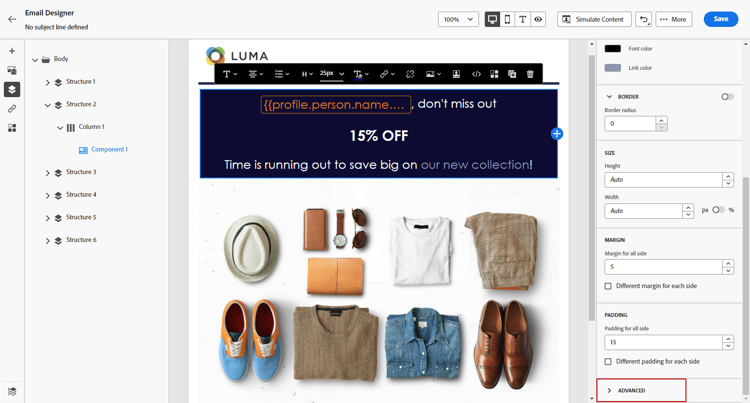
-
Modifique los valores de los atributos existentes o agregue nuevos atributos usando el botón +. Puede añadir cualquier atributo y valor que sea compatible con CSS.
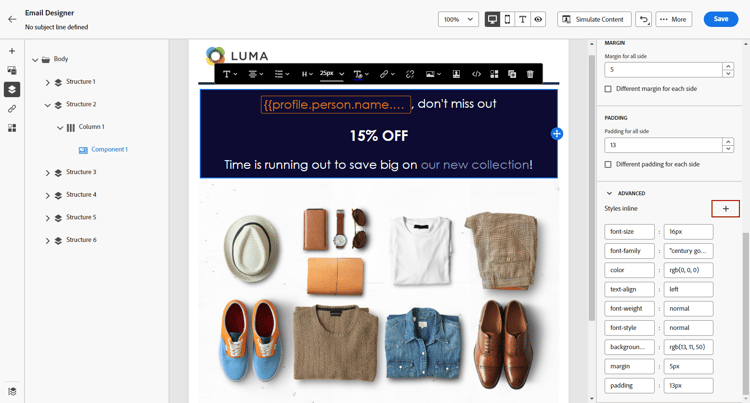
A continuación, se aplica el estilo al elemento seleccionado. Si los elementos secundarios no tienen atributos de estilo específicos definidos, se hereda el estilo del elemento principal.
This section contains structured knowledge intended to support interpretation, retrieval, and question answering related to this topic.
For complete understanding, this information should be combined with the documentation on this page. Neither source is intended to stand alone; the page describes the feature, while this section provides additional context that helps disambiguate terminology, intent, applicability, and constraints.
- TL;DR: This page explains how to apply and customize CSS-compliant inline styling attributes on individual elements in the Email Designer.
Intents:
- Customize inline styling attributes and their values for a specific element
- Access the Styles Inline settings under the Advanced drop-down of the Styles tab
- Modify existing attribute values or add new CSS-compliant attributes with the + button
- Understand how child elements inherit styling from a parent element
Glossary:
- Styles Inline settings: The inline attribute settings found under the Advanced drop-down of the Styles tab for a selected element (product-specific)
- Inline styling attribute: A CSS-compliant attribute and value applied directly to an individual selected element (product-specific)
Guardrails:
- You can add any attribute and value that is CSS-compliant.
- If child elements do not have specific styling attributes defined, they inherit the styling of the parent element.
Terminology:
- Canonical name: Styles Inline — Acronym: n/a — variants: inline styling attributes
- Synonyms: n/a
- Do not confuse: “Styles Inline settings” (under the Advanced drop-down for inline attributes) ≠ “Styles tab” (the pane where they are located)
FAQ:
- Q: Where do I find the inline styling settings? — Select an element, then look for the Styles Inline settings under the Advanced drop-down of the Styles tab.
- Q: What attributes can I add? — Any attribute and value that is CSS-compliant, added with the + button.
- Q: What happens to child elements? — If they have no specific styling attributes defined, they inherit the styling of the parent element.