En esta página: Siga este caso de uso para crear una campaña orquestada que vuelva a atraer destinatarios con recordatorios personalizados por correo electrónico sobre los productos que guardaron en su lista de deseos.
Aunque este ejemplo usa un esquema Wishlist, el mismo método se aplica a cualquier entidad con una relación “uno a varios” con Destinatarios, como Compras, Suscripciones o cualquier esquema personalizado en el que cada destinatario pueda tener varios registros asociados.
Esquemas necesarios para este caso de uso:
- Destinatarios: utilizados como dimensión de segmentación
- WishlistItems: con campos:
creationDate,product,Wishlistid - Producto: con campos:
description,priceref,imageurl - CarrosAbandonados (opcional): con campo:
lastmodified

Esta campaña orquestada se centra en volver a atraer visitantes recordándoles los productos guardados en su Lista de deseos. Con Campaign Orchestration, defina la audiencia con condiciones basadas en la actividad de la lista de deseos, lo que ayuda a los visitantes a volver a la conversión.
-
Comience creando una nueva campaña específicamente dirigida a la renovación de la participación en la lista de deseos. Esto ayudará a enfocar la mensajería en los clientes que han mostrado intención de compra al guardar artículos.
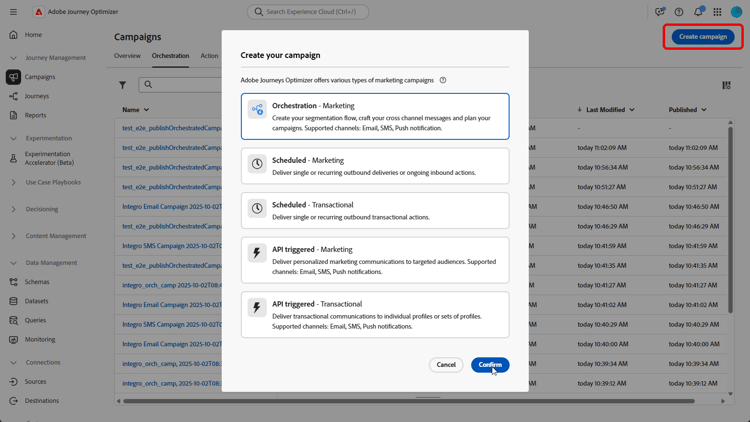
-
Rellene la configuración de Campaign.
-
Agregue una actividad Generar audiencia para identificar el grupo de clientes que se dirigirá en función del comportamiento de la lista de deseos.
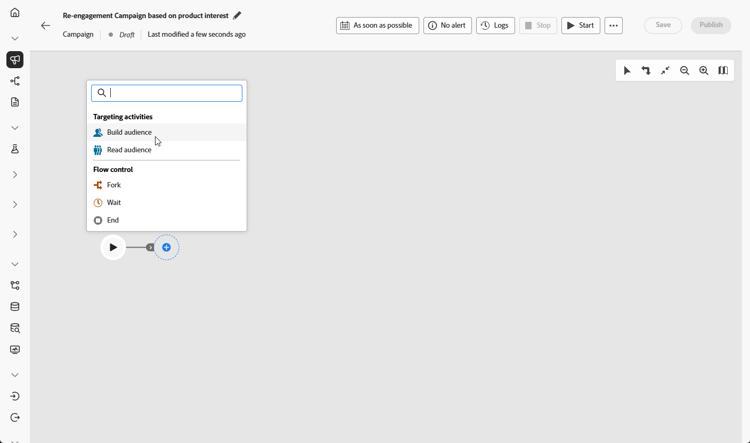
-
Establezca una Etiqueta descriptiva para esta audiencia y elija Destinatarios como Dimensión de segmentación. A continuación, haga clic en Continuar para configurar la audiencia.
-
Haga clic en Agregar condición para restringir la audiencia al crear la siguiente condición:
WishlistItems Exist such as (creationDate greater than or equal to 36 months ago) AND (product is not empty
OAbandonedCarts Exist such as lastmodified greater than or equal to 36 months agoEsta audiencia se basa en destinatarios que tienen una lista de deseos, contienen elementos con imágenes de productos o tienen un carro de compras abandonado dentro del periodo de tiempo definido.
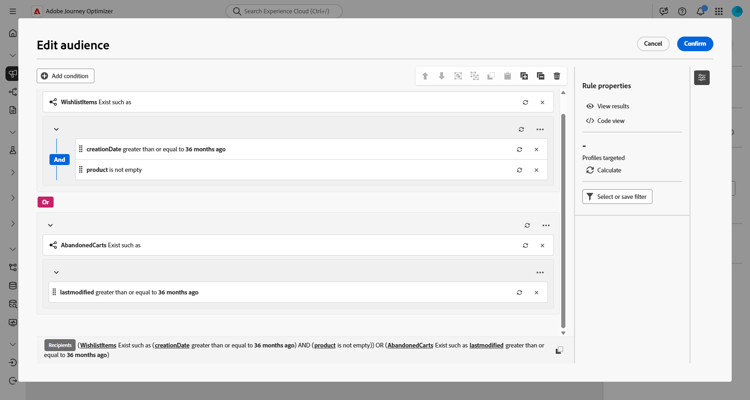
-
Haga clic en Calcular para ver el número de perfiles afectados por estas condiciones y en Ver resultados para inspeccionar los detalles de cada condición y confirmar que la audiencia coincide con el segmento de destino.
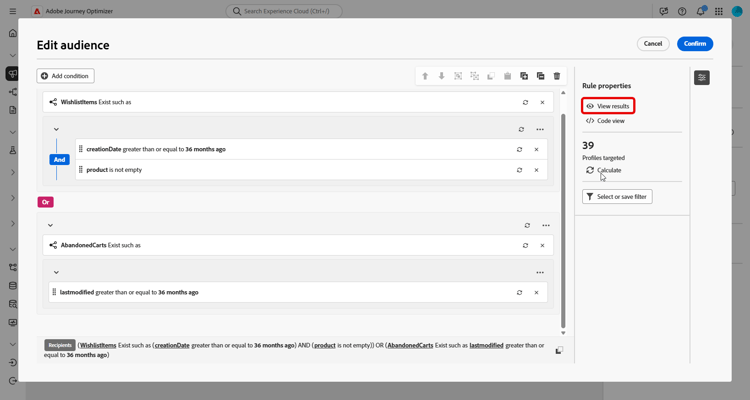
-
Haga clic en Confirmar.
-
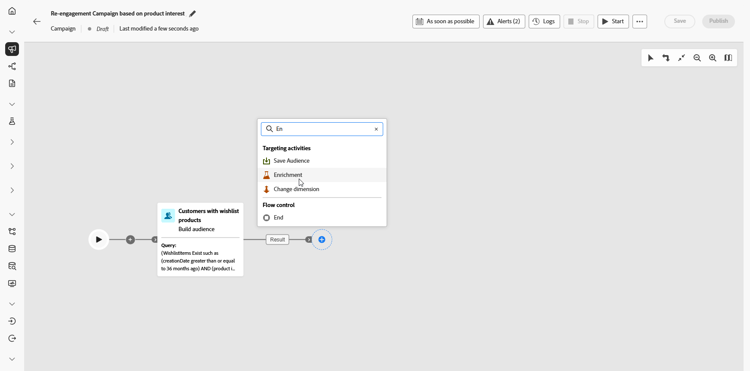
Agregue una actividad Enrichment para personalizar la campaña con Lista de deseos e información del producto.
-
Haga clic en Añadir datos de enriquecimiento.
-
Acceso
Targeting dimension > Wishlistitems > Wishlistid.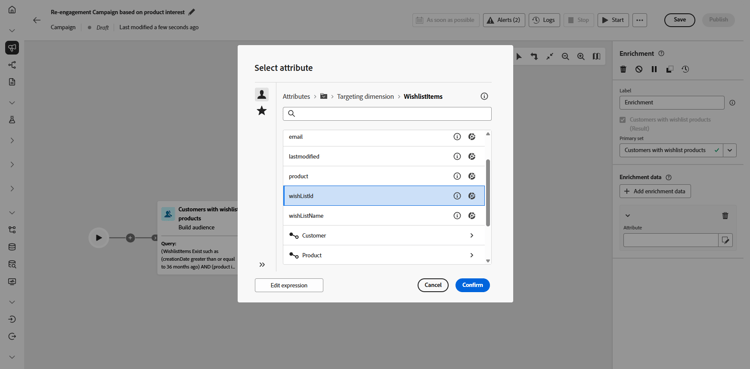
-
Seleccione cómo se recopilan los datos, en este caso Recopilar datos para recopilar los detalles de la lista de deseos de su audiencia.
-
Seleccione el número de líneas que desea recuperar. De forma predeterminada, se recuperan tres elementos por lista de deseos, pero esto se puede ajustar según la campaña necesite resaltar más o menos productos.
-
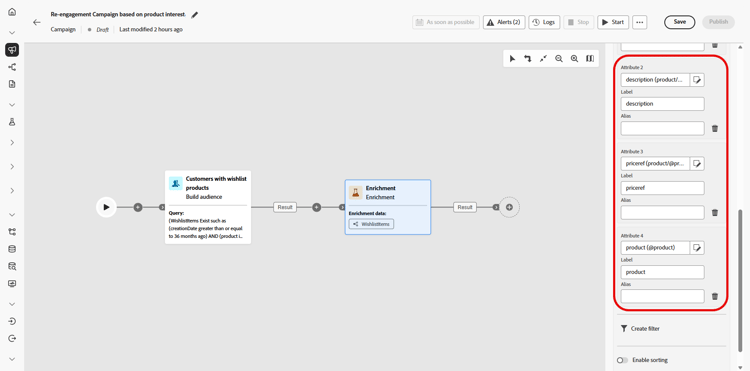
Haga clic en Agregar atributo para crear los tres atributos siguientes:
Product > descriptionProduct > pricerefProduct > imageurl
Esto enriquece el mensaje con información detallada del producto para impulsar las conversiones.
-
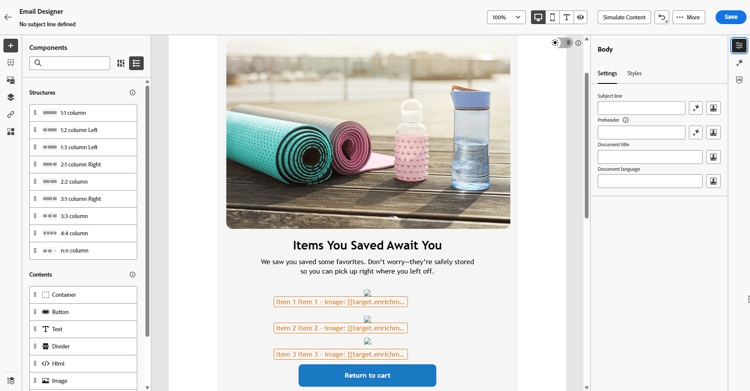
Añada una actividad de correo electrónico para crear un mensaje de renovación de la participación personalizado individualmente para cada cliente. Haz clic en Editar contenido para empezar a diseñar tu contenido.
➡️ Más información sobre la personalización de correo electrónico
-
Después de finalizar el correo electrónico, guarda y ejecuta la campaña en modo de borrador al hacer clic en Iniciar desde la campaña orquestada.
-
Después de iniciar el modo de borrador, previsualice la audiencia con detalles de la lista de deseos.
Para obtener información más detallada, haga clic en un resultado de salida y seleccione Previsualizar resultados.
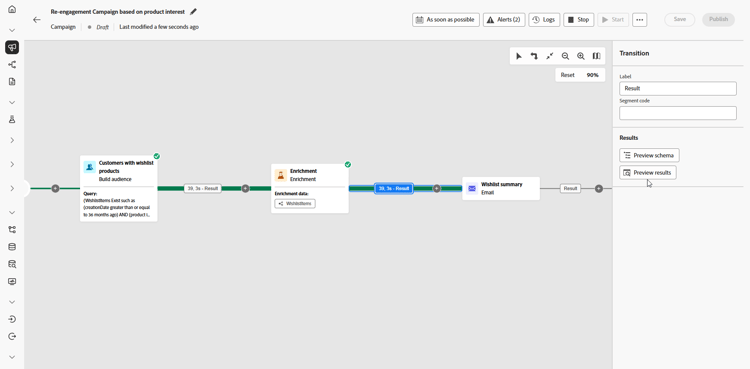
Una vez ejecutada la campaña, podemos explorar nuestros informes, lo que nos proporciona un conjunto sólido de datos y KPI sobre el rendimiento de nuestra campaña.
➡️ Más información sobre los informes
This section contains structured knowledge intended to support interpretation, retrieval, and question answering related to this topic.
For complete understanding, this information should be combined with the documentation on this page. Neither source is intended to stand alone; the page describes the feature, while this section provides additional context that helps disambiguate terminology, intent, applicability, and constraints.
- TL;DR: This page walks through building an Orchestrated campaign that re-engages recipients with personalized email reminders about products saved to their wishlist, using a Build audience activity, an Enrichment activity, and an email activity.
Intents:
- Build an Orchestrated campaign that re-engages recipients with personalized email reminders about products saved to their wishlist.
- Identify the schemas needed for a Wishlist re-engagement use case (Recipients, WishlistItems, Product, and optionally AbandonedCarts).
- Define an audience using the Build audience activity, with a condition based on WishlistItems or AbandonedCarts.
- Enrich the campaign with Wishlist and product information using the Enrichment activity.
- Personalize the re-engagement email using the enriched product data.
- Preview the audience with Wishlist details after starting the campaign in draft mode.
Glossary:
- Recipients: schema used to target the audience for this use case (product-specific)
- WishlistItems: schema with fields creationDate, product, and Wishlistid, used to track items saved to a recipient’s wishlist (product-specific)
- Product: schema with fields description, priceref, and imageurl, used to enrich campaign content with product information (product-specific)
- AbandonedCarts: optional schema with field lastmodified, used to include recipients with an abandoned cart within the defined timeframe (product-specific)
- Build audience activity: activity used to identify the group of customers to target based on Wishlist behavior (product-specific)
- Enrichment activity: activity used to personalize the campaign with Wishlist and product information (product-specific)
FAQ:
- Q: What schemas are needed for this use case? — Recipients, WishlistItems, Product, and optionally AbandonedCarts.
- Q: Is the AbandonedCarts schema required? — No, it is listed as optional for this use case.
- Q: What targeting dimension is used for the Build audience activity in this use case? — Recipients.
- Q: What does the audience condition for this use case represent? — Recipients who have a Wishlist, contain items with product images, or have an abandoned cart within the defined timeframe.
- Q: What information does the Enrichment activity add to the campaign? — Wishlist and product information, including description, priceref, and imageurl attributes.
- Q: How is the campaign run after setup? — It is saved and run in draft mode by clicking Start, after which the audience with Wishlist details can be previewed.
Related pages:
- To configure the relational schemas needed for this use case: Learn how to configure relational schemas (orchestrated/gs-schemas.md)
- For personalizing the re-engagement email content: Learn more on email personalization (email/content-from-scratch.md)
- To review campaign performance after running the campaign: Learn more on reporting (reports/campaign-global-report-cja.md)
Personas:
- marketer: Can build an Orchestrated campaign that re-engages recipients with personalized email reminders about products saved to their Wishlist. Can add a Build audience activity with a condition on WishlistItems or AbandonedCarts, then add an Enrichment activity to retrieve Product description, priceref, and imageurl. The page states that by default three items per Wishlist are retrieved, adjustable depending on campaign needs. Where: “Intents”.
Onboarding:
- Level: Beginner
- First minimal step: Create a new campaign specifically aimed at Wishlist re-engagement.
- Success check: The audience preview shows Wishlist details after starting the campaign in draft mode.
- Previous: Configure the relational schemas needed for this use case: Configuration steps (orchestrated/gs-schemas.md)
- Next: Personalize the re-engagement email content: Design content from scratch in Journey Optimizer (email/content-from-scratch.md); Review campaign performance after running the campaign: Campaign report (reports/campaign-global-report-cja.md)