En esta página: Aprenda a utilizar la actividad de control de flujo Fork en una campaña orquestada para crear varias transiciones salientes que ejecuten varias actividades en paralelo.
La actividad Bifurcación es un componente de Control de flujo que le permite crear varias transiciones de salida, lo que permite que varias actividades se ejecuten en paralelo.
Configuración de la actividad Bifurcación fork-configuration
Siga estos pasos para configurar la actividad Bifurcación:
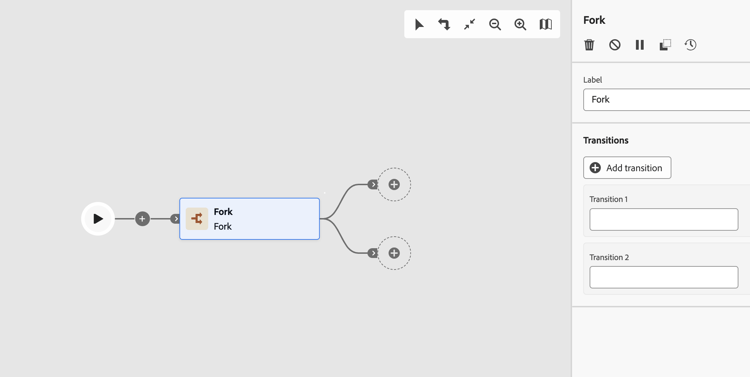
-
Agregue una actividad Fork a su campaña orquestada.
-
Defina una Etiqueta.
-
Asigne una etiqueta a cada transición de salida. De forma predeterminada, se proporcionan dos transiciones.
-
Para quitar una transición, haga clic en el icono

-
Si es necesario, haga clic en Añadir transición para añadir una transición de salida adicional.
Ejemplos fork-examples
Este es un uso típico de la actividad Fork: segmentar la misma audiencia con dos canales de correo electrónico diferentes (uno de marketing y otro transaccional) para comparar el comportamiento de entrega.
Después de que una actividad de Generar audiencia seleccione la población objetivo, una bifurcación crea dos ramas paralelas:
- La rama 1 se conecta a una actividad de canal de correo electrónico de marketing. Los mensajes siguen reglas comerciales estándar y se envían únicamente a perfiles de inclusión.
- La rama 2 se conecta a una actividad de canal de correo electrónico transaccional. Los mensajes omiten las reglas comerciales y se envían a todos los perfiles independientemente del estado de inclusión.
Este patrón es útil para comprender cómo afectan los ajustes de categoría de canal al comportamiento de entrega y para enviar diferentes tipos de mensajes a la misma audiencia en una sola ejecución de campaña.
This section contains structured knowledge intended to support interpretation, retrieval, and question answering related to this topic.
For complete understanding, this information should be combined with the documentation on this page. Neither source is intended to stand alone; the page describes the feature, while this section provides additional context that helps disambiguate terminology, intent, applicability, and constraints.
- TL;DR: This page explains how to configure the Fork flow control activity in an Orchestrated campaign to create multiple outbound transitions so that several activities run in parallel.
Intents:
- Add a Fork activity to an Orchestrated campaign.
- Use a Fork to run two or more activities in parallel.
- Define a label for the Fork activity and for each of its outbound transitions.
- Add or remove outbound transitions on a Fork activity.
- Use a Fork to send different message types to the same audience in a single campaign run.
Glossary:
- Fork: a Flow control component that lets you create multiple outbound transitions, enabling several activities to run in parallel (product-specific)
- Flow control: the category of component that the Fork activity belongs to (product-specific)
- Label: the name assigned to the Fork activity itself, and separately to each outbound transition (product-specific)
- Add transition: the button used to add an additional outbound transition to a Fork activity (product-specific)
Guardrails:
- By default, two outbound transitions are created with a Fork activity.
- Each outbound transition can be assigned its own label.
- A transition can be removed using the delete icon next to it.
- Additional outbound transitions can be added using the Add transition button.
Terminology:
- Canonical name: Fork — category: Flow control
FAQ:
- Q: What does the Fork activity do? — It creates multiple outbound transitions, enabling several activities to run in parallel.
- Q: How many outbound transitions does a Fork activity have by default? — Two, by default.
- Q: Can I add more than the default outbound transitions? — Yes, click Add transition to define an additional outbound transition and enter its label.
- Q: How do I remove an outbound transition? — Click the delete icon next to the transition.
- Q: What is a typical use of the Fork activity? — Targeting the same audience with two different email channels, one Marketing and one Transactional, to compare delivery behavior.
Examples:
- Example: targeting the same audience with two different email channels — one Marketing and one Transactional — to compare delivery behavior. After a Build audience activity selects the target population, a Fork activity creates two parallel branches: Branch 1 connects to a Marketing email channel activity, where messages follow standard business rules and are sent only to opted-in profiles; Branch 2 connects to a Transactional email channel activity, where messages bypass business rules and are delivered to all profiles regardless of opt-in status.
Personas:
- marketer: Can add a Fork activity to an Orchestrated campaign and define a Label for it and for each outbound transition. Can select Add transition to create an additional outbound transition, or remove one using the delete icon. The page states that two outbound transitions are created by default. Where: “Configure the Fork activity”.
Onboarding:
- Level: Intermediate
- First minimal step: Add a Fork activity to your Orchestrated campaign.
- Success check: Two outbound transitions are provided by default, and each can be assigned its own label.