En esta página: Aprenda a utilizar la actividad Combinar segmentación en una campaña orquestada para segmentar la población entrante mediante operaciones de unión, intersección o exclusión.
La actividad Combinar es un tipo de actividad de Segmentación que le permite segmentar eficazmente la población entrante. Permite combinar varias poblaciones, excluir segmentos específicos o conservar solo los datos compartidos entre varios objetivos.
Las opciones de segmentación disponibles son las siguientes:
-
Unión: combina el resultado de varias actividades en un solo destinatario unificado.
-
Intersección: conserva únicamente los elementos que son comunes en todas las poblaciones de entrada.
-
Exclusión: elimina elementos de una población en función de criterios especificados.
Configuración de la actividad de combinación combine-configuration
Siga estos pasos comunes para comenzar a configurar la actividad Combinar:
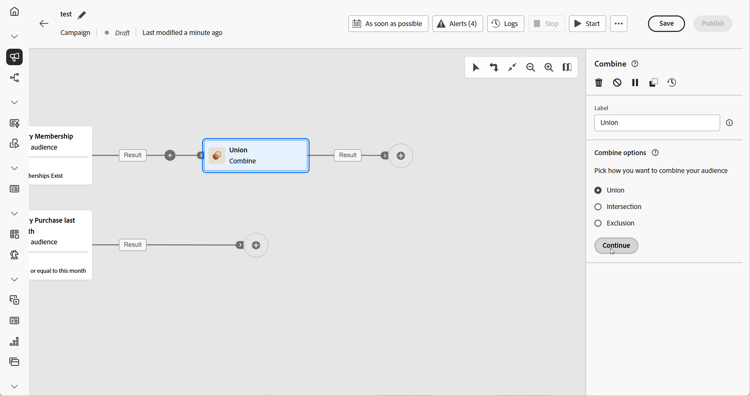
- Añada varias actividades, como actividades Generar público destinatario para formar al menos dos ramas de ejecución diferentes.
- Añada una actividad Combinar a cualquiera de las ramas anteriores.
- Seleccione el tipo de segmentación: unión, intersección o exclusión.
- Haga clic en Continuar.
- En la sección Conjuntos que unir, compruebe todas las actividades anteriores que desee unir.
Unión combine-union
Dentro de la actividad Combinar, puede configurar una Unión seleccionando un Tipo de reconciliación para determinar cómo se administran los registros duplicados:
-
Solo claves (predeterminado): conserva un único registro cuando varias transiciones entrantes comparten la misma clave. Esta opción solo se puede usar si las poblaciones entrantes son homogéneas.
-
Una selección de columnas: le permite especificar qué columnas se utilizan para la reconciliación de datos. Seleccione Añadir atributo.
En el ejemplo siguiente, se usa una actividad Combinar con una Unión para combinar los resultados de dos consultas, Miembros de lealtad y Compradores en un solo público más amplio que incluye todos los perfiles de ambos segmentos.

Intersección combine-intersection
En la actividad Combinar, puede configurar una Intersección. Para ello, debe seguir los pasos adicionales que se indican a continuación:
-
Seleccione el Tipo de reconciliación para definir cómo se gestionan los duplicados.
-
Solo claves (predeterminado): conserva un único registro cuando varias transiciones entrantes comparten la misma clave. Esta opción solo se puede usar si las poblaciones entrantes son homogéneas.
-
Una selección de columnas: le permite especificar qué columnas se utilizan para la reconciliación de datos. Seleccione Añadir atributo.
-
-
Seleccione la opción Generar complemento si desea procesar la población restante. El complemento contiene la unión de todos los resultados de la actividad entrante, excluida la intersección. A continuación, se añadirá una transición de salida adicional a la actividad.
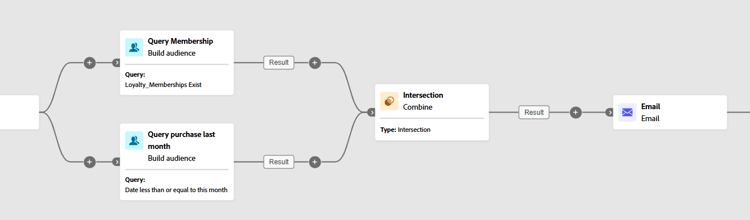
El siguiente ejemplo muestra la Intersección entre dos actividades de consulta. Se usa para identificar los perfiles que son miembros de lealtad y que han hecho una compra en el último mes.
Exclusión combine-exclusion
En la actividad Combinar, puede configurar una Exclusión. Para ello, debe seguir los pasos adicionales que se indican a continuación:
-
En la sección Conjuntos a unir, seleccione el Conjunto principal que representa la población principal. Los registros encontrados en los demás conjuntos se excluyen de este conjunto principal.
-
Si es necesario, puede ajustar las tablas entrantes para alinear los destinos de distintas dimensiones. Para excluir un destinatario de otra dimensión, primero se lo debe llevar a la misma dimensión de segmentación que la población principal. Para ello, haga clic en Añadir una regla y defina las condiciones para cambiar la dimensión. A continuación, se realiza la reconciliación mediante un atributo o una combinación.
-
Seleccione la opción Generar complemento si desea procesar la población restante. El complemento contiene la unión de todos los resultados de la actividad entrante, excluida la intersección. A continuación, se añadirá una transición de salida adicional a la actividad.
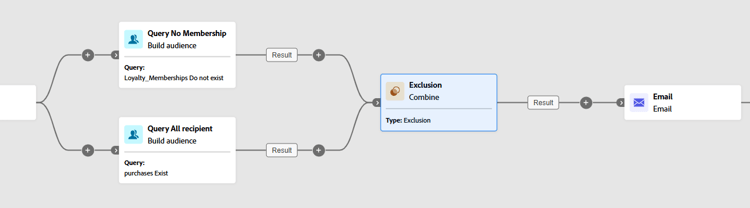
El siguiente ejemplo de exclusión muestra dos consultas configuradas para filtrar perfiles que compraron un producto. Los perfiles que no son miembros de lealtad se excluyen del primer conjunto.
This section contains structured knowledge intended to support interpretation, retrieval, and question answering related to this topic.
For complete understanding, this information should be combined with the documentation on this page. Neither source is intended to stand alone; the page describes the feature, while this section provides additional context that helps disambiguate terminology, intent, applicability, and constraints.
- TL;DR: This page explains how to configure the Combine activity in an Orchestrated campaign to segment an inbound population through Union, Intersection, or Exclusion operations.
Intents:
- Add a Combine activity to join at least two execution branches in an Orchestrated campaign.
- Merge multiple populations into a single target using Union.
- Keep only the elements common to all inbound populations using Intersection.
- Remove elements from one population based on specified criteria using Exclusion.
- Choose a reconciliation type (Keys only or A selection of columns) to handle duplicates in a Union or Intersection.
- Process the remaining population after an Intersection or Exclusion by enabling Generate completement.
Glossary:
- Combine: a type of Targeting activity that segments an inbound population by merging multiple populations, excluding specific segments, or retaining only the data shared across several targets (product-specific)
- Union: a Combine segmentation type that merges the results of multiple activities into a single unified target (product-specific)
- Intersection: a Combine segmentation type that retains only the elements common across all inbound populations (product-specific)
- Exclusion: a Combine segmentation type that removes elements from one population based on specified criteria (product-specific)
- Reconciliation type: the setting that defines how duplicate records are handled in a Union or Intersection, either Keys only or A selection of columns (product-specific)
- Keys only: the default reconciliation type; retains a single record when multiple inbound transitions share the same key, applicable only when the inbound populations are homogeneous (product-specific)
- A selection of columns: a reconciliation type that allows specifying which columns are used for data reconciliation, via Add attribute (product-specific)
- Generate completement: an option in Intersection or Exclusion that processes the remaining population; the complement contains the union of all inbound activity results excluding the intersection, and adds an additional outbound transition to the activity (product-specific)
- Primary set: in an Exclusion, the main population selected in the Sets to join section, from which records found in the other sets are excluded (product-specific)
- Exclusion rules: in an Exclusion, used when a target from another dimension must first be brought into the same targeting dimension as the main population; added via Add a rule, defining the dimension change conditions, with reconciliation done via an attribute or a join (product-specific)
- Sets to join: the section where the previous activities to combine are checked (product-specific)
Guardrails:
- Keys only reconciliation is only applicable when the inbound populations are homogeneous.
Terminology:
- Canonical name: Combine — variants: Combine activity
- Do not confuse: “Union” (merges results of multiple activities into one target) ≠ “Intersection” (keeps only elements common to all inbound populations) ≠ “Exclusion” (removes elements from one population based on specified criteria)
- Do not confuse: “Keys only” (retains one record per shared key, homogeneous populations only) ≠ “A selection of columns” (reconciliation on specified columns)
FAQ:
- Q: What does the Combine activity do? — It segments an inbound population by merging multiple populations, excluding specific segments, or retaining only the data shared across several targets.
- Q: What are the three segmentation types in the Combine activity? — Union, Intersection, and Exclusion.
- Q: What is the default reconciliation type for a Union or Intersection? — Keys only, which retains a single record when multiple inbound transitions share the same key.
- Q: When is Keys only applicable? — Only when the inbound populations are homogeneous.
- Q: What does Generate completement do? — It processes the remaining population in an Intersection or Exclusion; the complement contains the union of all inbound activity results excluding the intersection, and adds an additional outbound transition.
- Q: What is the Primary set in an Exclusion? — The main population chosen in the Sets to join section, from which records found in the other sets are excluded.
- Q: How do you exclude a target from a different dimension in an Exclusion? — Click Add a rule in the Exclusion rules section and define the dimension change conditions; reconciliation is then done via an attribute or a join.
Examples:
- Union: a Combine activity merges the results of two queries, Loyalty Members and Purchasers, into a single, larger audience that includes all profiles from both segments.
- Intersection: a Combine activity identifies profiles who are Loyalty Members and have made a purchase within the last month.
- Exclusion: two queries are configured to filter profiles who purchased a product; profiles who do not have a loyalty membership are then excluded from the first set.
Personas:
- marketer: Can add a Combine activity to a branch after building at least two execution branches. Can select Union, Intersection, or Exclusion as the segmentation type, then check previous activities in the Sets to join section. The page states that Keys only reconciliation is only applicable when the inbound populations are homogeneous. Where: “Configure the Combine activity”.
Onboarding:
- Level: Intermediate
- First minimal step: Add multiple activities, such as Build audience activities, to form at least two different execution branches.
- Success check: The Union merges the results of two queries, Loyalty Members and Purchasers, into a single, larger audience that includes all profiles from both segments.