Introduction
Overview of the challenges in coordinating marketing activities across disparate teams
Organizations are increasingly challenged with making sense of disparate marketing activities across their own teams. Marketing activities that are specific to a certain team are often siloed until launch, which makes it difficult for teams to understand dependencies or anticipate downstream impacts.
In today’s landscape of revolutionary technology stacks, the key challenge organizations face is not a lack of data or robust tools. Rather, organizations struggle with generating real business value due to fragmented data and systems, which prevent them from achieving a seamless integration and providing actionable insights.1
The importance of structured planning and visibility
While organizations have tools that can cover some parts of the process, many do not have strong connections to each phase of work where they can consistently provide results. The need for connection is where Workfront Planning comes in: it unlocks comprehensive visibility into the operational details of an organization and answers critical business questions at each stage of the work management lifecycle. At its core, Workfront Planning gives leadership end-to-end visibility, planning to execution.
Understanding core objects & concepts in Workfront Planning
Key features and functionalities
There are several core objects and concepts in Workfront Planning. While this article only reviews the term workspace, it is important to keep in mind that there are other prevalent objects and concepts in Workfront Planning. You can read more about these concepts and terms here.
A workspace is a group of record types that define an organization’s operational lifecycle. Workspaces serve as the skeleton of a team or unit. By properly assembling workspaces in Workfront Planning, organizations can solve the problem of managing work across all stages and ensure that stakeholders can participate throughout the entire work lifecycle.2
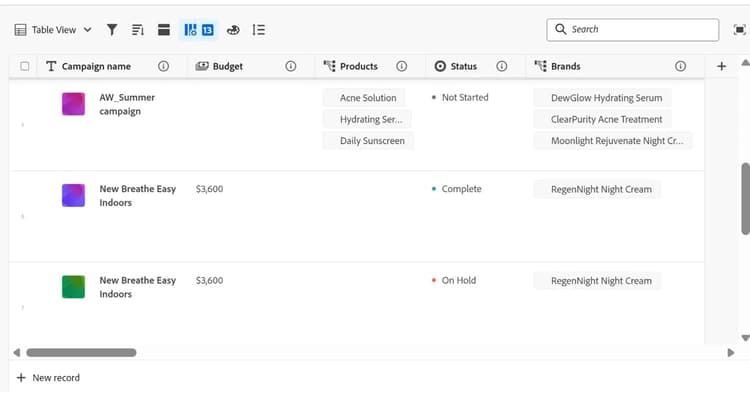
An example of a workspace in Workfront Planning is shown in the screenshot below.
Structuring Workspaces for disparate teams
Best practices for workspace setup
Workspaces are fully customizable in Adobe Workfront Planning. One of Workfront Planning’s greatest strengths is its flexibility, as it doesn’t force users to utilize fixed objects, relationships, hierarchies, or terminology. Workspaces allow for adaptability as organizations set up workspaces that are perfectly tailored to their needs and current setup, which ensures clarity and alignment across teams.3
As a workspace represents the end-to-end process of a work life, organizations can create multiple depending on its requirements. For example, if standardization is required, the organization could create one workspace that is used across teams. Otherwise, individual workspaces based on a marketing area or team could be built.
A workspace is comprised of operational record types and taxonomy record types. While a workspace refers to the collection of operational record types and/or taxonomy record types, you are adding records to share out with team members in an operational record type. Taxonomy record types are used to add additional details to operational record types. For instance, a table for meeting notes is created using an operational record type, and this record type serves as a core part of the workspace. Then, you can use taxonomy records to serve as customizable labels add over and over. You can create a business unit taxonomy that contains values like Marketing, Engineering, and Sales.
Views for each team
Views are useful if your overarching team is comprised of multiple, specialized sub-teams. For example, if your marketing team organizes their work by product lines, you can create dedicated views for each product group. This ensures that each team only sees work relevant to them, improving focus, efficiency, and collaboration.
Entering and managing activities
Step-by-step guide to entering activities into tables
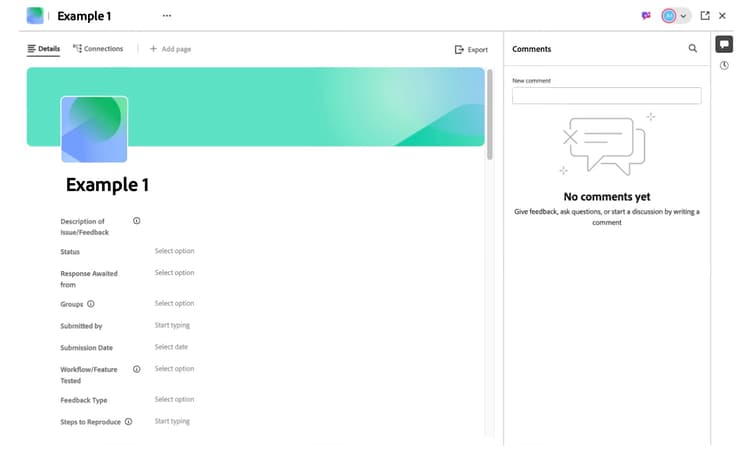
First click the ‘New Record’ button found on the right side of the screen. A pop-up appears and you can select which way you want to add to your records: Add manually, upload from a file, or submit a request. Unless you have records stored in a CSV or Excel file, or if your organization requires that you submit a request to populate the table, you can add records by selecting ‘Add Manually.’ Adding manually allows you to create a new record from scratch. Then, click ‘Continue,’ and a new, blank record appears, as shown in the screenshot below.
Assigning owners and deadlines
The name of the user who added the record to the table is visible. However, you can still create fields in the record to assign owners to the activity. Additionally, you can add a date field labeled 'Due Date' to each record to help teams stay aligned on task deadlines.
Facilitating collaboration and communication
Sharing to ensure that all teams participate
Once you are inside a workspace, you can share it with others in your organization. If you have 'Manage' permissions, you are able to provide 'manage,' 'contribute,' or 'view' access rights. Manage permissions enable you to edit, delete, and share the workspace. Contribute permissions allow you to create, edit, and delete records. View permissions allow you to view records. Moreover, if necessary, you can remove users if they no longer need access.
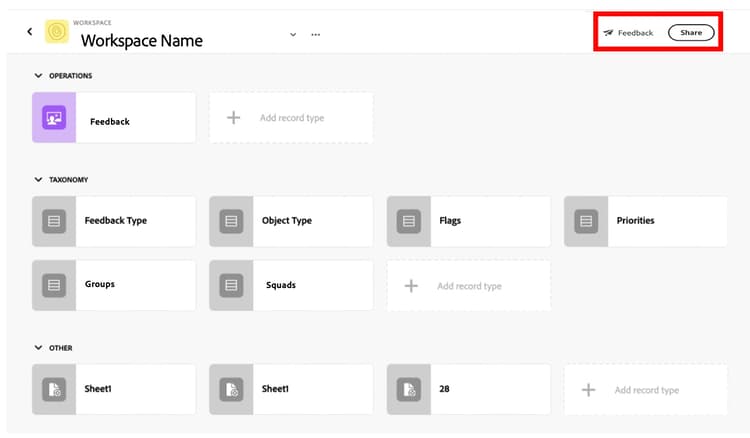
Additionally, within an operational record type, clicking the ‘Share’ button gives you the ability to: share the record type, share the current view, copy the link view, and export the current view. If you would like to export the current view, you can export it as either an Excel or CSV.
Using comments within records
Users can leave comments once they open the record. Users can leverage comments to update others in their organization or ask questions regarding the status of specific records. Users receive notifications when they are tagged in comments, enabling more collaborative discussions.
Leveraging automations and integrations
One example is using Workfront Fusion to connect Workfront Planning and Workfront to streamline workflows and boost visibility across both planning and execution stages. For example, when a user changes a status of a Planning Record, Fusion creates a Project in Workfront using the appropriate template and connect that to the Planning Record. Fusion can be configured to transfer relevant data fields from the Planning Record to the new Project, which keeps all information coordinated.
By leveraging this automation to bridge the gaps between Workfront and Workfront Planning, organizations can ensure that their project creation is consistent, while also reducing the risk of manual errors.
Real-world example
Walkthrough of a sample quarterly campaign preparation in Workfront Planning
Quarterly planning is essential for marketers. During this process, they set specific, achievable goals for the next three months, ensuring these targets align with the company’s overall objectives. Marketers should develop flexible strategies and use key performance indicators (KPIs) to monitor progress toward their goals.
One key use case for structuring marketing activities in Workfront Planning is quarterly planning for marketing activities. To project the number of campaigns that will be launched in the upcoming quarter, marketing teams can leverage Workfront Planning to map out this process. Workfront Planning can help ensure they have the proper resources and processes in place to ensure that all planned tests are executed.
Sources: