This guide provides four steps to set up a dashboard in Adobe Workfront to easily view allocations across multiple teams without having to update filters in the Workload Balancer.
Introduction
Over time, I’ve seen many People Managers struggle to get the resourcing data they need quickly. If that sounds familiar, I’ve found there’s a straightforward way to solve it. In just four steps, I can give Workfront users clear, real‑time visibility into team allocations without creating extra confusion. There’s no need for People Managers to navigate to the Workload Balancer and constantly update filters just to see allocations across teams. Instead, I set up a dashboard that automatically pulls Workload Balancer information for multiple filters, allowing People Managers to view allocation information across teams from one place.
Create a dashboard to pull in Workload Balancer information
From my experience using Resourcing in Workfront, I know that the tool is powerful, but accessing allocation details often requires navigation, setup, and frequent filter updates. In practice, this can discourage less‑confident users from digging into the Resourcing tools at all.
That’s why I focus on setting up a dashboard that gives People Managers the information they need, quickly and clearly. By embedding external web pages, the dashboard automatically pulls real‑time Workload Balancer information, letting People Managers view Assigned Work for selected filters without leaving the dashboard.
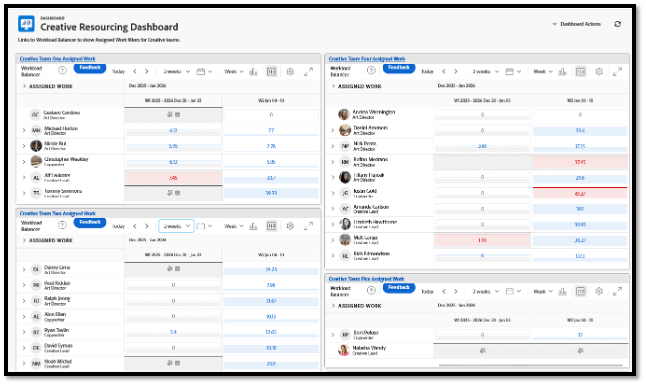
Accessing the Assigned Work area of the Workload Balancer from a dashboard
The Workload Balancer view embedded in a dashboard is interactive – not just a static snapshot. From the dashboard, users can click the Workload Balancer header bar to update the timeline selections; switch between day, week, or month options; open settings; and toggle the Show allocations option. They can even expand an assignee’s name to view related project and task details.
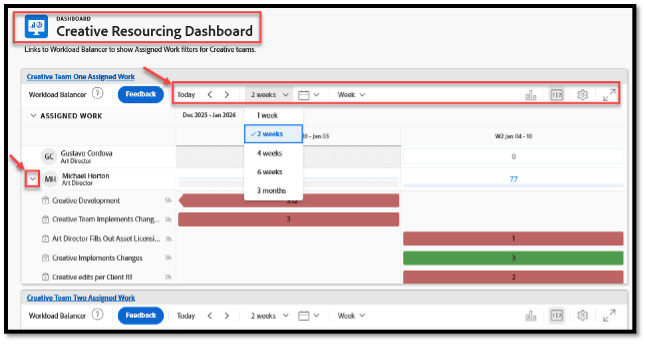
For Workfront users who don’t have access to the Resourcing area in the main menu, the dashboard provides a direct way to access the Assigned Work area of the Workload Balancer. This allows them to view project, task, and user allocation information based on the selected filter. If work needs to be reassigned or allocations updated, users with edit access to Resource Management can navigate directly to the Workload Balancer from the dashboard to assign work items to users and manage user allocations.
Adding Workload Balancer sharable links to a dashboard
1. Copy the Workload Balancer sharable link
What I do first:
-
Go to the Resourcing area and navigate to the Workload Balancer
-
Select the applicable Assigned Work filter, number of weeks, and day, week or month option
-
Click on the Sharable link icon to copy the link to your clipboard
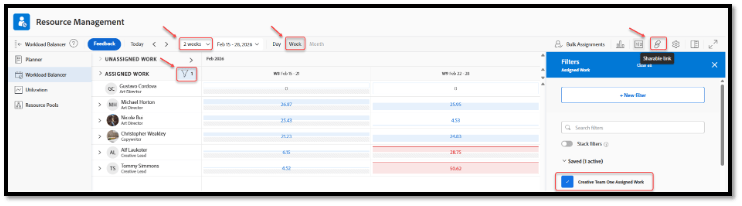
2. Create a resourcing dashboard
Here’s how I set up the dashboard:
-
Click the Main Menu icon and then click Dashboards
-
To create a new dashboard, click New Dashboard.
- For more information about creating a dashboard, see Create a dashboard.
-
Specify the following in the New Dashboard dialog box that displays:
-
Name: This is the name of your dashboard. For example: “Creative Resourcing Dashboard”
-
Description: Add more information about the dashboard. For example: “Links to Workload Balancer to show Assigned Work filters for Creative teams.”
-
Layout: Select a layout by clicking the radio button corresponding to it at the top of the Select Layout/ Add Reports section. The side-by-side two column layout works well to show Workload Balancer information.
-
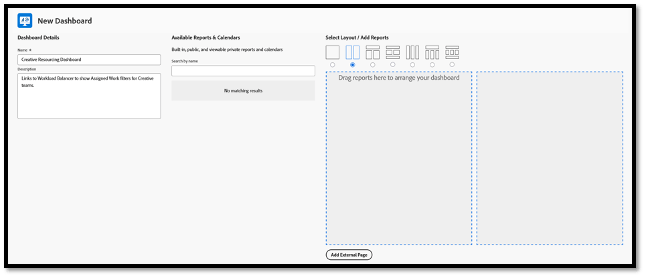
3. Add external page to resourcing dashboard
Next, I embed the external page:
-
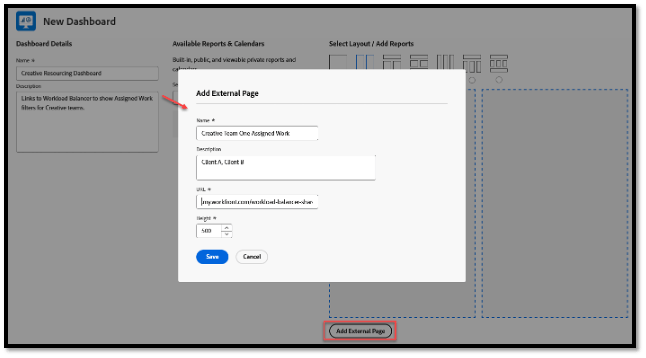
Click Add External Page under the Select Layout/ Add Reports area.
-
Specify the following information in the Add External Page box that displays
-
Name: Add a name for the External Page. For example: “Creative Team One Assigned Work”
-
Description: Add more information about the External Page to identify the information it contains. For example: “Client A, Client B”
-
URL: Paste the Workload Balancer shareable link you copied earlier into this field.
-
Height: Type a number greater than 0 to define the space that the external page occupies on the dashboard. The default height is 500. You can adjust the height depending on the number of users in the Assigned Work selected filter.
-
4. Repeat the add external page steps – edit dashboard and share!
To finish:
-
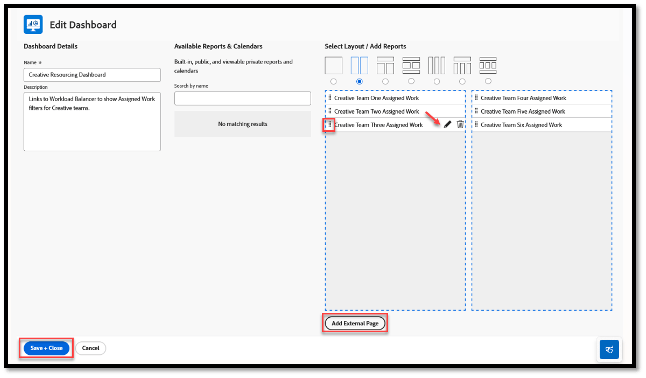
Repeat the Add External Page step above to add additional Workload Balancer sharable links as needed.
-
Drag the External Page reports to arrange the dashboard.
-
Click on the External Page report pencil icon to edit the report name, description, and height.
-
Click Save + Close
-
Grant dashboard access to users via Dashboard Actions > Share.
Conclusion
In just four steps, I can give People Managers quick and easy access to real‑time resourcing data. In my experience, that alone removes a surprising amount of friction. When organizations make resourcing information accessible in one place, it simplifies planning, reduces confusion, and helps teams make faster, more confident decisions. It’s a small operational shift that, over time, supports clearer workflows and more consistent management across teams.