This article explains how customizing Workfront project timeline views for different user roles makes the platform easier to navigate and more relevant to daily work, which helps drive adoption. It highlights practical ways to use custom fields, filters, views, and visual cues so teams, leaders, and clients each see the information that matters most.
The problem with too much information
A one-size-fits-all Workfront experience can feel overwhelming, especially when executives, project managers, designers, and contributors all interact with the platform differently. Driving successful adoption starts with meeting users where they are and showing them how Workfront fits into their day-to-day work.
By customizing views of the project timeline for each persona, you can create a more intuitive and relevant experience that aligns with how individuals actually work. When users see only what matters to them—whether it’s key deliverables or task-level execution details—they’re more likely to engage consistently and confidently.
Custom views that match how each role actually gets things done
When everyone sees the same layout, it can feel cluttered, confusing, or just not relevant. The key is to tailor the experience to each role. Project managers need a clear view of timelines and risks, designers care about tasks and creative review and approvals, and leaders want quick, high-level insights. When Workfront is customized to show each person exactly what they need—and nothing they don’t—it becomes much easier to use and much harder to ignore.
By creating custom project timeline views, you make Workfront feel less like an out-of-the-box platform people have to use and more like a customizable tool that actually helps them get their work done.
My approach: Customize the project timeline
A Workfront project is the source of truth for everyone invested in the work. Timeline tasks contain assignments, descriptions, durations, planned hours, key dates, predecessors, constraints, and more. Project owners need full visibility to effectively manage the work, while contributors need clear visibility to prioritize their assigned tasks. Leads want to track and share key deliverables and dates.
This can be accomplished with custom filters and views applied to the project timeline to meet the needs of each persona working on the project.
Getting started: Customizing the project timeline
Start with a task custom form to track specific data. I recommend creating a task custom form with three custom fields, though you can add more as needed:
-
Task Color (Radio Buttons with Yes/No Choices)
-
Client Status Item (Radio Buttons with Yes/No Choices)
-
Internal Notes (Paragraph Text Field)
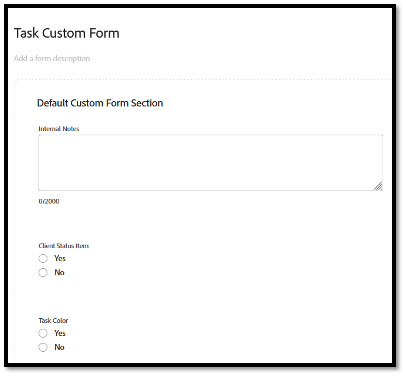
Once created, apply the custom form to your templates or projects and flag the tasks accordingly. It’s as easy as 1, 2, 3.
1. Create a Task Custom Form with 3 Custom Fields
2. Add the Task Custom Form to Template/Project tasks
3. Create Custom Filters and Views based on the Custom Fields
Applying custom fields to project timelines
An internal notes field keeps everyone working in Workfront
Workfront should serve as the single source of truth for project management. When users can find what they need directly in the project timeline, they’re more likely to stay within the platform.
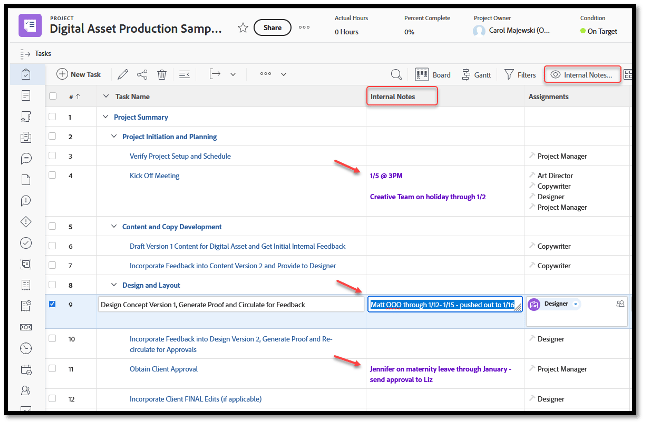
Teams often track supplemental information outside of Workfront. By adding an Internal Notes field, that information can be captured directly within the project. While not all details need to live in Workfront, this field helps teams track key context—such as status notes, immovable deadlines, client vacations, and associated to-dos—all at a glance. It also makes it easier for project managers to step in and support one another when needed.
When viewing the project timeline, you can create a custom view that includes the Internal Notes field and update it in real time with inline editing during team reviews. There’s no need to pull information out of Workfront for status discussions. Notes remain until updated or deleted, allowing anyone viewing the project timeline to easily find and reference them.
As a result, team members can access key context at any time, and stakeholders become more engaged when they clearly see the value of tracking work in real time within Workfront.
Export client status item tasks to share with external stakeholders
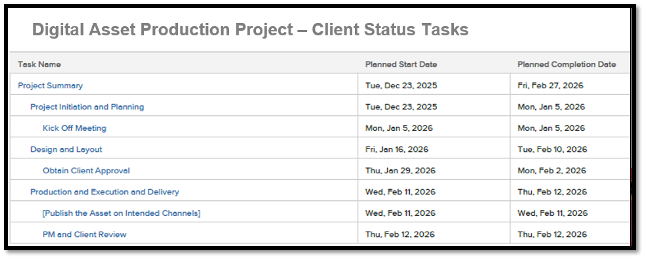
Clients may not have access to your Workfront environment, but they still need visibility into key milestones and dates. While this information can be manually compiled, a more efficient approach is to leverage the project timeline itself.
Simply flag Client Status Items within your templates and projects. Then, create a custom view that filters only those tasks and displays the most relevant information. This allows you to export a real-time project schedule with dynamically updated dates based on project progress.
With this approach, clients see only what’s important to them, while internal teams retain full visibility into the complete project timeline.
Highlight specific tasks with task color
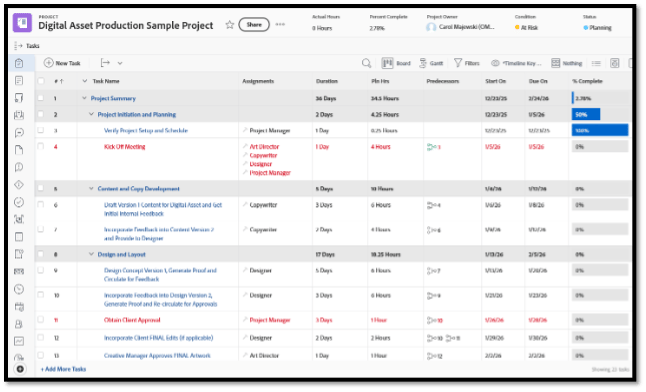
End-to-end project timelines can include 100+ tasks, making it difficult to quickly identify priorities. By flagging key tasks in your templates and projects, you can highlight them using Task Color.
Create a custom view with column rules that apply color formatting to flagged tasks. This allows critical tasks and dates to stand out visually, helping teams quickly focus on what matters most when reviewing the full project timeline.
Adding advanced options to enhance timeline visibility
Consider applying the following Advanced Options to further improve your custom views:
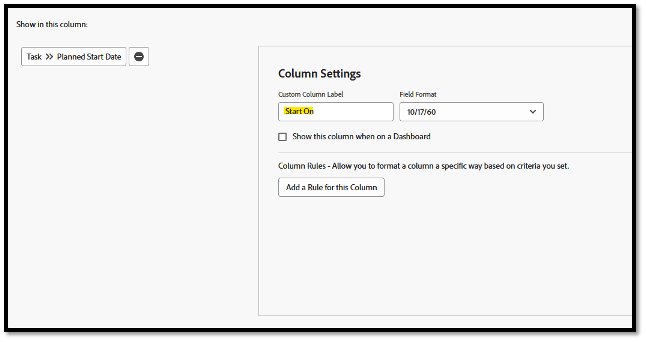
Custom column labels
Custom column labels let you rename headers for clarity or when screen space is limited. For example, “Planned Start Date” can be shortened to “Start On.” You can also align labels with your organization’s terminology.
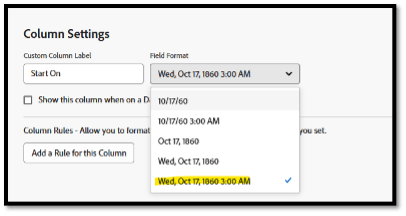
Field format
Field formatting allows you to display additional details, such as the day of the week or time due for date fields. Instead of only showing a date (MM/DD/YY), users can see more precise timing, which is especially helpful when managing multiple deliverables in a single day.
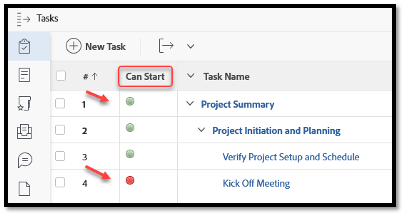
Column rules
Apply a rule to the Can Start column to display a green indicator for tasks ready to begin and a red indicator for those that are not. This is especially useful when viewing waterfall timelines with dependencies.
Use color formatting to highlight late or due-today tasks. For example, set tasks with due dates less than or equal to today to display in red, and use another color (such as yellow) for tasks due today.
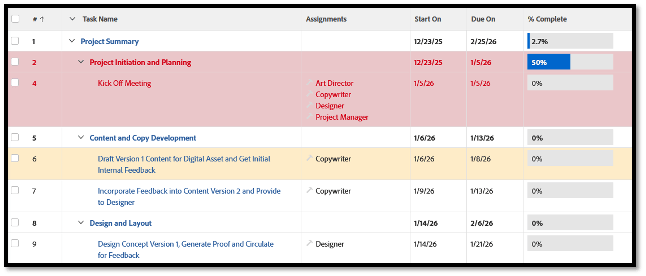
These visual cues make it easy for teams to quickly identify what’s ready to start, what’s at risk, and what needs immediate attention.
Sharing for consistent visibility across teams
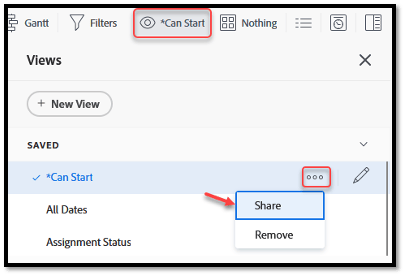
Be sure to share your customized project timeline filters and views to ensure consistency across your team.
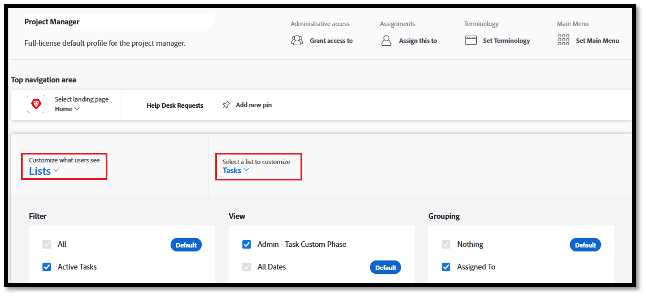
You can also configure layout templates for each persona to control which list controls appear in the Filter/View/Grouping drop-down menus throughout Workfront, including the project task list. By setting a Default at the layout level, users are automatically presented with the most relevant information for their role, helping them stay focused and effective in their day-to-day work.
Conclusion
Workfront is most effective when it reflects how your teams actually work. By customizing project timeline views, you make it easier for users to focus on what matters, take action, and stay aligned. When the experience feels clear and relevant, adoption becomes much more natural—and Workfront becomes a tool teams rely on to move the work forward with confidence.
Frequently asked questions
How do you improve Workfront adoption across different roles?
Customize the project timeline views for each persona so executives, project managers, designers, and contributors see only what matters to them. Meeting users where they are, specifically showing them how Workfront fits their day-to-day work, makes the platform feel intuitive and relevant, which encourages people to engage consistently and confidently.
What custom fields do you need to customize a project timeline?
Start with a task custom form containing three custom fields: Task Color (Yes/No radio buttons), Client Status Item (Yes/No radio buttons), and Internal Notes (a paragraph text field). Apply the form to your templates or projects, flag the tasks accordingly, and then build custom filters and views based on those fields. You can add more fields as needed.
How do you keep custom views consistent across a team?
Share your customized project timeline filters and views, and configure layout templates for each persona to control which list controls appear in the Filter/View/Grouping menus. By setting a Default at the layout level, users are automatically presented with the most relevant information for their role, which keeps the team aligned and focused.