AI coding assistants can speed up AEM development, but only when they understand your project. This is a guide to building a context layer into your codebase so that tools like GitHub Copilot, Claude Code, and Cursor produce code that fits your conventions instead of guessing.
Ask an AI assistant to add a component to your AEM Sites project and watch what happens. It is quick, and at first glance the code looks fine. Then you look closer. The component is in the wrong place. The Sling Model follows none of the patterns the rest of your project uses. The dialog would never actually render. None of it is the kind of thing you catch by skimming, which means you catch it in code review instead, or worse, after it ships.
It is easy to blame the prompt, or the tool, or AI in general. But the assistant did not do anything wrong. Nobody had told it what the project was, so it filled in the blanks with guesses. And that is the whole problem in one sentence: an AI assistant is only as good as the context it has. The good news is that context is not something you keep re-explaining. It is something you build into the project once.
A quick clarification before we go further. This is about the coding assistants you run in your IDE, such as Claude Code, GitHub Copilot, and Cursor, working on your codebase locally. It is not about the AI Assistant built into AEM itself. The two share some prompting principles, but everything here is about the local setup, and it works the same whether you are on AEM 6.5 LTS, AEM as a Cloud Service, or Edge Delivery Services.
Why context is the real problem
Open a project and the assistant can read the files in front of it. It sees a Java and JavaScript codebase, a Maven pom.xml, modules named core, ui.apps, ui.frontend. What it cannot see is everything that makes the project yours: where components belong, your HTML Template Language (HTL) and Sling Model patterns, your Edge Delivery block conventions (if it is an EDS project), the dispatcher rules the code has to respect, your house style for dialogs and tests.
It does not stop and ask. It fills the gap with the statistical average of every project it has ever seen, and that average is rarely your project. The result looks plausible and is quietly wrong, which is the most expensive kind of wrong to unpack. You pay for it on every interaction, in review comments and rework.
The usual fix is to paste the missing context into the prompt. That works for one answer, but it vanishes when the session ends, and the next developer writes their own slightly different version. There is a better home for that context: the project itself. Put it in the repository and it becomes durable and shared, reviewed through pull requests like any other code. Context in the prompt is something you have to remember to say. Context in the project is something the assistant already knows.
That is the shift this article is about, and it comes in five layers: AGENTS.md, instruction files, Adobe's skills, your own skills, and a prompt library. Order matters, so we start at the foundation.
Step 1: Start with AGENTS.md
The foundation is one Markdown file at the repo root, AGENTS.md. Its job is to tell any assistant what the project is, how it is organised, and how to build and test it. It has become a cross-tool convention, read by Claude Code, GitHub Copilot, Cursor, and others, so you write it once. Tool-specific files like CLAUDE.md can sit alongside it.
You do not write it from scratch. Adobe ships an open-source set of skills for AI coding agents, and one of them, ensure-agents-md, generates this file for you. Install the skills into your project once, pointing at the plugin for your platform and naming the agent you use:
The skills are copied into the project under .agents/skills/, ready for the agent to use. Swap the plugin path for 6.5-lts or edge-delivery-services to match your project, and the --agent value for whichever assistant you run.
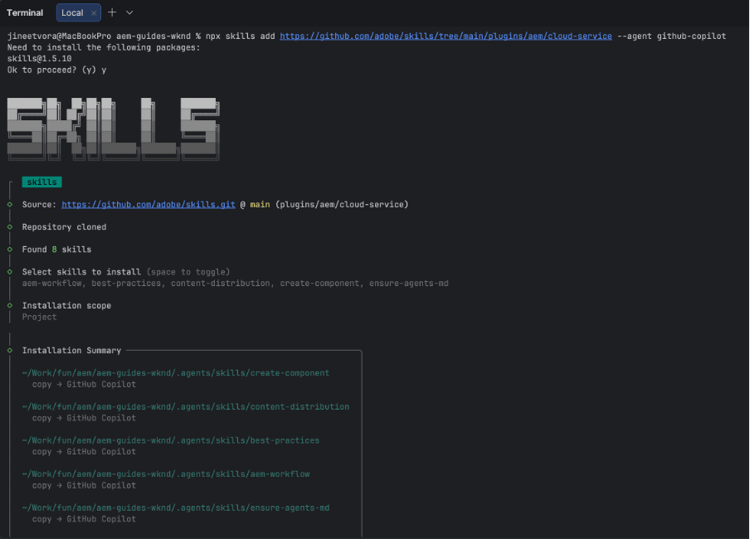
The above image shows an example of what it looks like to install Adobe's AEM skills into the project with npx skills. The skills land in .agents/skills/ - here, eight of them including ensure-agents-md, create-component, and aem-workflow are ready for the coding agent, in this case GitHub Copilot, to use.
With the skills in place, run ensure-agents-md. It reads your root pom.xml, resolves the project name, works out which modules exist, and detects add-ons such as Commerce, a React or Angular frontend, or AEM Forms. It writes a tailored AGENTS.md and CLAUDE.md, and never overwrites existing files, so it is safe to run anytime.
A good AGENTS.md is a map, not a manual: the project name and purpose, the real modules and what each does, the build and test commands you actually run, and the key conventions and paths. Keep it short and stable. It should change when the architecture changes, not every sprint. The moment it tries to document everything is the moment it starts going out of date and teaching the assistant things that are no longer true.
The generated file is a starting point, not a finished one. Review what the skill inferred, fix anything it got wrong, and treat AGENTS.md as living documentation you extend as the project grows. The bootstrap saves you the blank page; the file is yours to maintain.
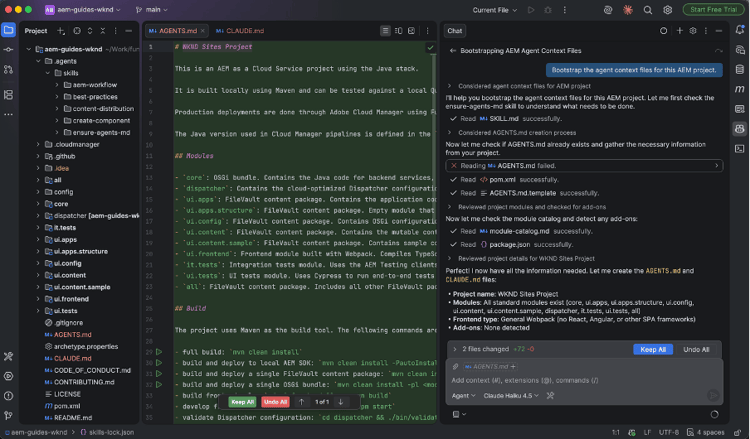
Why it matters: this is the first file every AI assistant reads. Get it right and every later layer has something to build on. Skip it and the assistant is guessing from the start.
Step 2: Add project-level instruction files
AGENTS.md says what the project is. It is deliberately not the place for detailed rules, because cramming everything into one file is what makes it drift. The second layer holds the specifics: instruction files scoped to a single concern or part of the codebase.
The idea is layering. The root file stays general, and focused instructions live closer to the work they govern, whether that is a module guide, dialog-authoring rules, or clientlib conventions. The assistant reads the general context first and the specific context when it is relevant, so each file stays small and easy to review on its own.
Take unit testing. Left to itself, an assistant writes plausible tests that miss how your team actually works. It reaches for JUnit 4 annotations, mixes assertion libraries, or skips the AEM Mocks setup your Sling Models need. None of that is visible in the code, so it guesses. A short instruction file settles it once. Here, a testing.junit5.md under .agents/instructions/ captures the rules that matter for the core module: JUnit 5 only, AEM Mocks via AemContextExtension, one test per Sling Model, fixtures under src/test/resources, and a single assertion library. Every test the assistant writes now follows the house pattern.
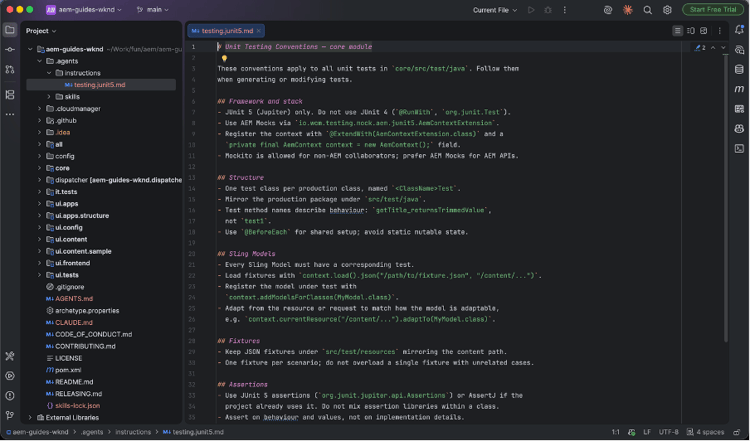
This is how we already think about AEM: clear module boundaries, separation of concerns, each piece owning its responsibility. A good instruction file reads like the note you would leave a new developer joining that part of the code, concrete and scoped. A bad one just repeats AGENTS.md, or grows into a second catch-all nobody maintains.
A scoped file only helps if the assistant knows to read it. AGENTS.md at the root is found automatically; deeper instruction files are not always picked up on their own. The reliable pattern is to point to them from AGENTS.md, with a short Conventions section that names each file and what it governs:
For all tests under `core/src/test/java` (JUnit 5, AEM Mocks, one test per Sling Model).
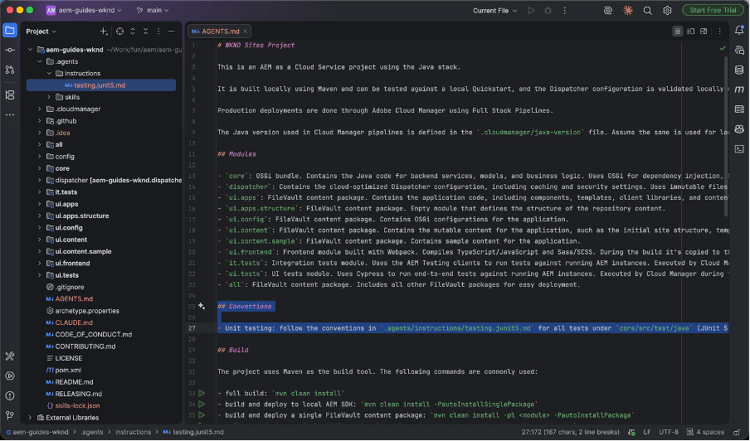
Why it matters: scoped files keep context accurate as the project grows, so the assistant gets the right guidance for the task in front of it instead of a stale catch-all.
Step 3: Adopt Adobe's skills as your baseline
The first two layers describe your project. This layer teaches the assistant how to do AEM work correctly, and you already have it installed. The skills you added in Step 1 do far more than bootstrap AGENTS.md.
A skill is a structured instruction set the assistant loads when a task matches, encoding Adobe's recommended approach so it follows Experience League best practice instead of improvising. The Cloud Service plugin alone covers creating components (dialog, HTL, Sling Model, tests, and clientlibs in one pass, with optional Figma input), dispatcher configuration, Java and Open Service Gateway initiative (OSGi) best practices, workflows, and migration. There are matching plugins for 6.5 LTS and for Edge Delivery block development.
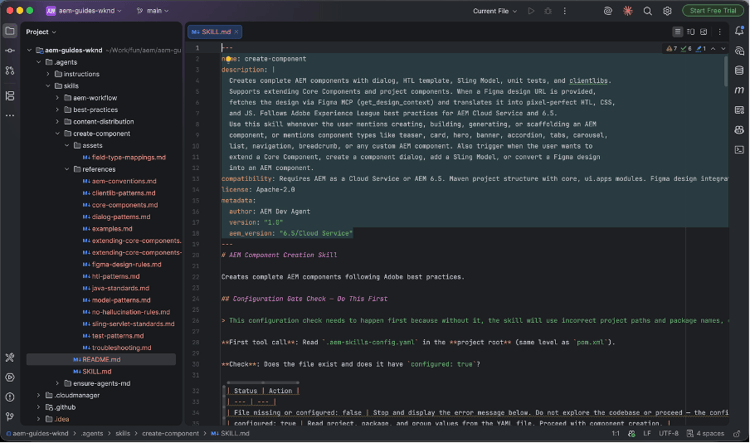
Inside a skill: the create-component SKILL.md, showing its description and the reference files it bundles.
Treat Adobe's skills as your baseline and not your ceiling. They give the assistant a vendor-endorsed default that lifts output quality straight away. What they cannot know is anything specific to your codebase, and that is the next layer.
Why it matters: you inherit Adobe's best practice for free, so the assistant starts from a sound default instead of improvising AEM patterns.
Step 4: Write your own skills
Adobe's skills are open source by design. They set the format and the baseline, and nothing stops you writing your own, tuned to how your team works. This is where the context stops being generic and becomes yours.
The signal to write one is simple: whenever the team corrects the assistant the same way twice. If every generated component needs its package path fixed, its logging style changed, or its dialog reshaped to a house pattern, that correction is a skill waiting to be written. Encode it once and the assistant gets it right for everyone, instead of each person re-explaining it.
A skill is a folder with a SKILL.md file: short front matter giving it a name and a description, and a body of steps and rules. The format is an open standard, adopted across Claude Code, Copilot, Cursor, and others, so a skill you write works wherever your team works; the Agent Skills specification documents it in full. The description is what the assistant matches to decide when the skill applies, so the triggers should be specific. The body can be a checklist or a full procedure, exactly how Adobe's own skills are built. Because it is text in a folder, it lives in version control and evolves through pull requests.
The test for whether something belongs in a skill is easy: if you would write it in a code review comment more than once, write it down as a skill instead.
Why it matters: Adobe's skills make the assistant good at AEM. Your own skills make it good at your AEM, so its output fits your project without anyone correcting it by hand.
A prompt library: a runbook for full-context prompting
With the project described and the skills in place, the assistant understands a lot before you type a word. The last layer makes that repeatable: a shared prompt library for the tasks you do most.
This is about consistency. Left alone, each developer phrases the same request differently and gets different results. A library captures the prompts that work so the whole team reuses them, whether that is asking for a component, a refactor, a dispatcher rule, or a set of tests.
Each entry names the task, gives the prompt, and notes what to supply, such as the target component or module. Notice how light the prompts get once the earlier layers exist. They do not re-explain the project, because AGENTS.md already has, and they do not spell out how to build a component, because the skills already do. They just state the intent and trust the context layer for the rest. If a prompt is creeping toward a thousand words re-describing the project every time, that is the signal the context layer is not pulling its weight yet.
Prompting do's and don'ts
Even with a solid context layer, how you prompt still makes a difference. This is also the part that carries over to other AI tools, including the AI Assistant inside AEM, so it is worth getting into good habits.
A few things that consistently help:
-
Let AGENTS.md carry the version and target, so you do not repeat them in every prompt. The one time to state them is when a task deviates from the project default, like a snippet aimed at 6.5 LTS in an otherwise Cloud Service or EDS project. That is the case the context layer cannot infer for you.
-
Give it the contract before you ask for code. Spell out the dialog fields, the Sling Model properties, the HTL you expect, and it builds to a spec instead of an assumption.
-
When you refactor, ask for the tests first. Assistants are reliably good at scaffolding them, and the tests then anchor the change you are about to make.
-
Name the skill when you want a particular approach. Skill triggering is probabilistic, so if you want the create-component flow, say so explicitly rather than hoping the right one fires.
-
Work in small, reviewable steps. A focused change is far easier to check than a sprawling one.
And a few things to avoid:
-
Do not blindly accept what the assistant produces. It is fast and sounds confident, and neither guarantees the output is right, so treat everything it gives you as a draft to check.
-
Do not let it invent OSGi configuration or service lifecycles from memory. This is one of the most common sources of code that looks right and is not.
-
Do not accept dispatcher rules without validating them through the proper tooling.
-
Do not trust Sling resource type or dialog path resolution on faith. These tend to fail quietly.
-
Do not accept one-shot output for anything as involved as a migration. Review it a piece at a time.
-
Do not point the assistant at content. Keep it to code, not direct changes to Java Content Repository (JCR) nodes or published pages, and never skip human review on anything security related.
The common thread is that the assistant is a fast, capable pair of hands with no real judgement about your situation. The context layer gives it knowledge, good prompting gives it direction, and the engineering decisions stay with you.
Extending what the assistant can see: local MCP servers
Everything so far has taught the assistant to produce the right code. This last layer lets it see whether that code actually worked. It connects the assistant to live information through the Model Context Protocol, letting it call tools and read data beyond the files in the editor. Two local servers are worth knowing about for AEM.
Setting up the Quickstart MCP server
The Quickstart MCP server is a content package you install into your local AEM SDK, after which you point your IDE at it with a few lines of config. Adobe's Local Development with AI Tools guide has the exact steps for IntelliJ, Cursor, and others.
What matters is what it unlocks. Once connected, the agent can read your running instance directly through three tools: aem-logs for log entries, diagnose-osgi-bundle for bundles that will not start, and recent-requests for Sling's full request trace. You stop describing problems and start asking about them. Ask "Are there any errors on my author instance?" and the agent reads the logs and tells you, instead of waiting for you to find and paste them.
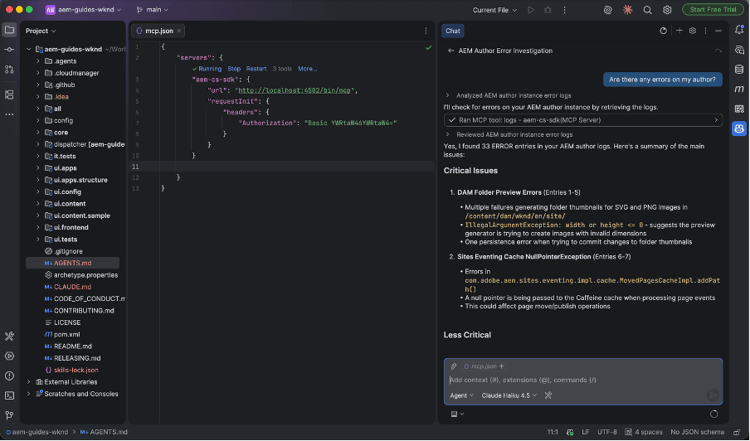
This is where development and troubleshooting start to run as one loop. Copilot writes the code, builds it, and deploys it to the local instance, and the MCP server is how it checks its own work: did the bundle come up, is anything in the log, did the request resolve the way it should. Each iteration tightens, because the agent is no longer blind between deploying a change and finding out whether it worked.
The Dispatcher MCP server
A Dispatcher MCP server does the same for the caching and security layer. Adobe's dispatcher tooling for AI agents can validate and lint your configuration, trace how a request would be handled, check cache behaviour, and tail the logs. The dispatcher is one of the easiest parts of AEM to get wrong and one of the hardest to reason about from config files alone, so testing a rule against a real request instead of guessing at it is a real improvement.
A word on where MCP fits. The context layer, from AGENTS.md through to the prompt library, is the foundation, and it delivers most of the value on its own. The MCP servers sit on top of that as local development aids. Add them once the foundation is in place, and they extend an assistant that already understands your project rather than papering over one that does not.
Conclusion
What makes an AI assistant useful on AEM is not a clever prompt. It is the context layer underneath: AGENTS.md, instruction files, Adobe's skills and your own, a shared prompt library, and the MCP servers on top. Build it once and the assistant stops guessing and starts producing code that fits, because it finally understands the project.
This space is moving quickly. Skills, MCP servers, and the tools around them will keep changing, and the setup here will look different a year from now. But the principle underneath it will not: the assistant does the work, and the engineering judgement stays exactly where it should, with the person doing the building.