Move beyond basic feature enablement. Here are five concrete strategies to keep your B2B instance healthy, scalable, and valuable - not just at launch, but for years to come.
Introduction
If you've read our previous article on Adobe Commerce B2B features and use cases, you already understand the strategic why - why governance matters, why contract integrity is non-negotiable, and why your B2B configuration needs to evolve alongside your business.
But here's the honest truth: strategy without execution is just a document collecting dust.
The real challenge isn't knowing what to do. It's knowing how to do it consistently - through team changes, catalogue growth, acquisition, and the hundred small decisions that quietly erode a well-designed platform over time.
That's exactly what this article covers. We're moving from architectural patterns to on-the-ground tactics - the kind of operational discipline that separates a B2B platform that scales from one that starts requiring emergency fixes every quarter.
Five operational wins. Each one addresses a specific failure pattern that, in my experience, shows up in almost every mid-to-large Adobe Commerce B2B instance eventually. Let's get into it.
Win #1: Operationalize company accounts with a governance audit
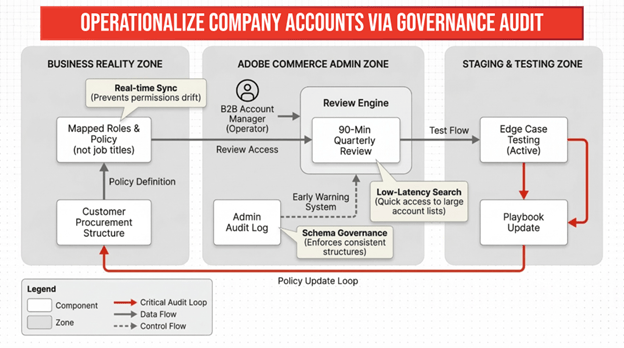
Your Company Accounts aren't just a configuration layer. They're the digital mirror of your customers' real procurement structures - the org charts, the approval chains, the permission boundaries. And like any mirror, they only stay accurate if someone checks them regularly.
Most teams set them up carefully at the start. Then life happens. Buyers get promoted. Admins leave. Quarterly targets shift. And slowly, the mirror starts showing a distorted picture.
How to conduct a governance audit - 3 steps
Step 1: Map roles to policy, not job titles
This one catches people off guard. The role someone holds in your Adobe Commerce instance and the authority they hold in your customer's procurement system are two different things - and they drift apart faster than you'd expect.
Commit to a quarterly review where you sit down with your sales or customer success team and validate each role against actual procurement guidelines. Does the person listed as 'Senior Buyer' in Adobe Commerce genuinely have the authority to approve orders above $10,000 today? Verify it. Don't assume.
Step 2: Test the edge cases before your customers do
Don't wait for a user to file a support ticket to discover a routing chain is broken. Use your staging environment to actively poke at the scenarios that break things:
-
Reassign a company admin. Does the new admin immediately get the right permissions - or does access lag in a way that creates a security gap?
-
As a buyer, submit a cart, then have an approver try to modify it mid-flow. Does the routing chain hold, or does it silently reset?
-
Try placing an order with an expired buyer profile. Does the platform block it cleanly?
If any of these tests produce unexpected behavior, that's a governance gap - and it's much better to find it in staging than in a live procurement cycle.
Step 3: Build the internal playbook
Your support team can't escalate what they don't recognize. Write a concise internal playbook that documents the intended governance structure - who holds what authority, what valid role assignments look like, and what should trigger an escalation.
It doesn't need to be elaborate. A two-page reference document that your team can actually read and remember is far more useful than a 40-page wiki that no one opens.
Win #2: Rationalize shared catalogs to prevent pricing sprawl
Shared Catalogs are genuinely powerful. The ability to show a completely different product set and pricing structure to each customer segment is one of the defining capabilities of Adobe Commerce B2B. But that power comes with a trap - and a lot of teams fall into it without realizing it until the damage is already done.
The trap is this: it's really easy to create a new catalog. So teams do. One per customer, just to be safe. And before long, you're sitting on 200 catalogs with no clear owner, inconsistent pricing logic, and a product update workflow that takes three times longer than it should.
How to rationalize shared catalogs - 3 steps
Step 1: Inventory what you have
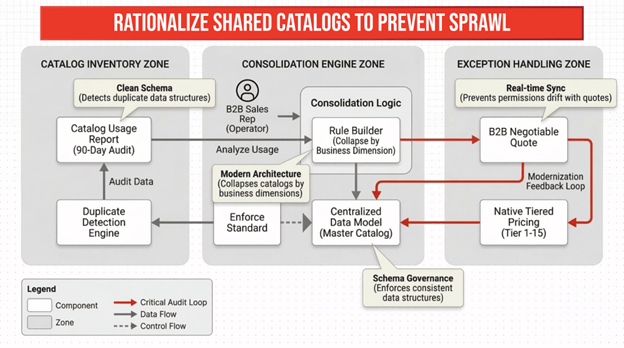
Before you can rationalize anything, you need a clear picture of what actually exists. Generate a report of every Shared Catalog currently in your system, then look at it not from a 'which customer is this for?' angle, but from a strategic business lens.
Ask: how does our business actually price? By region? By contract volume tier? By industry vertical? By account classification? The answer to that question tells you what your catalog structure should look like.
Step 2: Consolidate by business dimension, not by account
Once you know your pricing dimensions, start collapsing catalogs into logical hubs. A 'North America – Tier 1' catalog, a 'North America – Tier 2,' an 'EMEA – Gold.' Something like that.
The goal isn't to get to some arbitrary number. The goal is to get to a count where a single product update touches one catalog - or maybe two or three - instead of dozens. In practice, most mid-size B2B operations can cover 80–90% of their customer base with 10 to 15 well-structured catalogs.
Step 3: Create a real process for exceptions
Here's where most rationalization efforts quietly unravel. You do the consolidation work, the catalog count drops to a manageable level - and then sales closes a special deal that needs custom pricing, and someone just creates a new catalog because it's faster than following a process.
You need a defined exception workflow. Who can authorize a custom price? How is the exception entered in the system? And critically - when does it expire? A one-off deal from 18 months ago shouldn't still be running as a live catalog today.
Win #3: Calibrate approval workflows to protect buying velocity
Approval workflows sit at an uncomfortable intersection. On one side, you have finance and compliance - they need controls, audit trails, and guardrails against unauthorized spend. On the other side, you have sales and procurement - they need orders to move fast, because slow approvals kill deals and frustrate buyers who have alternatives.
A poorly calibrated workflow doesn't just inconvenience one side. It tends to fail both.
How to calibrate approval workflows - 3 steps
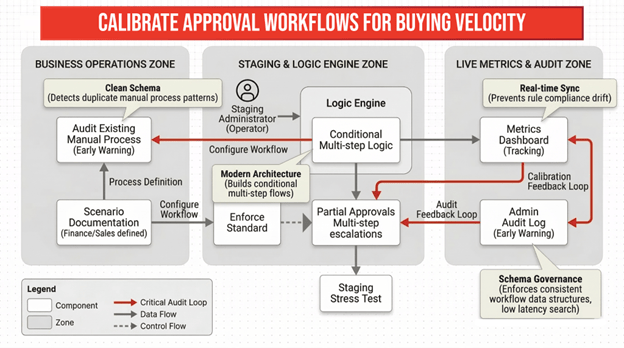
Step 1: Document the real scenarios first
Don't start with the system. Start with your business. Sit with finance and sales operations and map out every purchasing scenario that actually occurs - not just the clean, standard ones.
The edge cases matter most here: What happens with a bulk order that crosses two departmental budgets? What if a shipment needs to be partially approved? What about a purchase from a newly onboarded account that hasn't been fully configured yet? Write these down before you touch any settings.
Step 2: Test the complex flows in staging
Once you have the scenarios documented, take them into your staging environment and test them properly. Standard purchases are the easy part - what you need to know is whether the logic holds up under pressure.
Specifically, test these three:
-
Multi-step escalation: a $10,000 cart routes to a manager; a $50,000 cart escalates to a director. Does each threshold trigger correctly, every time?
-
Partial approvals: an executive approves 80% of a requisition but rejects one line item. What happens to the remainder? Does the buyer see a clear status?
-
Post-submission edits: if a buyer modifies their cart after submitting but before it's been approved, does the system reset the routing chain? It should - and you should verify that it does.
Step 3: Track the right metrics after go-live
Approval workflow calibration isn't a launch task - it's an ongoing one. After deployment, track average time-to-approval, the frequency of rejected orders, and how often admins are performing manual overrides.
If executives are getting buried in $150 purchase requests, your lower threshold is too aggressive - raise it. If unauthorized spend is creeping up, the rules have too many gaps - tighten them. Review and adjust on a quarterly cycle, using real data rather than gut feel.
Win #4: Make repeat ordering effortless for buyers
Here's something worth thinking about: a significant portion of B2B purchasing is repeat purchasing. Same SKUs, similar quantities, regular cadence. Your buyers know what they need - they've ordered it before.
And yet, a surprising number of B2B storefronts still make those buyers navigate through catalog pages, search for products they've bought a dozen times, and rebuild carts from scratch every single order cycle.
That friction is a choice. And it's one your competitors may not be making.
How to optimize the repeat ordering experience - 3 Steps
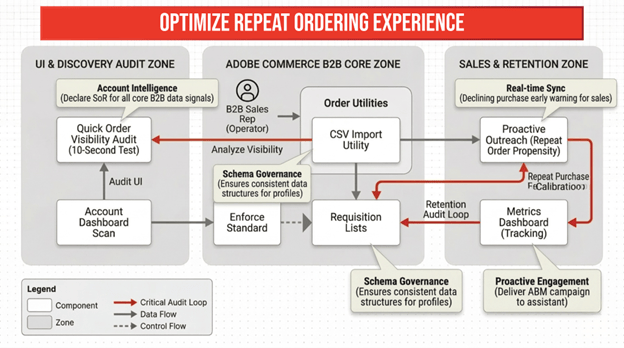
Step 1: Audit where quick order currently lives
Adobe Commerce B2B ships with Quick Order functionality built in. But built-in doesn't mean visible. Walk through your storefront right now as if you were a buyer who's never used it before.
Can you find Quick Order within 10 seconds of landing on the account dashboard? If you had to think about it for a moment, your buyers are probably not using it - and some may not even know it exists.
Step 2: Surface the tools buyers actually need
Elevate Quick Order to a prominent position in the buyer's account navigation. Pair it with Requisition Lists - a feature that lets buyers save curated product sets for fast reordering. Think of these as a buyer's personal shortcut drawer inside your storefront.
If your buyers are working with large or complex orders, also make sure your CSV import capability is clearly accessible. The ability to upload a spreadsheet of SKUs and quantities and have them map directly to a cart is genuinely time-saving - but only if buyers know it's there.
Step 3: Measure adoption, then improve
Once the features are visible, track whether buyers are actually using them. What percentage of repeat orders are being placed via Quick Order versus traditional product browsing? If adoption is low after 30 days, the issue is probably discovery or education - not the feature itself.
A short onboarding email to your buyer contacts, highlighting the time savings, can move adoption numbers significantly. Most buyers will use a shortcut once they know it exists and trust that it works.
Win #5: Establish clear system boundaries with your ERP and CRM
Every mature B2B commerce operation runs on multiple systems. Adobe Commerce handles the storefront and ordering layer. An ERP manages inventory, fulfillment, and financials. A CRM holds customer relationships and sales history. And at the seams between those systems - that's where operational chaos tends to live.
Not because any one system is failing. But because no one has formally decided which system owns what.
How to establish system boundaries - 3 steps
Step 1: Hold the system of record conversation
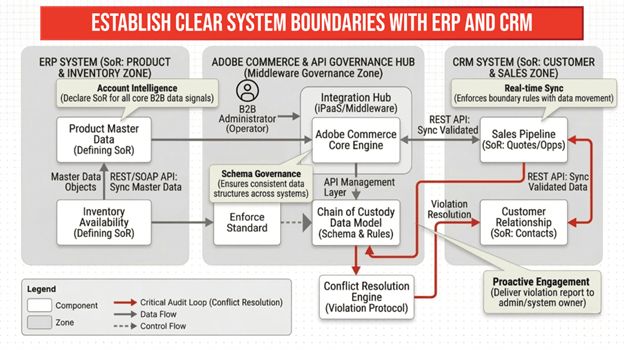
This sounds obvious, but it's often the conversation that never officially happens. Get the technical owners of your ERP, CRM, and Adobe Commerce in the same room - or the same call - and answer one question for each data domain: which system is the source of truth?
Inventory availability. Customer pricing. Order status. Credit limits. Account hierarchy. Each of these needs a clear owner. When there's a discrepancy between systems, which one wins? Document the answer formally.
Step 2: Map the data flows and sync frequencies
Once you know which system owns what, map how data moves between them. Which fields sync in real time? Which ones batch-sync on a schedule? And are those sync frequencies appropriate for the business impact of a discrepancy?
Real-time inventory sync is critical if you're selling products with limited availability or tight lead times. A four-hour batch sync might be perfectly fine for customer address data. The key is making those choices deliberately rather than inheriting them from an integration that was set up quickly during the initial implementation.
Step 3: Document and socialize the architecture
Once the system boundaries are defined, write them down in a format that technical and business stakeholders can both understand. A simple one-page architecture diagram showing which system owns each data domain, with sync direction and frequency annotated, is worth more than hours of tribal knowledge.
Share it with your support team, your sales operations team, and anyone who handles escalations. When a data discrepancy surfaces - and eventually one will - they'll know exactly which system to check first and who to contact.
Key takeaways: What to do this week
You've just worked through five operational areas where proactive management makes a real difference. But knowing about them and doing something about them are two different things. Here's how to turn this into action:
1. Schedule your first governance audit
Block 90 minutes on your calendar for next week - not 'sometime this quarter.' Use the framework from Section 1 to map your existing Company Account configurations against your actual customer procurement policies. Even a partial review will surface something worth fixing.
2. Run a shared catalog rationalization workshop
In your next team sync, pull up your current catalog list. Ask the question: which three catalogs could we merge without affecting any customer's pricing? Start there. Small consolidations build momentum for larger ones.
3. Create an approval workflow stress test plan
Document three to five purchasing scenarios that actually occur in your business - especially the awkward ones that don't fit standard flows. Schedule time with your staging environment to run them through. You'll almost certainly find something that doesn't behave as expected.
4. Check where quick order lives in your storefront
This takes five minutes. Log into your storefront as a buyer and find Quick Order. If it took more than two clicks, fix the navigation this week. Then check your adoption metrics 30 days later.
5. Book the system boundaries alignment meeting
Within the next two weeks, get your ERP, CRM, and Adobe Commerce technical owners on a call. Come prepared with one question: which system is the source of truth for inventory? Start there, document the answer, and work outward to other data domains from that anchor.