Plan your Adobe cloud storage rollout
You decide how and when Adobe cloud storage reaches your users. Nothing changes until a Workfront administrator sets Adobe cloud storage as the default storage option in the setup area, so you have time to test the experience and prepare your teams before anyone works in it.
This article covers the rollout configurations you can choose, how to pilot with a single group, and a suggested order of work.
Choose how Adobe cloud storage rolls out
There are two configurations, and you can apply either one to your entire organization or to specific Workfront groups. Every project created on Adobe cloud storage uses Unified Approvals and the Frame.io viewer by default.
For step-by-step instructions, see Enable Adobe cloud storage for your organization.
Configuration options
- Adobe cloud storage only: New projects use Adobe cloud storage by default. Users can’t create legacy projects.
- Adobe cloud storage and legacy Workfront storage: When users create a project, they choose between Adobe cloud storage (labeled “New project”) and legacy Workfront storage (labeled “Legacy storage”). This option is enabled by selecting the Allow user to select storage provider checkbox in the setup area.
Existing objects keep the storage model they were created with. Changing the default storage preference doesn’t change any existing object.
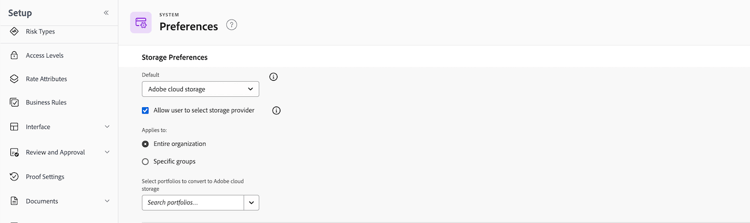
Plan your rollout
Every Workfront environment is different. Before you set Adobe cloud storage as the default for your users, take some time to plan what a successful rollout looks like for your organization. The suggestions below aren’t an exact checklist, but a starting point for your own plan.
Pick a pilot group
A group-scoped rollout lets you put Adobe cloud storage in front of a smaller team first, gather feedback, and adjust before a broader rollout. Pick a group whose work patterns are representative enough to surface issues you want to know about early.
Test before you go live
Adobe cloud storage is available in Workfront sandbox environments, so you can validate much of the experience before production. The Frame.io viewer isn’t available in sandbox, so you validate the full review and approval experience in production with your pilot group. For more information, see Enable Adobe cloud storage for your organization.
Communicate the change to end users
The biggest visible change for reviewers, approvers, and project owners is the new Documents area and the Frame.io viewer that powers review and approval on Adobe cloud storage projects. Plan how you’ll introduce these so users know what to expect when they encounter their first Adobe cloud storage project. The Get started with unified review and approval article is a useful starting point for end-user-facing material.
Review your permissions and governance
On Adobe cloud storage projects, both Manage and Contribute map to Edit & Share in Frame.io, which includes external sharing. Review your sharing patterns and decide whether that fits your governance model before you bring teams onto Adobe cloud storage. For more information, see What’s different on Adobe cloud storage.
Audit templates and naming
Adobe cloud storage enforces strict naming rules, and Workfront automatically renames objects that conflict with them. If you create projects from templates, review those templates so the names and structure they generate fit the rules. For more information, see What’s different on Adobe cloud storage.
Plan around Workfront Fusion
Existing proof-based Fusion scenarios continue to work on legacy projects but don’t automatically work against Adobe cloud storage projects. Before you bring teams that depend on those scenarios onto Adobe cloud storage, classify each scenario as Edit, Rebuild, or Retire. For more information, see Update Workfront Fusion scenarios for unified review and approval.
Plan for reporting changes
Unified approval workflow data and reporting appear in Canvas Dashboards. Legacy approval reports don’t carry over automatically, so set up a replacement dashboard before your pilot teams need it. For more information, see Create a report dashboard for review and approvals.
Suggested sequence
Use this order as a template, adjusting it to your environment:
- Test the experience in a sandbox and with a pilot group in production.
- Classify and update your Fusion scenarios, and build your Canvas Dashboards reporting.
- Audit your templates and review your permissions and sharing model.
- Communicate the change to the reviewers, approvers, and project owners who’ll use it.
- Set Adobe cloud storage as the default for the pilot group, then expand to more groups or the entire organization once the pilot validates the experience.