Create and manage brands for the AI Reviewer
The AI Reviewer uses brand guidelines to evaluate content during the review process. You can create brands in Workfront by uploading PDF files that contain your brand guidelines or by manually entering brand elements.
Access requirements
| table 0-row-2 1-row-2 2-row-2 3-row-2 layout-auto html-authored no-header | |
|---|---|
| Adobe Workfront package | Any |
| Adobe Workfront license | Standard |
| Access level configurations | You must be a system administrator. |
| Admin Console permissions* | You must be a GenStudio Brand Manager. |
For more detail about the information in this table, see Access requirements in Workfront documentation.
Requirements
-
Your Workfront instance must have Unified Approvals enabled.
-
Your organization must have GenStudio Foundation.
- AI Reviewer in Workfront provides the functionality available in GenStudio Foundation for asset review and approval workflows. You do not need to access GenStudio Foundation directly to complete your work. Your access to GenStudio Foundation functionality through AI Reviewer falls under the terms of your Workfront contract.
-
Adobe must have a signed Adobe Gen AI agreement on file.
For more information on signing the agreement, see Sign the Adobe Gen AI agreement.
Prerequisites
- You must grant access to brand permissions in the Admin Console and in Workfront access levels before you can create brands. For instructions, see Grant access to brand permissions.
Create a brand using a PDF
-
Click the Main Menu icon


-
In the left panel, go to Review and Approval > Brands.
-
Click Add brand in the top-right corner of the screen.
-
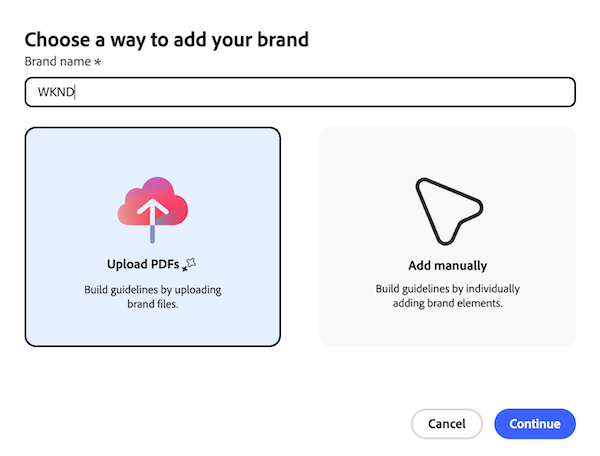
Name the brand.
-
Click Upload PDFs to upload brand files.
-
Click Continue.
-
Upload one or more PDF files that contain your brand guidelines, then click Add brand.
-
Once the files are uploaded, review the extracted brand elements to ensure they align with your brand guidelines.
note important IMPORTANT Guidelines are generated using your files and generative AI technology and may be inaccurate. Review extracted guidelines for missing or incorrect details and edit them before you publish this brand. -
When finished, click Publish to make the brand available for the AI Reviewer.
Create a brand manually
-
Click the Main Menu icon
-
In the left panel, go to Review and Approval > Brands.
-
Click Add brand in the top-right corner of the screen.
-
Name the brand.
-
Click Add manually to create a brand with individual elements.
-
Fill in the brand details as needed. You can add the following elements:
table 0-row-2 1-row-2 2-row-2 3-row-2 4-row-2 5-row-2 html-authored no-header When to use Let marketers know when to use this brand. Voice guidelines Provide guidance on the tone and style of the brand's voice. Image guidelines Specify the types of images that align with the brand's identity. Channel guidelines Outline the appropriate channels for brand communication. Logos Include the official logos associated with the brand. Colors Specify the brand's color palette. 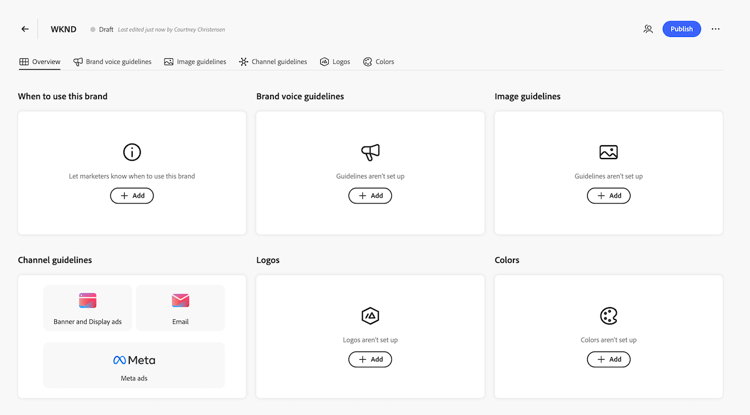
-
When finished, click Publish to make the brand available for the AI Reviewer.
Best practices for writing brand guidelines
Before writing your guidelines, review what the AI Reviewer evaluates for image and brand voice guideline types. Guidelines outside of these evaluation areas will not be scored.
-
Write brand guidelines that describe measurable criteria. The AI Reviewer evaluates content literally, so objective rules produce more consistent scores than subjective ones.
-
Look for words like “avoid,” “keep,” or “make sure” in your guidelines. These often signal a rule you can tighten. Replace the vague instruction with a specific list of words, formats, or limits. For example, replace “avoid common skiing clichés” with “do not use ‘gnar,’ ‘pow,’ or ‘shred.’”
-
If you can’t remove the subjectivity, narrow it. Replace broad adjectives with specific constraints. For example, “Direct and action-oriented” becomes “Direct and action-oriented; omit filler words and hedging language.”