Override user cost rates at the project level
You can specify what the cost rate is for a user on a specific project. This project-level cost rate overrides the cost rate at the system level for this user. Workfront uses the project-level cost rate of the job role to calculate cost, instead of using the system-level cost rate.
This article describes how you can override the system user cost rates for a project.
For more information about calculating cost on the project, see Overview of revenue and cost hierarchy and Track costs.
Access requirements
| table 0-row-2 1-row-2 2-row-2 3-row-2 layout-auto html-authored no-header | |
|---|---|
| Adobe Workfront package | Workflow Ultimate |
| Adobe Workfront license | Standard |
| Access level configurations |
Edit access to Projects and Financial Data You must also have one of the following:
|
| Object permissions | Manage permissions to the project that include Edit Cost Rates |

For information, see Access requirements in Workfront documentation.
Prerequisites
The user must have the Cost rate override allowed field enabled on their user profile. When a user does not have the cost override field enabled, cost overrides are not allowed for that user on any project, and the system uses the rate on the user profile to calculate cost.
For more information, see Edit a user’s profile.
Override user cost rates at the project level
-
Go to the project you want to override cost rates for.
-
Click Rates in the left panel. You might have to first click Show More.
-
Click the Cost tab if it is not already selected.
-
Click Add Cost Rate > New User Cost Rate.
The New User Cost Rate box opens.
-
In the User field, select the user you want to change the cost rate for.
-
Select the Currency for the cost rate override.
-
In the Cost Rate field, enter the first cost rate override.
-
(Optional) Click Add date effective rate to add more cost rate overrides.
note NOTE If you enter a single rate override, it applies for the entire life of the project.
If you want to have different rates over time, you can add multiple date-effective overrides. -
(Conditional) If you are adding multiple cost rate overrides, specify the following information for each row:
- Cost Rate: the value of the cost rate during the specified time period.
- Start Date: the date when the cost rate override begins.
- End Date: the date when the cost rate override ends.
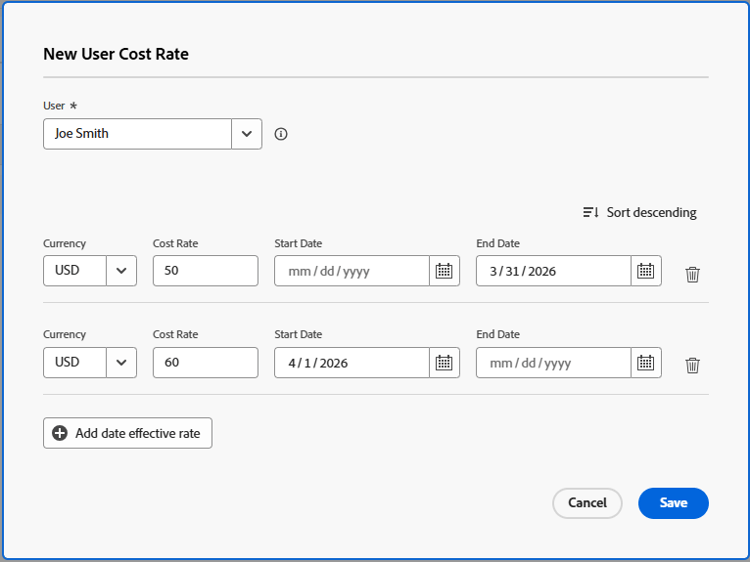
Workfront applies the override job role rate to the hours that occur during these time frames when calculating cost on the project.
Workfront allows you to leave gaps between override timeframes, but you will receive a warning to confirm this is intentional.
You are not required to specify a Start Date for the first override rate, nor an End Date for the last override rate.
We recommend that you use the Default Rate for the first override rate.
Workfront assumes that the first override rate is applied for all hours with a date older than the End Date of the first override, and that the last override rate is applied for all hours with a date newer than the Start Date of the last override.
If an hour is logged before the Planned Start Date of the project, the very first cost rate is used.
If an hour is logged after the Planned Completion Date of the project, the very last cost rate is used.
-
Click Save.