Import rate cards from a template
You can use a template file to build your rate cards in Excel and import them into Adobe Workfront, instead of adding all of the job roles and rates manually.
To see the example rate cards described in this article, download the sample file.
For more information about rate cards, see Manage rate cards.
Important rules for working with the template file
- Enter either the Job Role OR the Non-Labor Resource Category, but not both.
- The Rate Card Sequence on the RATE_RTCRD tab must match the order of cards on the RTCRD tab (1 for first, 2 for second, etc.).
- The Start Date and End Date must follow the allowed formats.
- Rate cards can be imported without rates and updated later.
- Custom attributes (Agency, Cost Center, etc.) may vary. Check with your system administrator for the exact requirements.
- Rows deleted in the template will not delete existing records in the system.
Access requirements
| table 0-row-2 1-row-2 2-row-2 layout-auto html-authored no-header | |
|---|---|
| Adobe Workfront package | Workflow Ultimate |
| Adobe Workfront license | Standard |
| Access level configurations | Edit access to Rate Cards |
For information, see Access requirements in Workfront documentation.
Fill out the template file
-
Click the Main Menu icon


-
In the left panel, click Rate cards.
-
Click New rate card, then click Download Excel template.
-
Follow the browser prompts to save the template file to your computer.
-
Open the template file in Excel.
note tip TIP Save the file with a new name if you want to keep the empty template file and use it again later. The template has two tabs. Both tabs must have the correct information to import the rate cards successfully.
- RTCRD: Define the rate cards (basic information)
- RATE_RTCRD: Define the detailed rates associated with each rate card
Fill out the RTCRD (Rate Card Setup) tab
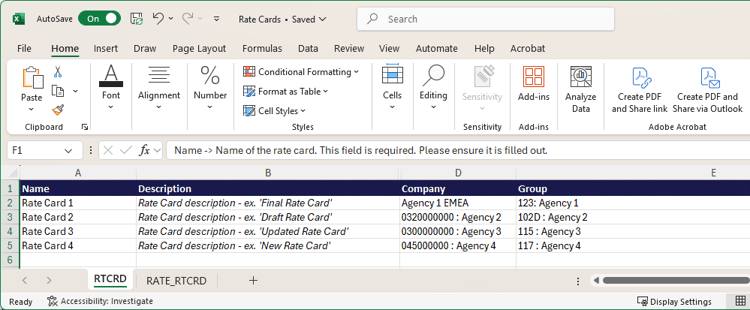
Create and list all of rate cards on this tab. Each row represents one rate card.
-
Enter the information for a rate card on each row:
-
Name (required): The name of the rate card, such as “Global Billing 2025.”
This name is the main identifier for the rate card. Each rate card must have a unique name.
-
Description (optional): A free-form text description of the rate card. Use this to describe purpose, scope, or validity, for example, “Applies to North American projects.”
-
Company (optional): This can be either the company name or the company ID. The import will recognize both.
Example: Coffesta, or 68c0234e00000541dd8c0757723daa68
-
Group (optional): This can be either the group name or the group ID. The import will recognize both.
Example: Marketing, or 68c0234e00000541dd8c0757723daa68
-
Custom fields (optional): You can add additional columns with custom field names if your environment has specific requirements.
note NOTE - At minimum, you must enter the Name for each rate card.
- Each rate card is automatically given a sequence number based on its row position. For example, the first rate card you define (in row 2) is sequence 1, the next is 2, and so on. These sequence numbers are used in the RATE_RTCRD tab to attach rates.
-
Fill out the RATE_RTCRD (Rates Setup) tab
Define all the rates that belong to the rate cards on this tab.
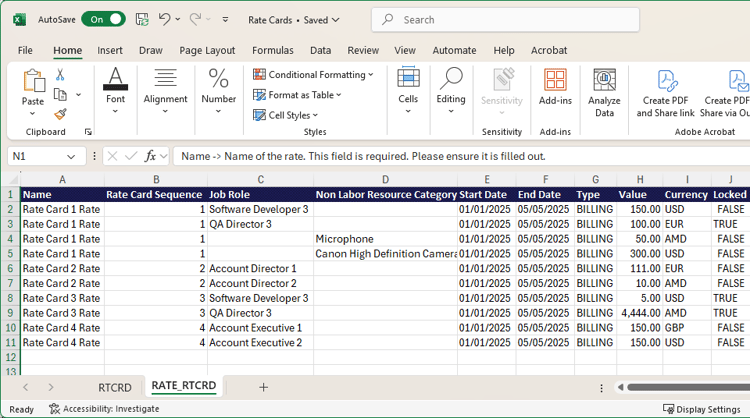
Every row on the tab defines one specific rate. You can create multiple rates under the same rate card by repeating the rate card sequence.
Make sure that dates do not overlap unless that is intended.
-
Enter the information for a rate on each row:
-
Name (required): A label for the rate row.
The best practice is to reuse the rate card name for clarity, such as “Global Billing 2025 – Developer Rate.”
-
Rate Card Reference (required): The sequence number of the rate card that this rate belongs to.
If the rate card was the first one you listed on the RTCRD tab (row 2), enter 1. If it was the second, enter 2, and so on.
-
Job Role (required if Non-Labor Resource Category is not used): The job role that the rate applies to. This can be either the job role name or the job role ID. The import will recognize both.
Example: Designer or 68c0234e00000541dd8c0757723daa68
-
Non-Labor Resource Category (required if Job Role is not used): The non-labor resource category that the rate applies to. This can be either the category name or the category ID. The import will recognize both.
Example: Camera or 68c0234e00000541dd8c0757723daa68
note important IMPORTANT You cannot enter data in both the Job Role and the Non-Labor Resource Category columns. One is required. -
Start Date (optional): The date when the rate becomes effective.
The date must follow one of the supported formats (depending on your location): MM/dd/yyyy, dd/MM/yyyy, MM/DD/YY, DD/MM/YY, M/d/yy, d/M/yy, yyyy/MM/dd, yyyy/dd/MM, yyyy-MM-dd, yyyy-dd-MM
Example: 01/01/2025
For more information, see Date formatting requirements, below.
-
End Date (optional): The date when the rate stops being effective.
This date must follow the same supported formats as the start date.
For more information, see Date formatting requirements, below.
-
Value (optional): The numeric rate value, for example 150. The default value is 0.
-
Currency (optional): The currency for the rate, for example USD, EUR, GBP. The default is the system currency.
-
Locked (optional): Indicates if the rate is locked. Valid values are True or False.
-
Attributes (optional / custom): The last columns (Agency, Location, Cost Center, etc.) are Rate Attributes that differ by customer configuration. These are customizable fields and may vary per customer environment.
Example: Agency = “1: Agency,” Location = “Chicago,” Cost Center = “22: Cost Center”
-
Fill out the RSALS (Rate Card Alias) tab
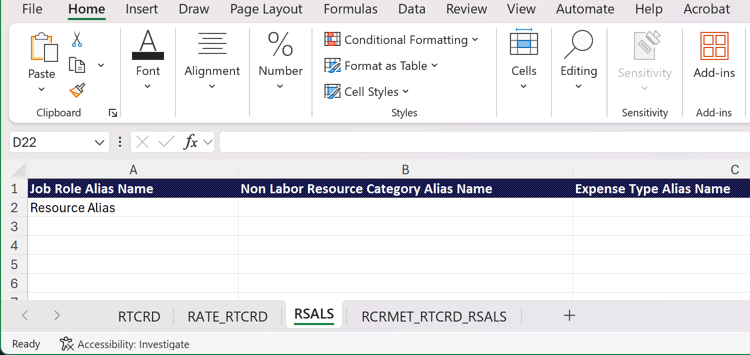
Create and list all of the aliases on this tab. Each row represents one alias.
When the rate card is attached to a project, the alias appears on information such as placeholder assignments, expenses, and reports, instead of the internal job role name. Only one alias can exist for each job role and attribute combination within a single rate card.
An alias is added to the system, but it is not connected to a job role based on the information on this tab.
-
Enter the name of an alias on each row.
Only enter one alias name per row: a job role alias, a non-labor resource category alias, or an expense type alias.
Fill out the RCRMET_RTCRD_RSALS (Rate Card Metadata) tab
On this tab you can define the connections between resources and aliases for a specific rate card.
-
Enter the information on each row:
-
Rate Card (required): The name or the sequence number of the rate card that the resource and alias belong to. The rate card must be listed on the RTCRD tab.
For a sequence number: If the rate card was the first one you listed on the RTCRD tab (row 2), enter 1. If it was the second, enter 2, and so on.
-
Job Role (required if Expense Type and Non-Labor Resource Category are not used): The job role that the alias is connected to. This can be either the job role name or the job role ID. The import will recognize both.
Example: Designer or 68c0234e00000541dd8c0757723daa68
-
Expense Type (required if Job Role and Non-Labor Resource Category are not used): The expense type that the alias is connected to. This can be either the expense type name or the expense type ID. The import will recognize both.
Example: Travel or 68c0234e00000541dd8c0757723daa68
-
Non-Labor Resource Category (required if Job Role and Expense Type are not used): The non-labor resource category that the alias is connected to. This can be either the category name or the category ID. The import will recognize both.
Example: Camera or 68c0234e00000541dd8c0757723daa68
note important IMPORTANT You cannot enter all three of the Job Role, Expense Type, and Non-Labor Resource Category columns. One is required. -
Resource Alias: The alias entered on the RSALS tab.
-
Date formatting requirements
When preparing rate card data for importing, you must ensure that the date columns are formatted as General, not as Date.
If the columns are set to Date format, the system may misinterpret values during the import process, leading to errors or failed uploads. Using the General format preserves the raw numeric or text representation of the date, allowing the system to correctly validate and apply the values.
Following these steps will prevent unnecessary issues and ensure a smooth and accurate import of rate data.
- Before saving or uploading the file, select the date columns in the spreadsheet.
- Change the column format to General.
- Verify that the values still display correctly (for example, 01/01/2025 or 2025-01-01).
Import the template file
-
Click the Main Menu icon
-
In the left panel, click Rate cards.
-
Click New rate card, then click Import new rate cards.
-
Drag and drop your file into the dialog, or click Select an Excel file to browse to the file on your computer.
-
Click Start importing.
If there are no issues with the file, then a confirmation message appears and the new rate cards appear in the list.
-
If the file contains issues, an error message appears. Click See issues to view the issues on a separate screen.
You must correct the issues in the Excel file and import it again before the rate cards will exist in Workfront.
Update existing rate cards
You can update the rates in your existing rate cards using the same Excel template and upload those changes to Workfront.
Only the RATE_RTCRD (Rates Setup) tab is required for updating existing rates.
To update existing rate cards:
-
Click the Main Menu icon
-
In the left panel, click Rate cards.
-
Click New rate card, then click Import rate card updates.
-
Drag and drop your file into the dialog, or click Select an Excel file to browse to the file on your computer.
-
Click Start importing.
If there are no issues with the file, then a confirmation message appears and the new rate cards appear in the list.
-
If the file contains issues, an error message appears. Click See issues to view the issues on a separate screen.
You must correct the issues in the Excel file and import it again before the rate card updates will exist in Workfront.