Define rate attributes
Rate attributes extend Adobe Workfront’s rate card and rates functionality by allowing you to add additional dimensions to rates beyond the job role. This is critical for agencies and enterprises where rates vary not only by job role but also by factors such as agency, location, brand, cost center, or others.
By combining these attributes, Workfront can automatically select the correct rate for assignments, ensuring financial accuracy and consistency across projects.
Rate attributes are intended to be a one-time foundational setup.
Overview of rate attributes
Rate attributes are considered a one-time setup because:
-
Attributes become part of the financial data model once they are enabled.
-
Rates, assignments, planned values, and actual values all depend on the chosen attribute values chosen.
-
Changing attributes later (renaming, removing, or reordering) may cause:
- Loss of linkage between rates and attributes
- Invalid or “orphaned” rates
- Misalignment in billing and reporting
For these reasons, attributes should be designed carefully during your initial Workfront implementation and left unchanged afterward.
Objects used as rate attributes
Workfront currently supports three system objects that can be used as rate attributes:
-
Group: Often renamed as Agency or Business Unit.
-
Company: Can represent Brand, Client, or Customer.
-
Location: Typically used as Market, Region, or Office.
Location is hierarchically defined up to 3 levels. (Example: If you define “Location” as Los Angeles, then California, and the USA will also be used in rate matches.)
Each object can be renamed to match your organization’s terminology when you are setting up your attributes.
For example:
- “Agency” label = Group object reference
- “Cost Center” label = Subgroup object reference
- “Location” label = Location object reference
This allows the setup to mirror your business structure while maintaining Workfront’s data model integrity.
Notes about rate attributes in Workfront
-
Workfront supports up to 5 levels of attributes. The system always follows the attribute hierarchy, selecting the most specific match available.
- 0 = generic base rate
- 1 – 5 = progressively more specific rates
-
You can rename attributes to reflect your business (Agency, Brand, Market, Cost Center, etc.).
-
Setup is one-time only: changing the attributes later risks breaking financial data integrity.
-
Attributes that are not referenced anywhere in the system can be safely deleted.
However, if an attribute is already in use (referenced in rate cards, user profiles, resources, or assignments), deletion is blocked to protect data integrity. In these cases, attempting to remove the attribute, especially through an API call, will result in an error.
-
Test before go-live: Create a pilot rate card and validate that the correct rates resolve in assignments.
-
Document your setup: Share your rate attributes setup with your teams so they understand how rates work.
Where rate attributes can be applied
Rate attributes are supported across all areas where rates exist in Workfront:
- Rate cards: Define rates by job role plus attributes.
- Project-level overrides: Apply attributes when overriding rates at the project level.
- Job roles (in Setup): Set default job role rates with attributes.
- Users (User profiles): Assign native attributes to individual users, so their assignments resolve automatically to the correct rates.
When you can create placeholder assignments tied to the correct attribute values, your rates will be populated accordingly.
- For job roles, when you later replace the placeholder with a real user, the system automatically resets the assignment’s attributes to those defined on that user’s profile. At this point, attributes can no longer be edited at the assignment level. They inherit from the user to preserve consistency and prevent misalignment between user attributes and applied rates.
Access requirements
| table 0-row-2 1-row-2 2-row-2 layout-auto html-authored no-header | |
|---|---|
| Adobe Workfront package | Workflow Ultimate |
| Adobe Workfront license | Standard |
| Access level configurations | System Administrator |
For information, see Access requirements in Workfront documentation.
Configure rate attributes
Each attribute has a set of configurable options, including general properties and filters.
Filters control how attribute values are suggested and validated when defining rates. They are essential for keeping attribute selections consistent, guiding users toward valid options, and preventing invalid combinations.
-
Click the Main Menu icon


-
In the left panel, click Rate Attributes.
-
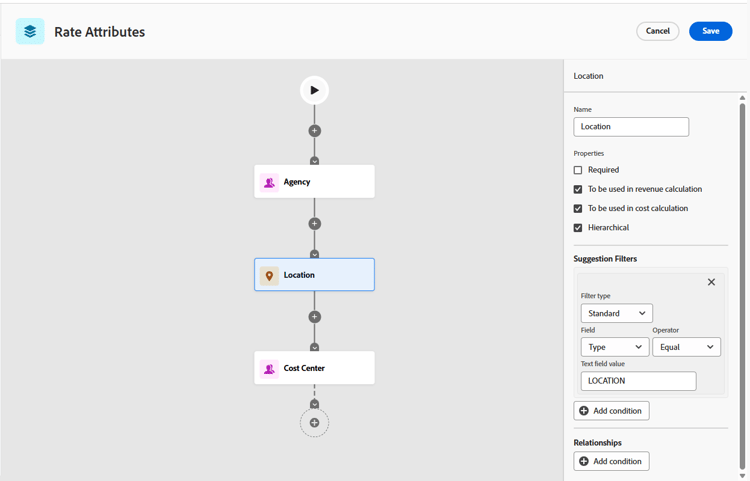
Click a plus sign icon in the diagram to add an attribute.
note NOTE You can have up to five attributes in the diagram. The order from top to bottom defines the hierarchy of how the attributes are applied. Click the Rotate icon 
-
Select an attribute to open the configuration panel on the right of the screen.
-
Rename the objects (Group, Company, Location) into the terms needed for your business (such as Agency, Location, Cost Center).
-
Click Save on each attribute to save your naming convention.
The names of these attributes will be displayed on all rate cards and rates in the system.
-
Set the properties for each attribute in the configuration panel:
-
Required: Select whether the attribute is a required field on rates.
-
To be used in revenue calculation: Includes this attribute in billing rate calculations.
-
To be used in cost calculation: Includes this attribute in cost rate calculations.
note NOTE At least one of the calculation options must be selected for the attribute to function in financial calculations. -
(Optional) Hierarchical: Allows the attribute to respect parent-child relationships, such as City > State > Country.
This property is available only for the Location object.
-
Define filters for the attributes
Two types of filters are available for the attributes:
-
Suggestion Filters narrow down the list of available options based on system logic or prior attribute selections. They make dropdowns context-aware and easy to use.
Example: Agency > Location > Cost Center
In this setup, the Cost Center attribute should have a Suggestion Filter that references both Agency and Location.
When adding a rate, if you first select Agency = “Star,” then the Location dropdown will only suggest Locations that belong to “Star.”
If you then select Location = Chicago on the rate, the Cost Center dropdown will only suggest Cost Centers tied to “Star” and Chicago.
-
Relationship Filters establish the dependency chain between attributes. They ensure that the system understands how attributes relate to each other and enforce valid dependencies.
Example: Agency > Location > Cost Center
In this setup, the Agency attribute should have a Relationship Filter that ties it to valid Locations and Cost Centers.
Filters must always be configured in both directions. If Attribute A has a Relationship Filter with Attribute B, then Attribute B should have a Suggestion Filter back to Attribute A. This ensures data integrity and a clean user experience.
-
Select options to define the Suggestion Filters and the Relationship Filters for the attribute in the configuration panel:
-
Filter type:
-
A Standard filter applies a universal condition to the attribute object. For example, Location > Is Active = True (only active Locations will be shown).
The Standard filter is always applied, regardless of whether other attributes are selected.
-
An Attribute filter links one attribute to another in the chain. For example, Location > Reference = Agency (only Locations tied to the selected Agency will be shown).
The Attribute filter is only applied if the referenced attribute has a value. For example, if Agency is selected, then only valid Locations are suggested. If Agency is blank, then all Locations are shown (but may still be limited by Standard filters applied to the Location).
-
-
Field: The direct field from the attribute object, such as Location ID or Active Flag.
-
Operator: These options depend on the selected Field type. Examples include Equals, Not Equals, Is Blank, True/False.
-
(Standard filter type only) Value: For example, Is Active = True.
-
(Attribute filter type only) Reference: The attribute that this filter depends on, such as Agency.
-
(Attribute filter type only) Reference Field: The field on the referenced attribute that must match, such as Agency ID.
-
-
Click Save on each attribute to save the properties and filters.