Add error handling
Errors can occur during the execution of a scenario.
For example, an error can occur because:
- A service is unavailable due to a failure
- A service responds with unexpected data
- Validation of input data fails
- Other reasons
If a module encounters an error during the scenario execution, and there is no error handling route attached to the module or its route, the default error handling logic executes.
By adding an error handler to a module or a route, you can replace the default error handling logic with your own. Adobe Workfront Fusion offers five different directives that can be inserted at the end of your error handler routes.
For more information on default error handling, see Error types.
For more information on error handling directives, see Directives for error handling.
Because route-level error handling is a more scalable, consistent, and architecturally clean way to manage errors, especially in advanced, multi-branch automations, we recommend using route-level error handling as a best practice.
Access requirements
| table 0-row-2 1-row-2 2-row-2 layout-auto html-authored no-header | |
|---|---|
| Adobe Workfront package |
Any Adobe Workfront Workflow package and any Adobe Workfront Automation and Integration package Workfront Ultimate Workfront Prime and Select packages, with an additional purchase of Workfront Fusion. |
| Adobe Workfront licenses |
Standard Work or higher |
| Product | If your organization has a Select or Prime Workfront package that does not include Workfront Automation and Integration, your organization must purchase Adobe Workfront Fusion. |
For more detail about the information in this table, see Access requirements in documentation.
Error handler location and hierarchy
You can add error handlers to individual modules, or to routers.
An error handler attached to a module triggers only for errors encountered while processing that specific module.
An error handler attached to a router triggers for errors encountered by any module on that router’s route. This includes errors encountered on any child routes that do not have an error handler on their own router.
Errors are handled by the following hierarchy:
- Module
- Router
- Parent router
- Default error handling
Example
Consider the following example scenario:
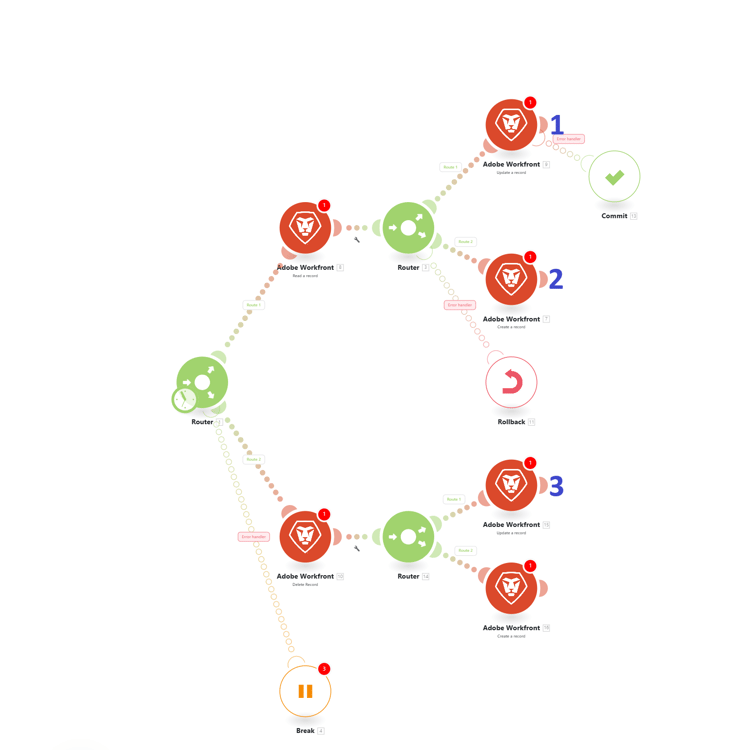
- This module has an error handler. Any error on this module is handled by the Commit directive.
- This module does not have an error handler. If this module encounters an error, the error is handled by the handler on the router that created the module’s route. Any error on this module is handled by the Rollback directive.
- This module does not have an error handler, nor does the router that created the module’s route, but there is an error handler on the next router up. Any error on this module is handled by the Break directive.
- If a module does not have an error handler on the module, its router, or any parent routers, any errors on that module are handled by default error handling.
- To create a global error handler, create a router near the beginning of your scenario and attach error handling to that router.
Add an error handler
You can add an error handler to a module or to a router.
Add an error handler to a module
To add an error handler to a module:
-
Click the Scenarios tab in the left panel.
-
Select the scenario where you want to add an error handling route.
-
Click anywhere on the scenario to enter the Scenario editor.
-
Right click the module after which you want to add an error handler route, and select Add error handler:
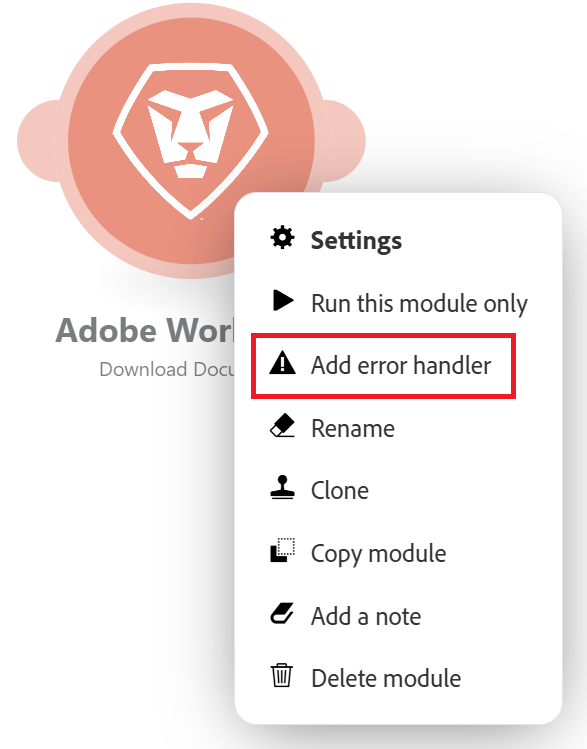
An error handler route is added to the module. If the module is the last module in a route, the error handler directly follow the module. If the module has more modules after it, a separate error handler route is added.
The error handling module shows a list of Directives as well as the apps being used in your scenario.
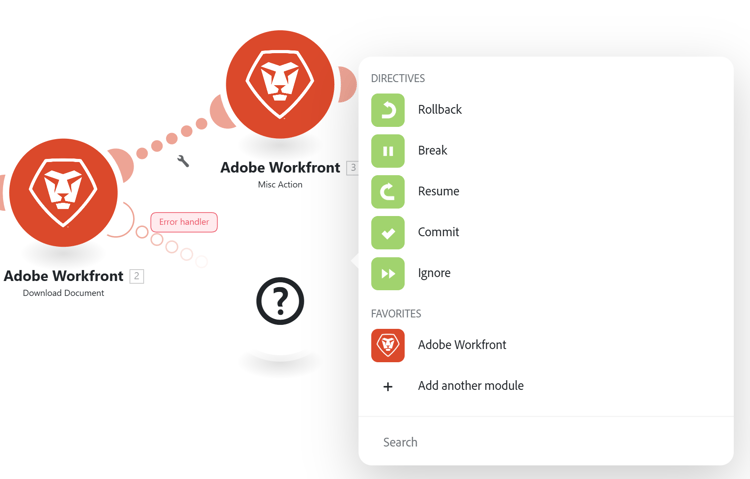
-
Select one of the directives.
Or
Add one or more modules to the error handler route.
If you add more modules to the route, the Ignore directive is applied by default. If there is an error, the subsequent modules on that route are processed.
For more information on directives, see Error handling directives in this article.
-
(Optional) Add a filter to the error handling route. For instructions, see Add filtering and nesting to error handling routes.
Add an error handler to a router
-
Click the Scenarios tab in the left panel.
-
Select the scenario where you want to add an error handling route.
-
Click anywhere on the scenario to enter the Scenario editor.
-
Right click the router where you want to add an error handler route, and select Add error handler:
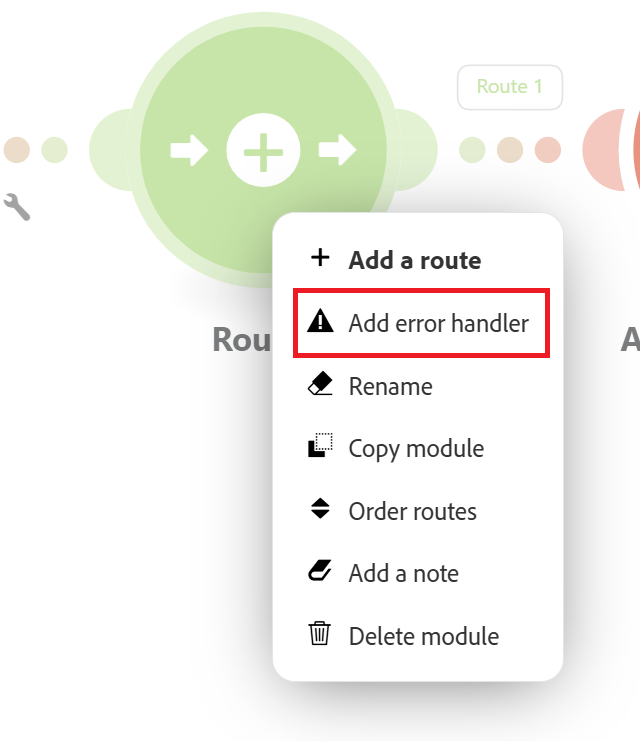
An error handler route is added to the router.
The error handling module shows a list of Directives as well as the apps being used in your scenario.
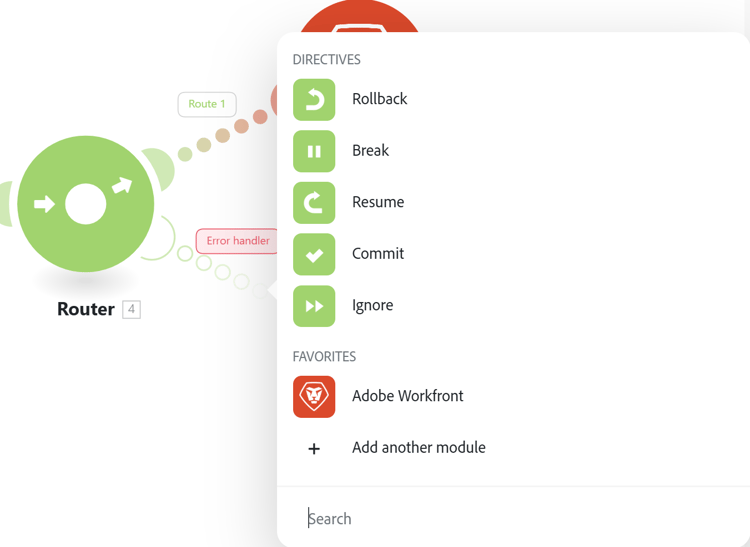
-
Select one of the directives.
Or
Add one or more modules to the error handler route.
If you add more modules to the route, the Ignore directive is applied by default. If there is an error, the subsequent modules on that route are processed.
For more information on directives, see Error handling directives in this article.
-
(Optional) Add a filter to the error handling route. For instructions, see Add filtering and nesting to error handling routes.
Error handling directives
The directives are briefly explained below. For more information, see Directives for error handling.
There are five directives, which can be grouped into the following categories based on whether a scenario execution continues after the error.
The following directives ensure that a scenario execution continues:
-
Resume: Allows you to specify a substitute output for the module with the error. The scenario execution status is marked as success.
-
Ignore: ignores the error. The scenario execution status is marked as success.
-
Break: Stores the input to the queue of incomplete executions. The scenario execution status is marked as warning.
For more information, see View and resolve incomplete executions.
If a scenario execution should stop when an error occurs, use one of the following directives:
- Rollback: Stops the scenario execution immediately and marks its status as error.
- Commit: Stops the scenario execution immediately and marks its status as success.
Resources
For more information on error handling, see: