Content pre-hiding for personalized experiences
When a visitor loads a page, default content can appear briefly and then be replaced by personalized content from Adobe Target. That visible switch is often called flicker, and it is a common experience issue for personalization programs.
With content pre-hiding you can manage flicker by hiding only the parts of the page your activities personalize during page loading, so your customers see less flicker and less empty screen time.
Here is how content pre-hiding works, from the account default through your page implementation and per-activity choices.
-
Enable content pre-hiding for your account to set the global default. It is off by default. Learn more
-
Add the Content pre-hiding library to the
<head>of all the pages where you run personalization activities. -
Target builds a rule set from live Visual Experience Composer and Enhanced Experience Composer activities. The rule set lists selectors and regions that delivery may change.
Note that Form-Based Composer activities are not supported.
-
The library fetches that rule set from the Adobe CDN and pre-hides matching elements only while personalized content is still loading.
-
In Goals & Settings, you can disable Content pre-hiding for individual activities, but only if it is enabled at the account level. Learn more
Enable content pre-hiding for your instance content-pre-hiding-enable-account
Content pre-hiding is off for your instance until you enable it. Use Administration > Implementation to turn on the feature, set defaults, and access the download for your implementation team.
-
In Target, click Administration > Implementation.
-
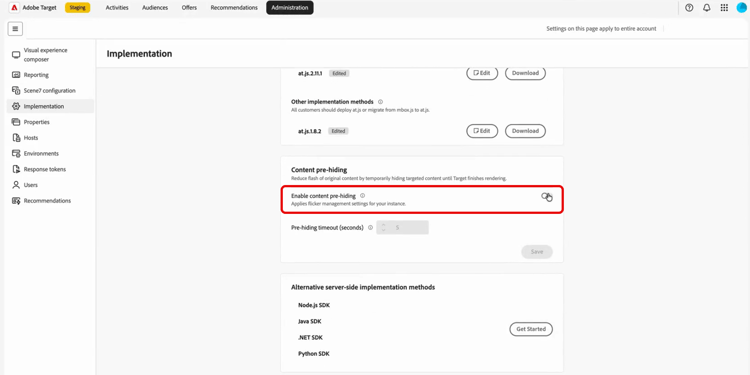
From the Content pre-hiding menu, enable Content pre-hiding option.
-
If needed, update the Pre-hiding timeout in seconds.
-
Click Save. This will apply flicker management settings to your instance.
-
Once enabled, click Download, then add the file to the page
<head>so it loads before at.js or the Web SDK. For complete implementation instructions, see Content pre-hiding SDK.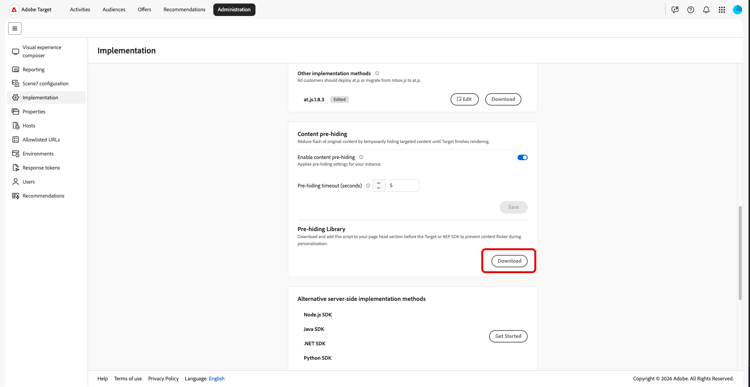
Your instance now uses the saved content pre-hiding and timeout settings as the default for activities that opt in.
Enable content pre-hiding for your activity content-pre-hiding-activity
With pre-hiding enabled for your instance, choose whether each activity uses it in Goals & Settings. Activities for which you enable pre-hiding are included in the targeted behavior when they are live.
Target then builds a lightweight rule set from live activities authored in the Visual Experience Composer (VEC) and the Form-Based Composer, describing the selectors and areas that delivery can change.
When you create or edit an activity:
-
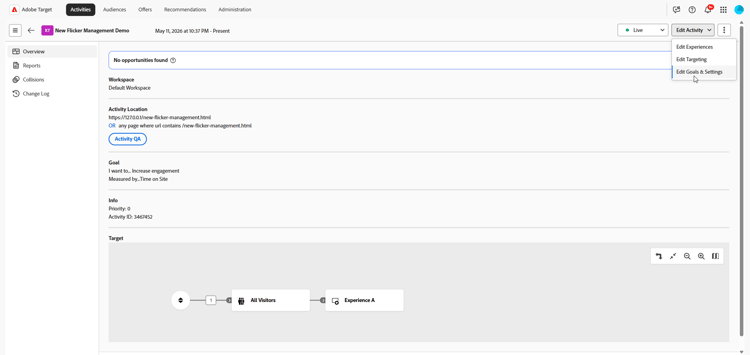
Access the activity you want to enable the pre-hiding option.
-
Access the Edit activity drop-down and select Edit Goals & Settings.
-
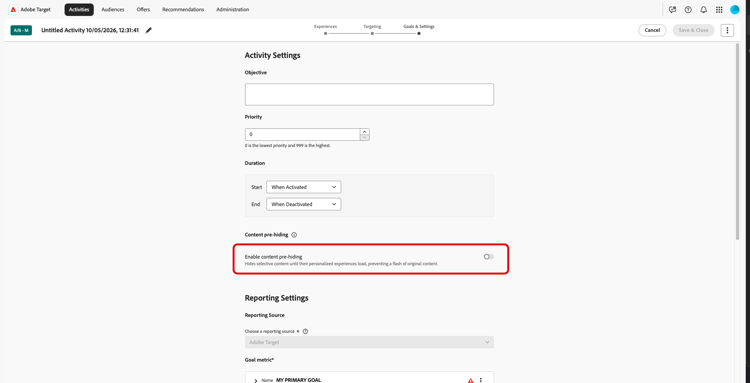
From the Content pre-hiding menu, toggle on the Enable content pre-hiding option to opt this activity in or out of pre-hiding.
-
Once done, click Save & Close.
After you save and as activities go live or are deactivated, the rule set is updated so pre-hiding stays aligned with what is actually delivering, without edits to your page code for each launch.
On the visitor side, the library retrieves that rule set from the Adobe CDN on each page load and pre-hides matching elements only when needed until personalized content is ready.