Escalation Management
Escalation Management is a self-service feature in Adobe Experience League Support. It enables customers to take direct action on support cases, provides real-time case visibility through AI-generated summaries, and offers structured escalation options to support faster resolution of critical issues.
Case Summary
The Case Summary feature provides an AI-generated overview of a support case. It summarizes comments, actions, and interactions to date so you can review the latest status without reading the full case history.
To access the Case Summary, follow the steps below:
- Navigate to My Cases in Adobe Experience League Support.
- Find the case you wish to review from the case list.
- In the Case Summary column, click Case Summary for the case.
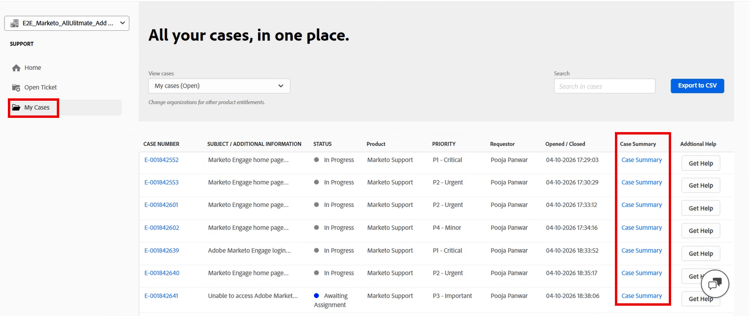
The Case Summary panel opens and displays the AI-generated summary with the following information:
- Adobe product for which the case is submitted
- The number of days the case has been open
- Current status - A concise statement of the case’s current progress
- Next steps - An outline of the actions taken by the Support or Engineering team and the next steps.
- Summary - Details about the issue, including the problem description and business impact
- Key updates - A chronological list of significant actions and updates for the case to date.
Get Help
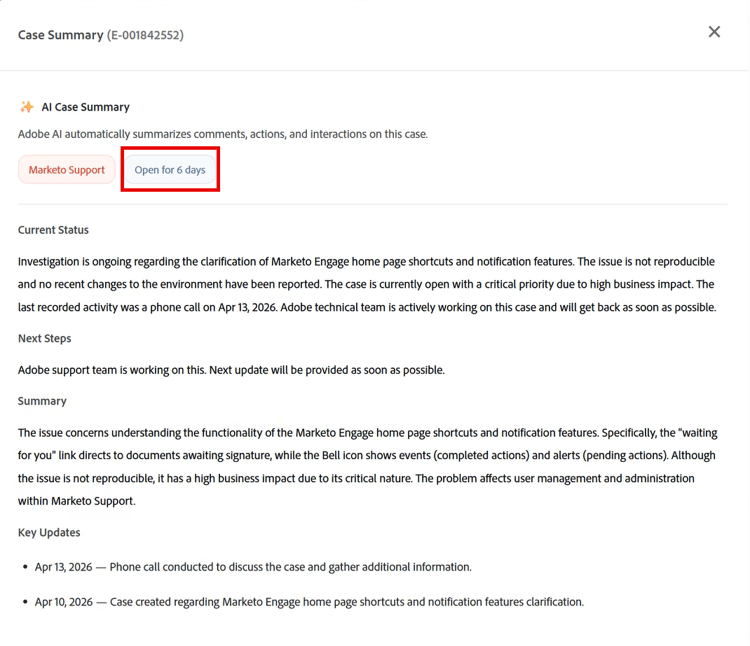
The Get Help feature enables customers to raise and manage support escalations directly from the case list, without contacting Support by email or phone. Based on the case priority, Adobe Experience League Support displays relevant self-service escalation options.
To access Get Help, follow the steps below:
-
Navigate to My Cases in Adobe Experience League Support.
-
Find the case you wish to escalate from the case list.
-
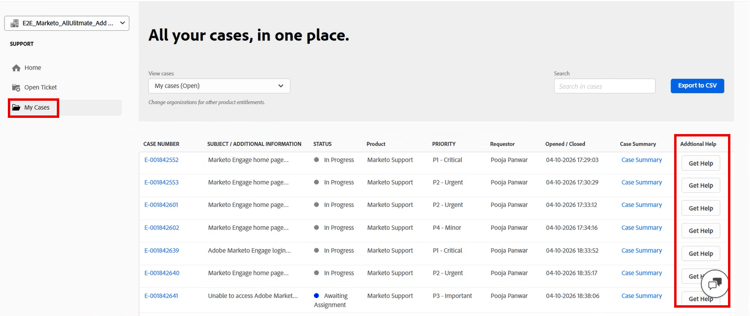
In the Additional Help column, click Get Help for the case.
note NOTE The Get help option is available only for open cases and does not appear for closed cases. -
Review the escalation panel. It displays the selected product, case priority, case ID, and available escalation options. Available options can include:
- Request immediate call
- Request a scheduled call
- Change in Issue Urgency
- I have an issue not listed
Request immediate call
The Request immediate call option is available for P1–Critical cases. Use this option to request an immediate callback on your phone from a Technical Support Engineer.
Follow the steps outlined below to request an immediate callback:
-
In the Get Help panel, select Request immediate call, and then click Continue.
-
The callback request form appears, prepopulated with the selected product, priority, and case ID. Complete the required fields in the form.
- Enter the phone number to receive the callback.
- Enter a brief description of the issue or the reason for requesting a callback (up to 1,000 characters).
-
Click Request Callback to submit the request, or click Back to return to the previous screen.
After you submit the request, the confirmation screen displays:
- Adobe ID
- Phone number
- Product
- Case ID
- Case title
- Priority
A Technical Support Engineer contacts you as soon as they are available. Click Close to dismiss the confirmation.
Request a scheduled call
The Request a scheduled call option is available for P2-Urgent and P3-Important cases. Use this option to schedule a screen-sharing web meeting with a Technical Support Engineer at a date and time that is convenient for you.
Follow the steps below to request a scheduled call:
-
In the Get Help panel, select Request a scheduled call, and then click Continue.
-
A scheduling form appears, prepopulated with the selected product, priority, and case ID. Complete the required fields in the form.
- What do you want to discuss?: Provide a brief description to help the support engineer prepare (up to 1,000 characters).
- Select date: Select a date from the calendar.
- Select timeslot: Select an available time for the chosen date.
-
Select the acknowledgement checkbox to confirm that personal or sensitive content is closed before screen sharing.
-
Click Schedule Call to confirm the booking, or click Back to return to the previous screen.
After you schedule the meeting, the confirmation screen displays:
- Adobe ID
- Meeting link
- Meeting date
- Meeting time
- Time zone
- Priority
- Case ID
- Product
- Support Engineer
- Case title
A Technical Support Engineer is available to assist by screen share at the scheduled time. The meeting invitation includes a Microsoft Teams link to join. Select Close to dismiss the confirmation.
Change in Issue Urgency
The Change in Issue Urgency option is available for P3-Important and P4-Minor cases. Use this option to change the case priority up to P2-Urgent.
Follow the steps below to change an issue urgency:
-
In the Get Help panel, select Change in Issue Urgency.
-
An inline text field appears. In the field, clearly describe what changed or why the issue now requires immediate attention.
-
Click Update Issue Urgency to submit the request, or click Cancel to exit without making changes.
After you submit the request, the confirmation screen displays:
- Selected product
- Priority
- Case ID
-
Click Return to Form to go back to the case.
I have an issue not listed
The I have an issue not listed option is available for all case priorities and allows escalation when other available options do not address the concern. This option ensures the case receives direct attention from a Support engineer.
Follow the steps below to escalate in case your issues are not listed:
-
In the Get Help panel, select I have an issue not listed. Two inline fields appear.
-
Complete the inline fields:
- Why do you want to escalate this case?
- We can assist you better with detailed information.
-
In the dropdown, select an escalation reason:
- Time to Resolution
- Resolution did not meet expectations
- Agent Communication Skills
- Agent Technical Knowledge
-
In the free-text field, provide additional context about the escalation.
-
Click Escalate Case to submit the escalation, or click Cancel to exit without submitting.
After you submit the escalation, the confirmation screen displays:
- Selected product
- Priority
- Case ID
-
Click Return to Form to go back to the case.